Customers, vendors & projects
The big picture.
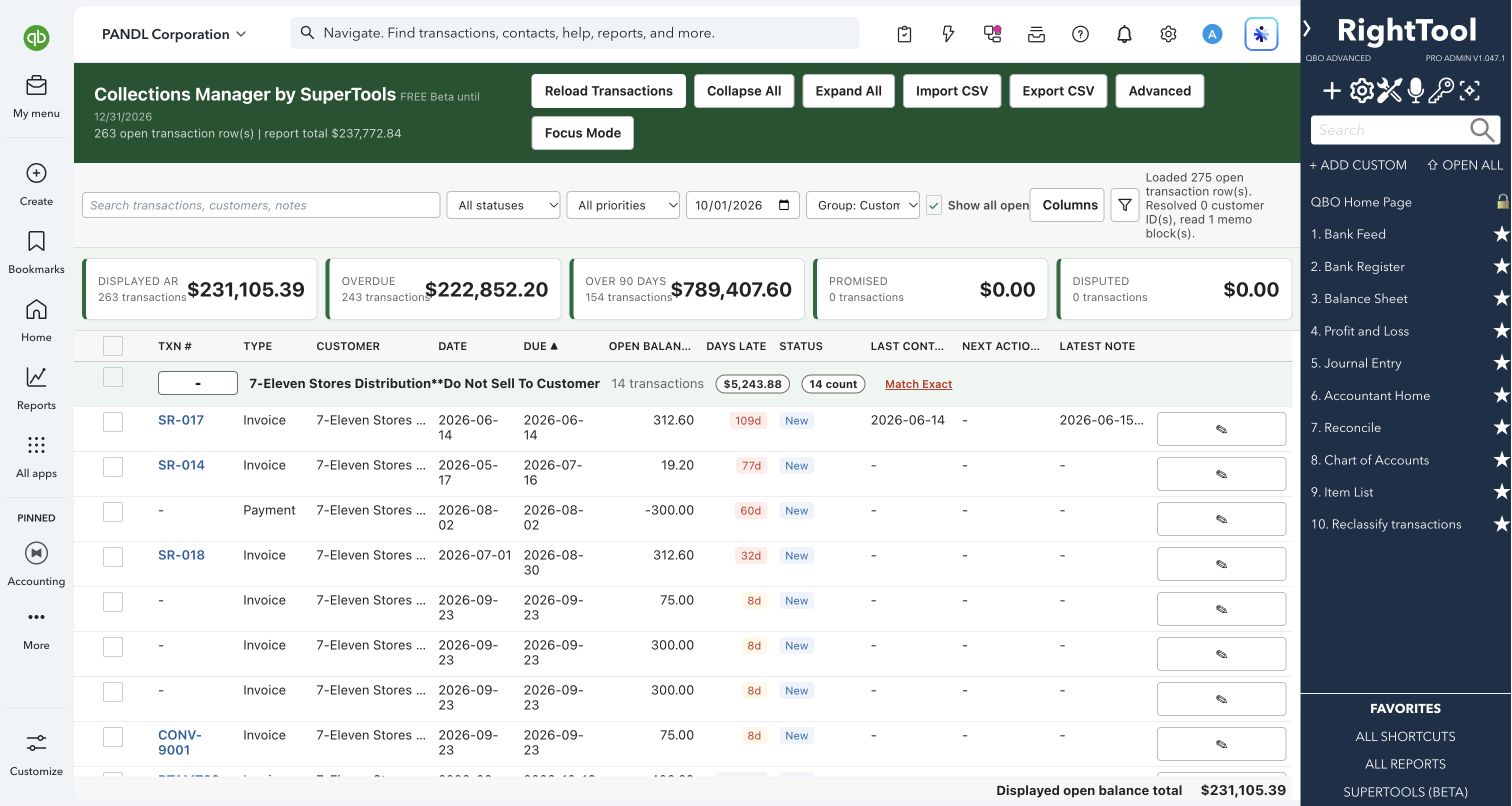
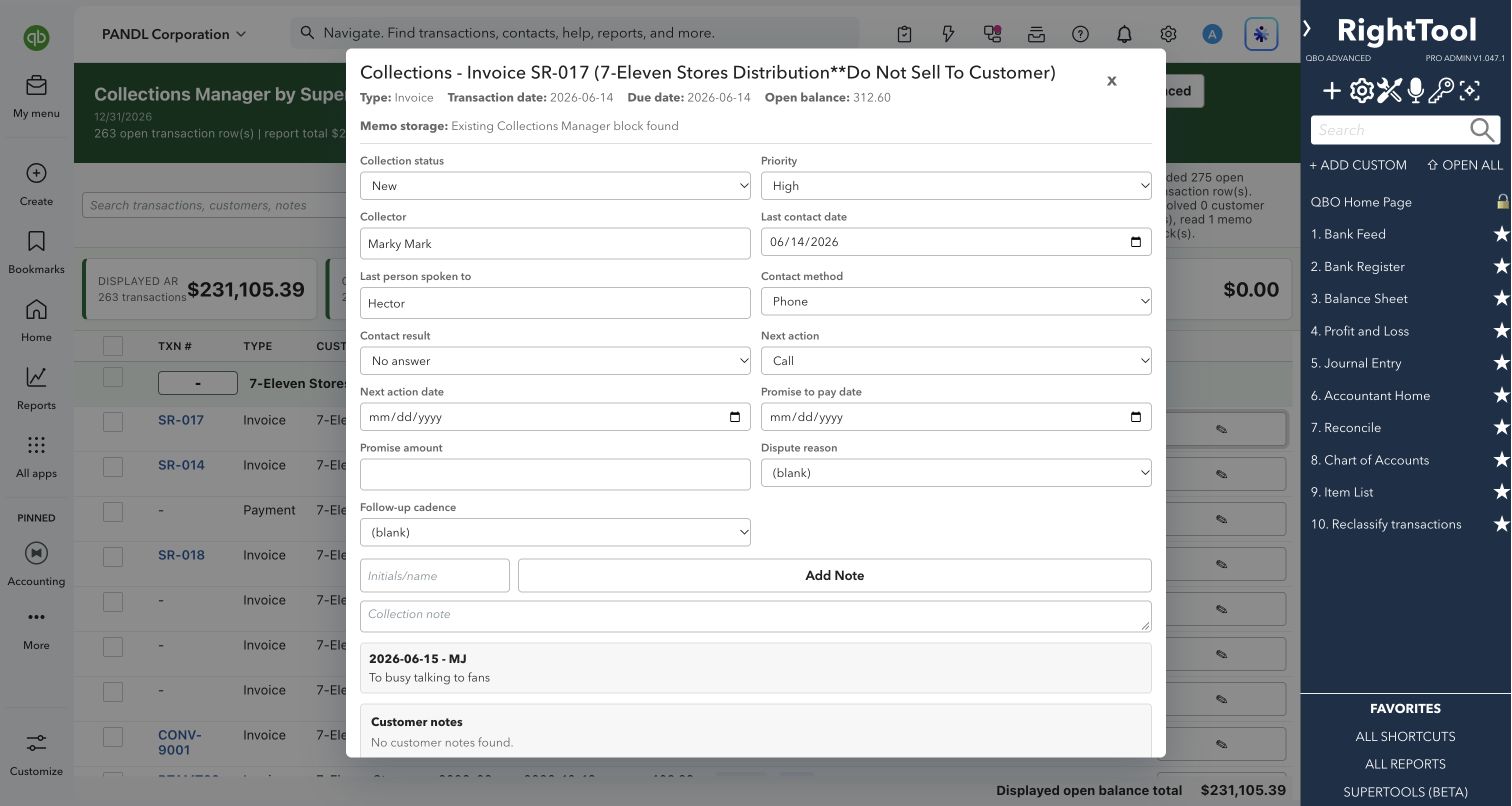
Collections Manager loads your open invoices from QuickBooks Online into a worklist where every invoice has its own collection record. That record holds status, priority, collector, last contact, promise to pay, dispute reason and a running note history. You can group, filter and prioritize your receivables, then void, write off or apply credits to them, all from the same screen.
A/R staff, bookkeepers and controllers who chase payments, and owners who want to see clearly what is owed and by whom.
SEE IT IN QUICKBOOKS
See the workflow, step by step.
Explore the screens below. Select an image for a closer look.
What you can do
- Load your open invoices from the QuickBooks Open Invoices report, or turn on "Show all open" to include credits, payments and journals. Days late are worked out as of any date you choose.
- Check summary tiles for Displayed A/R, Overdue, Over 90 days, Promised and Disputed. Click a tile to filter to it.
- Group the list by customer, customer/project, aging bucket (Current, 0–30, 31–60, 61–90, 91+), collection status or next-action week, and expand or collapse the groups.
- Keep a collection record on each invoice:
- status (New, Left message, Contacted, Promise to pay, Payment plan, Disputed, Escalated, Do not contact, Paid, Write-off review) and priority
- collector, last contact and the person spoken to, contact method and result
- next action and its date, promised date and amount, dispute reason and follow-up cadence
- Add dated, initialed notes to build a contact history, with the customer's own QuickBooks notes shown alongside. Open the invoice or the customer in QuickBooks from the same card.
- Filter by transaction type, customer level or a specific customer, invoice number, transaction or due dates, or minimum days late. You can also filter by last contact, next action, promise date or note text, or just search.
- Batch-update status, priority, next action and date, or collector, or add the same note, across many selected invoices on screen.
- Void or delete selected invoices in one pass. Before voiding, you can stamp a readable memo explaining why.
- Write off invoices with credit memos, using either a product/service you choose or a mirror of the invoice lines. The credit memos are applied to the invoices for you.
- Apply a customer's open credits to their open invoices with a single zero-dollar payment. "Match Exact" pairs credits and invoices of the same amount, oldest first.
- Post a journal write-off for a customer's selected balances to the account you choose, such as bad debt, and have it applied to the invoices automatically.
- Choose your columns, and export the displayed worklist to CSV with its report, calculated and collection fields.
Why it makes a difference
- Aging and a per-invoice collections log sit in one screen.
- Collection notes are saved on the invoice itself in QuickBooks, so there is no separate database to keep in sync.
- Resolution actions run in batches, and the step of applying credits and write-offs to the invoices is done for you.
- Focus Mode clears space on screen for working through the list.
Put it to work
- Monday call list: group by next-action week, filter next action up to today, and work down the list logging each call.
- Month-end cleanup: show all open transactions grouped by customer, use Match Exact to pair credits with invoices, then click Apply Credits.
- Bad-debt write-off: select a customer's uncollectible 91+ day invoices and post one Journal Write-off to your bad-debt account.
- Promise tracking: click the Promised tile to see who committed to pay, and when.
WATCH THE WORKFLOW
Turn an overdue invoice into a follow-up plan
Safe by design
- Void, Delete, credit-memo write-offs, Apply Credits and Journal Write-off each open a confirmation first. It shows how many transactions are involved and the dollar amount. Delete warns that it can't be undone.
- Saving a collection record reads it back from QuickBooks. Any other memo text on the invoice is preserved.
- Apply Credits and Journal Write-off run for one customer at a time. Void and Delete skip anything that isn't an invoice.
- To remove collection data from selected invoices in QuickBooks, you have to type CLEAR first. Only the collection block is removed.
Good to know
- Batch Edit changes only the on-screen worklist. An invoice's collection record is written to QuickBooks only when you click Save to QBO on that invoice, and unsaved changes are lost when you reload.
- Collection details are kept in a marked block in the invoice's "Memo on statement" field. That field has a size limit, so when a note history outgrows it, the oldest notes are dropped and long notes are shortened to fit. Editing the block by hand in QuickBooks can break it.
- Match Exact appears when the list is grouped by customer (or customer/project) with "Show all open" turned on.
- Part of SuperTools (Beta). If the automatic load fails, you can paste a CSV export of the QuickBooks Open Invoices report instead.
How to open it
SuperTools sidebar → Collections Manager
Install the SuperTools extension, then open the SuperTools S menu in QuickBooks Online, choose Home, and enable the tool there.
View beta setup steps