Customers, vendors & projects
The big picture.
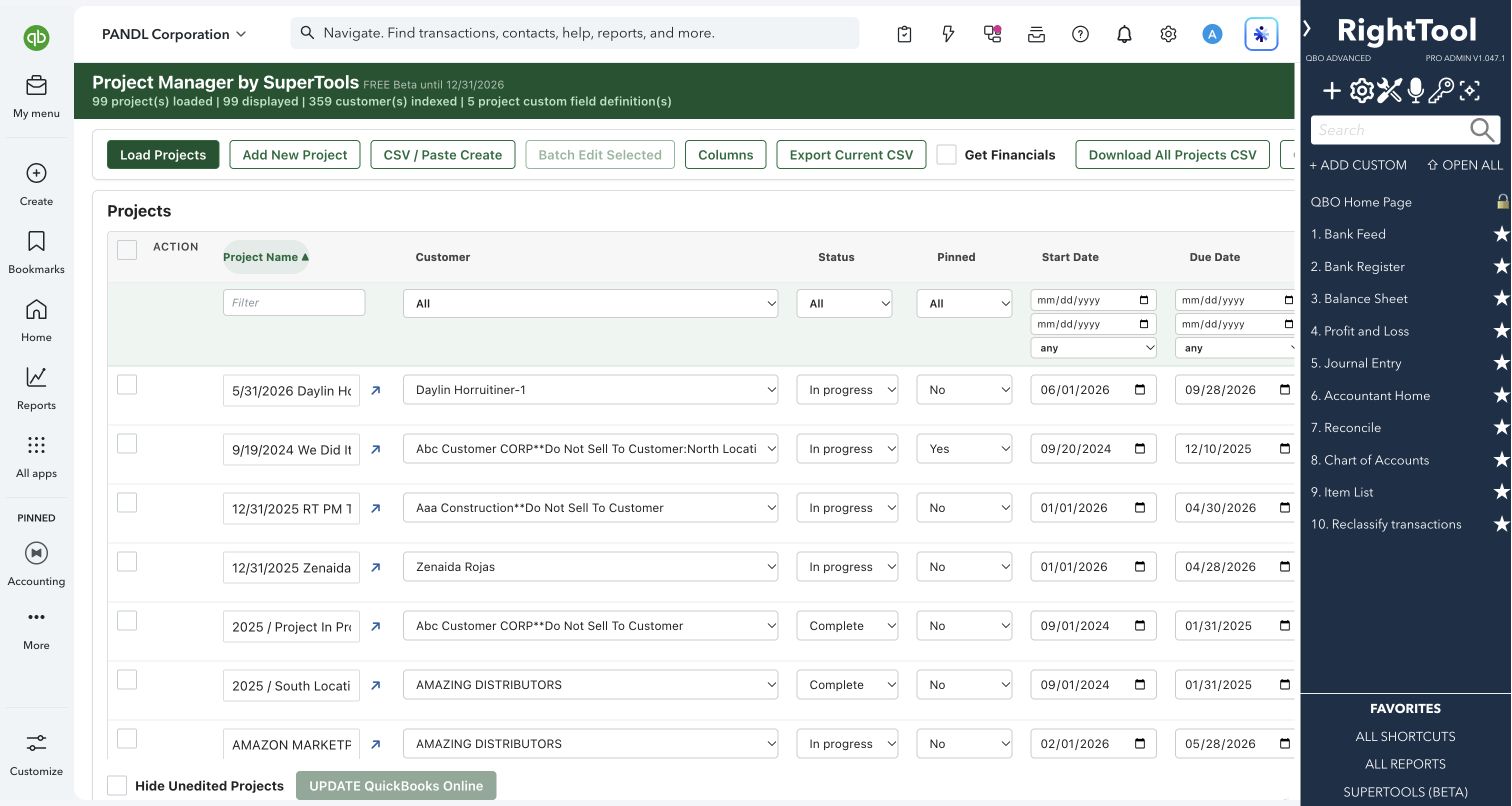
Project Manager puts every QuickBooks Project in one editable grid. You can type changes straight into the cells, paste in dozens of new projects from a spreadsheet, and batch-edit many projects at once. Turn on Get Financials to see income, costs, profit and margin for every project over any date range, and expand any project to see the transactions behind its numbers.
Contractors, agencies, professional-services firms and their accountants who run work by project in QuickBooks Online.
SEE IT IN QUICKBOOKS
See the workflow, step by step.
Explore the screens below. Select an image for a closer look.
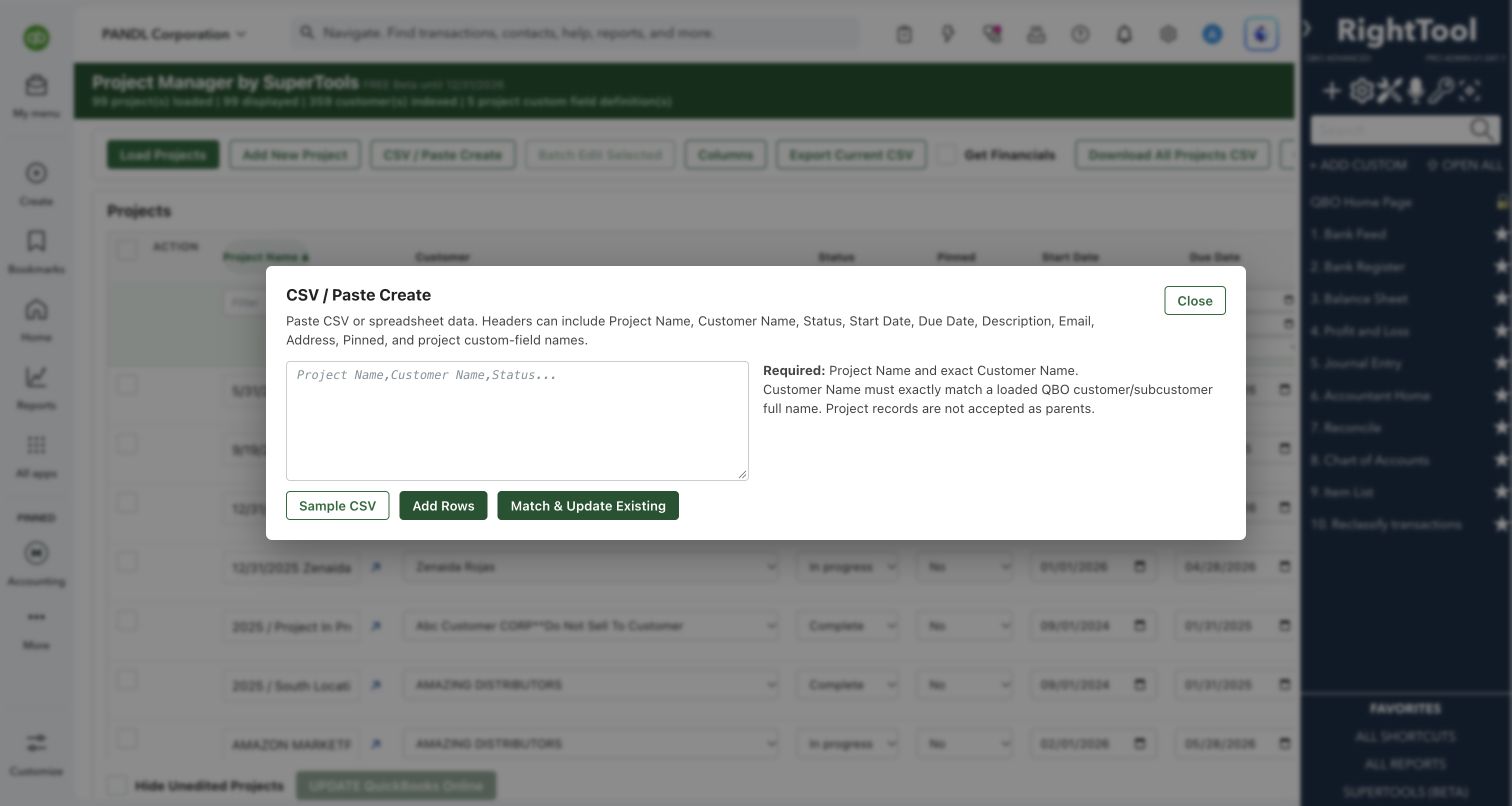
What you can do
- Load all projects with their customer, status, start and due dates, description, completion rate, pinned flag and your project custom fields.
- Edit directly in the grid. Changed cells stay highlighted until you save them, and "Hide Unedited Projects" shows only the projects you have changed.
- Add projects one at a time, or paste many at once from a spreadsheet or CSV. The Sample CSV button shows the layout to follow.
- Download every project to CSV, edit the file in your spreadsheet app, and paste it back with "Match & Update Existing". Only the differences are staged as edits.
- Batch-edit selected projects. You can Set a field, or use Prepend, Append or Find & replace on text fields, text custom fields included. Descriptions and text custom fields can also be cleared.
- Filter from the row under each column header, using text, choices, date ranges, number ranges, or (blank) and (not blank).
- Turn on Get Financials to see Income, Costs, Total, Profit and Margin % for each project. Costs can be split into COGS and Expenses, and Other Income can get its own column.
- Set the financials date range with presets or a custom range, choose accrual or cash basis, and pick which accounts and transaction types count.
- Expand any project to see the transaction lines behind its figures: date, type, reference number, name, account, account type, description, memo and amount.
- Add your own Custom Value column built from accounts you pick. It can be summed over the period or read from the Balance Sheet as of the end of your range.
- Show, hide and drag columns into the order you want. Your layout is remembered in this browser.
- Open any project's page in QuickBooks with one click.
Why it makes a difference
- You can edit dozens of projects in one pass instead of opening each one.
- Profitability for every project appears in one sortable table, with drill-down to the underlying lines.
- Estimates, purchase orders, delayed charges and credits, and time entries are left out of the financials by default, so nothing is counted twice.
- Round-trip CSV editing lets you make bulk changes in the spreadsheet you already use.
- A Custom Value column lets you track any set of accounts per project, Balance Sheet balances included.
Put it to work
- Job kickoff: paste 30 new jobs from your bid spreadsheet, check them in the grid, and create them all at once.
- Month-end review: pull Last Month on accrual basis, sort by Margin %, and expand the weakest projects to see what drove their costs.
- Status cleanup: filter Due Date to (blank) to find projects with no deadline, or batch-set finished jobs to Complete.
- Client reporting: filter to one customer's projects and export the view, financials included, to CSV.
WATCH THE WORKFLOW
Follow project profitability into transaction detail
Safe by design
- Nothing is written until you click "UPDATE QuickBooks Online" and confirm a review screen that lists every change as "before → after". Selected projects with no changes are skipped.
- Every project is checked before anything is written. If any of them can't be saved, nothing is written and the problem rows are highlighted.
- Each project is re-read just before saving, so changes made elsewhere in QuickBooks since you loaded the grid aren't overwritten. It is read back after saving. Failures are listed with the reason, and "Select Failed" lets you fix them and try again.
- Financials only read from QuickBooks.
Good to know
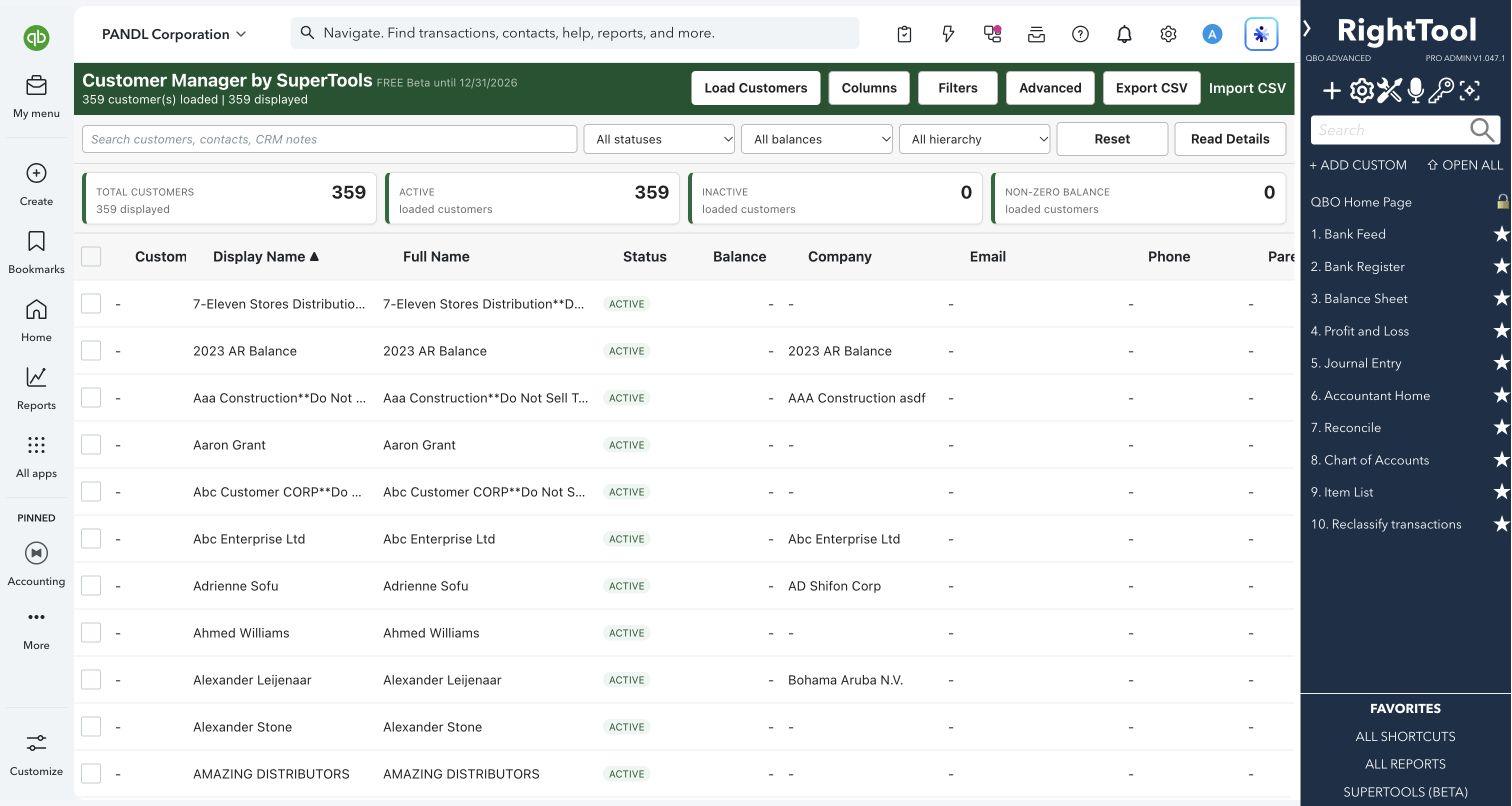
- Email and address belong to the customer in QuickBooks, so they are shown here as read-only.
- A new project's customer must exactly match an existing customer or sub-customer name. A project can't be the parent of another project.
- If QuickBooks returns only part of the data for a very long date range, the tool warns that the figures are incomplete and asks you to narrow the range.
- Works with QuickBooks Online Projects, with a column for each project custom field your company has. Part of SuperTools (Beta).
How to open it
SuperTools sidebar → Project Manager
Install the SuperTools extension, then open the SuperTools S menu in QuickBooks Online, choose Home, and enable the tool there.
View beta setup steps