Customers, vendors & projects
The big picture.
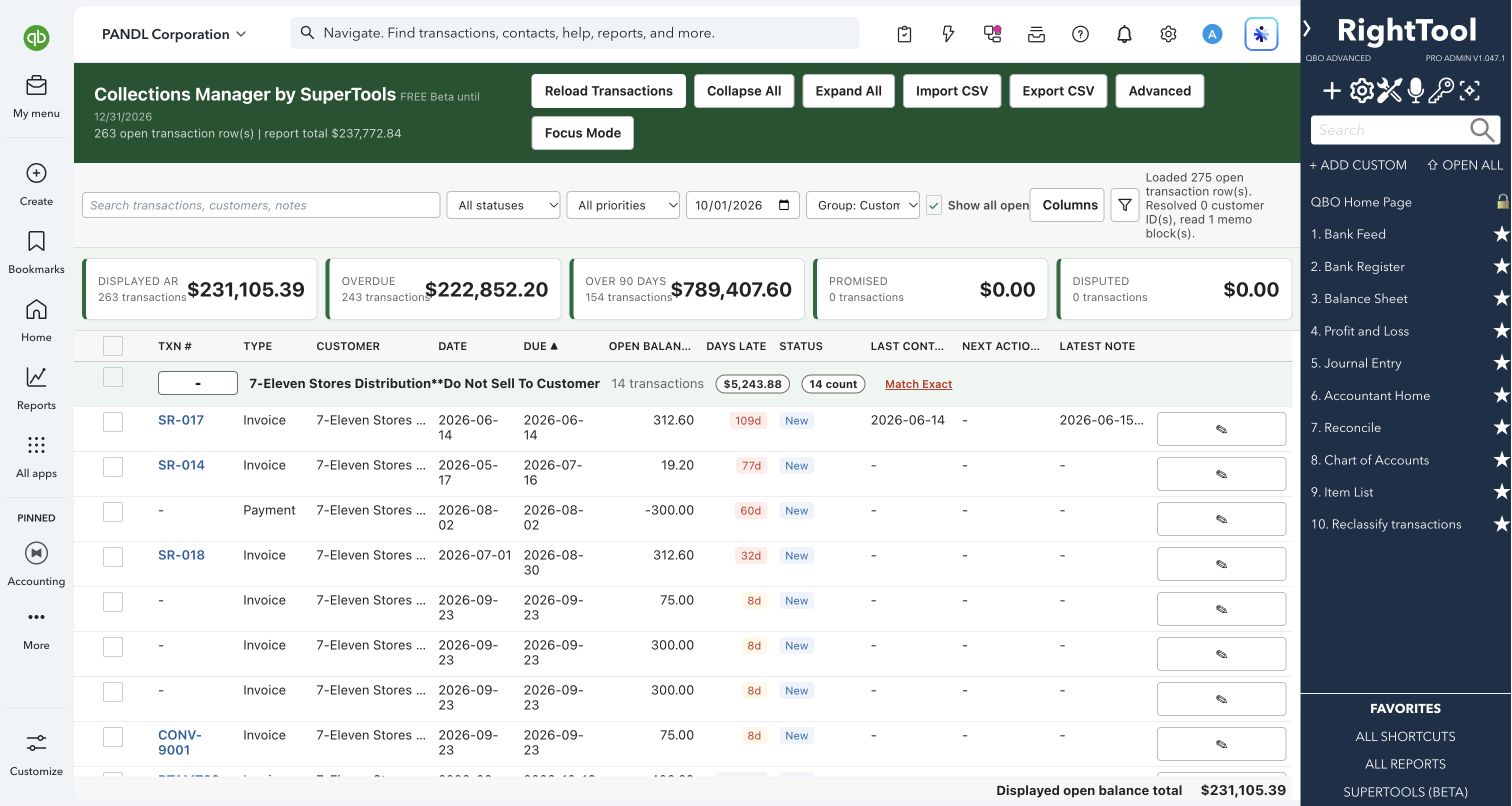
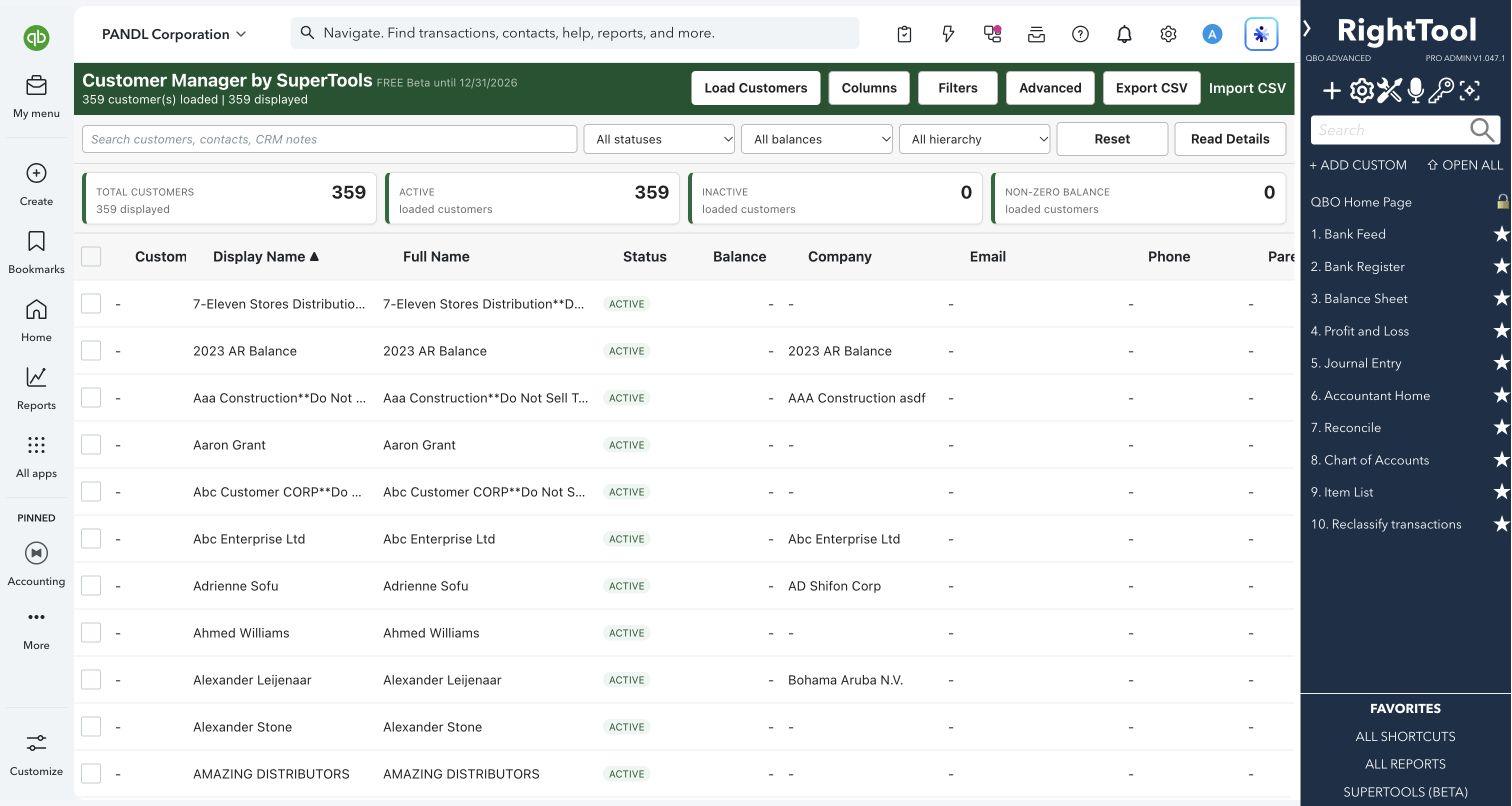
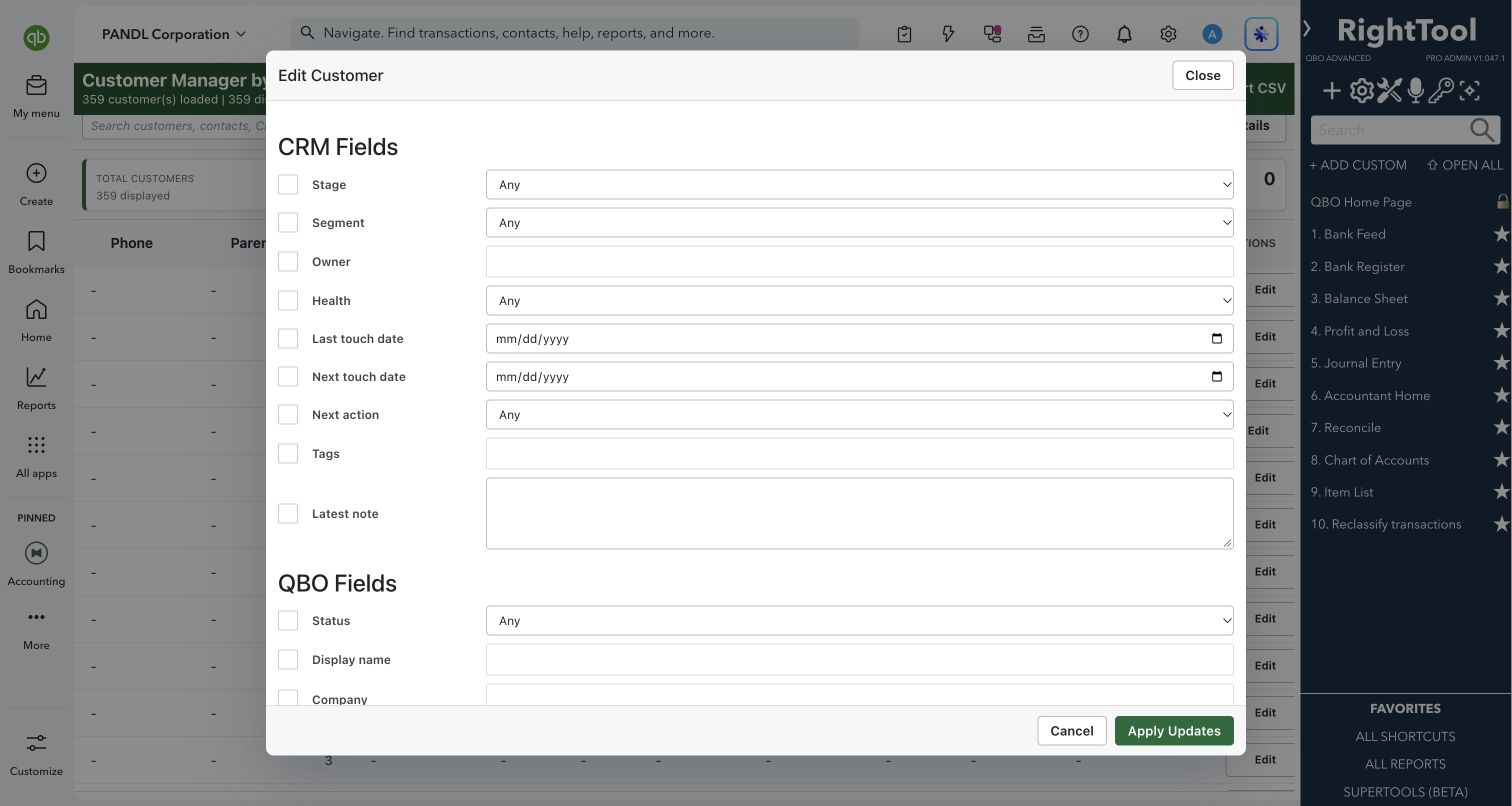
Customer Manager puts your active QuickBooks customers in one fast grid that you can search and filter. Next to the standard QuickBooks fields it adds simple CRM fields: stage, segment, owner, health, last and next touch, next action, tags and notes. You can review, tag and update many customers in one place instead of opening them one at a time, and the CRM details are saved in each customer's own notes in QuickBooks.
Bookkeepers, accountants and business owners who want to track client relationships without setting up or syncing a separate CRM.
SEE IT IN QUICKBOOKS
See the workflow, step by step.
Explore the screens below. Select an image for a closer look.
What you can do
- Load all your active customers into one sortable grid, then search across names, company, email, phone, CRM stage, owner, tags and notes.
- Filter to zero or non-zero balances, to parent customers or sub-customers only, or to customers that have sub-customers.
- Track CRM details for each customer: stage (Prospect, Active Customer, Dormant, At Risk, Inactive, Do Not Market), segment (A, B, C, VIP, Strategic, Other), owner, health (Good, Watch, Risk), last touch, next touch, next action, tags and a latest note.
- Filter by CRM stage, owner, health, tags or note text, or list everyone due for a touch by a date you pick.
- Batch-edit QuickBooks fields together with CRM fields in one dialog. The QuickBooks fields are status, display name, company, email, phone, taxable, delivery method, credit limit, terms and customer type. You can also edit a single customer from its row.
- Inactivate many customers at once. Customers with an open balance or with sub-customers are held back automatically.
- Choose which columns to show from separate "QuickBooks Data" and "Customer Manager Data" lists. Your choice is remembered in this browser.
- Double-click a customer to see a detail card with their notes, or open that customer in QuickBooks with one click.
- Select a range of rows with Shift-click and act on all of them.
- See counts of total, active and non-zero-balance customers at a glance.
- Export the full list, CRM fields included, to CSV.
Why it makes a difference
- No separate database and nothing to sync. CRM details are saved in each customer's notes in QuickBooks, so they stay with the customer.
- QuickBooks fields and CRM fields sit side by side, and you can edit both in the same pass.
- You can update dozens of customers at once instead of editing each record by hand.
- Your existing customer notes are kept when CRM details are saved.
- After every batch, a results table shows each customer as Updated, Failed or Blocked.
Put it to work
- Year-end cleanup: click Read Details, filter to zero-balance customers, select the ones you no longer serve, and inactivate them in one step.
- Weekly follow-ups: set "Next touch up to" to Friday to get this week's call list, then log the latest note and the new next-touch date.
- Account hand-off: filter by owner, select everyone, and change the owner to the new account manager in one batch.
- Client tiering: give your top clients the VIP or Strategic segment and set their stage and health so the whole team sees the same picture.
WATCH THE WORKFLOW
Organize customer follow-ups with CRM fields
Safe by design
- Before inactivating, it reads the latest details for every selected customer it has not read yet. It then shows how many can be inactivated and how many are blocked by an open balance or sub-customers. Nothing runs until you confirm.
- Batch Edit changes only the fields you tick.
- Each customer is read back from QuickBooks after it is saved, so the grid shows what QuickBooks actually stored.
- It refuses any save that would make a customer's notes too long.
Good to know
- CRM details are kept in a marked block inside the customer's Notes. Editing that block by hand in QuickBooks can break it.
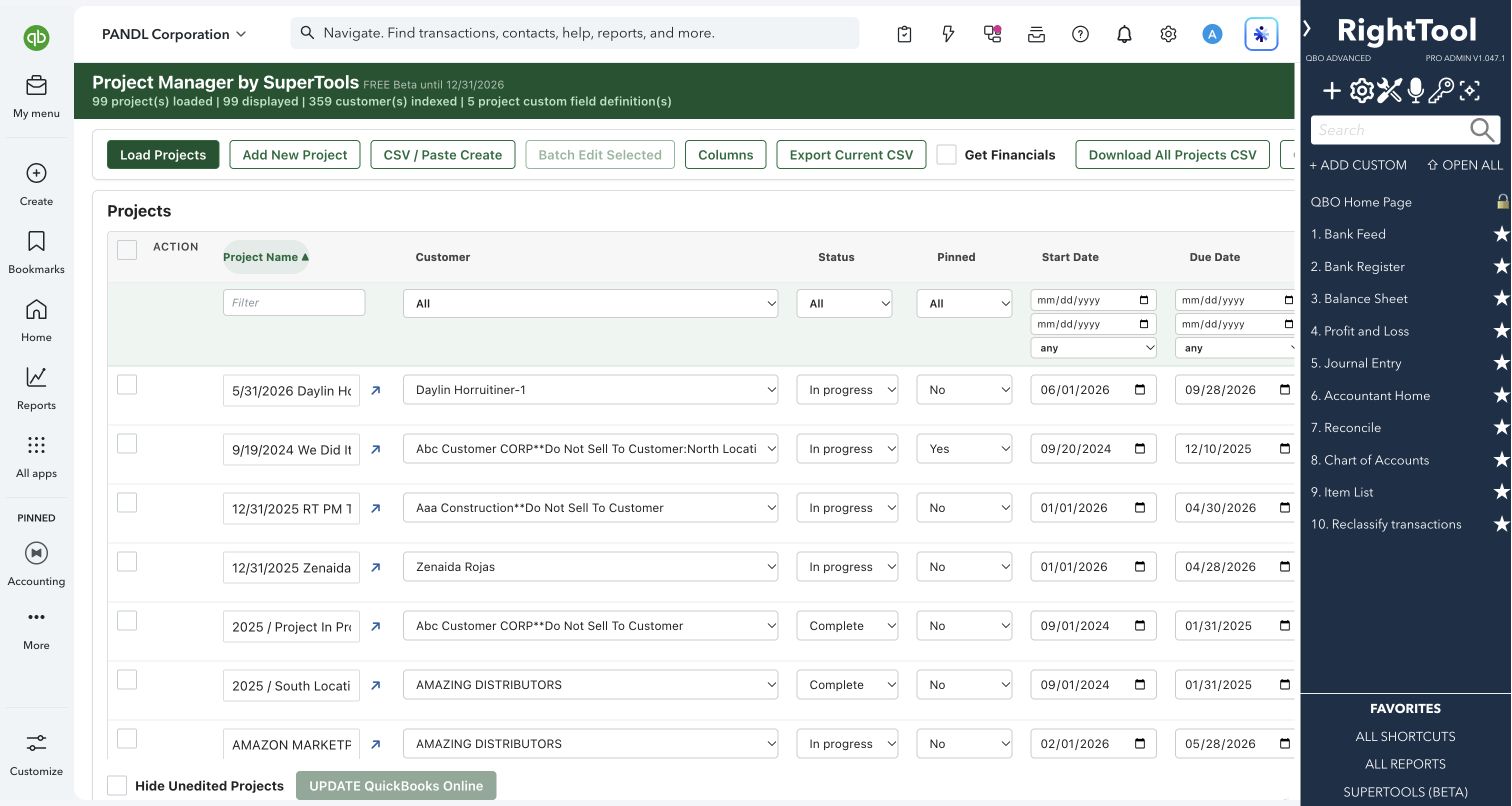
- The first load is a quick list of active customers, with projects left out (use Project Manager for those). Click Read Details to bring in balances, notes and CRM values.
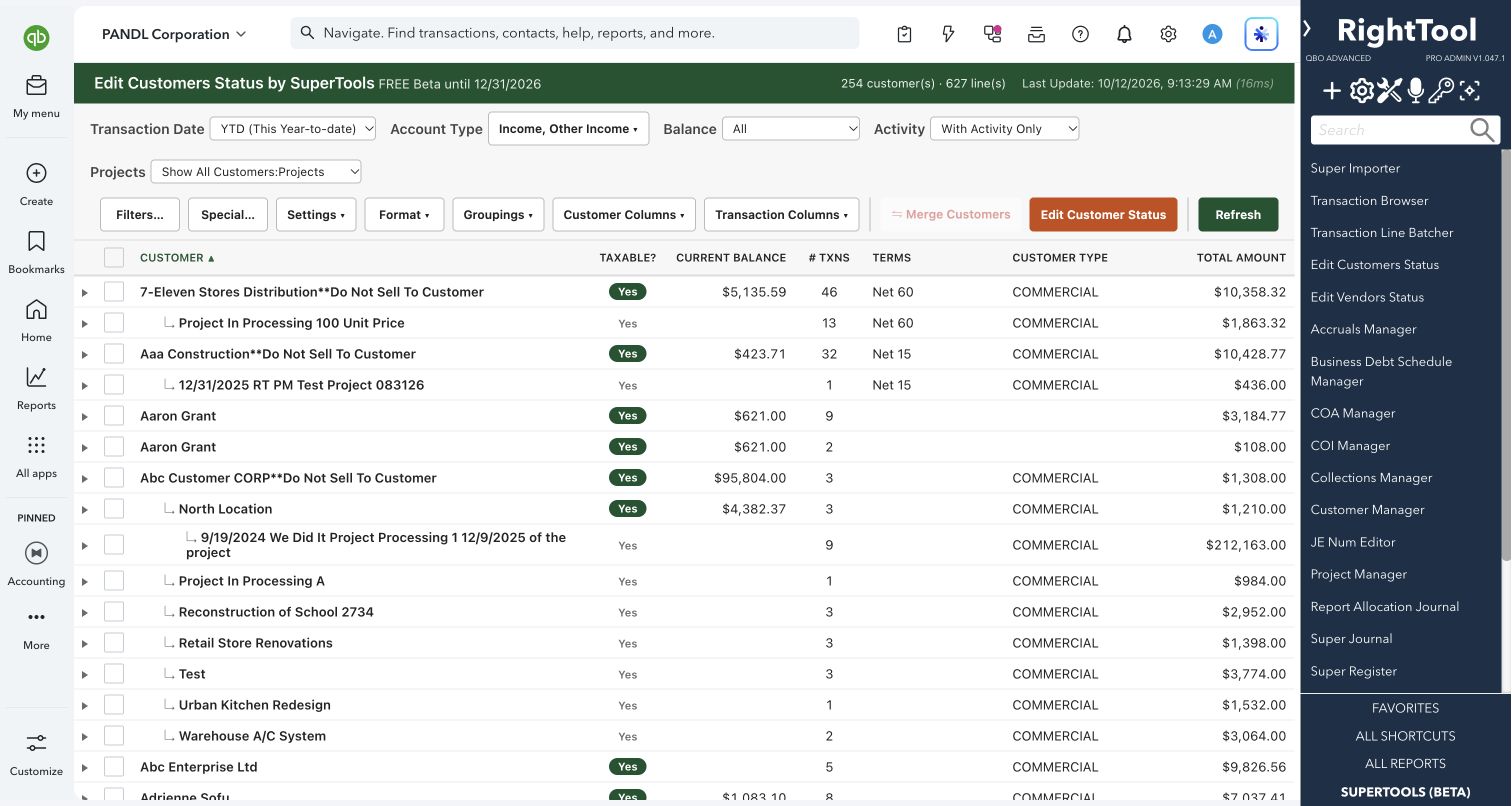
- Terms and Customer Type are entered by their QuickBooks ID here. Edit Customers Status offers them as named pick lists.
- Part of SuperTools (Beta).
How to open it
SuperTools sidebar → Customer Manager
Install the SuperTools extension, then open the SuperTools S menu in QuickBooks Online, choose Home, and enable the tool there.
View beta setup steps