Importing & data setup
The big picture.
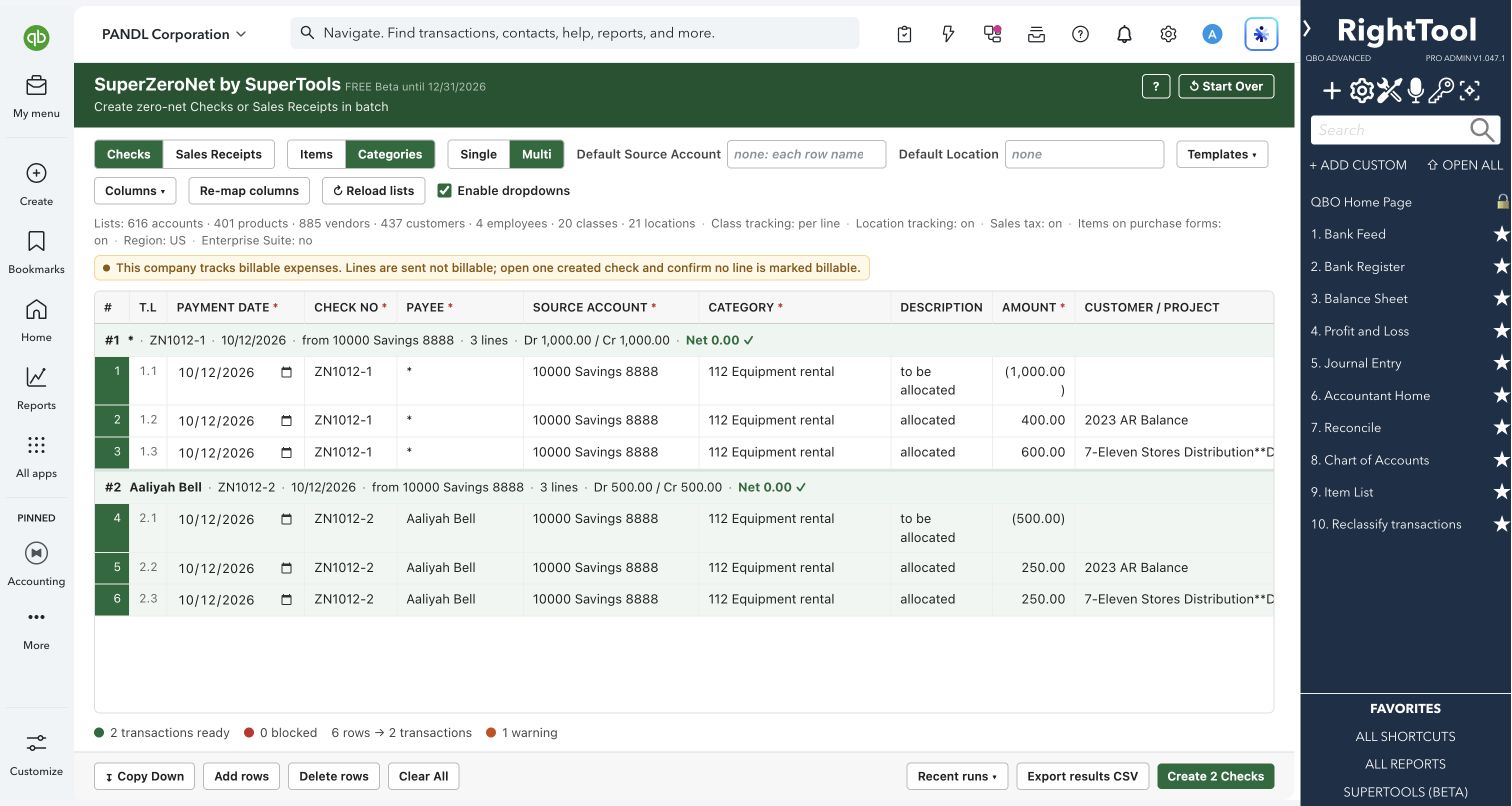
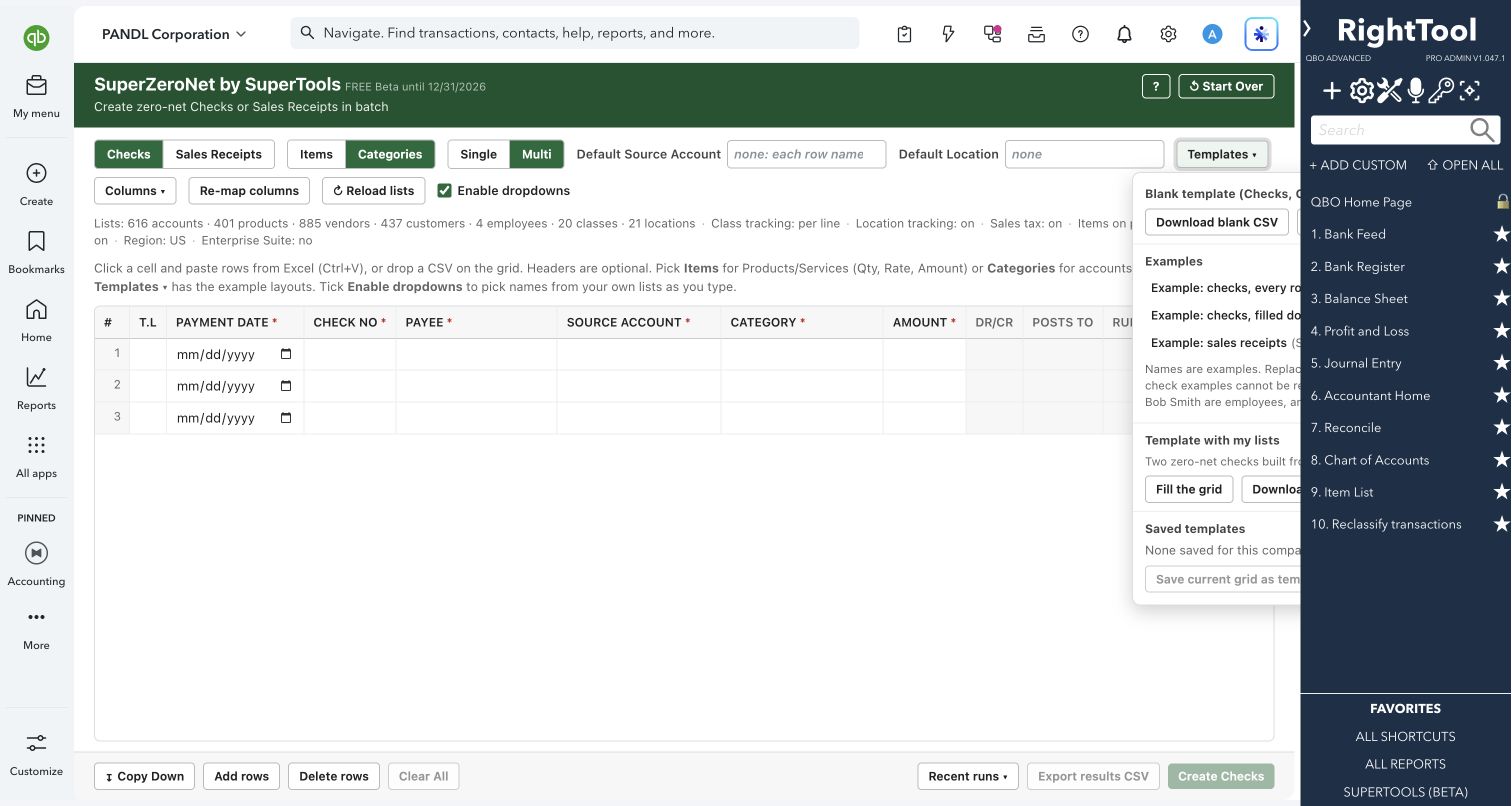
SuperZeroNet creates QuickBooks Online Checks or Sales Receipts whose lines add up to exactly $0.00. A typical use is moving payroll and benefits from a clearing account or class to grants, programs and classes without journal entries. You paste rows from Excel, and it groups them into transactions and checks every name and total. It then creates the transactions, reads each one back from QuickBooks, and lets you undo the batch.
Nonprofit and grant accountants, and any bookkeeper who allocates payroll, benefits or revenue across classes, customers/projects or locations.
SEE IT IN QUICKBOOKS
See the workflow, step by step.
Explore the screens below. Select an image for a closer look.
What you can do
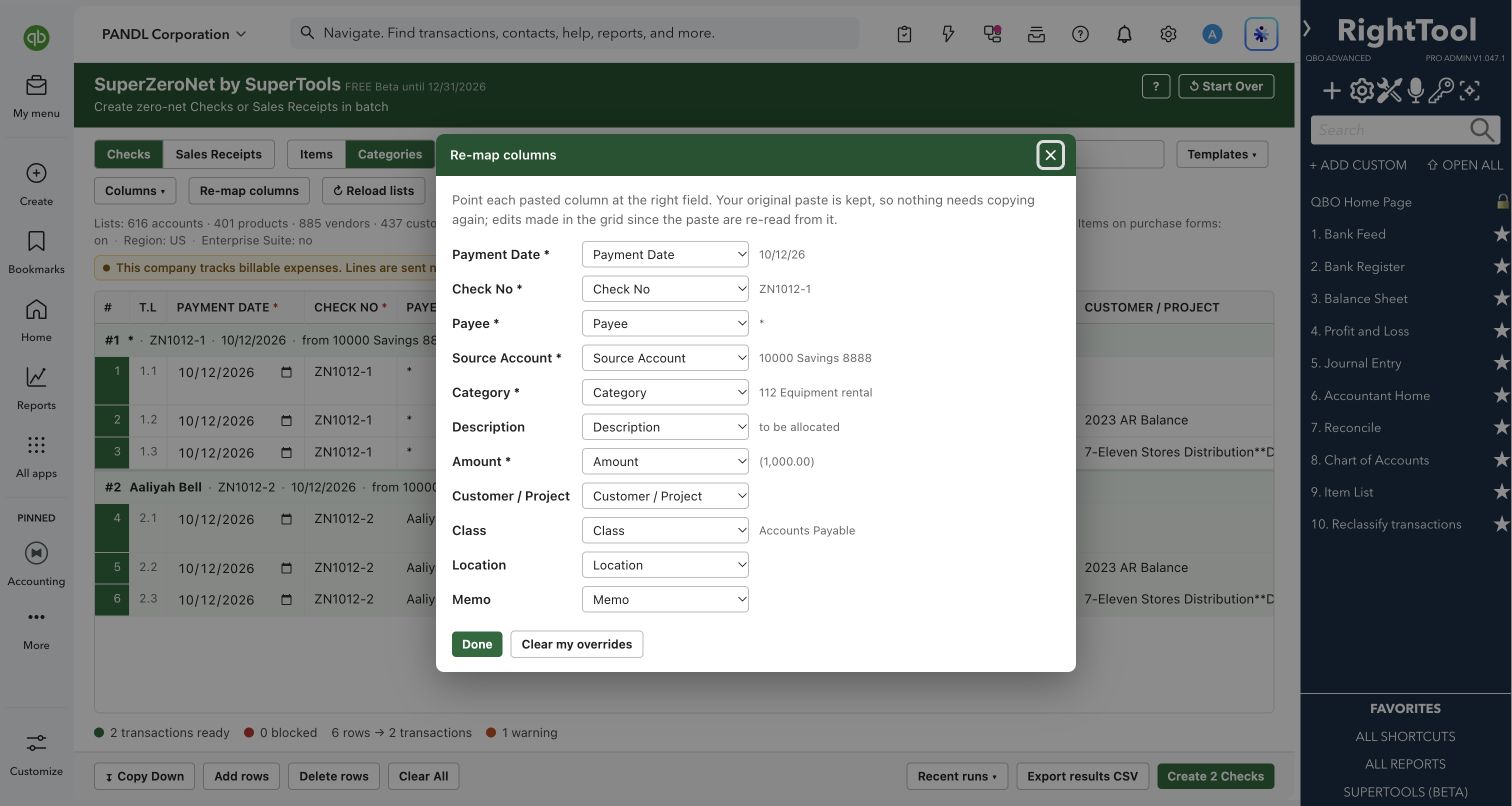
- Paste rows from Excel or drop a CSV file onto the grid. Headers are optional, and with a header row the columns can come in any order.
- Choose Checks or Sales Receipts. Then choose Categories (accounts with an amount) or Items (products and services with Qty, Rate and Amount).
- Repeat the date, number and payee on every row, or only on the first row of each transaction. Blank cells carry down from the row above, and adjacent rows with the same payee, number and date become one transaction.
- Give each line its own description, Customer/Project and Class, and set a Location and Memo for each transaction. Checks can be paid to a vendor, customer or employee.
- In Single mode, enter one transaction's date, number, payee, account, location and memo once, then type its lines. After it's created, the number moves on by one for the next transaction.
- Tick Enable dropdowns to pick names from your own QuickBooks lists as you type and get a date picker for dates.
- Fix problems in a click:
- Pick a suggested name and apply it to every cell with the same text.
- Choose one value when a transaction's rows disagree.
- Merge a transaction whose rows were split apart.
- Start from a blank CSV, example layouts, or a template built from your own accounts or products. Save named templates for each company, export or import them, and reuse them every month.
- Review a confirmation of exactly what will be created, then watch each transaction go in. You can stop at any time.
- Export a results CSV, and undo this batch or any recent run.
Why it makes a difference
- Allocations by class or customer/project (for example, by grant) are recorded on a check or sales receipt, with no journal entries needed.
- Every transaction must net to exactly $0.00, to the cent. A Dr/Cr column shows how each line hits the ledger, including the reversed effect on sales receipts.
- Problems in a row stay hidden while you're still typing it and appear once you leave the row.
- Undo removes what a run created and leaves alone any transaction someone has edited in QuickBooks since.
- Repeat protection blocks a transaction that an earlier run already created, unless you choose to create it again.
Put it to work
- Payroll allocation: move each employee's salary from a "To Be Allocated" class to Program and Admin classes by grant.
- Benefits allocation: spread benefits costs across grants and programs at month-end.
- Revenue allocation: use a zero-net sales receipt to move grant revenue from a clearing class to program classes.
- Recurring month-end: save the allocation as a template and paste new amounts each month.
WATCH THE WORKFLOW
Allocate costs with zero-net checks
Safe by design
- A transaction is created only when it nets to exactly $0.00 and every name matches an existing QuickBooks record exactly. Close matches are never accepted on their own. Blocked transactions are left out, and the confirmation says what will be created and how many are blocked.
- Each transaction is sent once, read back and compared with what you entered. You can stop at any time, and the run halts after five failures in a row.
- Undo deletes only what a run created, for this batch or any recent run recorded in this browser. It skips anything edited in QuickBooks since.
- A transaction that an earlier run in this browser already created is blocked until you choose to create it again. A sales receipt number that is already used in QuickBooks is also blocked.
Good to know
- SuperZeroNet is new, and like all SuperTools it is in Beta.
- It supports US QuickBooks Online companies without multicurrency. On Intuit Enterprise Suite companies, the Class and Location columns can't be used.
- It doesn't create names for you, so add any missing customers, vendors, items, classes or locations first (for example with Super Importer). Templates and run history are kept in your browser, for each company.
- Checks must be paid from a Bank account. Items mode accepts service and non-inventory items only. Sales receipts use Items only and have no line-level Customer/Project.
How to open it
SuperTools sidebar → SuperZeroNet
Install the SuperTools extension, then open the SuperTools S menu in QuickBooks Online, choose Home, and enable the tool there.
View beta setup steps