Importing & data setup
The big picture.
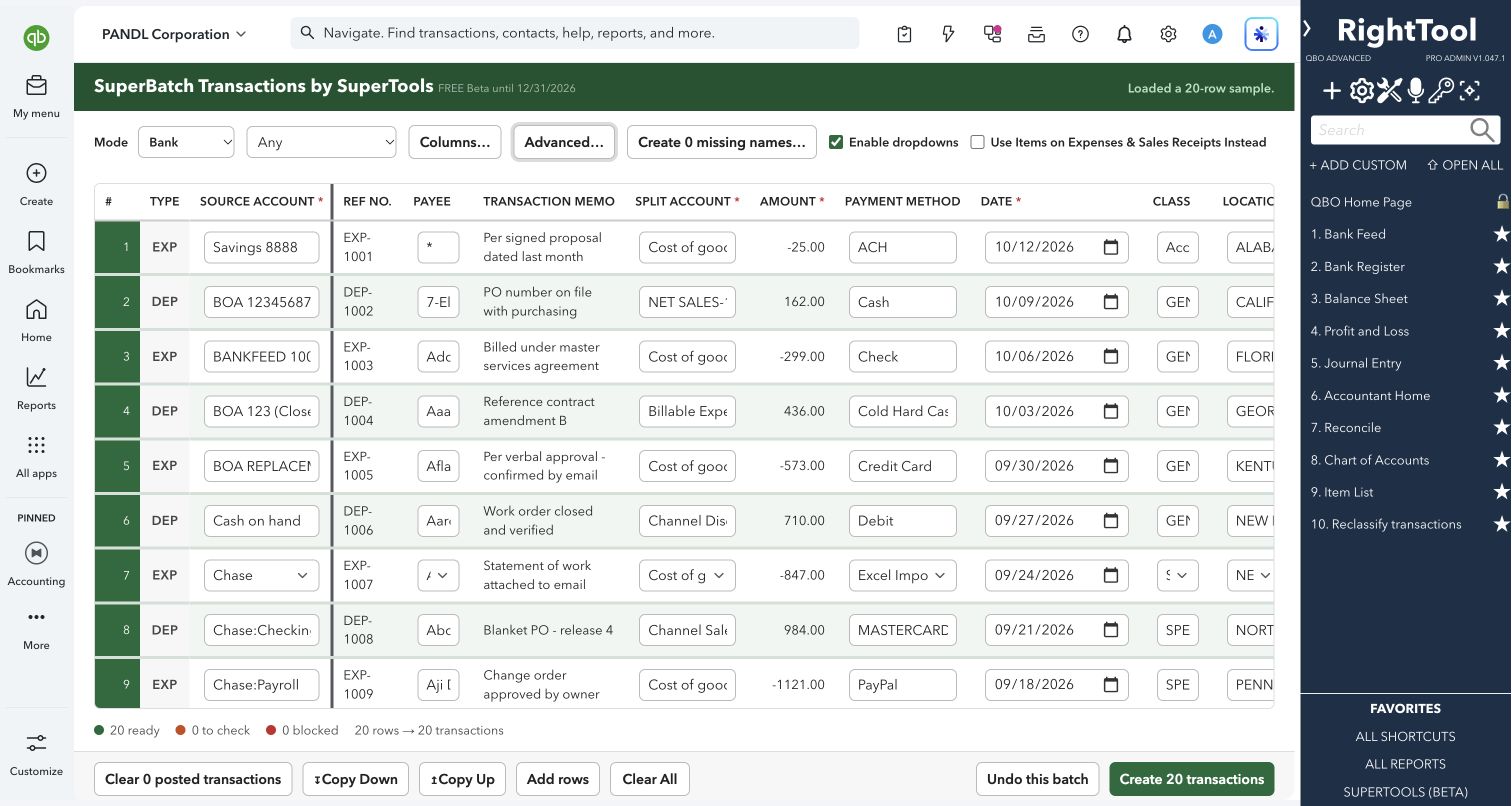
SuperBatch Transactions is a spreadsheet-style grid for entering many bank and credit card transactions at once. You paste rows or drop in a CSV, and the sign of each amount decides whether the row becomes money in or money out. You don't have to key them in one form at a time.
Built for
Bookkeepers doing catch-up or write-up work, and anyone entering bank or credit card activity that doesn't come in through bank feeds.
SEE IT IN QUICKBOOKS
See the workflow, step by step.
Explore the screens below. Select an image for a closer look.
What you can do
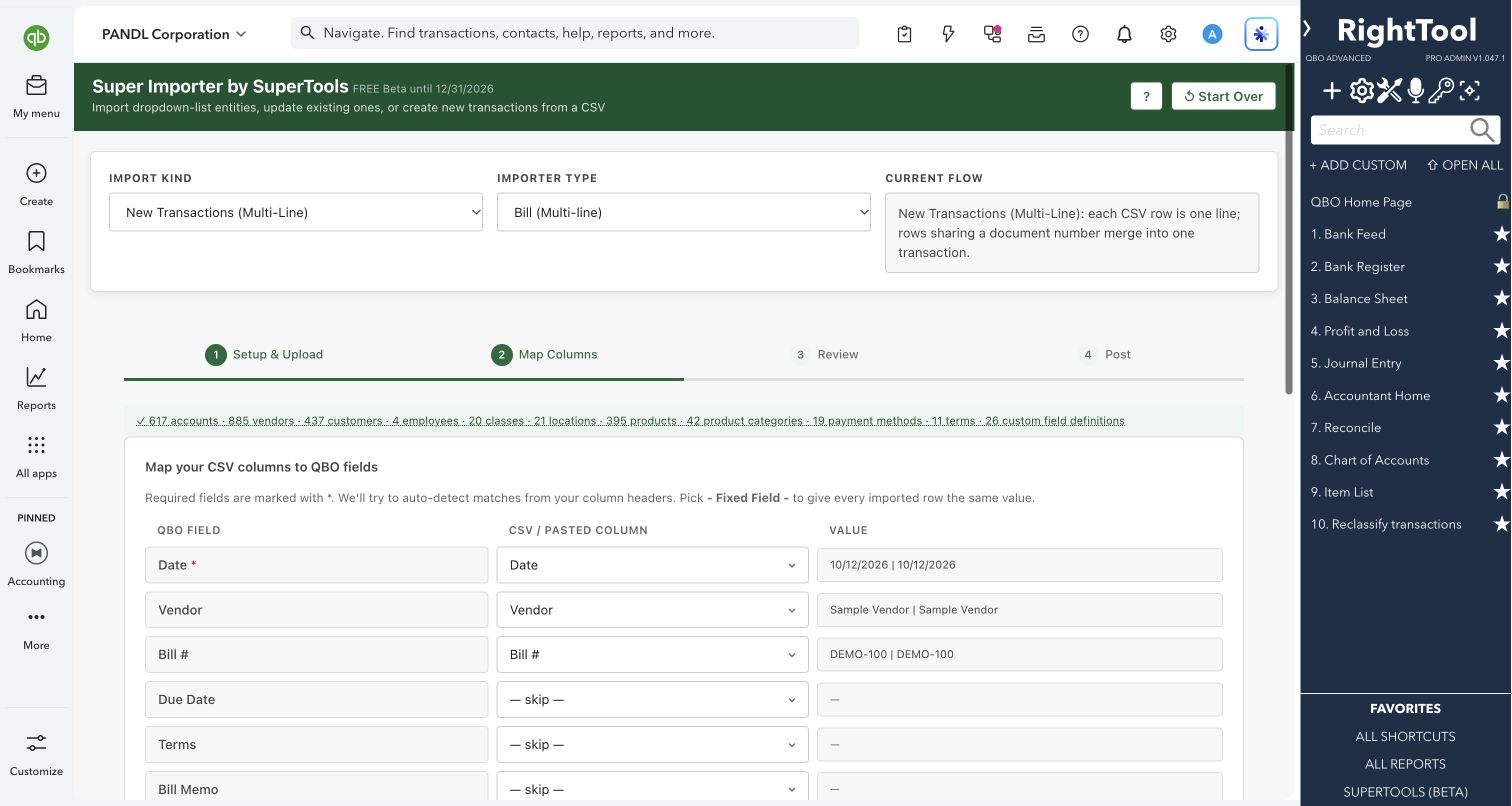
- Paste rows straight from Excel or Google Sheets, or drop a CSV onto the grid. Header rows are optional: they're detected and mapped for you, and you can re-map columns. Dates can be M/D/YY, M/D/YYYY or YYYY-MM-DD.
- Let the sign of each amount choose the transaction type:
- Bank mode: negative amounts post as Expenses and positive amounts as Deposits.
- Credit Card mode: negative amounts post as Credit Card Expenses and positive amounts as Credit Card Credits.
- Post the whole batch to one account (a bank or other current asset account in Bank mode, or a credit card in Credit Card mode), or choose Any and let each row name its own account.
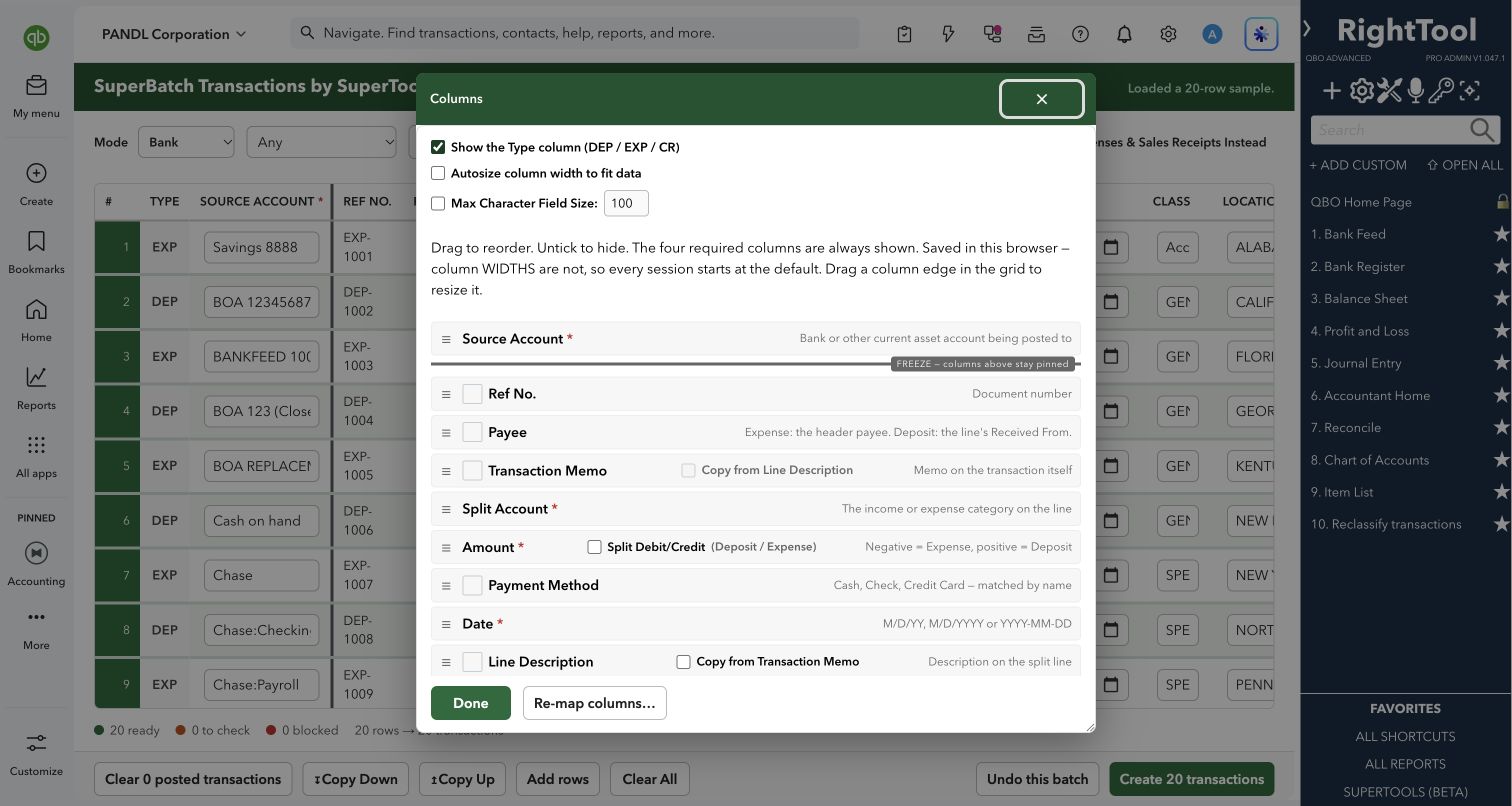
- Fill in Date, Split Account and Amount. You can also add Ref No., Payment Method, Transaction Memo, Line Description, Payee, Class, Location and Customer/Project.
- Use two one-way amount columns (Deposit and Expense, or Credit and Charge) instead of one signed amount.
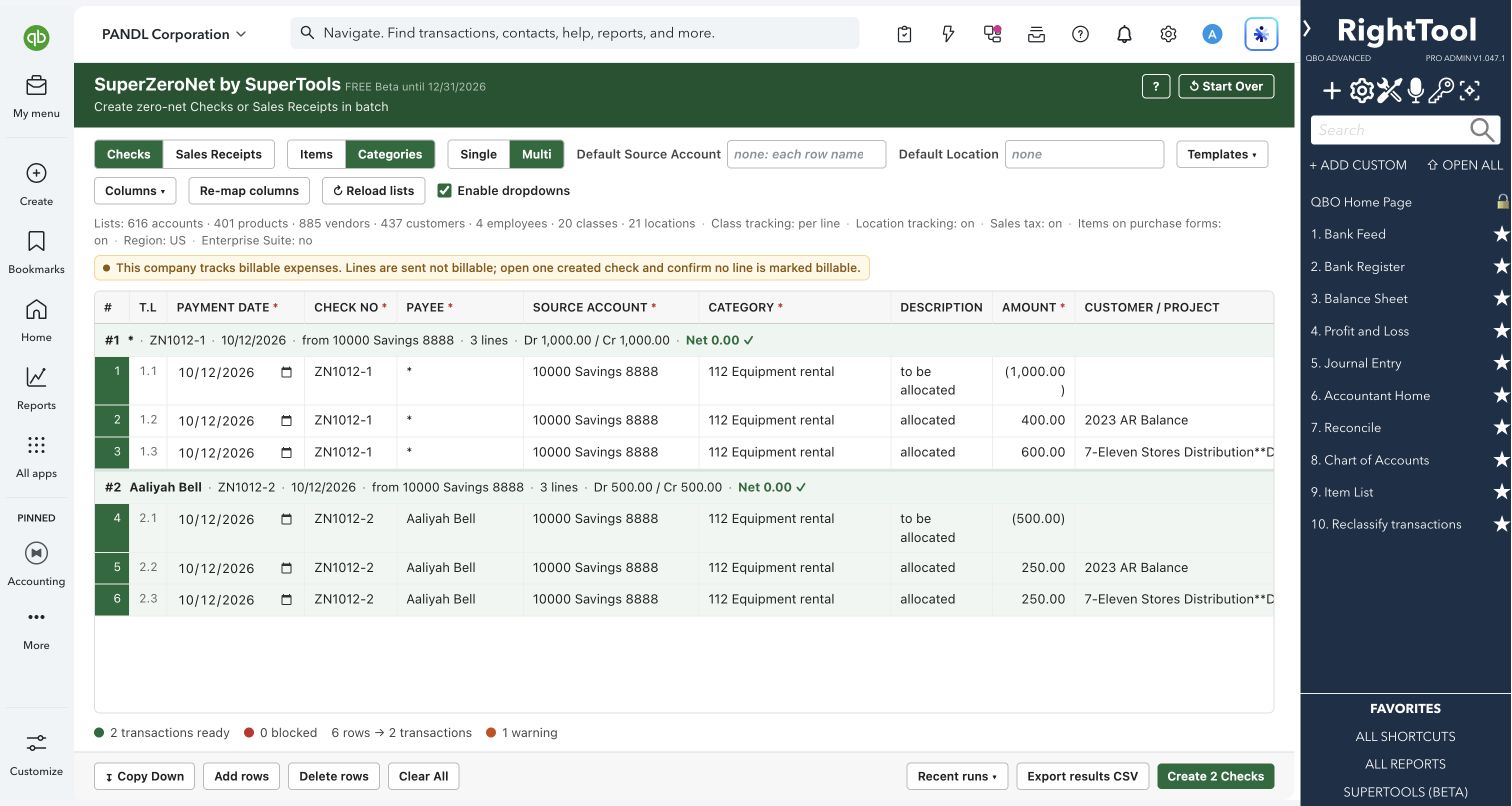
- Turn on Multi-Line Split by Ref Num to combine rows that share an account, date and Ref No. into one split transaction.
- Use Products & Services on the lines instead of accounts. In Bank mode, money-in rows then post as Sales Receipts.
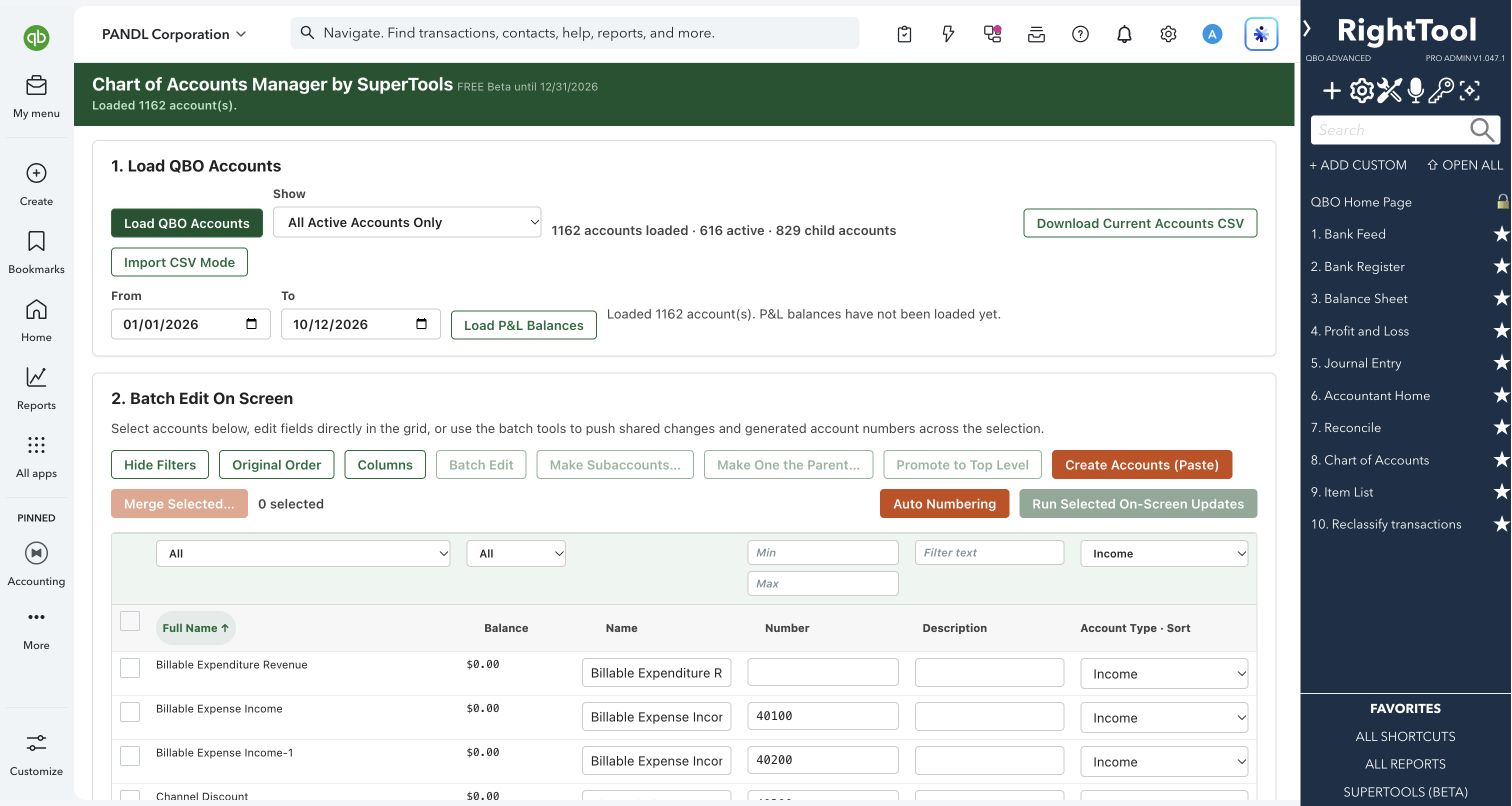
- Create missing vendors, customers, accounts, classes, locations and payment methods in one approved pass from the names in your paste, then re-check the batch.
- Turn on dropdowns so every name cell picks from your company's own lists. Fill quickly with Copy Down (Ctrl+D), Copy Up (Ctrl+E) and Add rows.
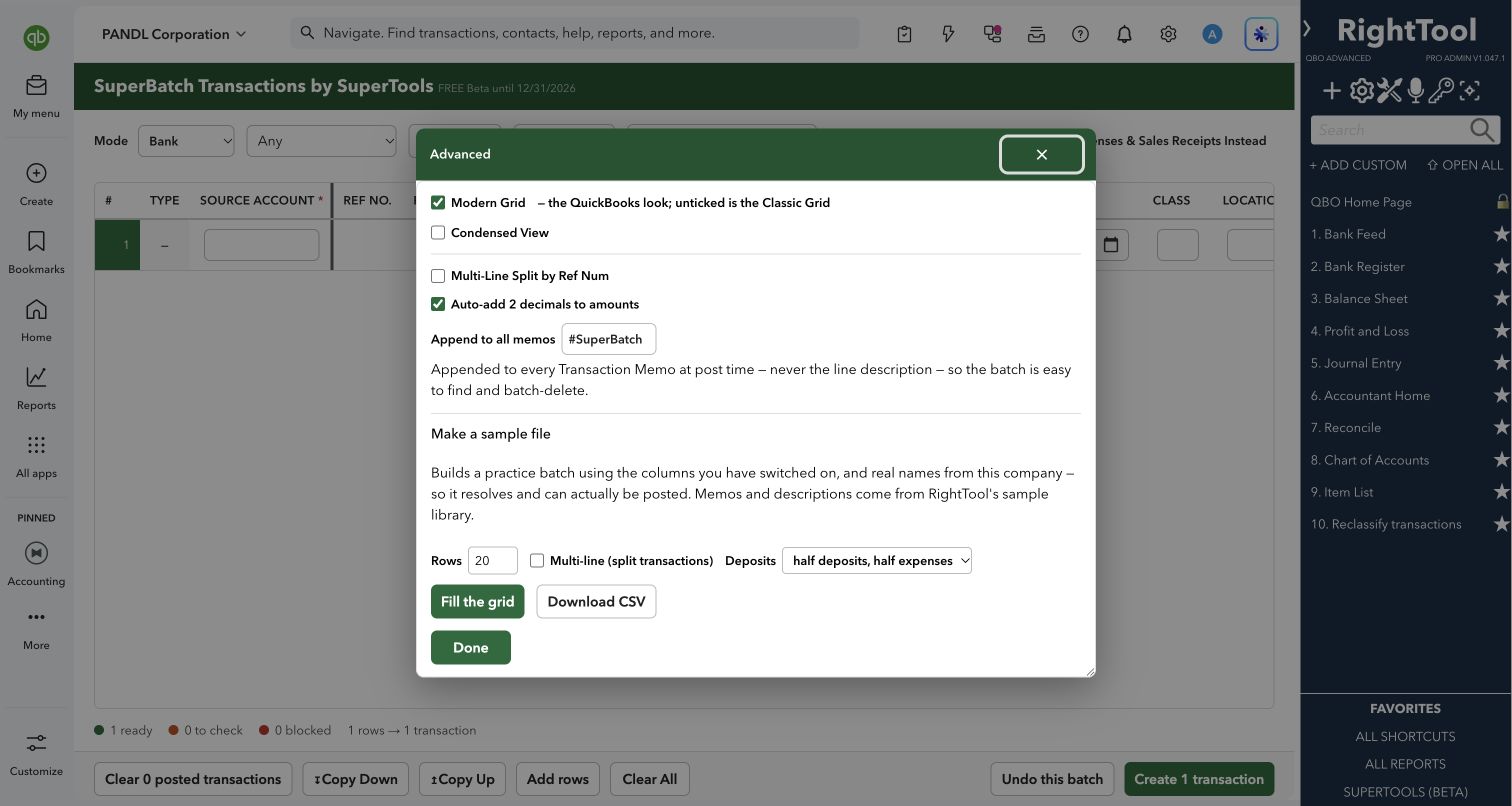
- Add a tag to every transaction memo so the whole batch is easy to find later, and have amounts rounded to two decimals automatically.
- Arrange the grid: show, hide, reorder and freeze columns, and autosize widths. Choose the Modern grid (QuickBooks look) or the Classic grid, and a Condensed view.
- Generate a practice sample file using your company's own names, then fill the grid with it or download it as a CSV.
Why it makes a difference
- One row is one transaction, and the sign of the amount picks the type, so deposits and expenses go in together.
- You see the whole batch before you post. Each row is marked ready, to check or blocked, with the reason, and the screen shows how many transactions will be created.
- You can create missing names right in the tool instead of going back to the QuickBooks lists.
- Each created row links straight to its new transaction in QuickBooks. Rows that fail show QuickBooks' own reason.
- Undo this batch removes the transactions you just created if something went wrong.
Put it to work
- Catch-up bookkeeping: paste a year of bank activity from a client's spreadsheet and create all of it in one run.
- Credit card statement: drop in the card's CSV export, choose Credit Card mode and the card account, and post the charges and credits together.
- Split deposits: turn on Multi-Line Split by Ref Num and give several rows the same date and Ref No. to post one deposit coded to several income accounts.
- Training: build a sample batch from the company's own names to practice the workflow. It posts for real, so use a test company or Undo afterward.
WATCH THE WORKFLOW
Create expenses and deposits in one batch
Safe by design
- Every row is checked against your company's lists before anything is sent. A row is blocked if a name isn't found or matches more than one record. Blocked rows are never posted, and a split transaction waits until all of its rows are fixed.
- Missing names are never created silently. They're listed for you with their type and the rows that use them, and they're only created when you approve.
- Each new transaction is read back from QuickBooks, and any that can't be read back are flagged for you to check. Created rows are locked so they can't be posted twice.
- Undo this batch only runs after you press it a second time. The button shows how many transactions it will delete. It deletes the transactions from your most recent run and reports any it couldn't remove.
Good to know
- It's built for simple transactions: one split line per row, or several lines when rows share a Ref No. and Multi-Line Split is on. On deposits, the Payee becomes the line's Received From. Expenses and card charges and credits need a Payee, which must be a vendor or customer.
- Create transactions posts as soon as you press it, so check the ready, to check and blocked counts first. Undo covers only your most recent run, until you press Clear All or leave the page. Undo doesn't remove names you created, and created names can't be undone from here. The memo tag helps you find a batch later.
- Products & Services can't be created from here.
- Column order and visibility are saved for each company in this browser. SuperBatch Transactions is part of SuperTools (Beta).
How to open it
SuperTools sidebar → SuperBatch Transactions
Install the SuperTools extension, then open the SuperTools S menu in QuickBooks Online, choose Home, and enable the tool there.
View beta setup steps