Importing & data setup
The big picture.
Super Importer takes a CSV file or rows pasted from Excel or Google Sheets and turns them into QuickBooks Online transactions or list records. One screen handles new transactions, new list entries and bulk updates to records you already have. Every import follows the same path: load your data, map the columns, review, then post.
Built for
Bookkeepers, accountants and business owners who would otherwise type stacks of transactions or list entries into QuickBooks by hand.
SEE IT IN QUICKBOOKS
See the workflow, step by step.
Explore the screens below. Select an image for a closer look.
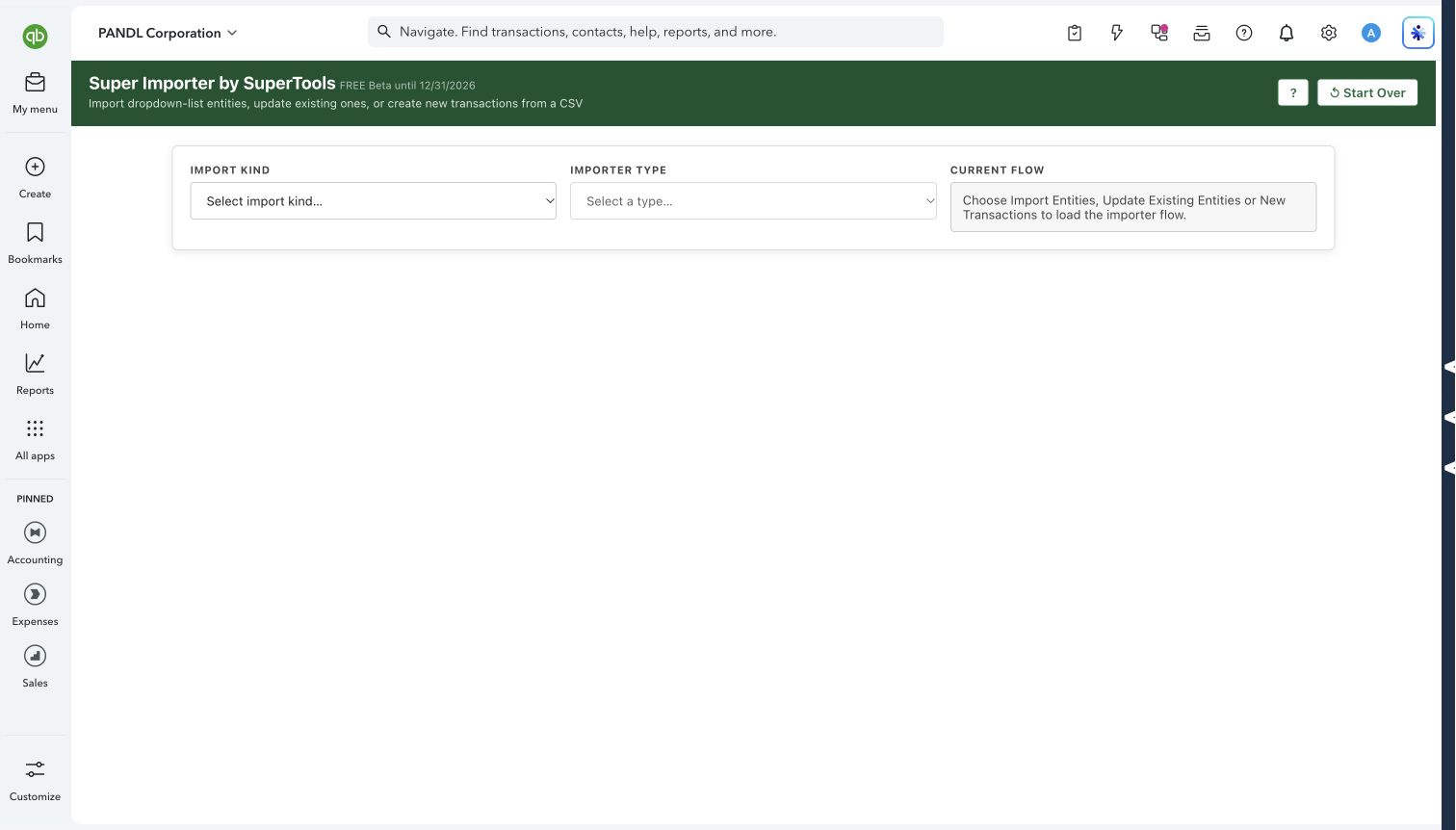
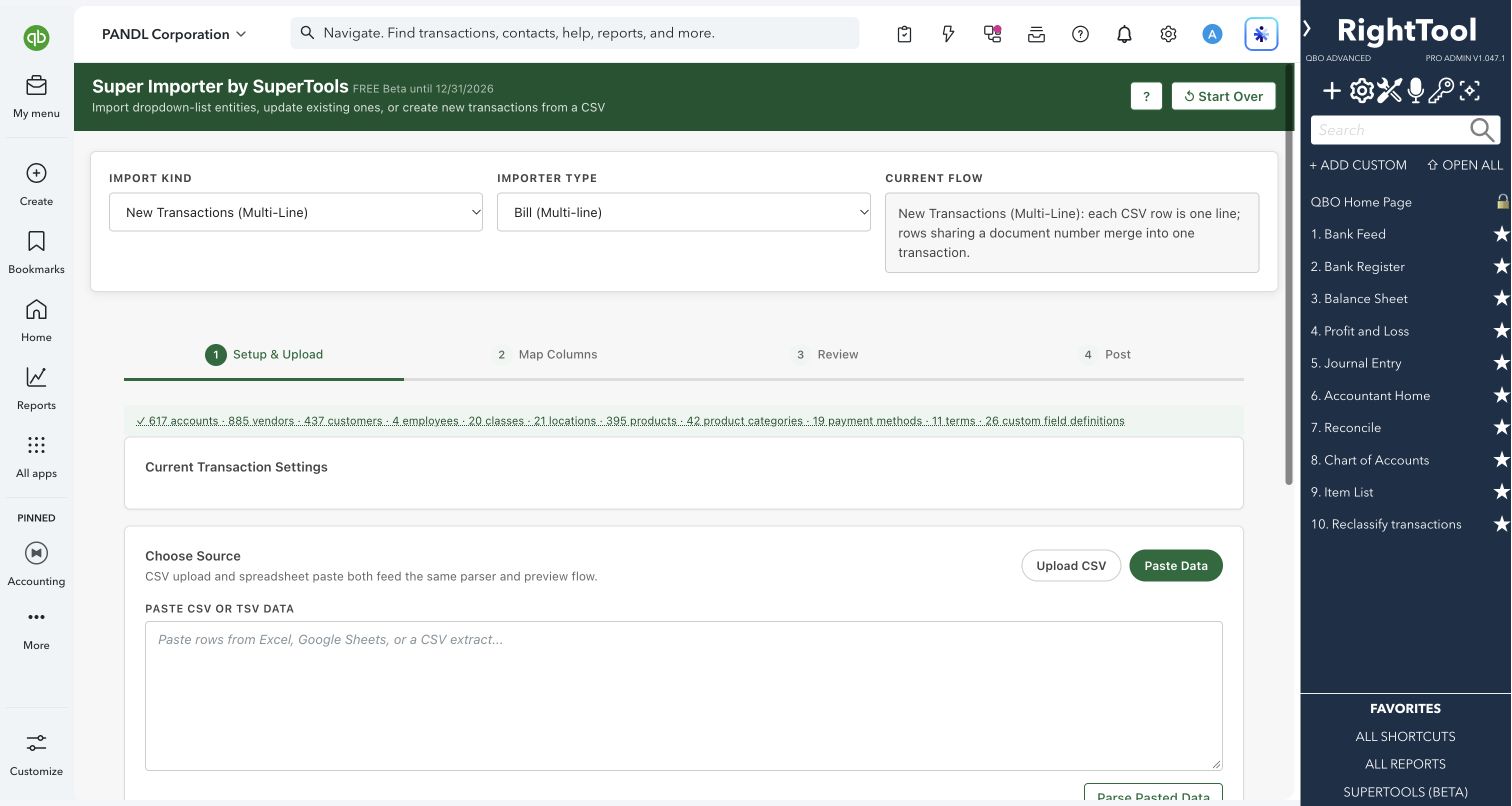
What you can do
- Upload a CSV or paste rows to create invoices, estimates, sales receipts, refund receipts, credit memos, customer payments, bills, vendor credits, checks, expenses, credit card credits, deposits, purchase orders, journal entries, transfers, timesheets and inventory quantity adjustments.
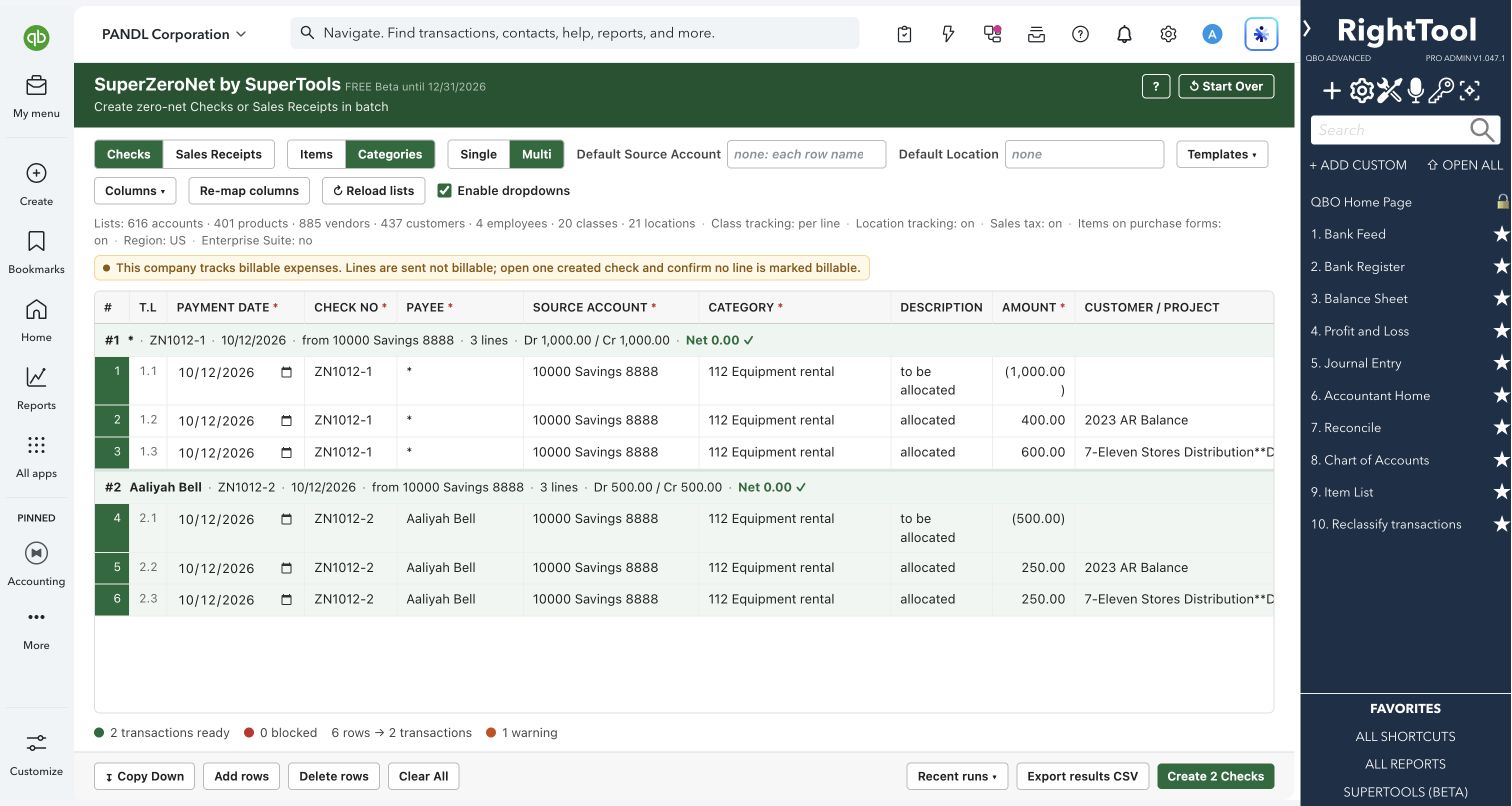
- Build multi-line documents from a flat spreadsheet. Rows that share a document number become one transaction. A journal entry can't post until its debits equal its credits.
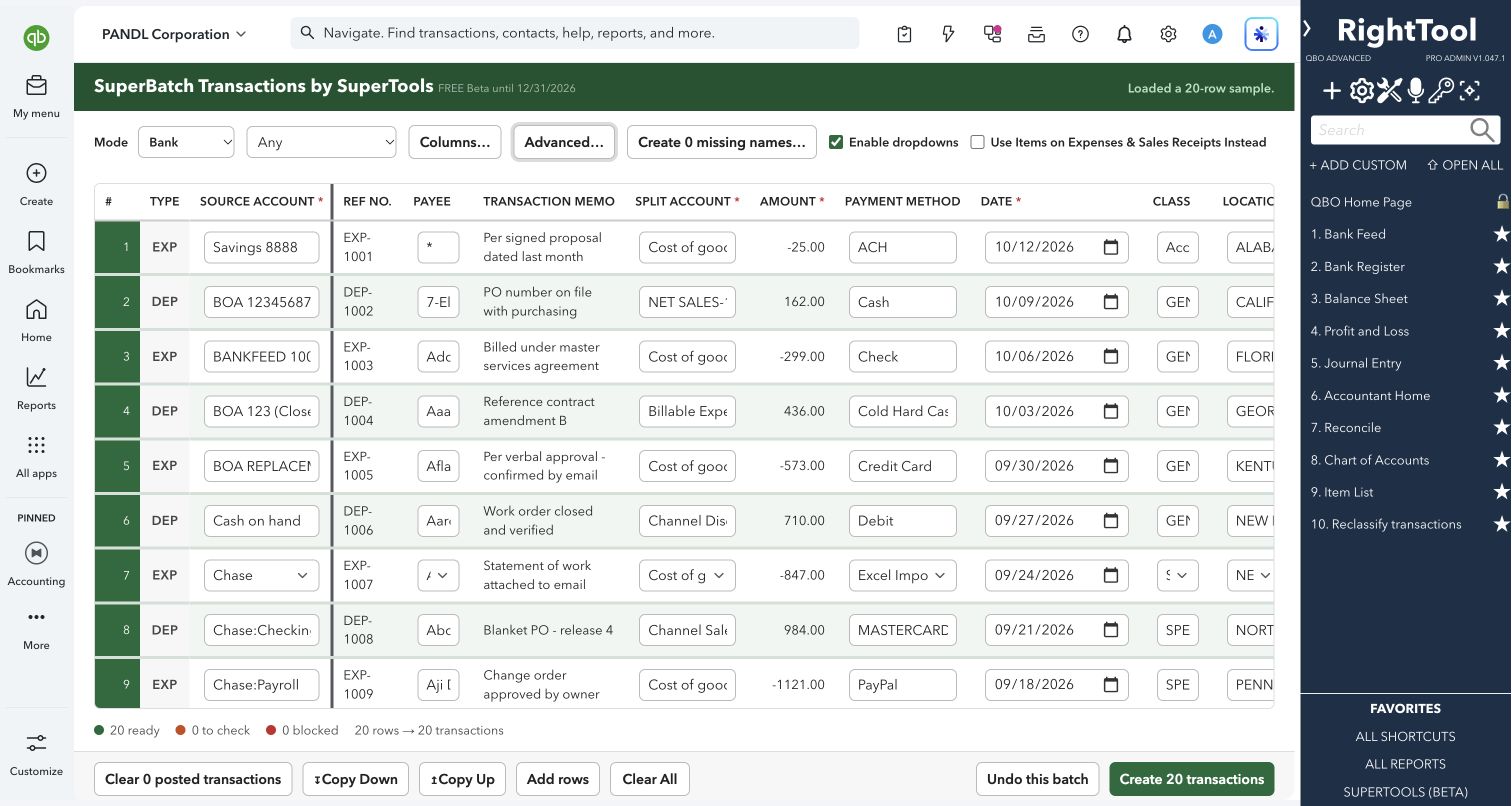
- Import a bank or credit card statement against an account you pick. The sign of each amount decides what each row becomes:
- Money out becomes an expense. On a bank account, a row with a numeric check number becomes a check.
- Money in becomes a deposit on a bank account, or a credit card credit on a card.
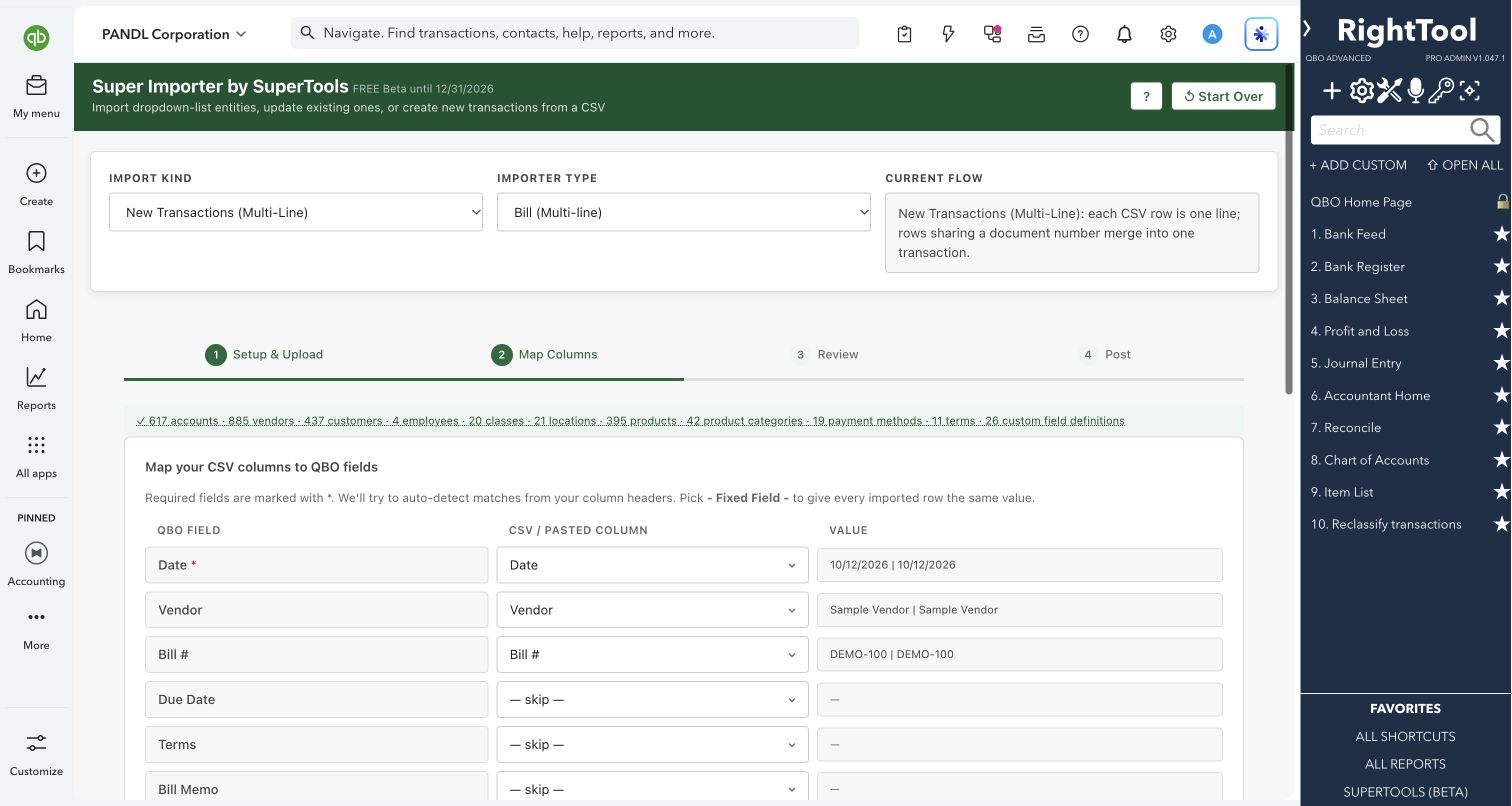
- Map your columns to QuickBooks fields. Headers that match map themselves, and when every column matches you can skip mapping. Use a fixed value to give every row the same date, account, class or other field.
- Review every row before anything posts. Names that don't match come with ranked suggestions. Close matches are flagged so you can confirm or change them, and you can click a flagged value in the review table to fix it.
- Create a missing customer, vendor, account, product or service, class, location, term or payment method without leaving the import. You can also have unmatched vendors and customers created in one pass when you post.
- Import list records and match them against your existing list to catch duplicates. This covers customers, vendors, projects, products and services, product categories, accounts, classes, locations, terms, payment methods and custom-field dropdown values. On Intuit Enterprise Suite companies it also covers dimension values.
- Update existing list records in bulk:
- Export a list with its QuickBooks IDs and edit it in a spreadsheet.
- Load it back and review every old → new change.
- Post the changes, such as renames, new parents, contact details, terms, default accounts, custom fields and active status.
- Download a sample CSV of 20 transactions built from your company's own accounts, names and items. You can also generate a larger custom test dataset, preview it, and either export it or send it straight to review.
- For inventory adjustments, download every inventory item with its quantity on hand as of a date, fill in the change, and import it back.
- When QuickBooks refuses a document number that's already in use, see whether the existing transaction is an exact match. Then skip it, add a suffix with a note in the memo, or allow the duplicate number, and retry.
- Add a tag to every imported transaction's memo (#SuperImporter by default) so you can find the batch later. Export the rows that didn't post to a CSV that gives the reason for each one.
Why it makes a difference
- One tool for transaction imports, list imports and bulk list updates, in single-line or multi-line layouts.
- Name matching: exact matches go straight through and close matches are flagged for review. Names that don't match get ranked suggestions instead of a bare error.
- A "Create new…" option inside the import, so a missing name doesn't send you back to your spreadsheet.
- Works with Intuit Enterprise Suite companies and adds columns for the company's own dimensions on supported transaction types.
- Every posted transaction appears as a link that opens it in QuickBooks.
Put it to work
- Conversion: bring a year of vendor bills over from an old system as multi-line bills, split by account and class.
- Month-end: import a bank or credit card statement CSV for a period the bank feed missed.
- List cleanup: export vendors with their IDs, fix names, terms and 1099 settings in Excel, then load the file back and review each change before posting.
- Training: fill a test company with realistic sample transactions built from your own lists.
WATCH THE WORKFLOW
Import a multi-line vendor bill
Safe by design
- Nothing posts until you've reviewed the rows and moved on to post. Rows with errors are skipped unless you fix them, and close name matches are flagged for you to confirm.
- List imports load your existing list first to catch duplicates. If that list can't be loaded, you're warned and must confirm before any new records are created. A row that matches an existing record is only updated after you approve it.
- List updates show every old → new value, and a blank cell leaves that field unchanged. Nothing is written until you click Update Now. A record changed in QuickBooks since your export isn't overwritten unless you turn on Force. Each update is checked against QuickBooks afterwards, and you can stop after the current row.
- A memo tag marks every transaction in a batch, and an errors CSV lists every row that didn't post.
Good to know
- Multi-line transactions can include negative lines, but each transaction's total must be $0.00 or more.
- Customer payments are recorded as received. They are not applied to specific invoices.
- If an optional field such as class, location or terms can't be matched, the row still posts without it. The review screen flags these rows before you post.
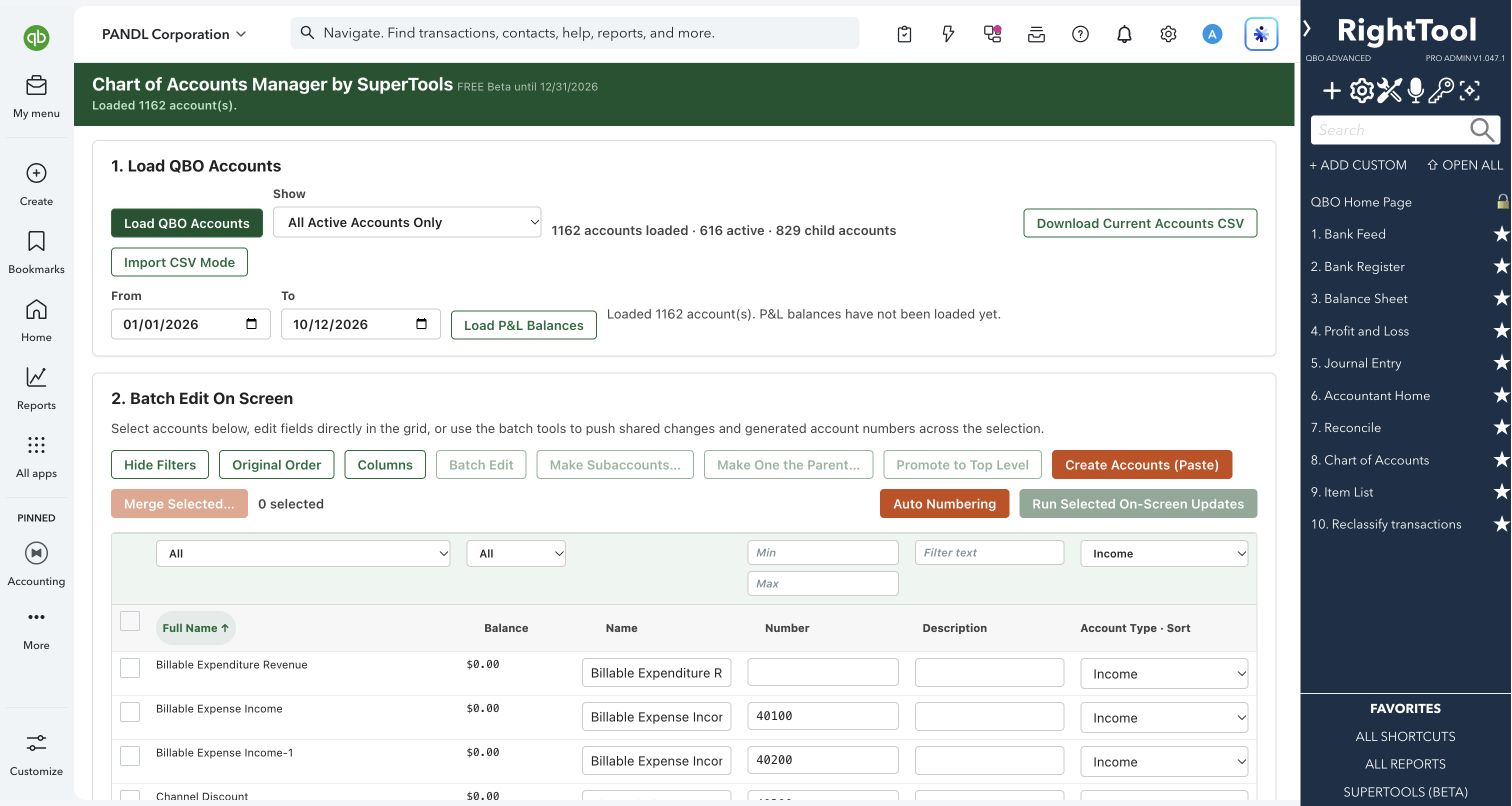
- Employees are never created automatically and must already exist in QuickBooks. List updates don't change account types; use COA Manager for that.
How to open it
SuperTools sidebar → Super Importer
Install the SuperTools extension, then open the SuperTools S menu in QuickBooks Online, choose Home, and enable the tool there.
View beta setup steps