Importing & data setup
The big picture.
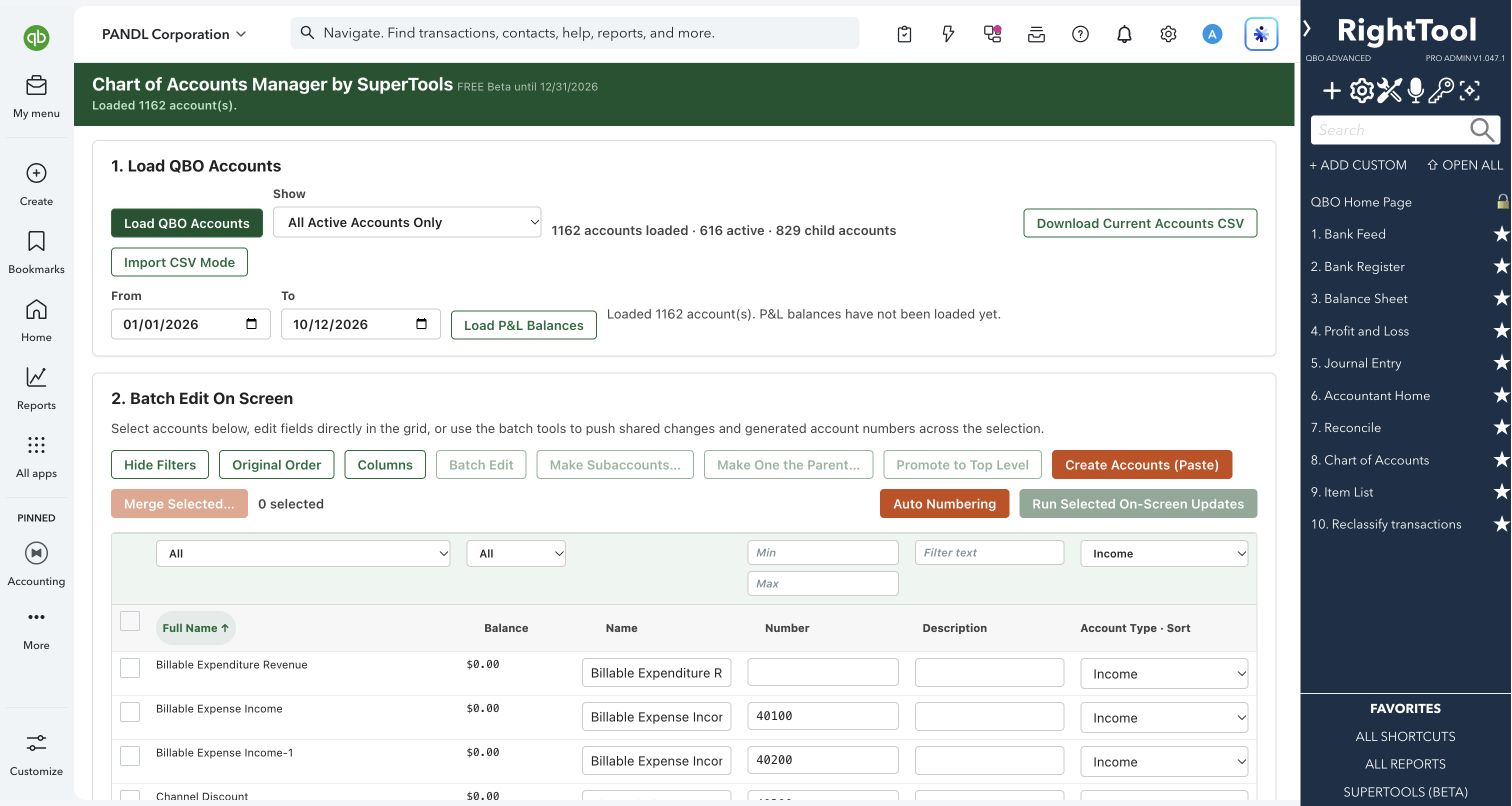
COA Manager loads your whole QuickBooks Online chart of accounts into an editable grid, with P&L balances for any date range if you want them. You can rename, renumber, re-describe, retype, lock, restructure, merge and create accounts many at a time. It also handles steps QuickBooks makes you do by hand, such as changing the type of an account that has subaccounts.
Built for
Bookkeepers and accountants standardizing or cleaning up a client's chart of accounts.
SEE IT IN QUICKBOOKS
See the workflow, step by step.
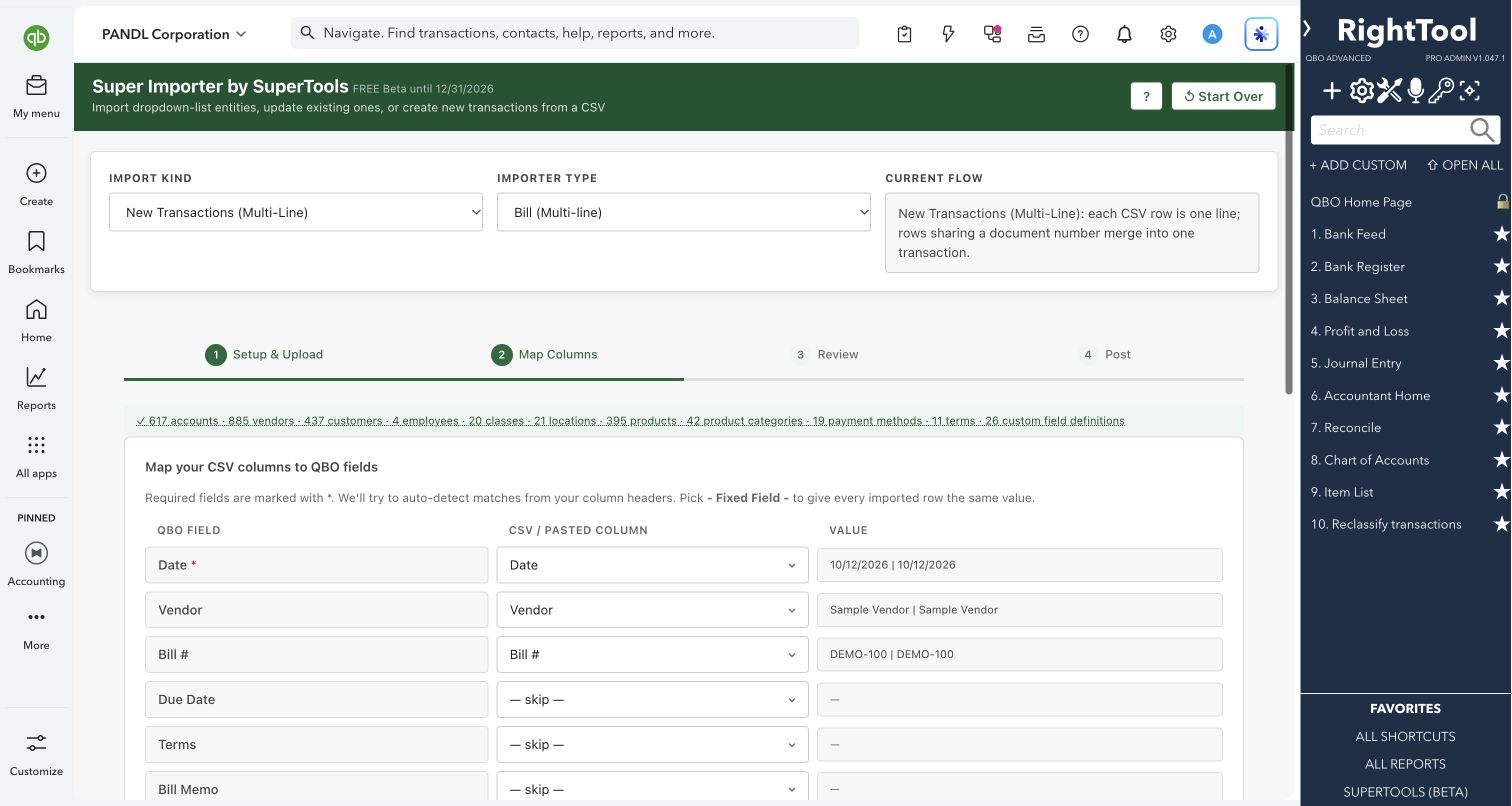
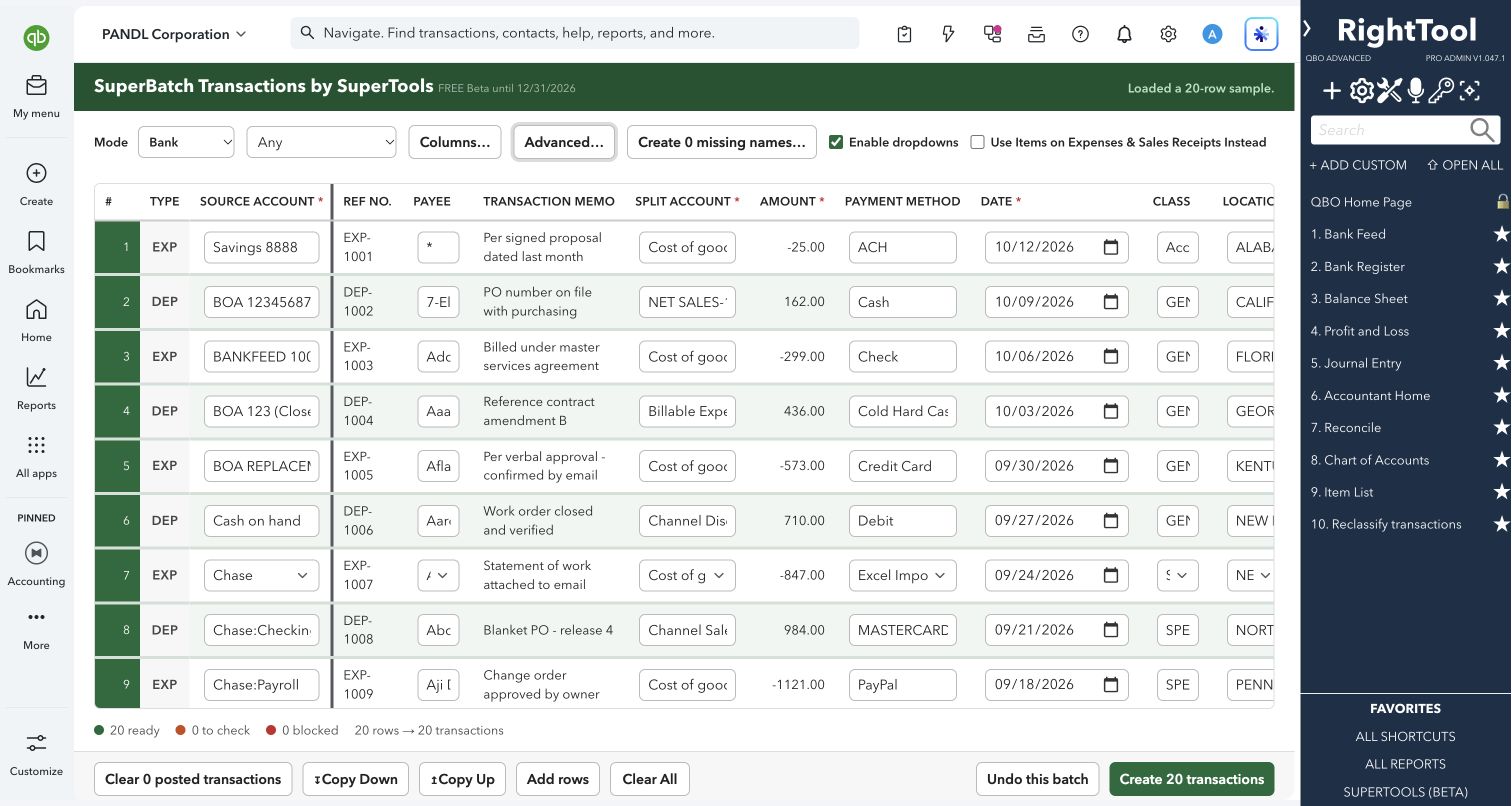
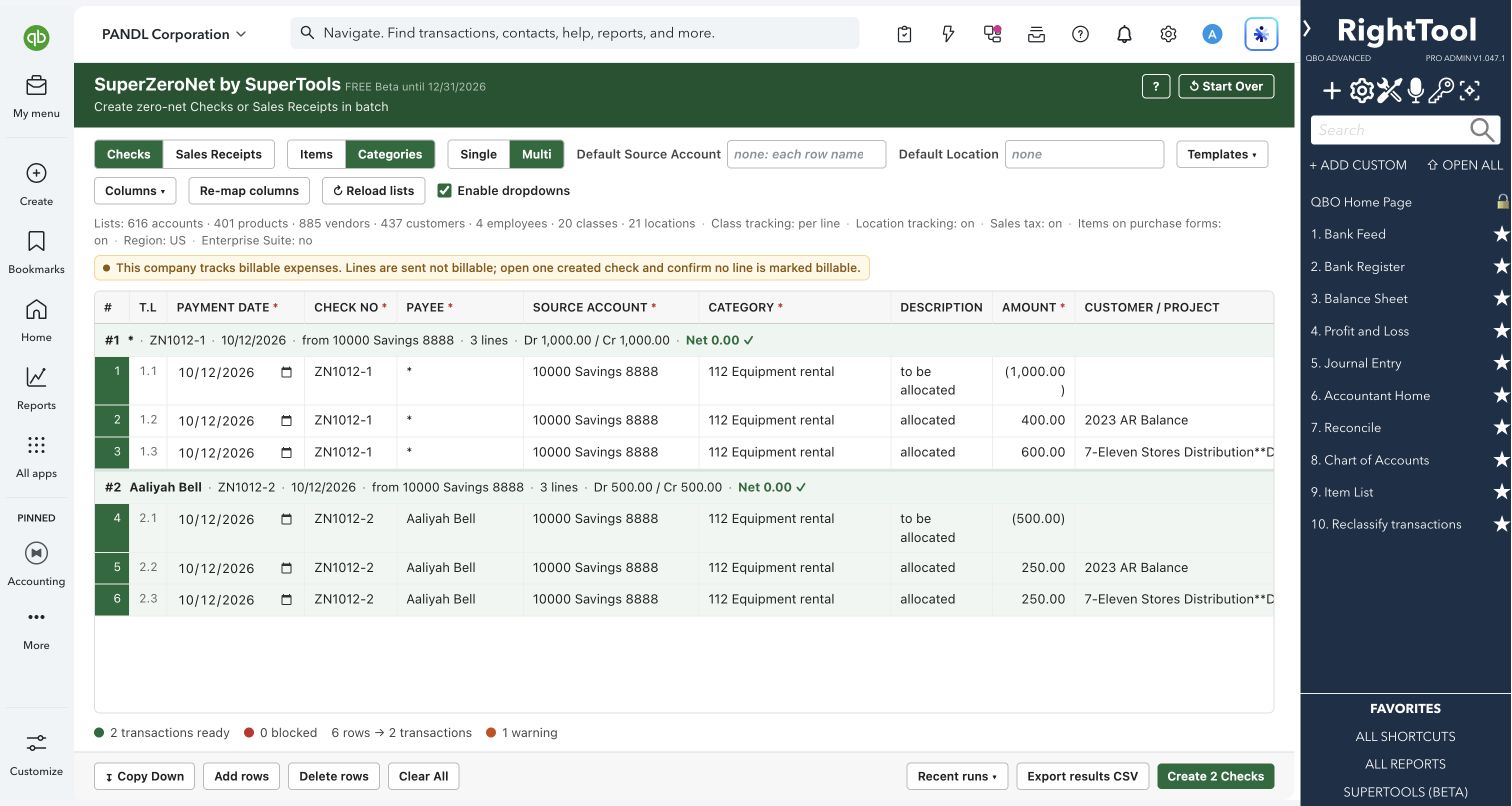
Explore the screens below. Select an image for a closer look.
What you can do
- Load every account, active and deleted. Show all of them, active only, deleted only, or accounts with zero or non-zero balances. You can also load P&L balances for any date range.
- Edit name, number, description, account type and lock status directly in the grid, then run all your selected changes at once.
- Batch-edit a selection: replace, prepend, append, or find and replace text in descriptions, and set the account type or lock status.
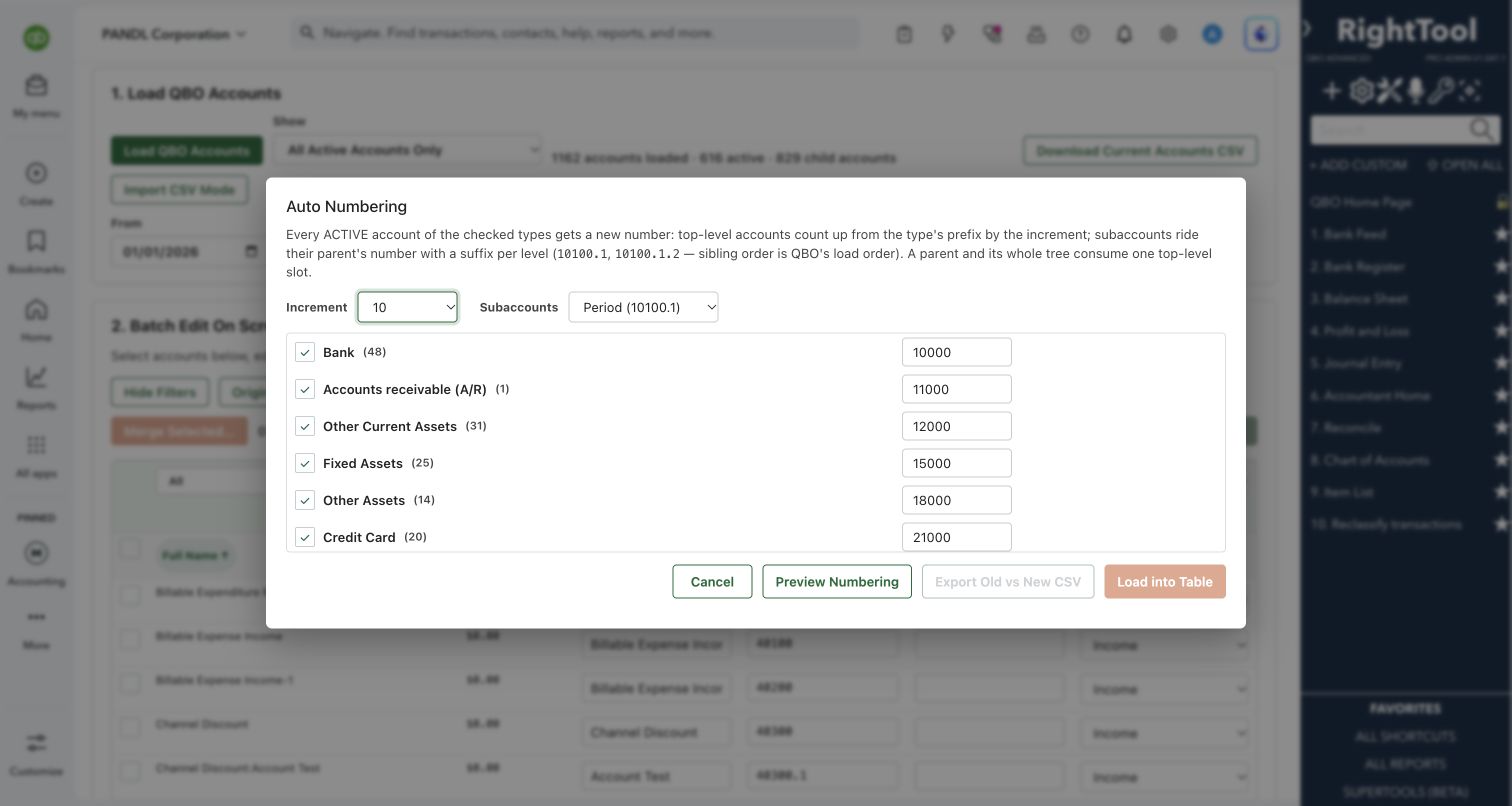
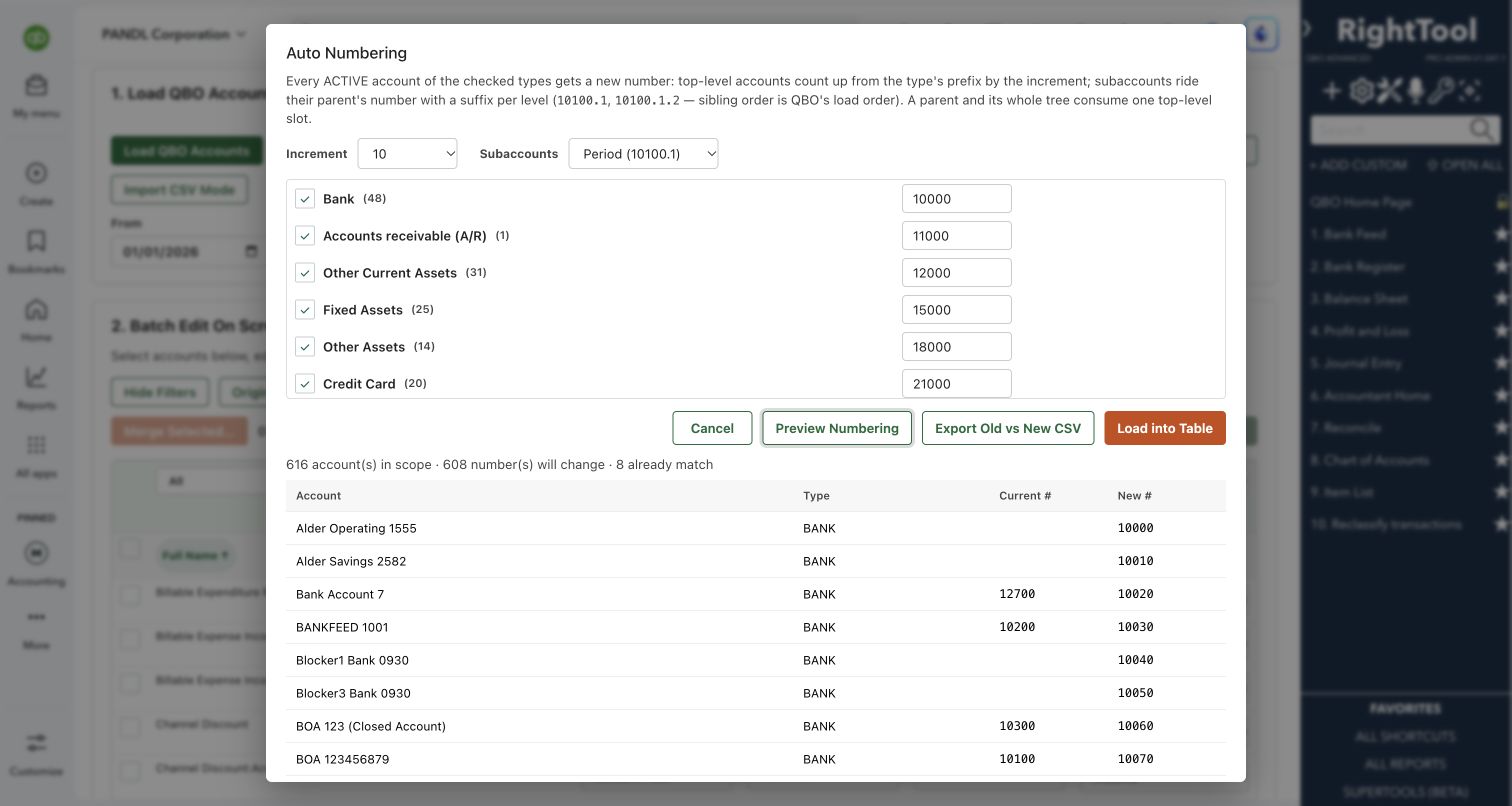
- Auto-number every active account of the types you choose:
- Set a starting number for each type and a step of 1, 10, 100 or 1,000.
- Subaccounts get period or hyphen suffixes (10100.1 or 10100-1).
- Preview the plan and export old vs. new numbers before loading them into the grid.
- Generate numbers for just the selected accounts as a flat sequence, inline steps or dotted suffixes.
- Change the account type even on parent accounts that have subaccounts.
- Restructure: make selected accounts subaccounts of another account, make one of them the parent of the rest, or promote subaccounts to top level.
- Merge several accounts into one surviving account you choose.
- Create many new accounts at once by pasting Name, Number, Account Type, Detail Type and Parent from a spreadsheet. A parent can be another account in the same paste.
- Edit inactive accounts without the manual steps, and choose for each one whether it goes back to inactive after the edit or stays active. You can also make selected accounts active or inactive in bulk.
- Download your current accounts as a CSV, edit it in a spreadsheet, and load it back into the grid.
- Filter by subaccount level, balance, account type (all P&L, all Balance Sheet or a single type), lock status and active status. You can also choose columns, text size, row density, and whether balances show as amounts or debit/credit.
Why it makes a difference
- Changes the type of a parent account in one step. QuickBooks won't retype an account that has subaccounts, so COA Manager detaches them, moves each one, retypes the parent and rebuilds the tree.
- Renumbers an entire chart from a plan you can preview and export first.
- Edits deleted (inactive) accounts without you reactivating and re-inactivating each one by hand.
- Shows balances next to each account, so you can see what is safe to clean up.
Put it to work
- New client onboarding: apply your firm's numbering scheme across the whole chart in one pass.
- Cleanup: show active accounts with a zero balance and make them inactive in bulk.
- Restructuring: group scattered expense accounts under new parent accounts.
- Consolidation: merge duplicate accounts after reviewing their balances.
WATCH THE WORKFLOW
Preview a consistent account-numbering scheme
Safe by design
- Grid edits are highlighted and held until you run them. Moves, promotions and type changes are checked first, and you confirm before anything changes. A results table reports the outcome for every account.
- Auto Numbering and Create Accounts show a preview and let you export the plan before anything changes. Create Accounts blocks any name that already exists in your chart, including inactive accounts.
- Merging runs a pre-check first and spells out what will happen: balances move to the surviving account, and a bank or credit card account's reconciliation history follows the merge. It offers a backup export of the selection and needs your explicit confirmation.
- Account type changes are checked against QuickBooks afterwards, because QuickBooks can refuse them without saying so.
Good to know
- Merges are permanent in QuickBooks and cannot be undone.
- P&L accounts show $0 until you load P&L balances for a date range.
- A subaccount whose new type differs from its parent's stays detached, and the screen tells you so. Some QuickBooks system accounts can't change type. An inactive account, or a parent with inactive subaccounts, must be made active before a type change.
- QuickBooks limits account numbers to 20 characters, and COA Manager warns when a number would be longer.
How to open it
SuperTools sidebar → COA Manager
Install the SuperTools extension, then open the SuperTools S menu in QuickBooks Online, choose Home, and enable the tool there.
View beta setup steps