Schedules & specialized tasks
The big picture.
Accruals Manager turns recurring adjusting entries into a schedule you fill in once. You enter the asset, prepaid, accrual or loan terms and pick the accounts. It works out every period's journal entry and posts the series to QuickBooks Online, so you stop keying the same entry month after month.
Built for
Accountants and bookkeepers who record month-end adjusting entries, fixed-asset depreciation, prepaid amortization and loan activity in QuickBooks Online.
SEE IT IN QUICKBOOKS
See the workflow, step by step.
Explore the screens below. Select an image for a closer look.
What you can do
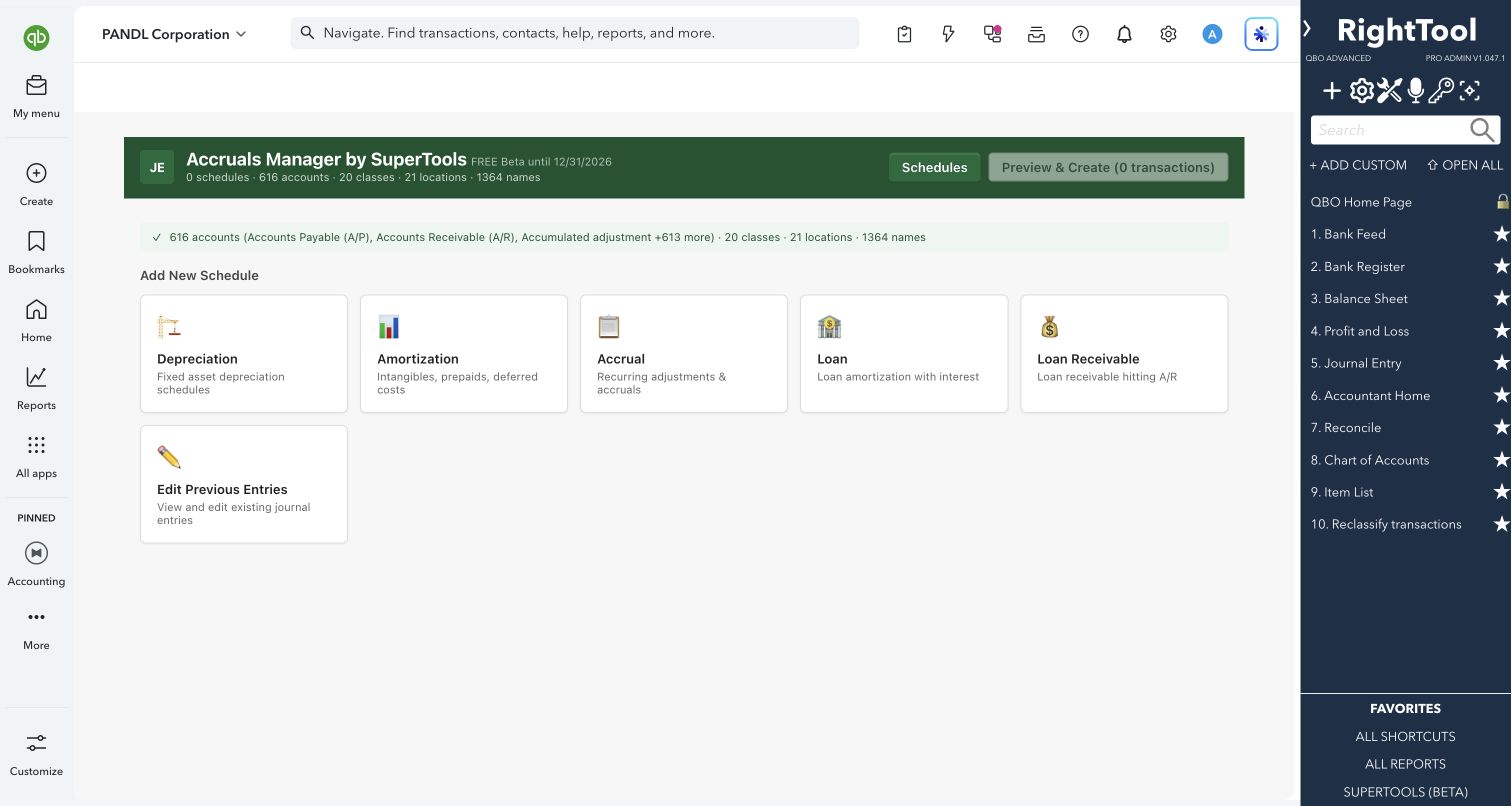
- Start a schedule from one of five types: Depreciation, Amortization (intangibles, prepaids, deferred costs), Accrual, Loan or Loan Receivable.
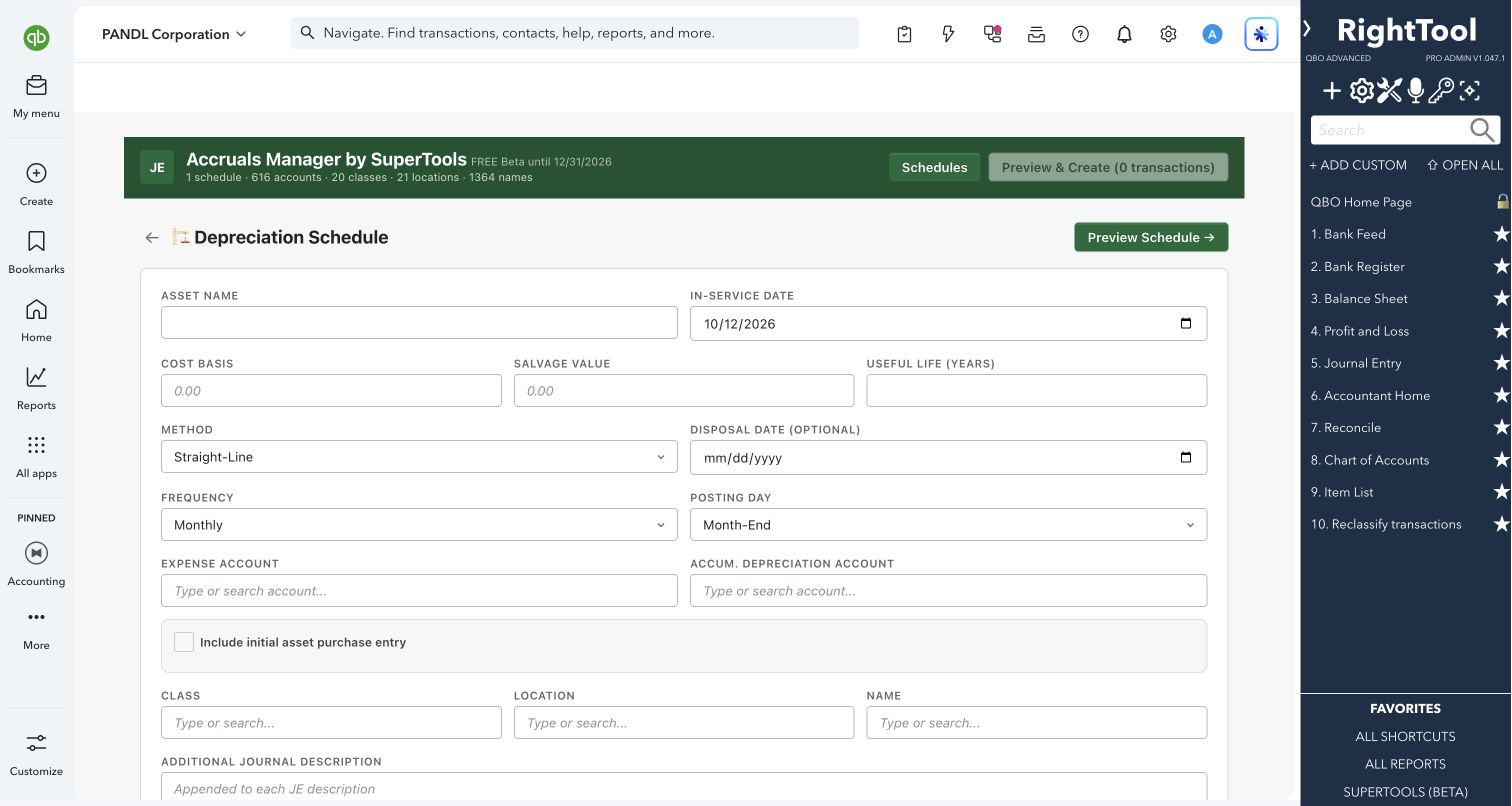
- Depreciate a fixed asset from its cost, salvage value, useful life and in-service date, using straight-line, double-declining balance, 150% declining balance or sum-of-years' digits. If you add a disposal date, the schedule ends on that date and takes the remaining depreciation by then.
- Spread a prepaid or deferred cost evenly over a term in months. Accrue an amount between a start date and an end date, either by splitting a total evenly or by repeating a fixed amount each period.
- Set up a loan from its principal, APR, term, interest-only periods and balloon balance. If you leave the payment blank, the tool calculates it, then splits each monthly payment into interest and principal.
- Track a loan you made to a customer. Each payment is booked to A/R, interest income and the loan receivable account.
- Optionally add the opening entry: the asset purchase, the prepayment, the loan funding or the loan disbursement.
- Post depreciation, amortization and accrual schedules monthly, quarterly or annually, dated at month-end, on the 1st or on the 15th.
- Tag entries with a class, a location and a name picked from your QuickBooks lists, and add your own text to every entry's description. Find accounts by typing a name, an account type or an account number.
- Preview each schedule period by period before anything is created. Loan previews show the beginning balance, interest, principal and ending balance for every payment, with totals.
- Line up several schedules and review their journal lines together; the screen shows the first 100 lines. Then post them all in one run, or download them as a file with journal no., date, account, debits, credits, description, name, location and class.
- Open Edit Previous Entries to find series this tool posted earlier. You can change their dates, memos, line descriptions and amounts and save them back, or open any entry in QuickBooks.
Why it makes a difference
- One schedule replaces a whole series of hand-keyed journal entries, and every period is calculated for you.
- Loan payments are split into interest and principal automatically, including interest-only periods and a balloon balance. The final payment clears whatever balance is left.
- The last period absorbs any rounding, so a schedule built from a total adds up to exactly that total.
- The declining-balance methods stop at the asset's salvage value.
- Your accounts, classes, locations and names load from your QuickBooks file when the page opens, so you don't have to import anything first.
- Every posted entry keeps its schedule's settings in its memo, so Edit Previous Entries can show what a series was built from.
Put it to work
- Fixed assets: set up a new vehicle once (cost, salvage value, useful life, straight-line) and post all of its monthly depreciation in one run.
- Prepaids: spread a 12-month insurance prepayment over the policy year, including the entry for the original payment.
- Loans: enter a term loan's details and post every monthly payment, split between interest expense and the loan payable.
- Month-end: accrue a recurring expense between two dates without keying it again each month.
WATCH THE WORKFLOW
Build a monthly depreciation schedule
Safe by design
- Nothing is created in QuickBooks until you click Post to QBO, and you can preview every schedule first.
- Before posting, it checks every account against your QuickBooks file. If any account is missing, it posts nothing and lists the accounts it couldn't find.
- Posting shows its progress and lists any entry that failed.
- A Loan Receivable schedule won't preview without a customer name, because QuickBooks requires one on A/R lines.
Good to know
- During beta, requires a RightTool PRO license and the separate SuperTools extension. Sign in at righttoolpro.com to activate your license.
- Schedules you're building stay only on the page until you post them, so post or download them before you leave.
- If some entries fail, the others are already in QuickBooks and the schedules stay on the page. Posting again sends every entry again, so check QuickBooks first to avoid duplicates.
- Each posted line's description gets a short tracking code in brackets. Edit Previous Entries finds only the first schedule of each posting run, so post schedules one at a time if you want to find each one again.
How to open it
SuperTools sidebar → Accruals Manager
Install the SuperTools extension, then open the SuperTools S menu in QuickBooks Online, choose Home, and enable the tool there.
View beta setup steps