Customers, vendors & projects
The big picture.
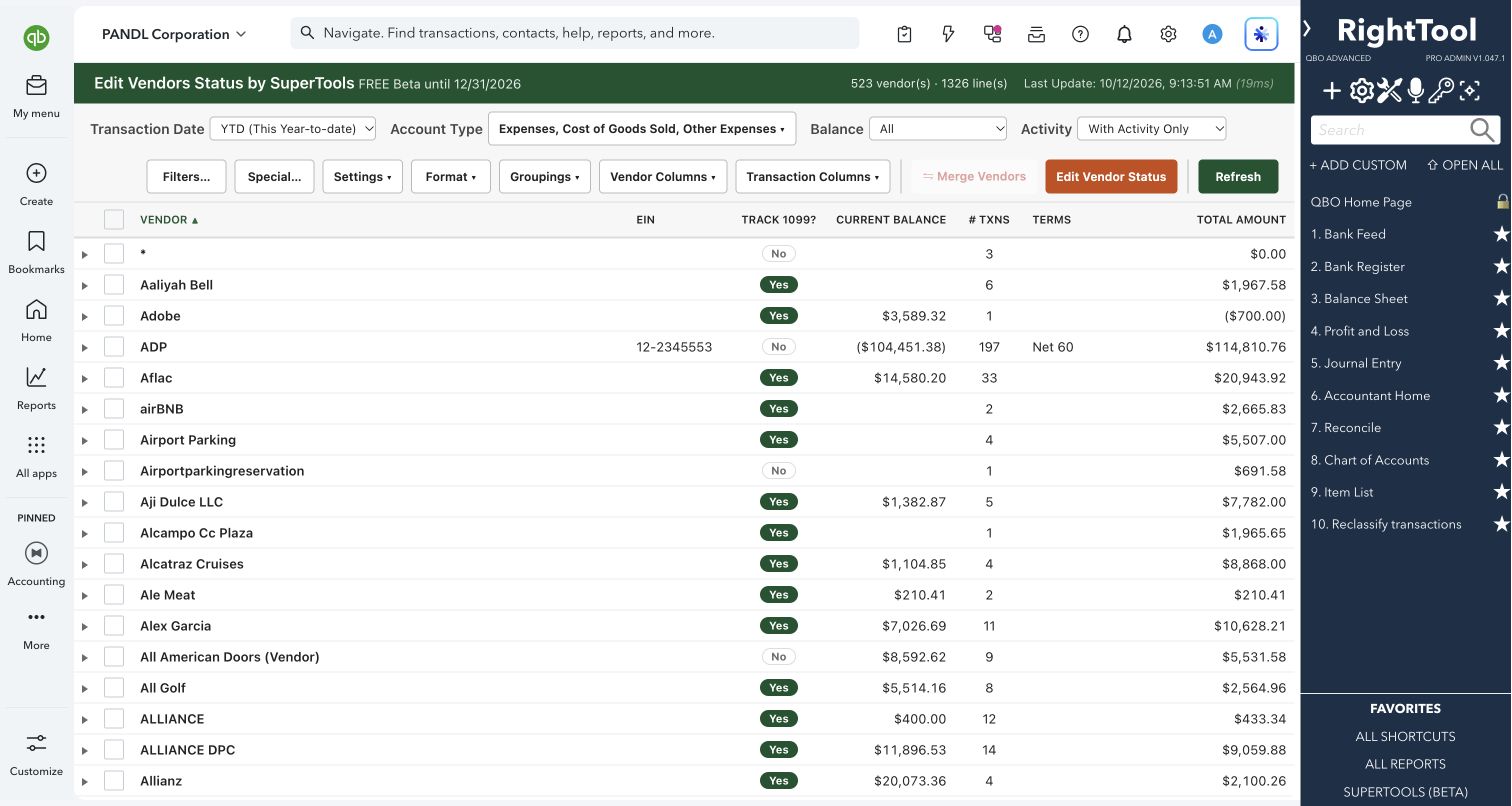
Edit Vendors Status lists your QuickBooks Online vendors next to their spending for any period, so you can see who should be tracked for 1099 and fix it for many vendors at once. Expand any vendor to see the bills, checks and expenses behind the total. It also sets terms, default expense accounts and vendor custom fields in bulk, merges duplicate vendors, and can split single-line expenses by class or customer.
Accountants and bookkeepers preparing 1099s, cleaning up vendor lists, or tidying up how expenses are coded.
SEE IT IN QUICKBOOKS
See the workflow, step by step.
Explore the screens below. Select an image for a closer look.
What you can do
- See each vendor's Track 1099 status, EIN, current balance, number of transactions, terms, default expense account, billing address, notes and total for any date range. Use presets (including fiscal-year presets if your company uses a fiscal year) or a custom range.
- Narrow the totals to accounts QuickBooks maps to 1099-NEC Box 1, and see which accounts those are, or to the account types you choose. Set a threshold so only vendors at or above it are shown.
- Expand a vendor to see every transaction. You can group the lines by type, month, account, account type, class, location, Customer:Project, product/service or transaction ID, and click any transaction to open it in QuickBooks.
- Group vendors into sections by 1099 status, has activity, has balance, terms, default expense account or any custom field.
- Click a vendor's 1099 chip to switch tracking on or off.
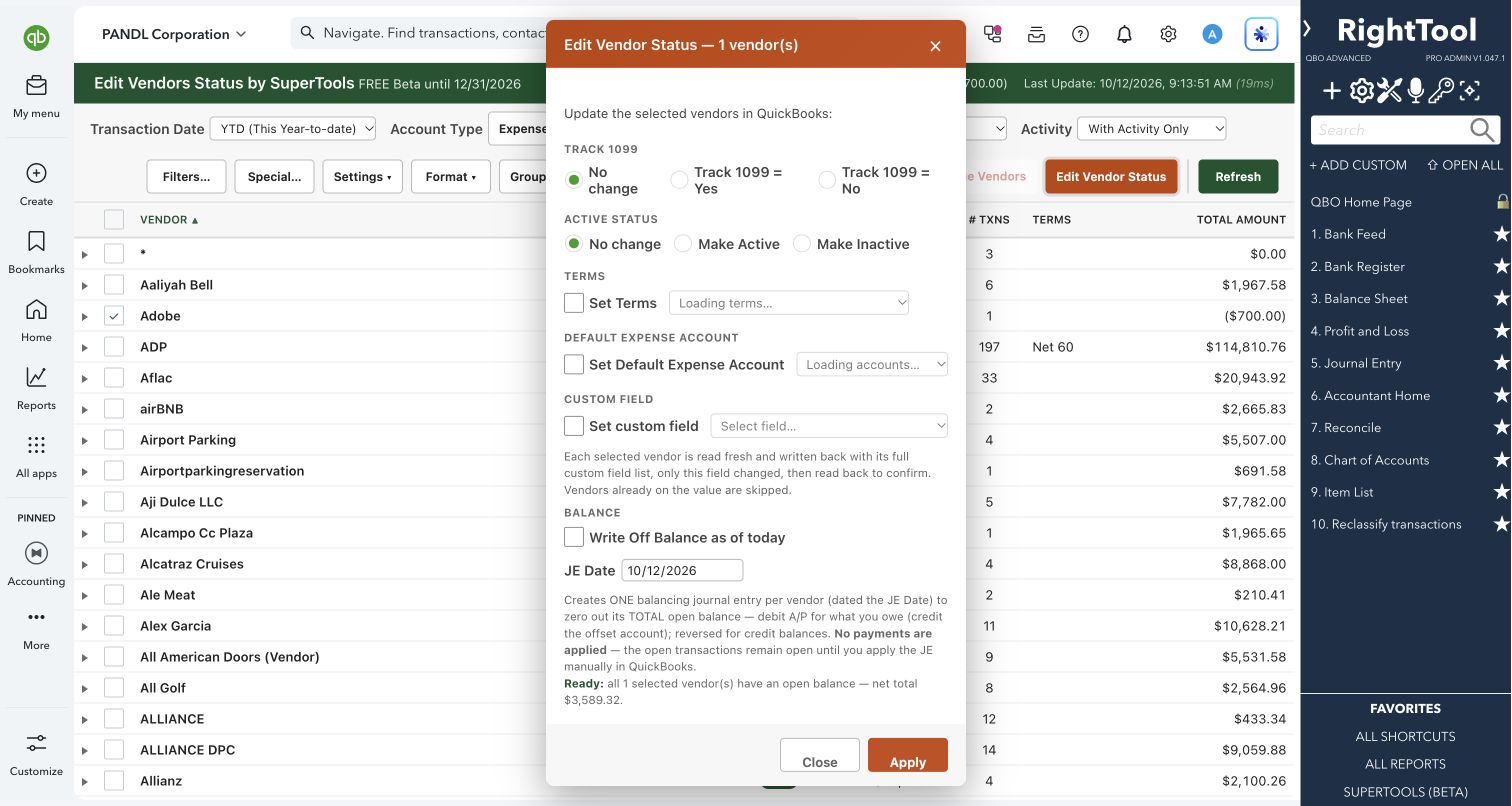
- Use "Edit Vendor Status" on a selection to set Track 1099, make vendors active or inactive, and set or clear Terms, Default Expense Account or a custom field, all in one Apply.
- Edit Terms, Default Expense Account and custom fields (dropdown, text, number, date) right in the grid.
- Highlight in yellow any transaction line not posted to the vendor's default expense account.
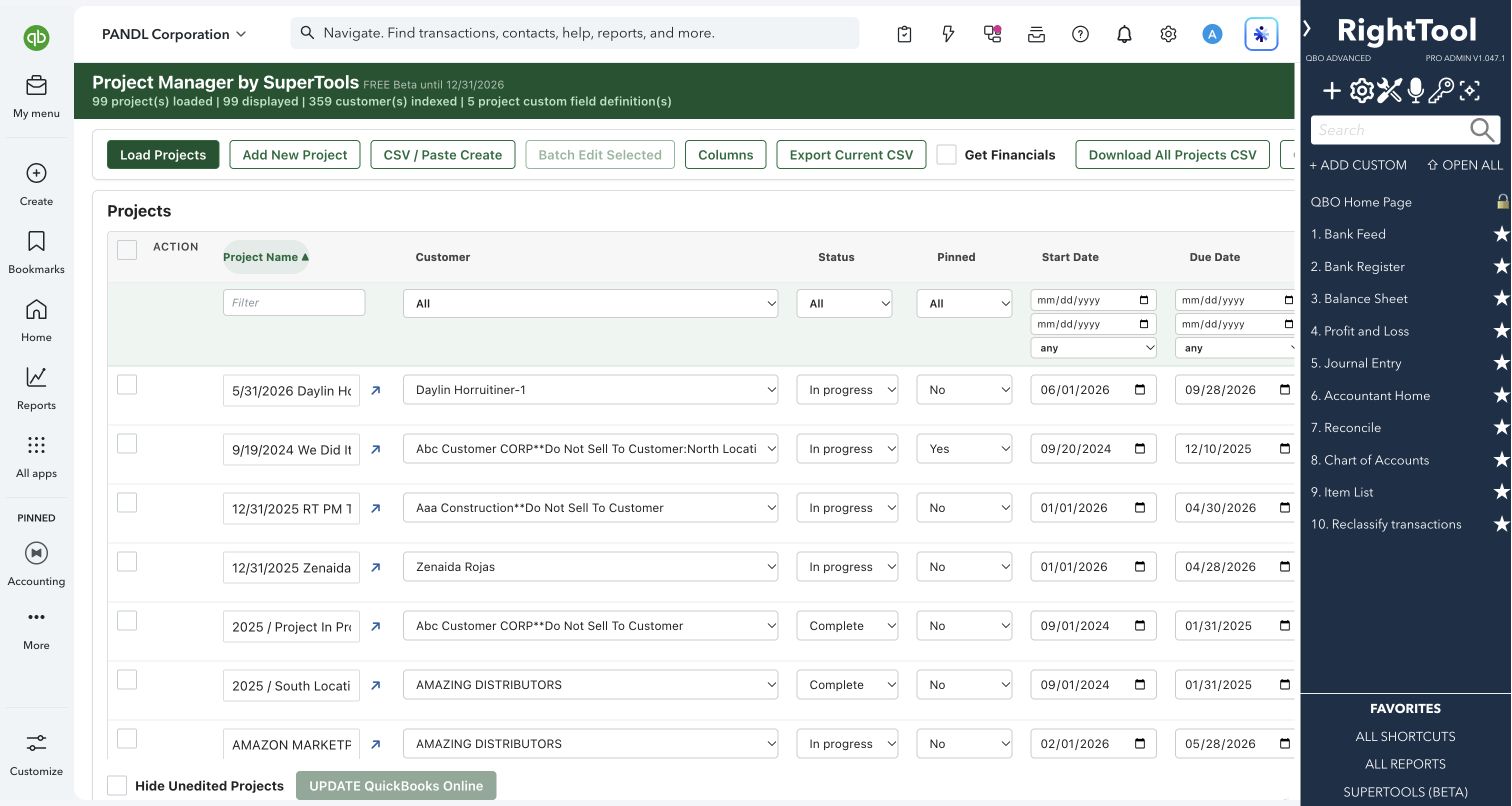
- Show only single-line transactions, switch to Create Splits, and split selected bills, expenses and checks by class, Customer:Project or both, using percentages.
- Merge duplicate vendors into one survivor that you pick.
- Write off the open balances of selected vendors with one balancing journal entry per vendor, against an offset account you choose.
- Show deleted vendors and restore them, and export a summary, every transaction line, or the view as shown, to CSV.
Why it makes a difference
- Your 1099 review runs on real spending, with the transactions right there to check.
- The 1099-NEC Box 1 filter uses the account mapping already set in QuickBooks, and links straight to QuickBooks' 1099 filing details.
- You can fix 1099 tracking, terms, default accounts and vendor custom fields in bulk instead of editing one vendor record at a time.
- You can find and fix miscoded spending, then split single-line expenses across classes or jobs without opening each transaction.
Put it to work
- 1099 season: filter to 1099-NEC Box 1 accounts for last year, set your threshold, and switch on Track 1099 for every vendor who qualifies.
- Coding cleanup: turn on the yellow highlight to find bills that didn't use the vendor's default account, then set the right default for those vendors.
- Job costing: select a month of single-line utility bills and split each one 60/40 across two classes.
- Vendor list cleanup: merge "Home Depot" and "The Home Depot", then inactivate vendors with no activity in two years.
WATCH THE WORKFLOW
Review vendor activity and choose a default expense account
Safe by design
- Before anything is written, you confirm a plain-language summary of the change and how many vendors it affects. This applies to a batch and to a single chip click. Vendors already on the chosen terms, active status or custom-field value are skipped.
- Custom field changes are read back from QuickBooks to confirm the new value and that the vendor's other custom field values are unchanged.
- Splits only go ahead when the percentages add up to 100% and every row has a class or Customer:Project chosen.
- The last row absorbs rounding, so the transaction total never changes.
- You confirm the batch first.
- Each split line's description and the transaction memo record the original amount and the percentages.
- Merges need a chosen survivor and an "I understand this cannot be undone" tick. Write-offs re-read balances immediately before posting and refuse any vendor whose balance changed.
Good to know
- Splits work on single-line bills, expenses and checks that are coded to accounts. Lines with products or services aren't supported, and a transaction already included in a bank deposit is listed as not split.
- Write-off journal entries are not applied to open bills automatically; apply them in QuickBooks. Balance write-offs work only in US-dollar companies.
- Deleted custom fields are view-only.
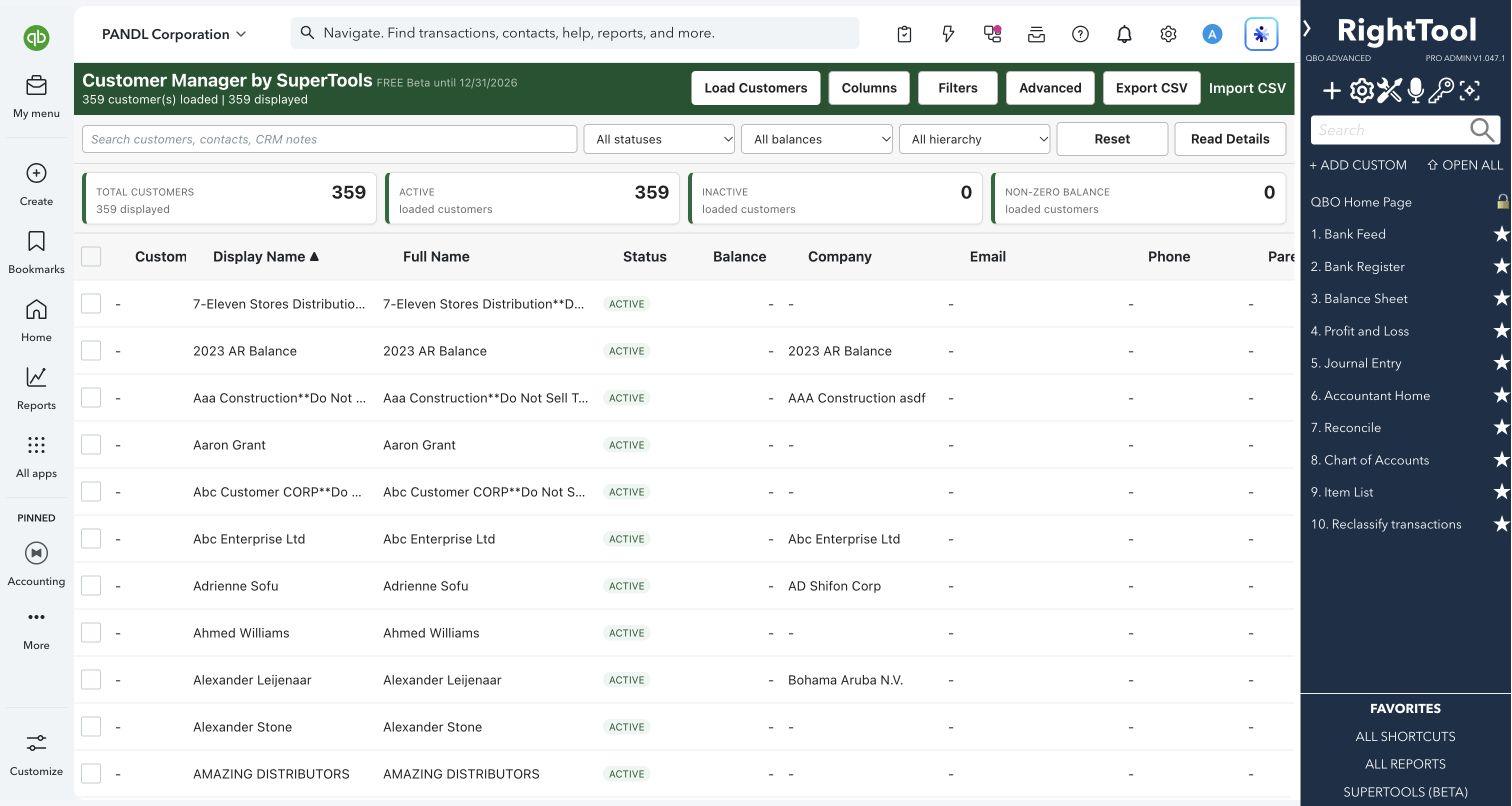
- Edit Customers Status is the same tool for customers. Part of SuperTools (Beta).
How to open it
SuperTools sidebar → Edit Vendors Status
Install the SuperTools extension, then open the SuperTools S menu in QuickBooks Online, choose Home, and enable the tool there.
View beta setup steps