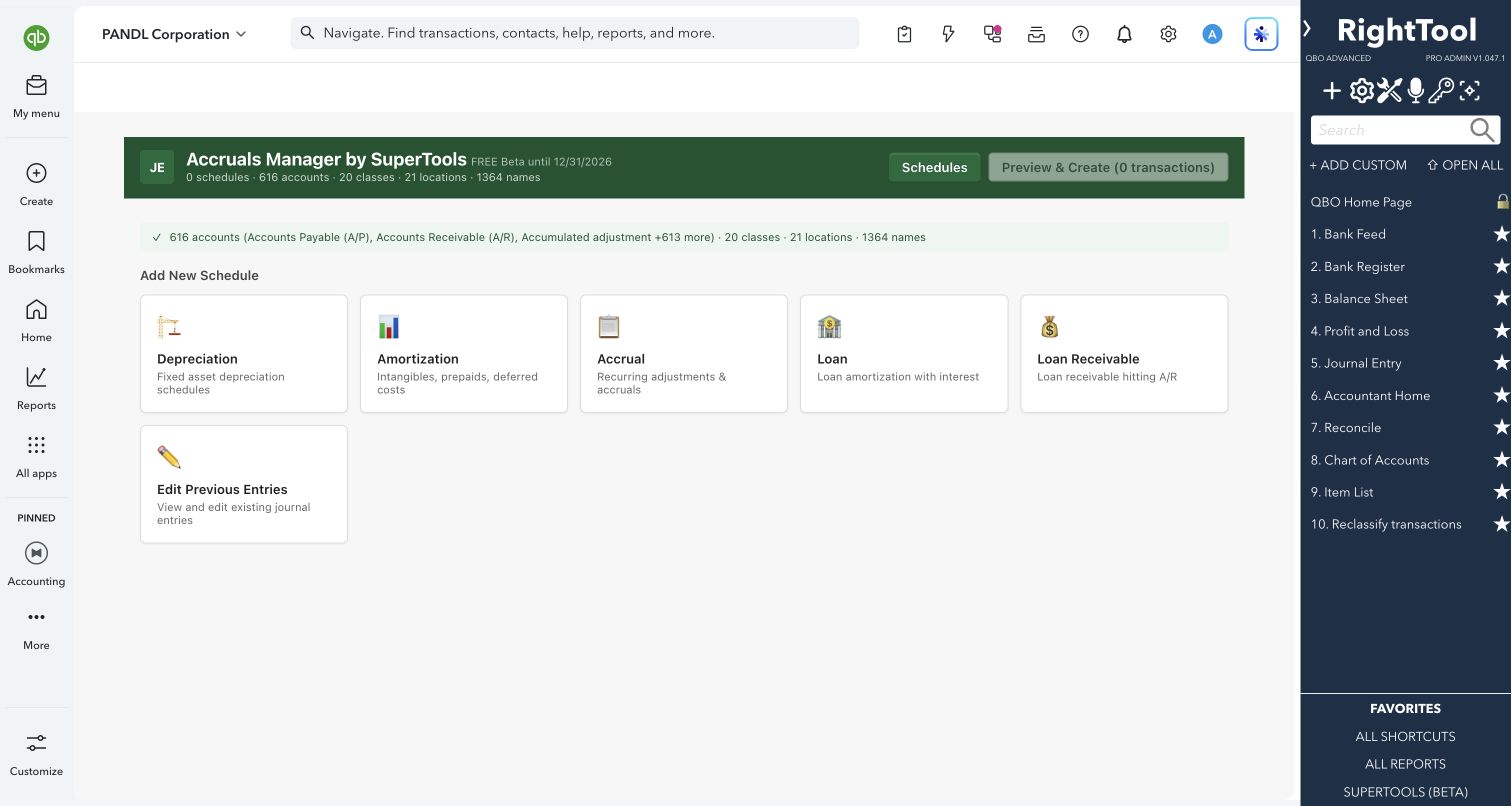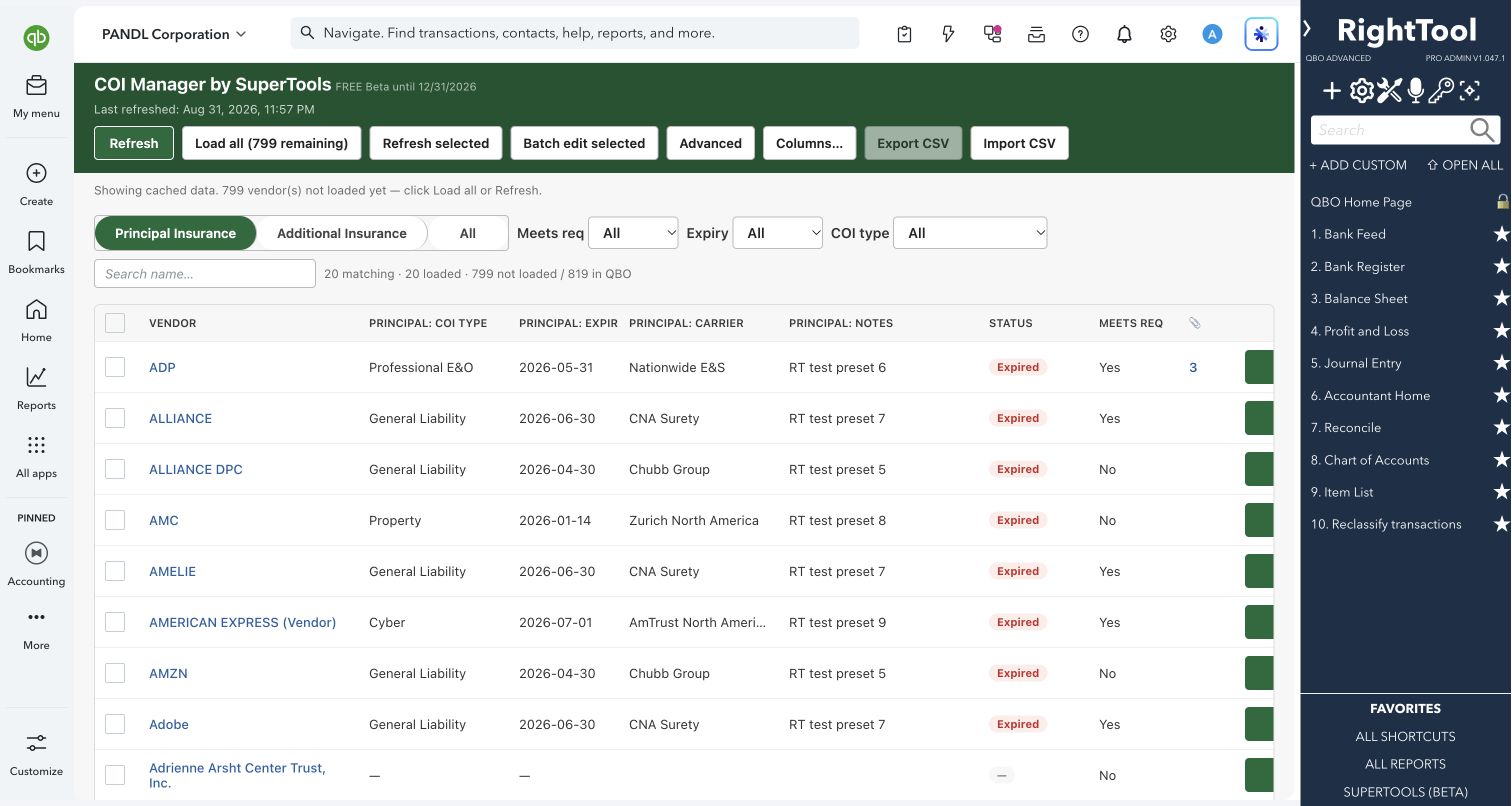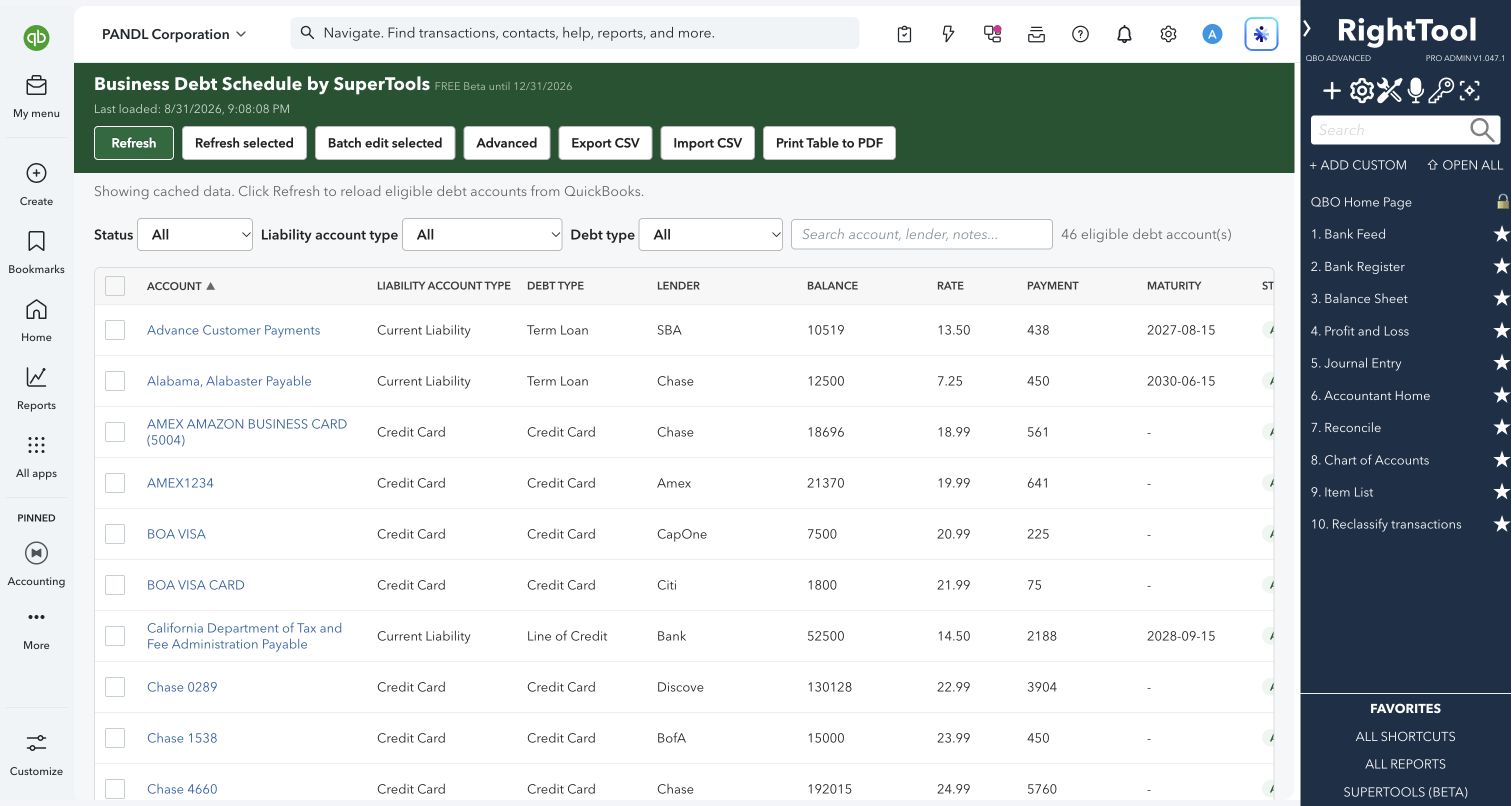
Schedules & specialized tasks
The big picture.
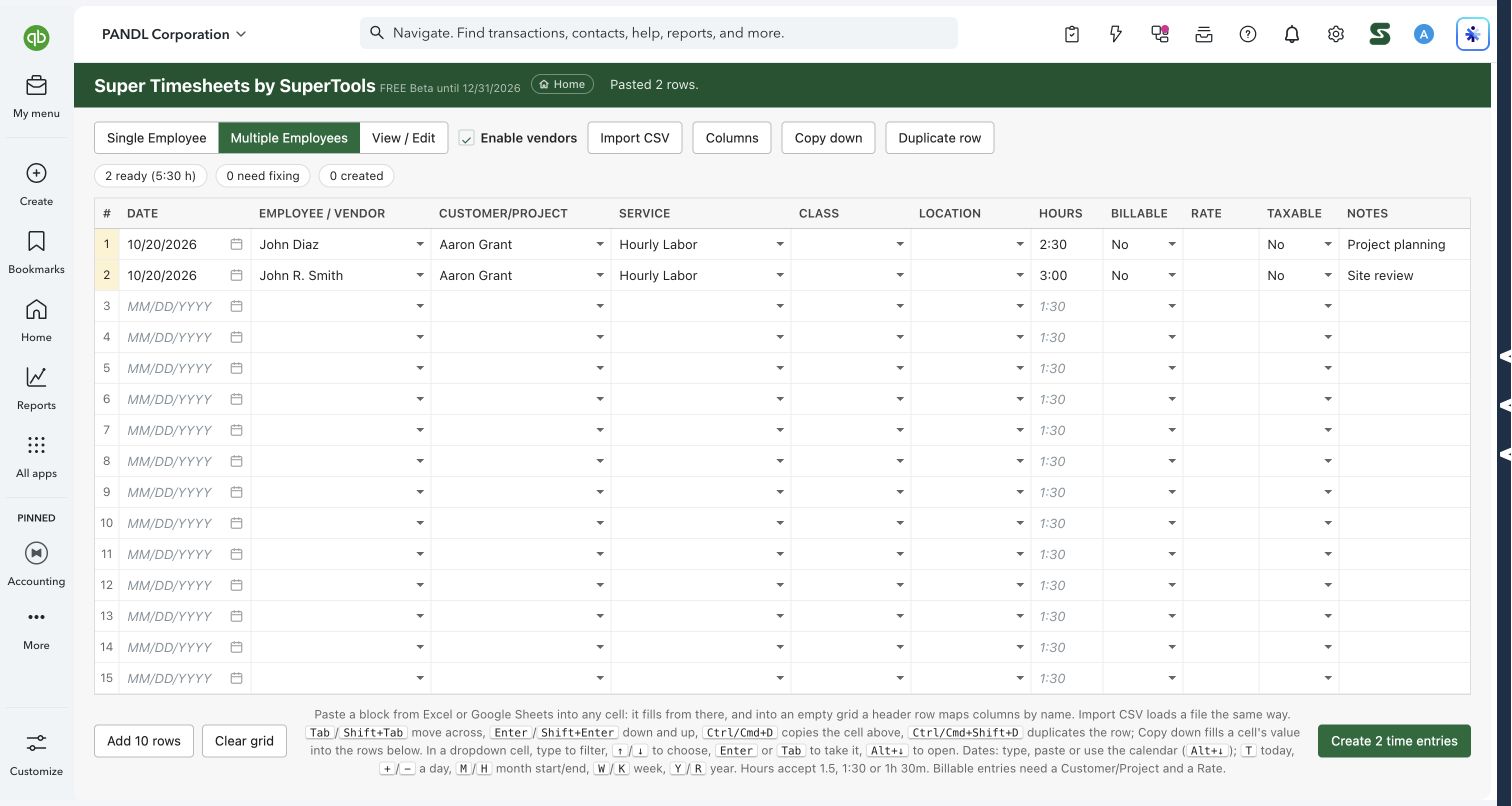
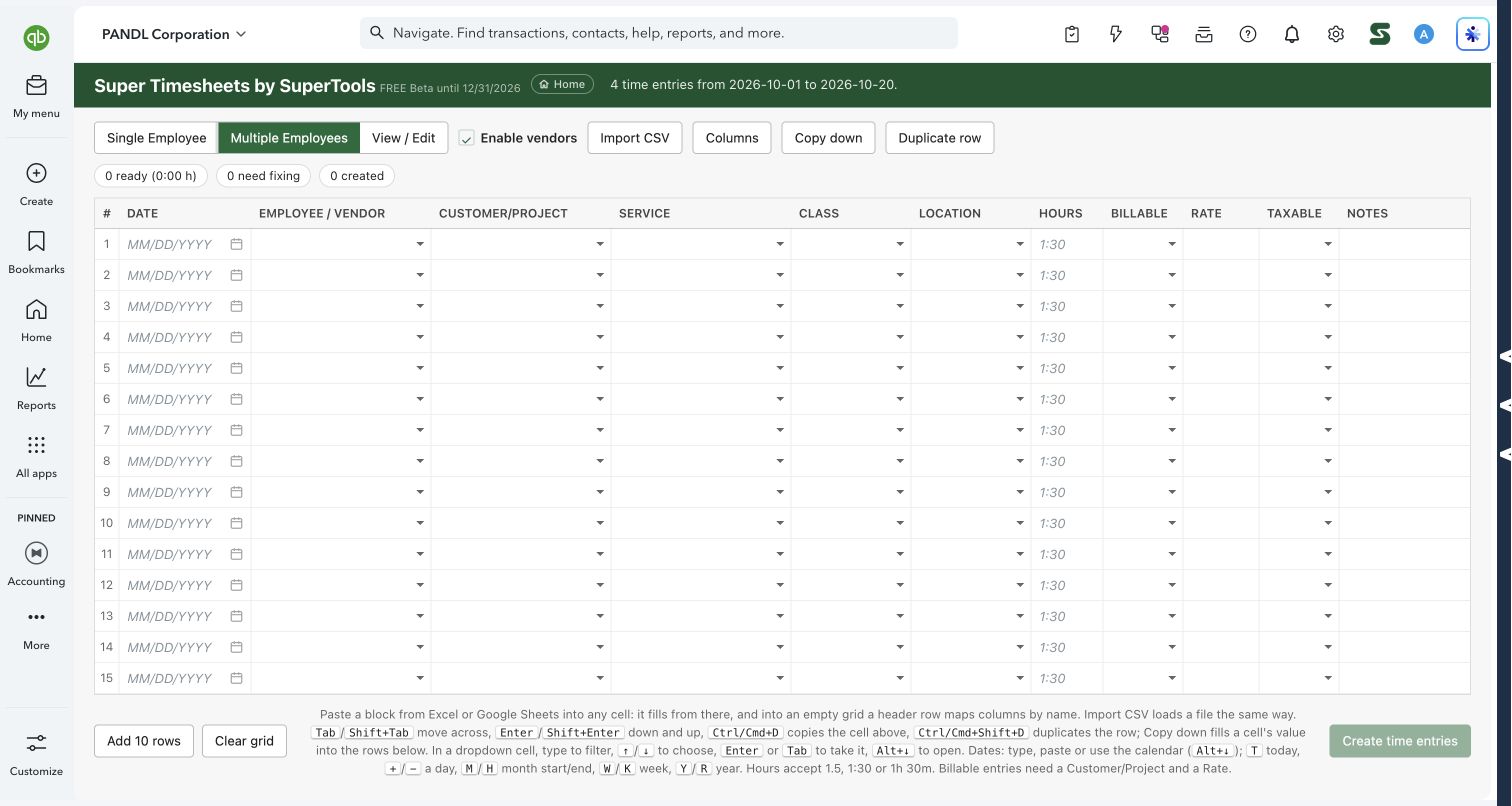
Super Timesheets combines spreadsheet-style time entry with a view of saved time. Prepare multiple employees’ or vendors’ entries, match names to company lists, check hours and billable details, and create the ready rows together.
Bookkeepers, project teams and businesses tracking employee or contractor time.
SEE IT IN QUICKBOOKS
See the workflow, step by step.
Explore the screens below. Select an image for a closer look.
What you can do
- Choose an entry mode: Use Single Employee or Multiple Employees, with optional vendor time.
- Paste or import: Paste a block from Excel or Google Sheets into the grid, or import a compatible CSV. Headers can map columns by name.
- Enter complete details: Date, worker, customer/project, service, class, location, hours, billable status, rate, taxable status and notes.
- Work quickly: Copy down cells, duplicate rows and use keyboard navigation and date shortcuts.
- Validate before creating: See ready rows, rows needing attention, total hours and created counts.
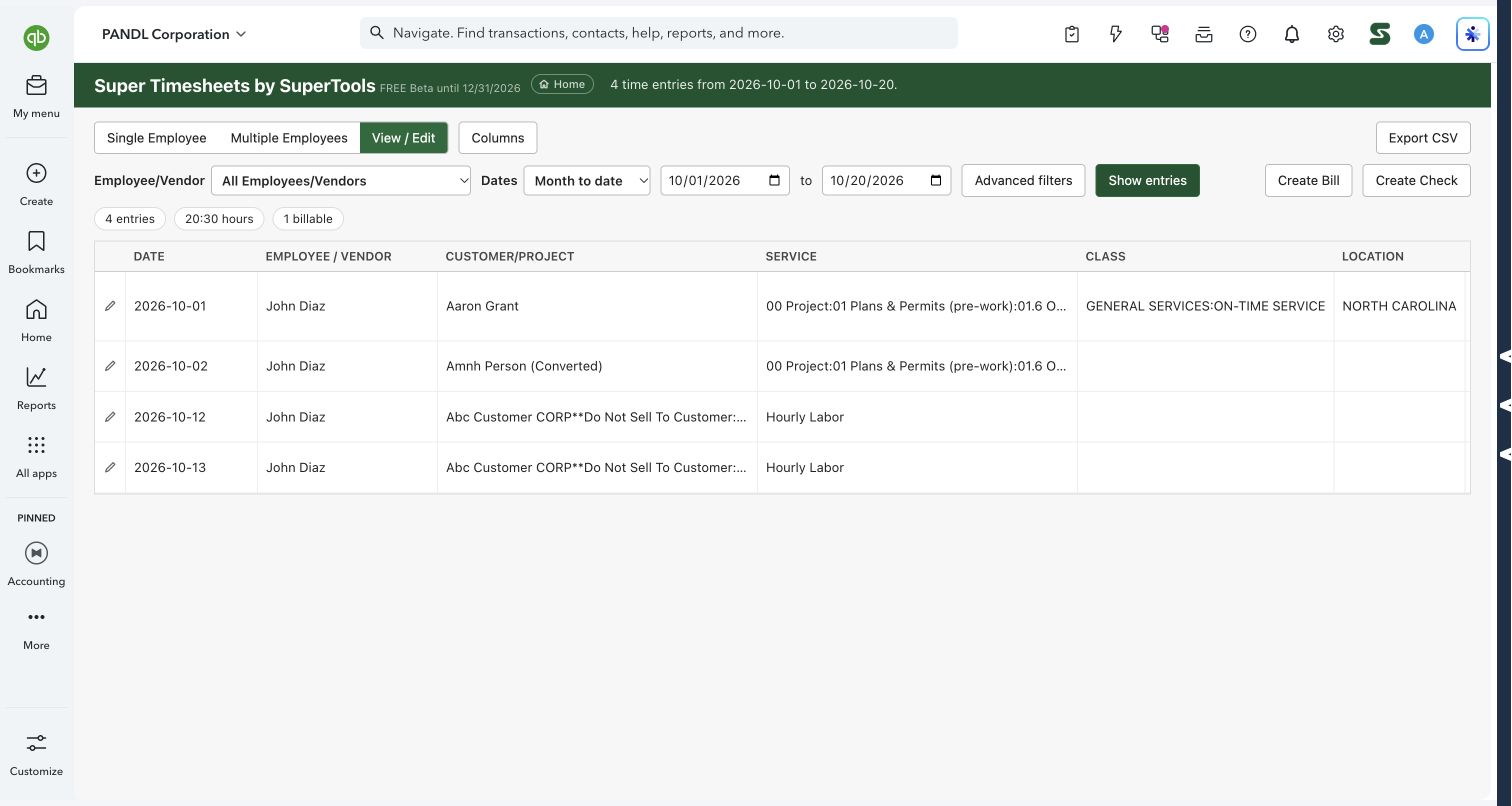
- Review existing time: Filter by employee/vendor and dates, use advanced filters, edit entries, open them in QuickBooks and export CSV.
- Prepare costs: The View / Edit workspace includes Create Bill and Create Check workflows for supported time costs.
Why it makes a difference
- One grid handles a team’s time without repeating the entry screen.
- Hours accept decimal, hours-and-minutes, and text forms such as 1h 30m.
- Existing company names are matched before rows are ready.
Put it to work
- Paste two workers’ project time from a spreadsheet.
- Review the matched names and total hours, then create the ready entries.
- Open View / Edit to inspect a period and export or correct saved time.
WATCH THE WORKFLOW
Paste and validate a team timesheet
Safe by design
Rows are checked before creation. Billable entries require a customer/project and rate. Review the company, dates and selected entries before saving changes or creating bills or checks.
Good to know
Available fields depend on company capabilities. This is a time-entry and review tool; creating a bill or check is a separate action. The tutorial shows a prepared batch and a separate view of existing saved entries.
How to open it
SuperTools Home → Super Timesheets. Direct QuickBooks route: /app/superTimesheets.
Install the SuperTools extension, then open the SuperTools S menu in QuickBooks Online, choose Home, and enable the tool there.
View beta setup steps