Schedules & specialized tasks
The big picture.
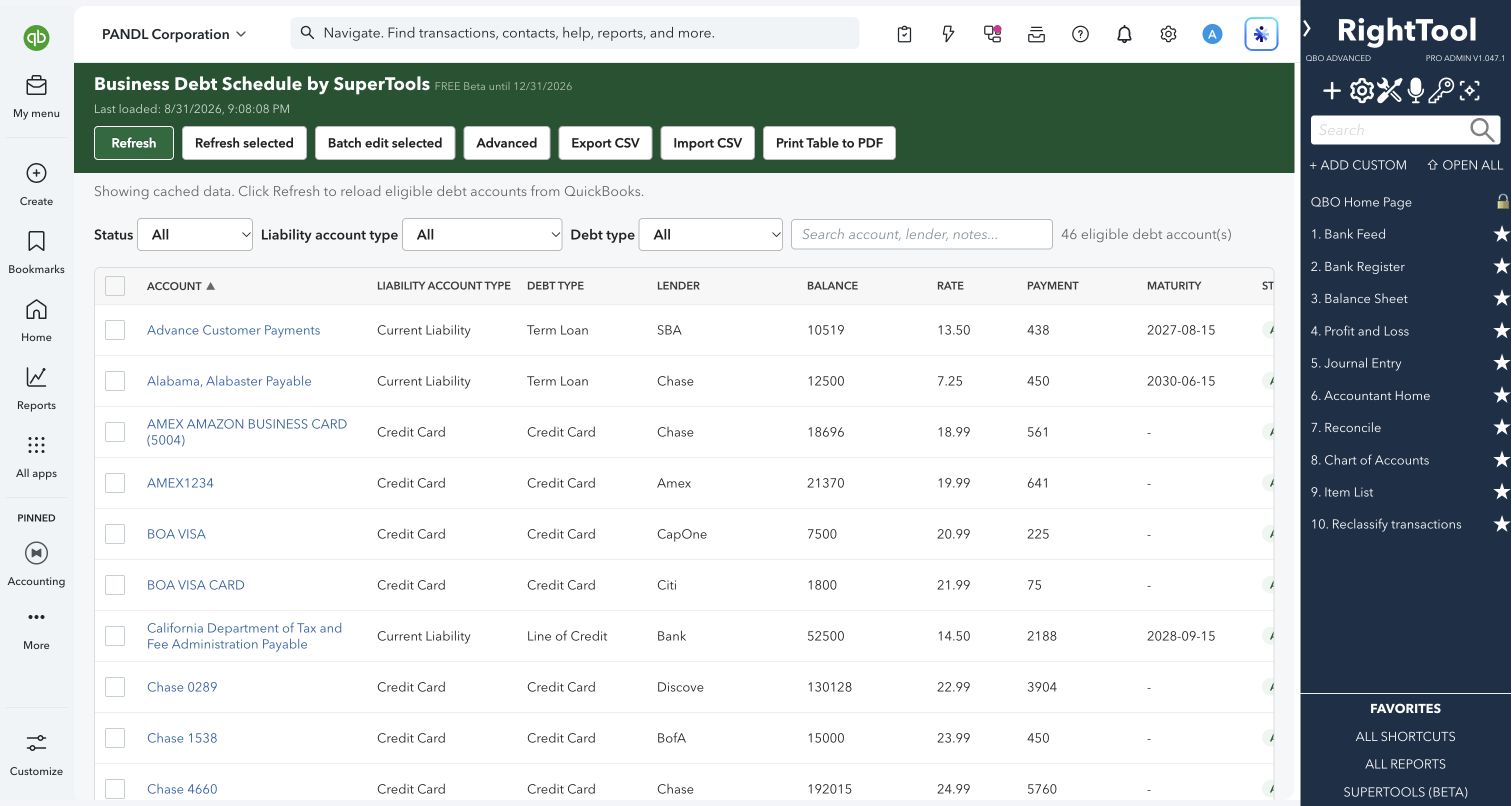
Banks, lenders and CPAs ask for a business debt schedule: every loan, card and line of credit with its lender, rate, payment and maturity date. Business Debt Schedule Manager builds it from your QuickBooks chart of accounts. You fill in each debt account once, then print or export the schedule whenever someone asks for it.
Business owners applying for or renewing financing, and the accountants and bookkeepers who prepare their loan packages and lender reports.
SEE IT IN QUICKBOOKS
See the workflow, step by step.
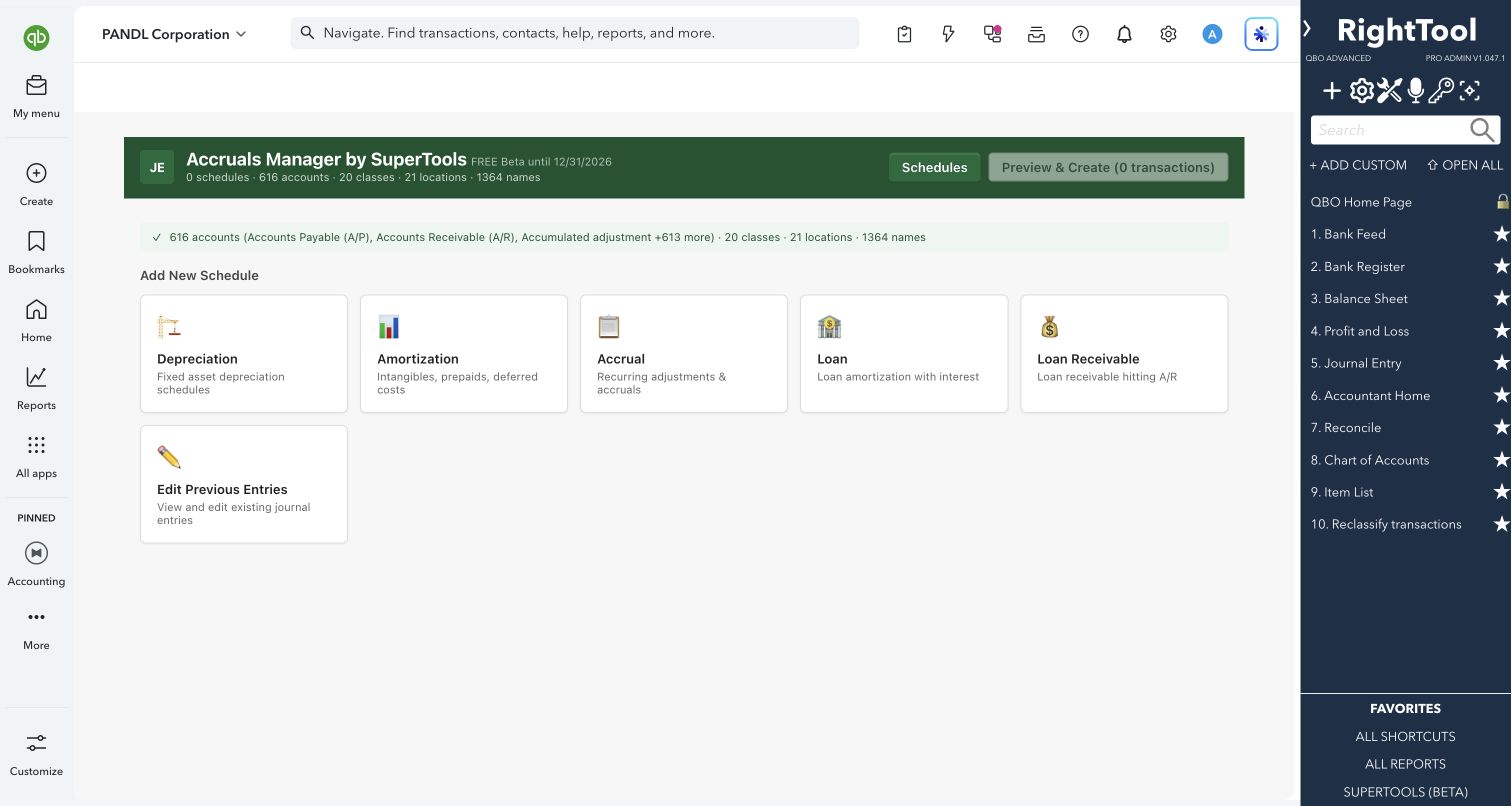
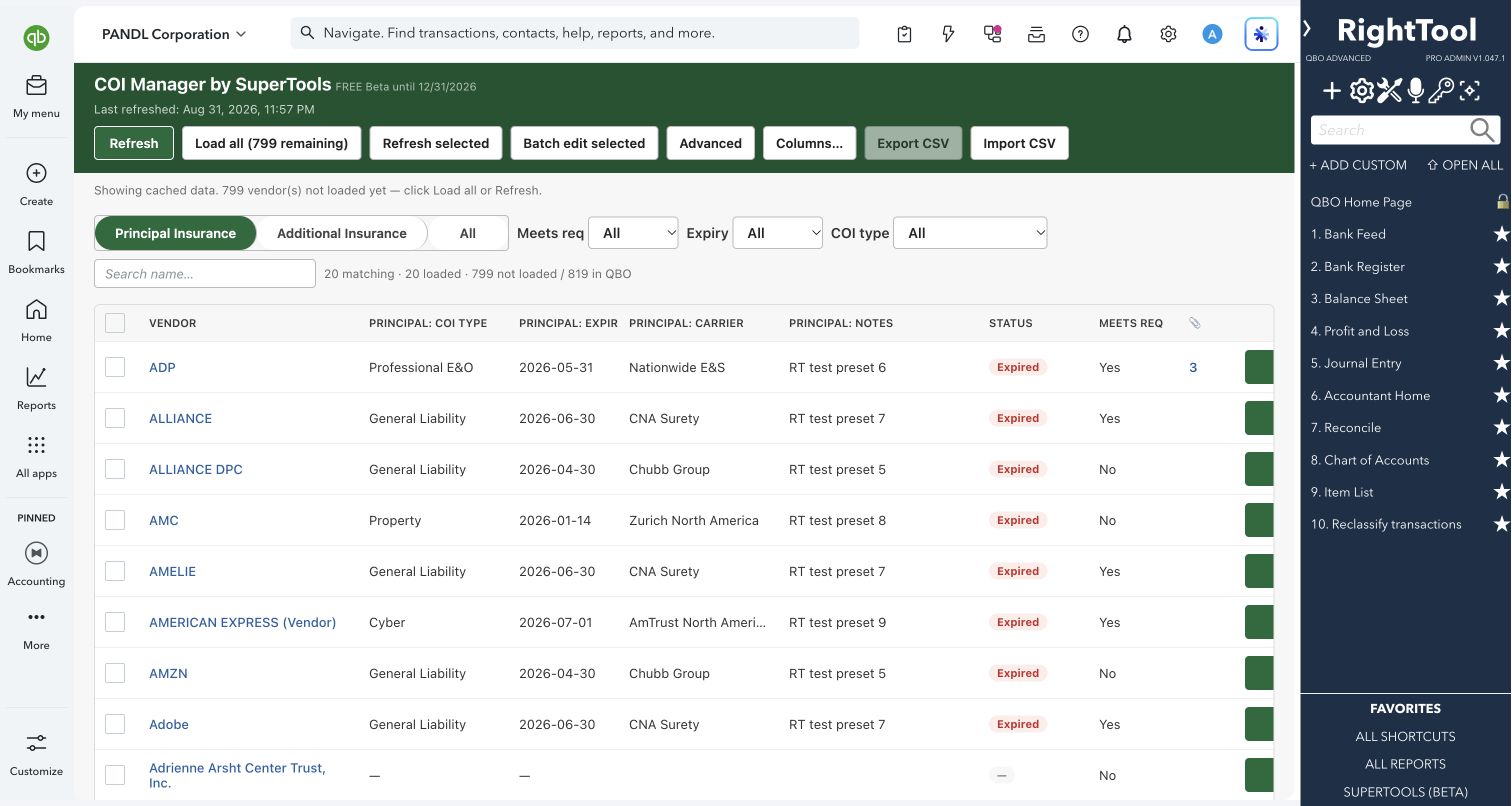
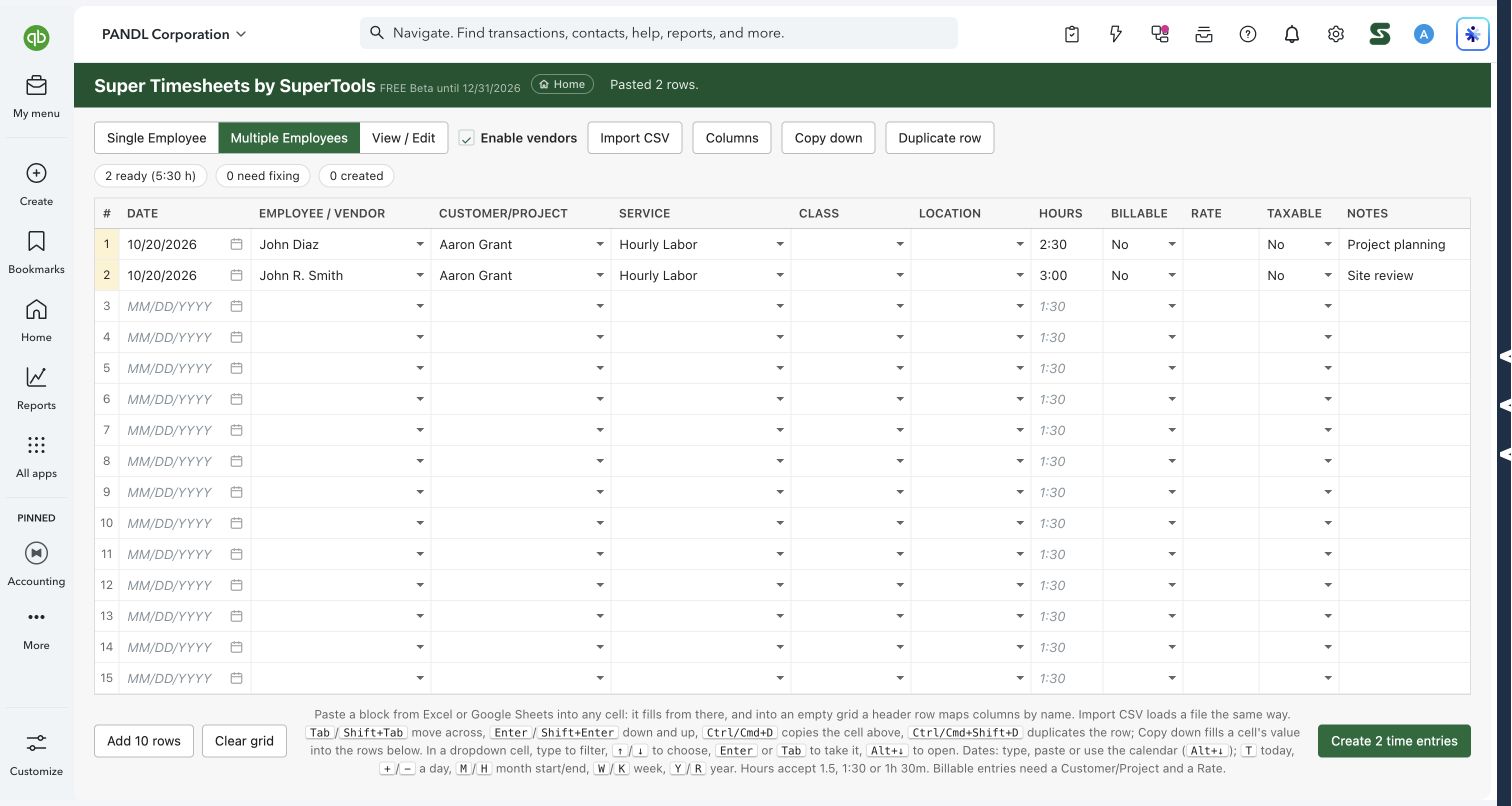
Explore the screens below. Select an image for a closer look.
What you can do
- Load your active credit card, current liability and long-term liability accounts from QuickBooks in one click. Payroll liabilities and sales tax payable are left out.
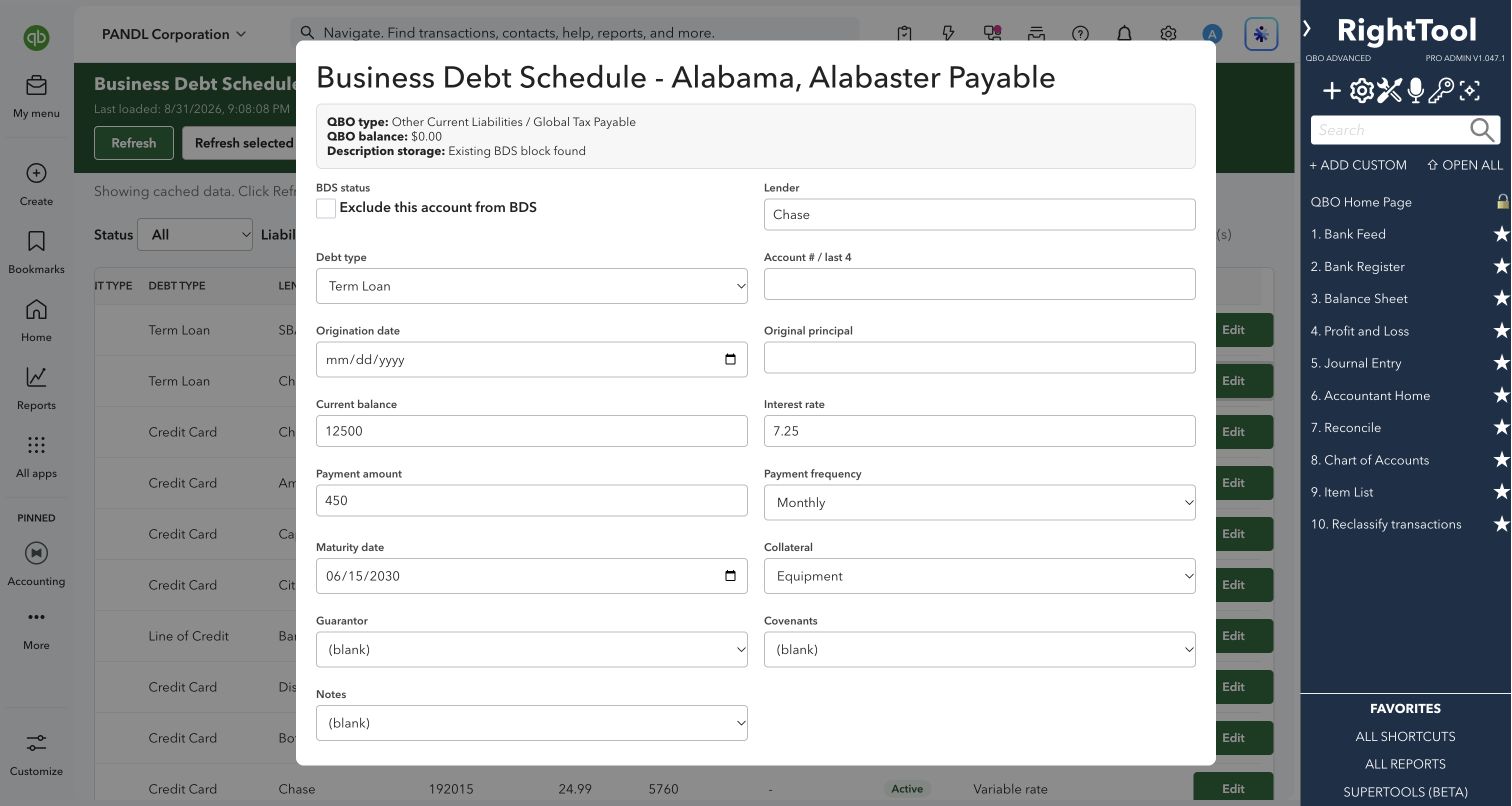
- Record each debt's lender, debt type, account last four, origination date, original principal, current balance, interest rate, payment amount and frequency, maturity date, collateral, guarantor, covenants and notes.
- Choose a debt type: Credit Card, Line of Credit, Term Loan, Vehicle Loan, Equipment Loan, Mortgage, SBA Loan or Other.
- See each account's QuickBooks account type and balance while you edit it. In the grid, the QuickBooks balance shows wherever you haven't entered a current balance.
- Exclude accounts that don't belong on the schedule.
- Filter by status, liability account type or debt type, search by account, lender, notes and more, and sort by account, balance, maturity, lender, debt type or status.
- Select accounts, or every account that matches your filters, and batch-edit them. Only the fields you fill in are applied.
- Print the filtered schedule to PDF in landscape. The heading shows the row count, the print date and the filters you used.
- Export the filtered schedule to CSV, update it in a spreadsheet and import it back. Accounts are matched by account ID, number or name.
Why it makes a difference
- Status is worked out from what you record: Active, Matured (past its maturity date), Paid (a current balance of zero) or Excluded.
- It records the loan terms QuickBooks doesn't track (rate, maturity, collateral, guarantor and covenants) next to the account.
- The schedule details are saved on each account in QuickBooks, so they stay with the company file and are there next time.
- The page reopens with the accounts you last loaded and shows when they were loaded. Refresh pulls the latest from QuickBooks.
Put it to work
- Loan application: when the bank asks for a debt schedule, filter to All Included, print to PDF and attach it.
- Annual review: filter to Matured to find loans that are past their maturity date but still have a balance recorded.
- New client setup: filter to Credit Card, select every card, and set the debt type and payment frequency in one batch edit.
- Year-end: export the schedule to CSV for your workpapers.
WATCH THE WORKFLOW
Review loan terms and export a debt schedule
Safe by design
- Only the account's description is changed. The schedule details go in their own section of it, and any description text you already had is kept.
- It checks QuickBooks' 100-character limit for account descriptions before saving. If the details won't fit, it doesn't save and asks you to shorten them.
- CSV import changes only the accounts it can match, then tells you how many were updated, skipped and failed. Batch edit reports how many were updated and how many failed.
Good to know
- QuickBooks caps account descriptions at 100 characters, including any text already there. So the lender name is limited to 7 characters, and debt type, frequency, collateral, guarantor, covenants and notes are picked from short lists.
- Status reads the current balance you enter, not the QuickBooks balance. An account with no current balance entered counts as Paid, so enter one for every debt you track.
- Import from a file you exported and keep all its columns. A blank cell clears that detail on the account.
- Part of SuperTools (Beta). Printing opens a new window, so allow pop-ups for QuickBooks.
How to open it
SuperTools sidebar → Business Debt Schedule Manager
Install the SuperTools extension, then open the SuperTools S menu in QuickBooks Online, choose Home, and enable the tool there.
View beta setup steps