Schedules & specialized tasks
The big picture.
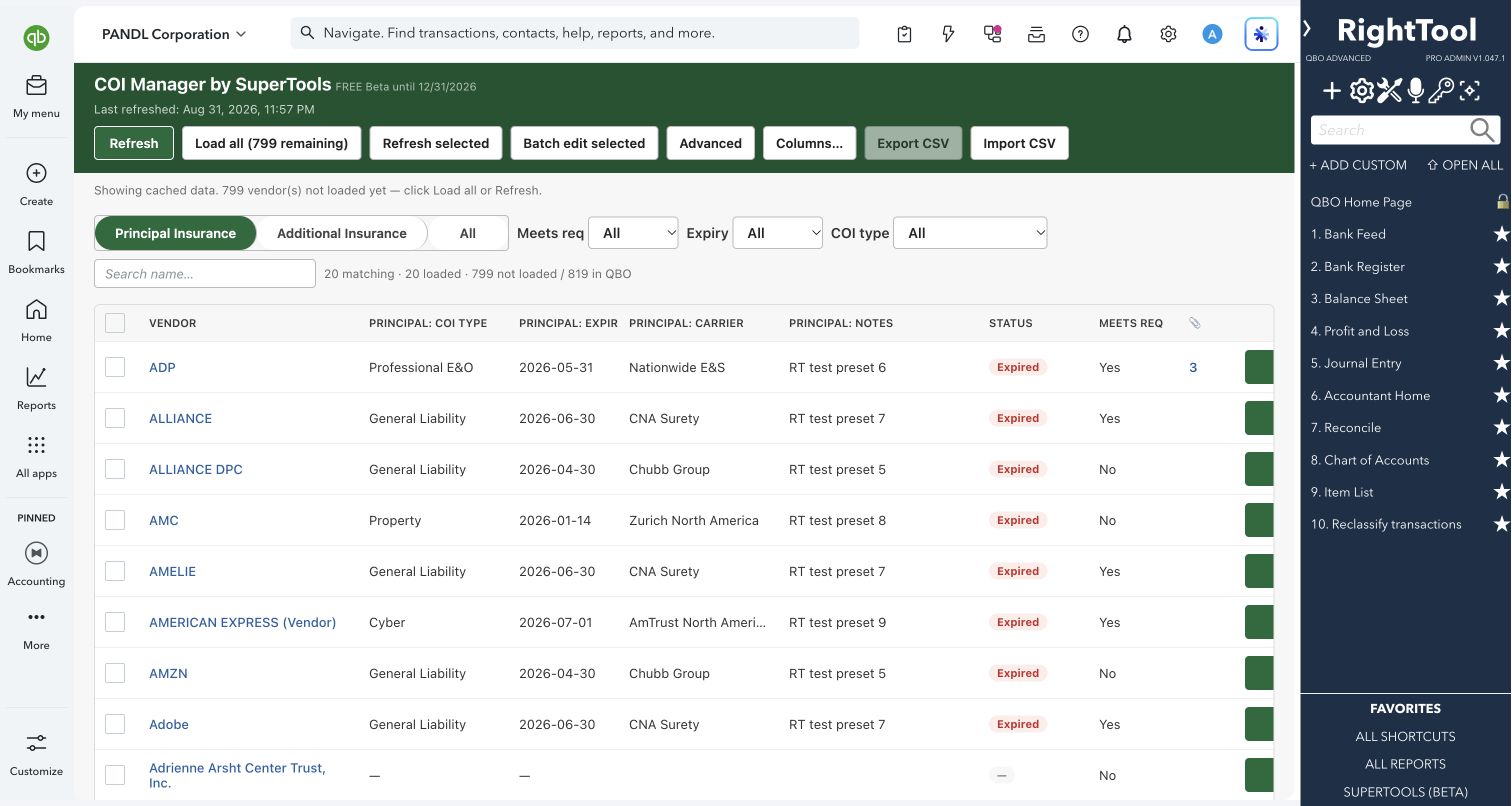
QuickBooks has no place to track vendor certificates of insurance, and COI Manager adds one. It lists your active vendors in one grid with their principal and additional insurance, limits, expiry dates and whether each certificate meets your requirements. It saves these details on each vendor in QuickBooks, so they're there whenever anyone opens the file.
Bookkeepers, accountants and business owners who collect and check insurance certificates from subcontractors and vendors.
SEE IT IN QUICKBOOKS
See the workflow, step by step.
Explore the screens below. Select an image for a closer look.
What you can do
- See your active vendors in one sortable grid with their insurance status, expiry dates, carrier and attachment count. Click a vendor's name to open it in QuickBooks.
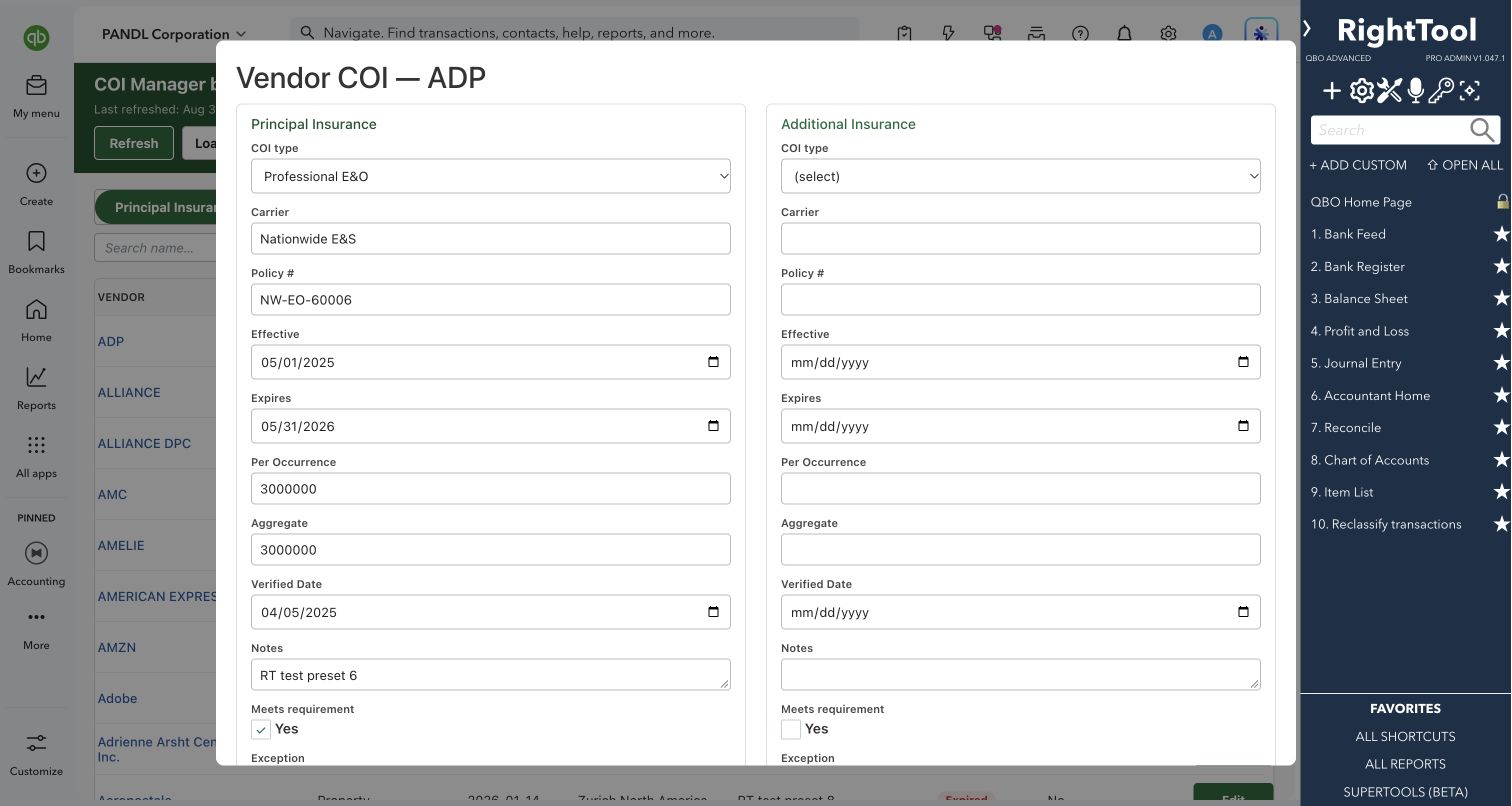
- Record two policies per vendor, Principal Insurance and Additional Insurance. Each policy has a COI type, carrier, policy number, effective and expiry dates, per-occurrence and aggregate limits, a verified date and notes.
- Pick the COI type from Auto, Umbrella, Professional E&O, General Liability, Property, Cyber or Workers Comp, or type your own.
- Mark whether each certificate meets your requirement, and flag exceptions.
- Filter by meets requirement, by active or expired, or by COI type, including vendors with no insurance data yet. Search vendors by name.
- Switch between the Principal, Additional and All views, choose which columns each view shows, and drag columns to the width you want.
- Select vendors one at a time, shift-click a range, or tick the header box to select every vendor that matches your filters. Then give them all the same values in one batch edit, applied to the principal policy, the additional policy or both.
- Export all vendors to CSV, update the file in a spreadsheet and import it back. Only the vendors listed in the file are updated.
- Download a vendor's QuickBooks attachments, such as the certificate PDF, straight from the grid: a single file right away, or pick several.
- Sort by attachment count to find vendors with nothing on file.
Why it makes a difference
- Expiry status (Active or Expired) is worked out from today's date whenever the list is shown, not typed by hand. A vendor with any expired policy shows as Expired.
- The insurance details are saved in each vendor's Notes in QuickBooks, so they stay with the company file and you don't need a separate spreadsheet.
- Any note text you already keep on the vendor, outside the COI section, is kept.
- The page reopens with the vendor list you last loaded and shows when it was last refreshed. You can refresh everything or only the vendors you select.
- It remembers your view, columns, column widths and rows per page for each company.
Put it to work
- Audit prep: filter to Expired to see which subcontractors owe you a new certificate.
- Onboarding: when a new subcontractor sends their COI, open their row, enter the carrier, policy number, limits and dates, and record the verified date.
- Renewals: when several vendors renew on the same date, select them and set the new expiry and verified dates in one batch edit.
- Cleanup: export to CSV, fill in missing limits in Excel, and import the file back.
WATCH THE WORKFLOW
Track a vendor’s insurance certificate
Safe by design
- Batch edits and CSV imports ask you to confirm how many vendors will change. A batch edit skips any field you leave blank, and vendors that aren't in an import file are not touched.
- It won't save a vendor whose principal and additional policies have the same COI type.
- When you edit a single vendor, it loads that vendor's latest notes from QuickBooks first and replaces only the COI section.
- To clear COI data in bulk you must type CLEAR and then confirm. Only the COI section is removed, and only from the vendors shown under your current filters.
Good to know
- Part of SuperTools (Beta).
- The first 20 vendors load right away; use Next or Load all for the rest. You need Load all before exporting, and an import only updates vendors that are already loaded.
- In an import file, a blank cell in a COI column clears that field. If vendor notes may have changed in QuickBooks since you loaded them, click Refresh before a batch edit or import.
- The COI section in each vendor's Notes is marked "do not edit". Change it through COI Manager, not by hand.
How to open it
SuperTools sidebar → COI Manager
Install the SuperTools extension, then open the SuperTools S menu in QuickBooks Online, choose Home, and enable the tool there.
View beta setup steps