Importing & data setup
The big picture.
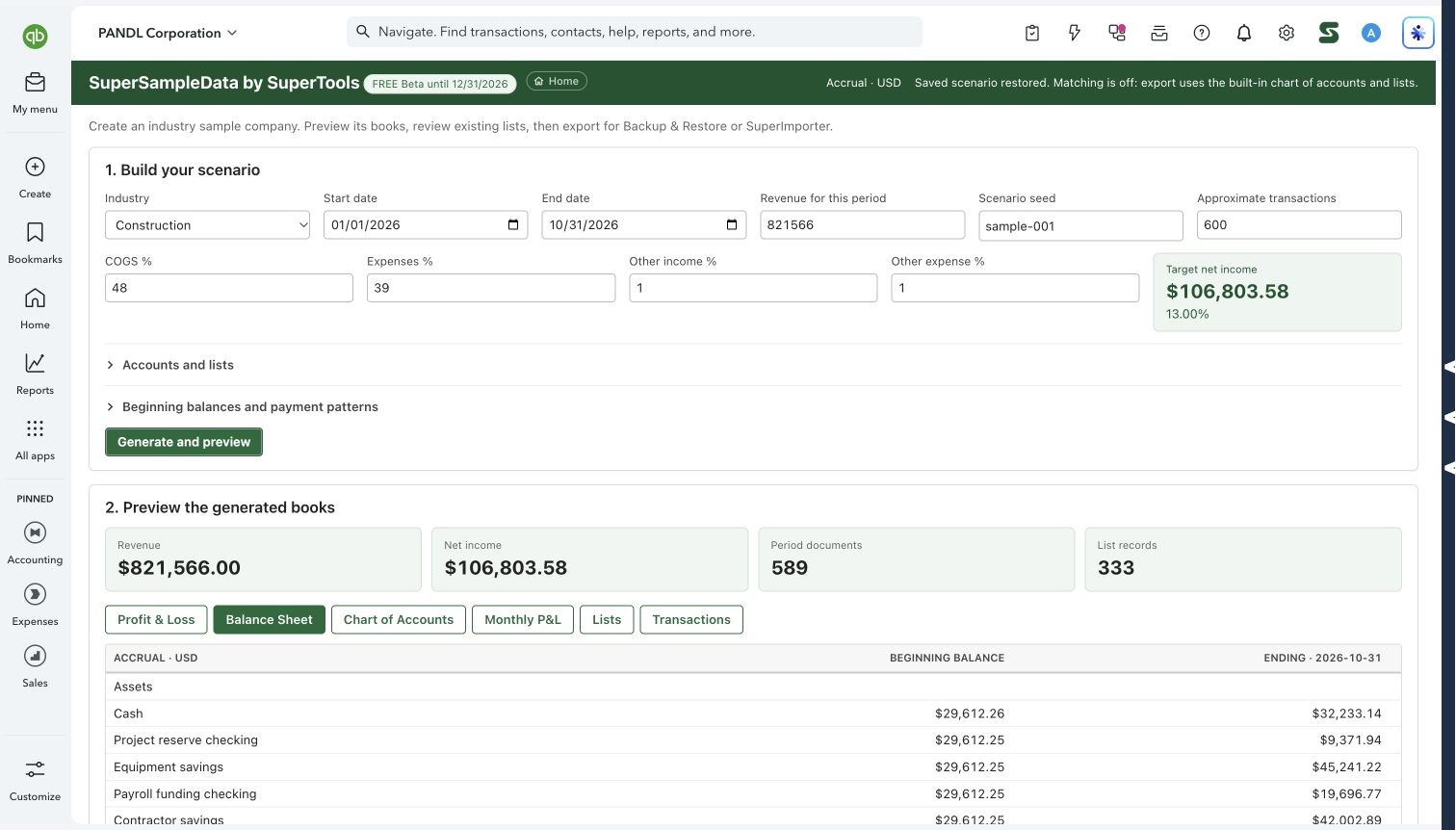
Build a sample company around the work you want to teach or test. Choose an industry, date range, revenue target and transaction volume, then inspect the generated books before moving them into QuickBooks through Backup & Restore or Super Importer.
Trainers, accountants, software testers and anyone preparing a QuickBooks demonstration.
SEE IT IN QUICKBOOKS
See the workflow, step by step.
Explore the screens below. Select an image for a closer look.
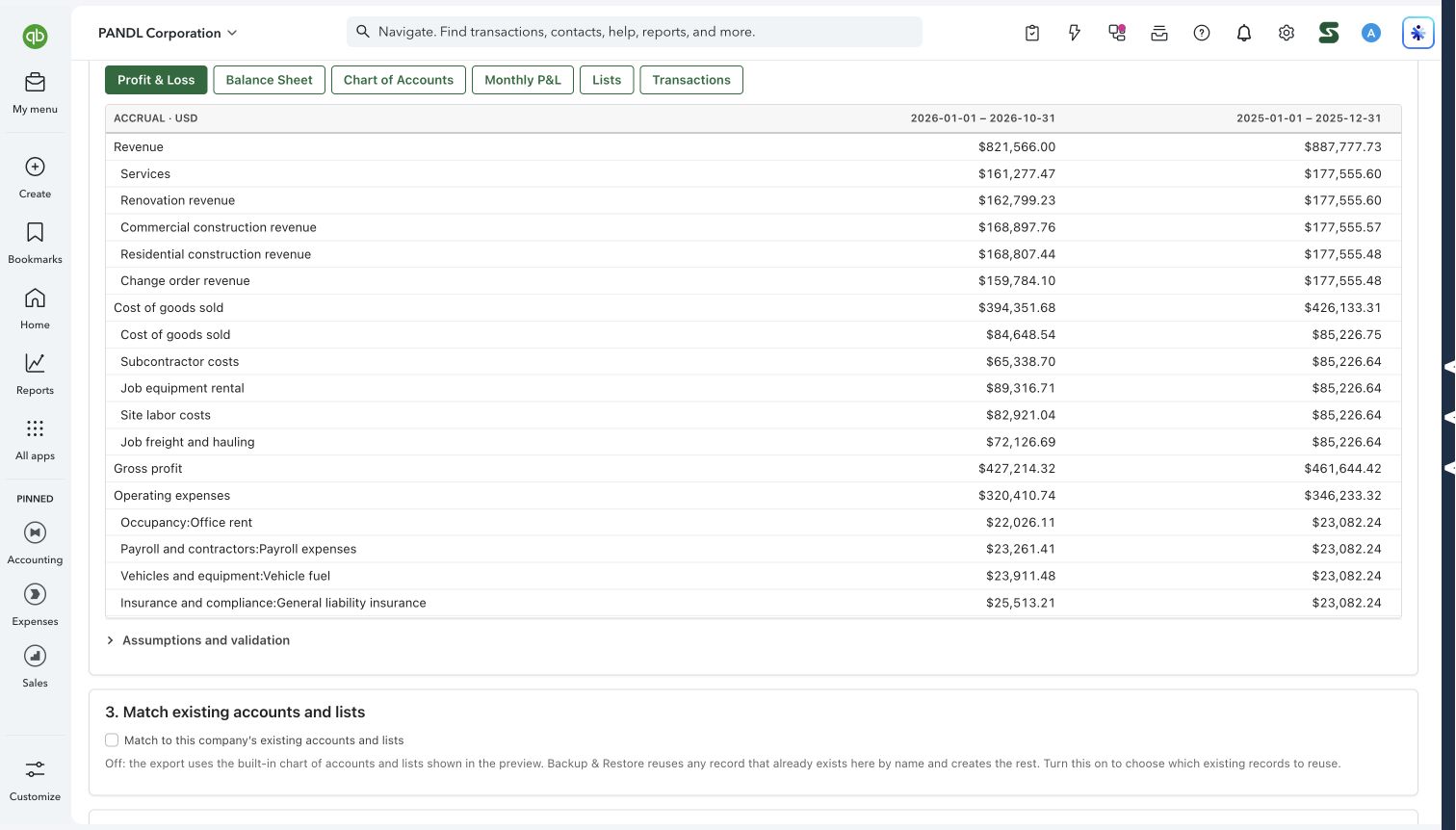
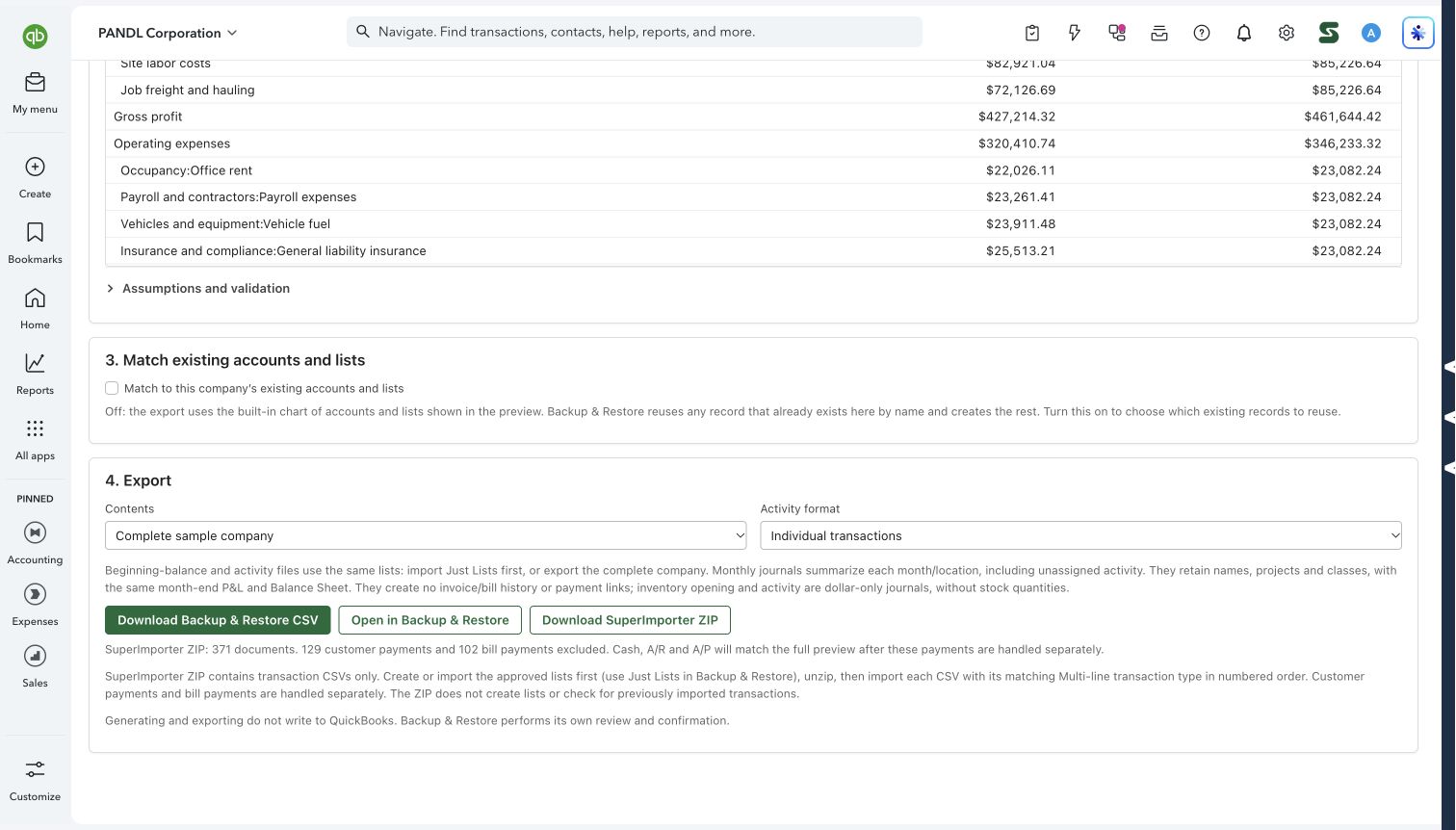
What you can do
- Start with an industry: Construction, Restaurant without inventory, Professional Services, Wholesaler with inventory, or Non-Profit.
- Shape the scenario: Set dates, revenue, expense percentages, approximate transaction count, account and list counts, opening balances and payment patterns.
- Preview the books: Inspect Profit & Loss, beginning and ending Balance Sheets, monthly P&L, Chart of Accounts, lists and transactions.
- Review list matching: Optionally match generated records to existing accounts and lists. Review compatible matches or new names before approving them. An optional Chrome local-model review can assist matching.
- Choose the export scope: Export a complete company, just lists, beginning balances with the prior-year comparison, or period activities.
- Choose the destination: Download Backup & Restore CSV, open the scenario there, or export SuperImporter transaction CSVs in a ZIP.
Why it makes a difference
- A repeatable scenario seed makes teaching examples reproducible.
- Linked invoices, bills and payments create paid, partial and unpaid examples.
- Individual documents or monthly journals support different training goals.
Put it to work
- Build a construction scenario for a bookkeeping class.
- Compare the generated P&L and Balance Sheet, then inspect the underlying lists.
- Export the scenario and review it in Backup & Restore before importing into a practice company.
WATCH THE WORKFLOW
Generate an industry sample company
Safe by design
Generation and preview happen before import. Existing-list matching requires review. Backup & Restore and Super Importer handle their own validation and posting steps.
Good to know
Generated financial previews describe the scenario, not the combined balances of your current company. Monthly journals do not create invoice/bill history or payment links. SuperImporter ZIPs contain transaction files, not lists, and exclude customer payments and bill payments; review the displayed exclusions and handle those separately. Inventory scenarios use simplified cost assumptions.
How to open it
SuperTools Home → SuperSampleData. Direct QuickBooks route: /app/superSampleData.
Install the SuperTools extension, then open the SuperTools S menu in QuickBooks Online, choose Home, and enable the tool there.
View beta setup steps