Importing & data setup
The big picture.
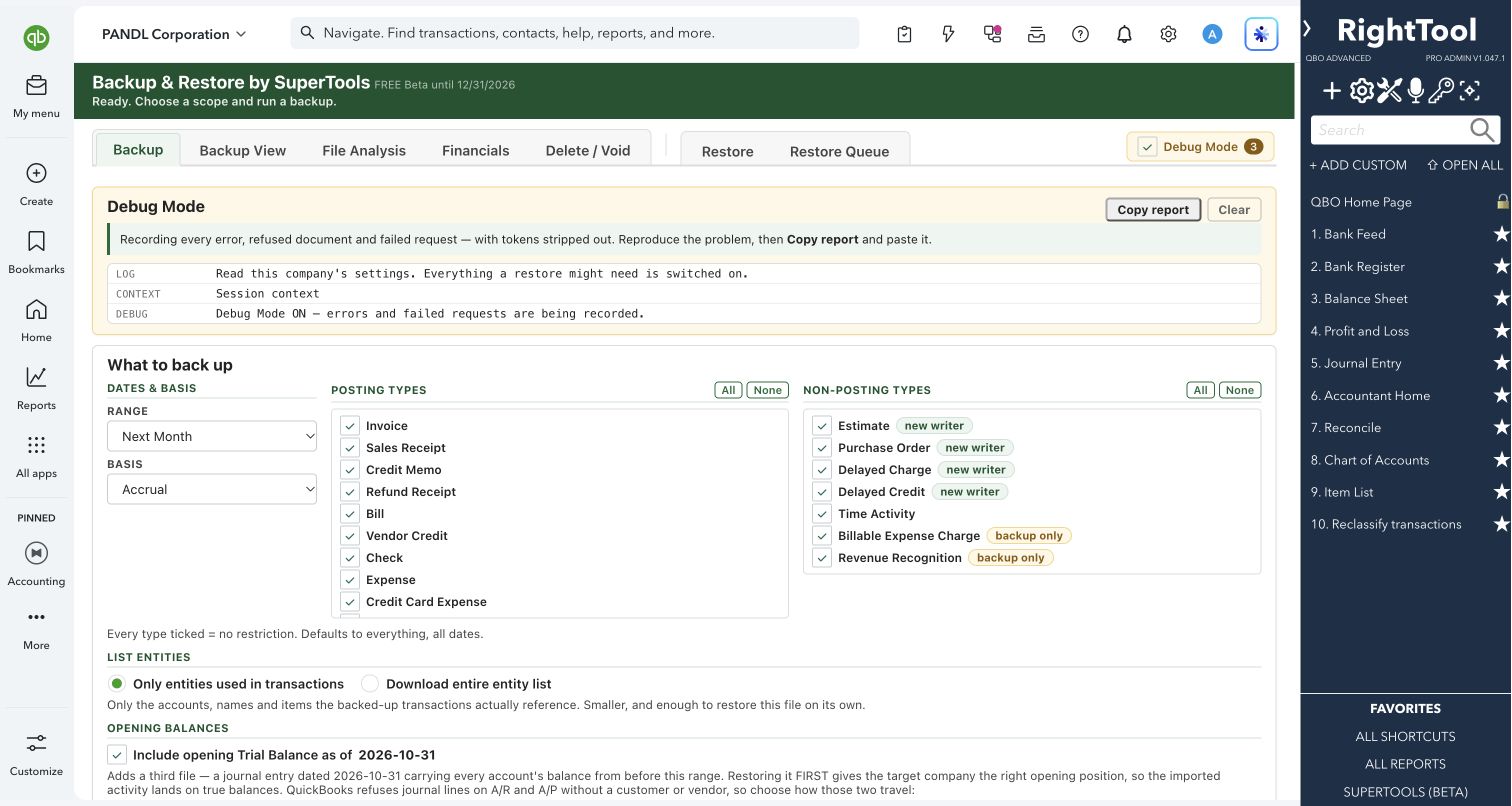
Backup & Restore pulls every transaction in a date range out of a QuickBooks Online company into CSV files, along with the list records those transactions use. It can include non-posting documents such as estimates and purchase orders. It can then recreate those transactions in another company or the same one, adding any list records the target is missing. Built-in checks compare the backup with QuickBooks' financials and walk you through everything that would block a clean restore before anything is written.
Accountants and advisors who move books between QuickBooks Online companies, rebuild a company file, or want an offline copy of a period's transactions.
This tool is in Early Alpha. Try it in a test company before you use it on client books.
SEE IT IN QUICKBOOKS
See the workflow, step by step.
Explore the screens below. Select an image for a closer look.
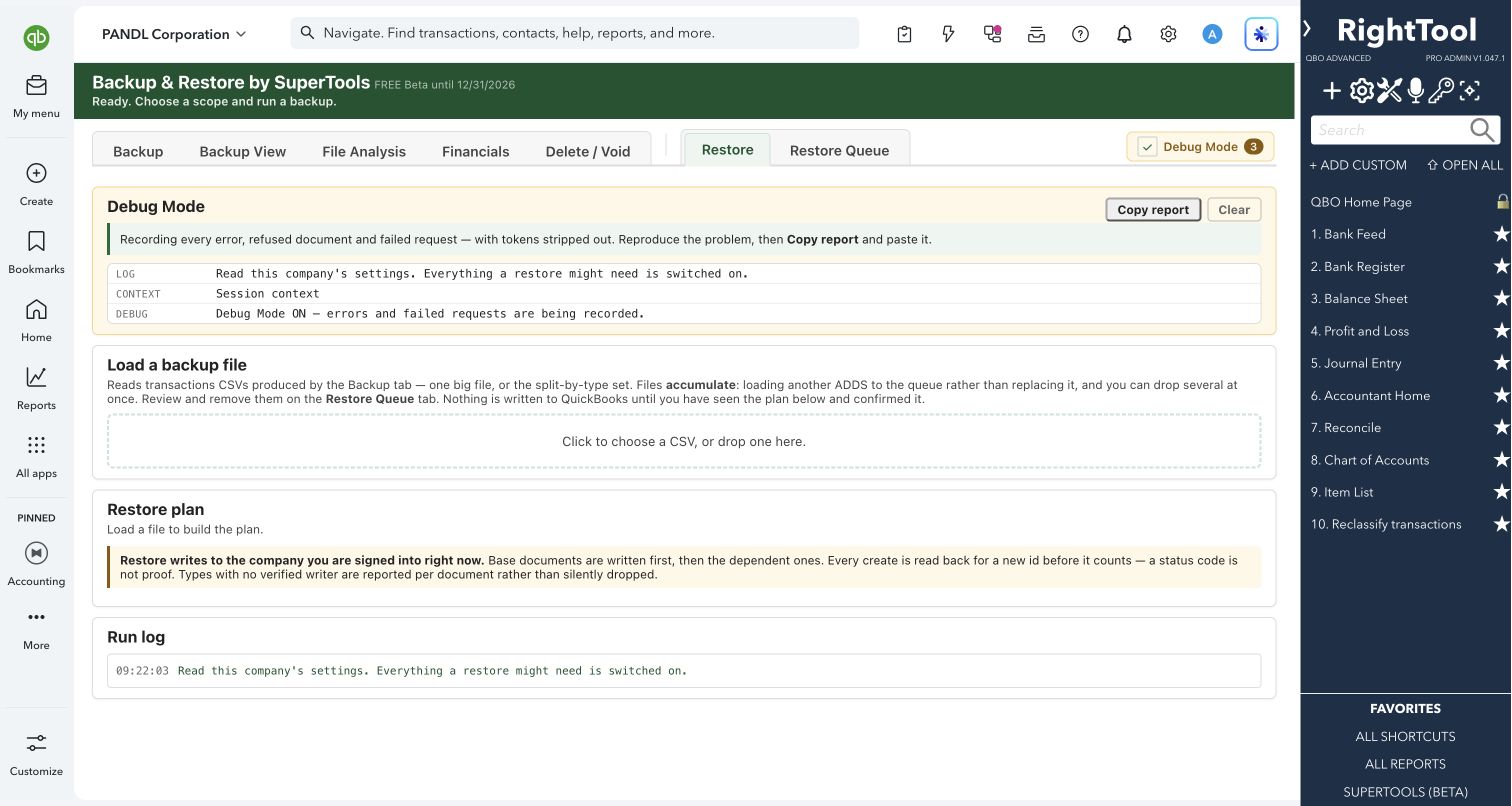
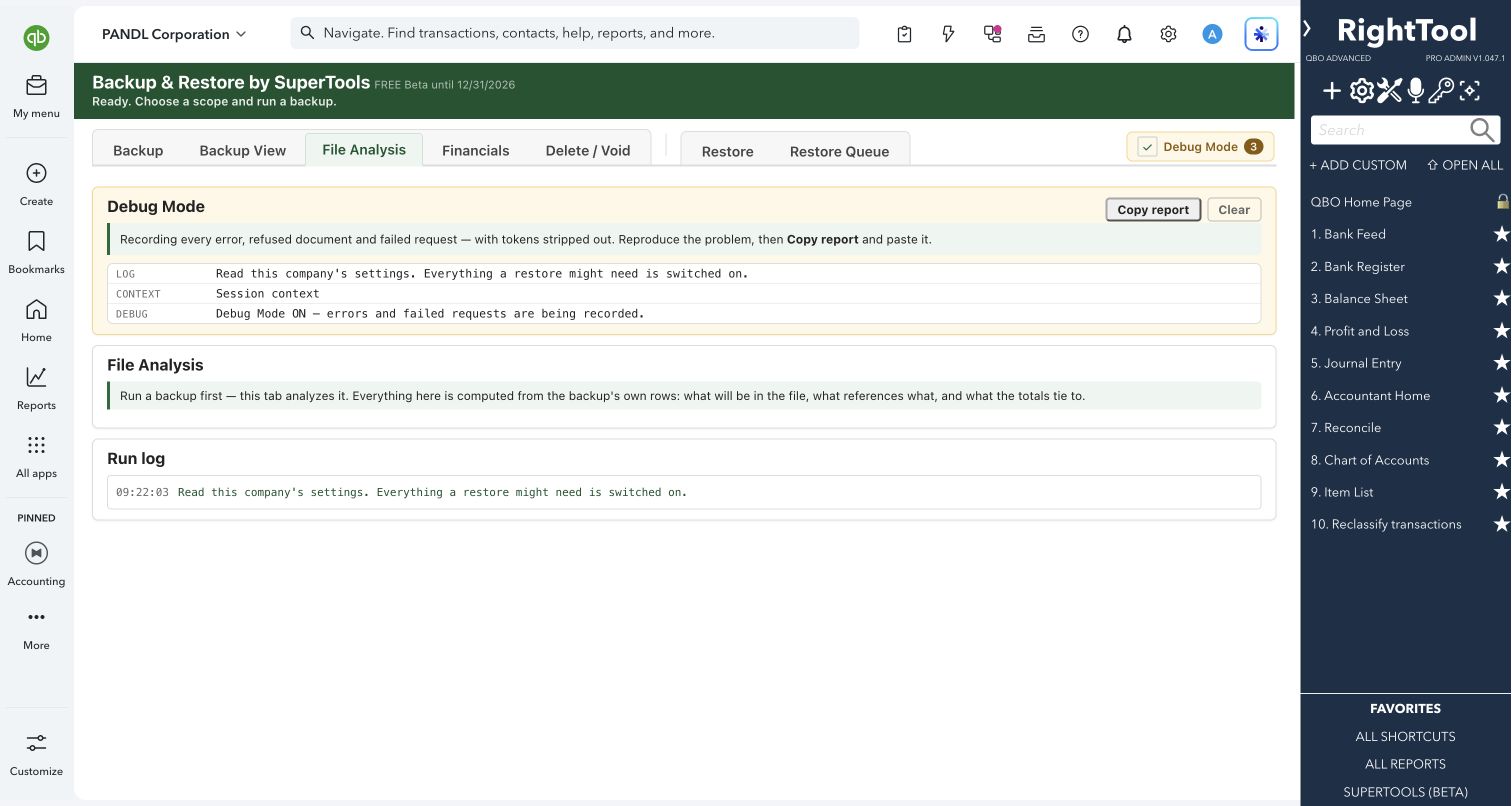
What you can do
- Back up every transaction for any date range, on a cash or accrual basis. Choose All Dates, a preset such as Last Quarter, Last Year or This Year-to-date, or custom dates. Companies whose fiscal year doesn't start in January also get fiscal-year presets. You choose which posting and non-posting types to include.
- Download a transactions file plus a list file. The list file covers accounts, customers, vendors, items, product categories, classes, locations, terms, payment methods and employees. You can split the files by transaction type or list type, and include either only the names your transactions use or your entire lists.
- Add an opening trial balance as a journal entry dated the day before your range. A/R and A/P come over as one summary line each, or as one line per customer and vendor.
- On the Backup View tab, browse, search, filter, sort and pick columns for every backed-up row, line by line or one row per transaction.
- See what a backup holds on the File Analysis tab: counts by type, date span, debits and credits, class and location coverage, and how the file's names line up with your lists.
- Compare the backup with QuickBooks on the Financials tab. A Profit & Loss and Balance Sheet rebuilt from the file sit beside QuickBooks' own figures, with account-by-account tie-outs.
- Load one or more backup files into the Restore Queue, tick or untick individual documents, and read the restore plan: what will be written, what is skipped, and why.
- Resolve blockers before restoring:
- For each name the target company doesn't have, create it, map it to an existing name, or leave it.
- Fix missing item accounts.
- Turn on required company settings using the links provided.
- Handle sales document numbers that are already used in the target company. Exact matches default to Skip. The rest get a suffix automatically or a number you type, with an optional note in the memo.
- Rebuild applied payments on restore. Customer and vendor payments are re-linked to the restored invoices and bills when both are in the file.
- After a restore, download failure files that give the reason for each row. Fix and retry only the documents that failed, and download a map of old to new transaction IDs.
- On the Delete / Void tab, select transactions from a backup and delete them in bulk from the company they came from.
Why it makes a difference
- One backup run pulls every transaction type in a date range, including non-posting documents.
- A financial tie-out shows whether the backup is complete before you rely on it.
- A readable restore plan with decisions you make up front, so you don't have to clean up after a failed run.
- Restores some types that QuickBooks won't let you create directly by rebuilding them with the same ledger lines:
- Payroll paychecks come back as regular checks.
- Sales tax payments and adjustments come back as journal entries.
- Inventory starting values come back as a zero-net bill.
- Warns about problems that would undermine the backup, such as a pull that looks cut off or two accounts that share one name.
Put it to work
- Moving a client to a new QuickBooks Online company: back up, restore into the new file, then compare financials.
- Archiving: keep a CSV copy of a closed year's transactions together with a tie-out to QuickBooks' own Profit & Loss and Balance Sheet.
- Training or testing: copy a quarter of real activity into a test company.
WATCH THE WORKFLOW
Create and inspect a scoped backup
Safe by design
- Running a backup only reads from QuickBooks.
- Restore writes nothing until you've reviewed the plan and pressed the Restore button, which names the company it will write to. If the file came from the company you're in, you're warned that restoring will create duplicates. A duplicate check is offered that unticks transactions still in QuickBooks.
- A restored transaction only counts once QuickBooks returns its new ID. A restore stops after five failures in a row. Types it can't recreate are listed rather than guessed at. Failure files contain only what was not created, so reloading them can't duplicate anything.
- Deleting only starts once you type DELETE, and only when the backup was taken from the company you're signed into. Each deletion is checked afterwards. Deletions cannot be undone.
Good to know
- This tool is in Early Alpha. Try it in a test company before you use it on client books.
- Revenue recognition entries and billable expense charges are backed up but not recreated, because QuickBooks generates them itself. Rebuilt types lose some detail: paychecks carry no payroll detail, sales tax entries don't update the sales tax center, and employees are created as vendors.
- A payment whose invoices or bills aren't in the file is restored unapplied; widen the date range to include the paid documents. Deposits that drew on Undeposited Funds aren't re-linked to the original payments, and you choose an account for those lines.
- Keep backup files as CSV. Opening and re-saving them in Excel can damage the company ID column.
How to open it
SuperTools sidebar → Backup & Restore (Early Alpha)
Install the SuperTools extension, then open the SuperTools S menu in QuickBooks Online, choose Home, and enable the tool there.
View beta setup steps