Reporting & analysis
The big picture.
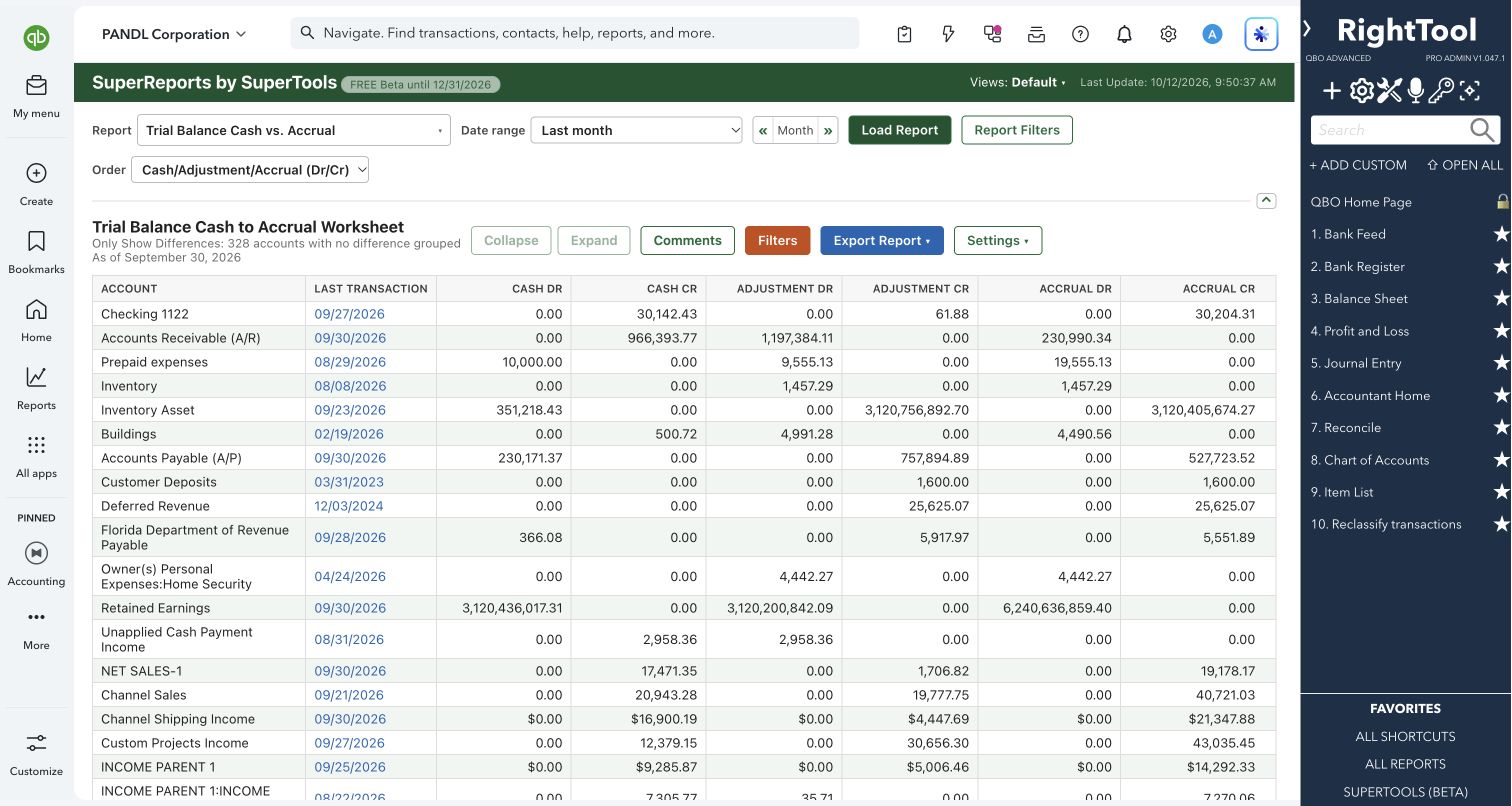
Build reusable groups of parameter-based report templates, then run a group with one date range. Choose SuperReports or modern QuickBooks Online as the renderer, and prepare separate exports or a consolidated report pack.
Accountants preparing recurring client reports or reviewing several reports together.
Super Batching Reports is not publicly available yet. This guide previews the planned features.
What you can do
- Add a supported report from the SuperReports catalog, a saved SuperReports view, a saved QuickBooks report or a report URL.
- Keep templates ungrouped or organize them into one or more groups.
- Choose one batch date range for dated reports; list reports do not need a date range.
- Open a batch in report tabs, or prepare CSV, Excel or PDF output where supported.
- Combine reports into one Excel workbook with multiple worksheets or one consolidated PDF.
- Filter templates by renderer, template type and company; import or export your template collection.
Why it makes a difference
- Universal templates can be reused across company files.
- Company-specific templates retain their company context and are skipped in other companies.
- Save as Universal makes a separate copy with company-specific filters removed and identifies what was removed.
- Review batch exceptions, follow progress and download the prepared output when ready.
Put it to work
- Build a month-end pack with a Profit and Loss, Balance Sheet and aging reports.
- Create one workbook with a separate sheet for each report.
- Reuse a universal reporting pack across client companies.
Safe by design
Report generation reads company data. Company-specific templates are skipped outside their saved company. Review warnings about unsupported settings, removed filters or reports that cannot run before continuing.
Good to know
Output is always modern QuickBooks Online or SuperReports. Classic inputs are accepted only when they can be converted; unsupported conversions fail rather than storing a classic report. Reports appear only for compatible renderers. Some SuperReports settings need a separate SuperReports file alongside a RightTool-compatible export. Batches run on demand; scheduling is not included.
How to open it
Coming Soon — not publicly available yet.
Install the SuperTools extension, then open the SuperTools S menu in QuickBooks Online, choose Home, and enable the tool there.
View beta setup steps