Reporting & analysis
The big picture.
SuperReports is a report workspace on its own full page inside QuickBooks Online. It brings together 87 QuickBooks report choices and six Super Summary templates built from QuickBooks' report results: 93 choices in one searchable workspace. These include summaries, detail reports, transaction lists and reference lists. It adds what monthly reviews need: the P&L and Balance Sheet side by side, Cash vs. Accrual with the difference traced to transactions, up to three comparison periods, drill-downs that check their totals, highlights, footnote comments and saved views, so you spend less time re-running reports and copying them into spreadsheets to find where a number came from.
Bookkeepers, accountants, controllers and business owners who review, close or explain books in QuickBooks Online.
MORE THAN STANDARD REPORTS
Six Super Summary templates.
Choose these directly in the Report box. Each adds a review layout built from QuickBooks' report results, with the report controls it supports.
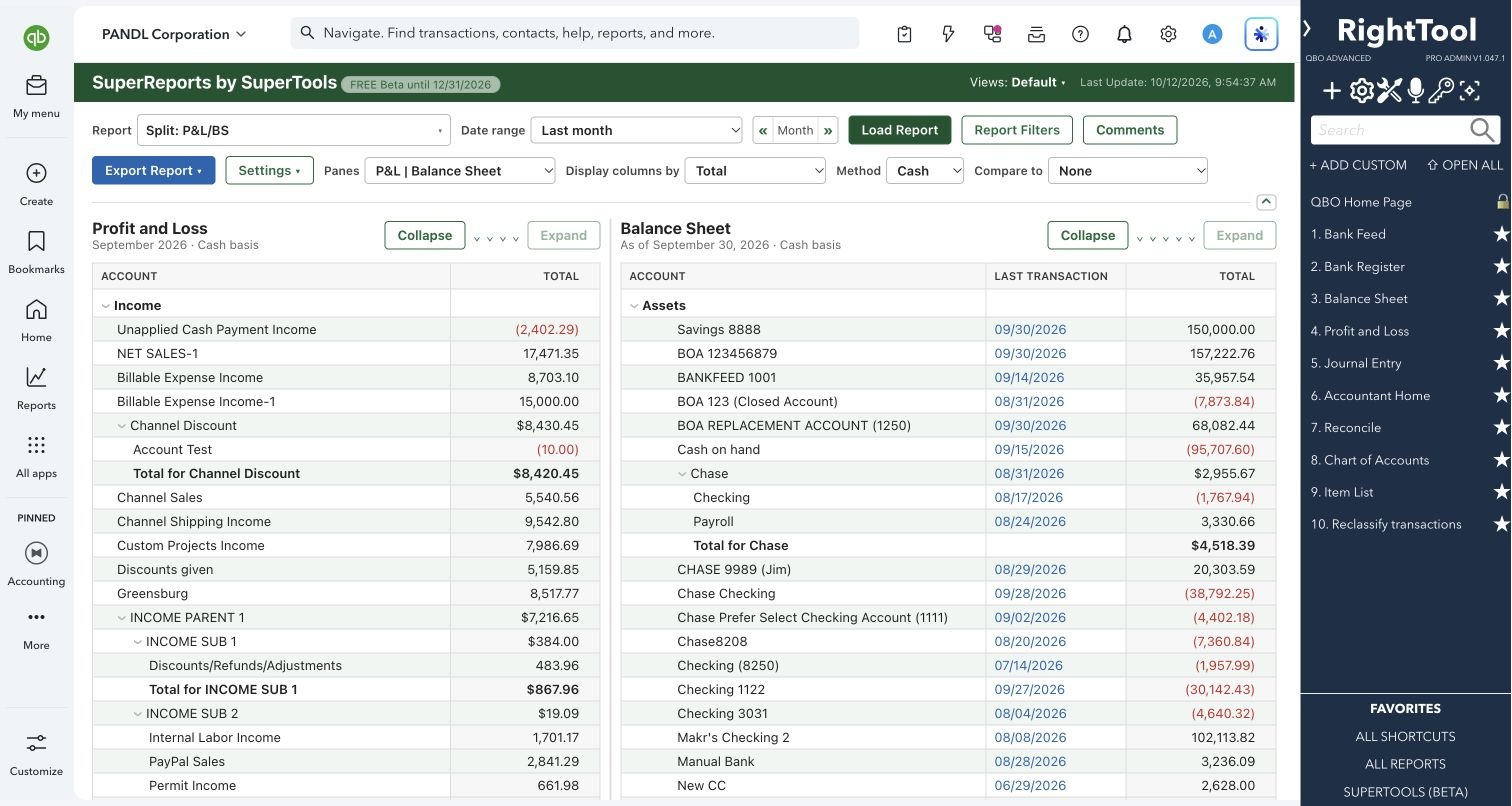
Split: P&L/BS
Review profit and financial position together. Put the P&L and Balance Sheet in either order, or pair either report with a Drilldown pane that fills as you click amounts. Resize the panes and export them separately.
 View report screenshot ↗Watch the narrated workflow ↓
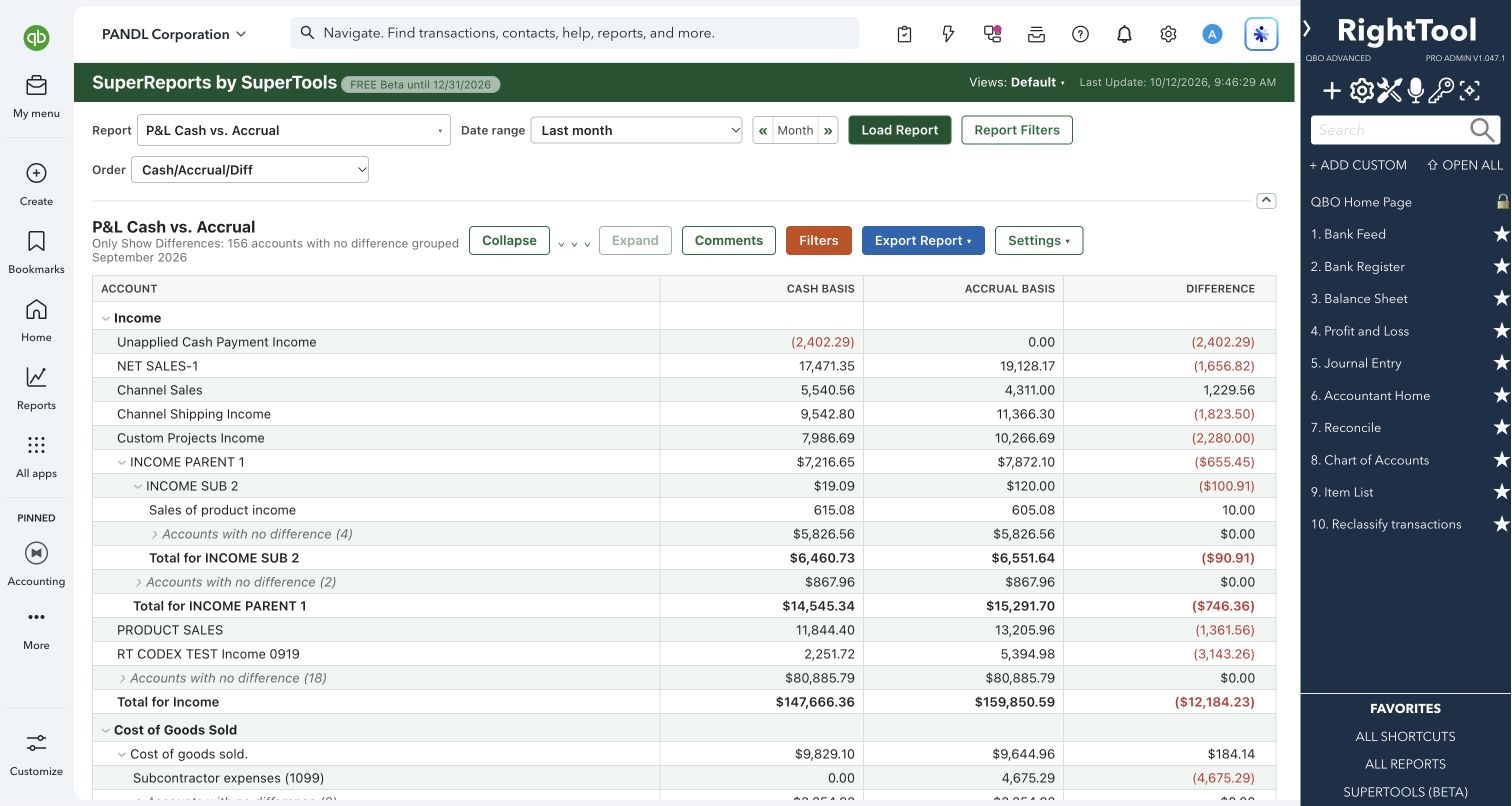
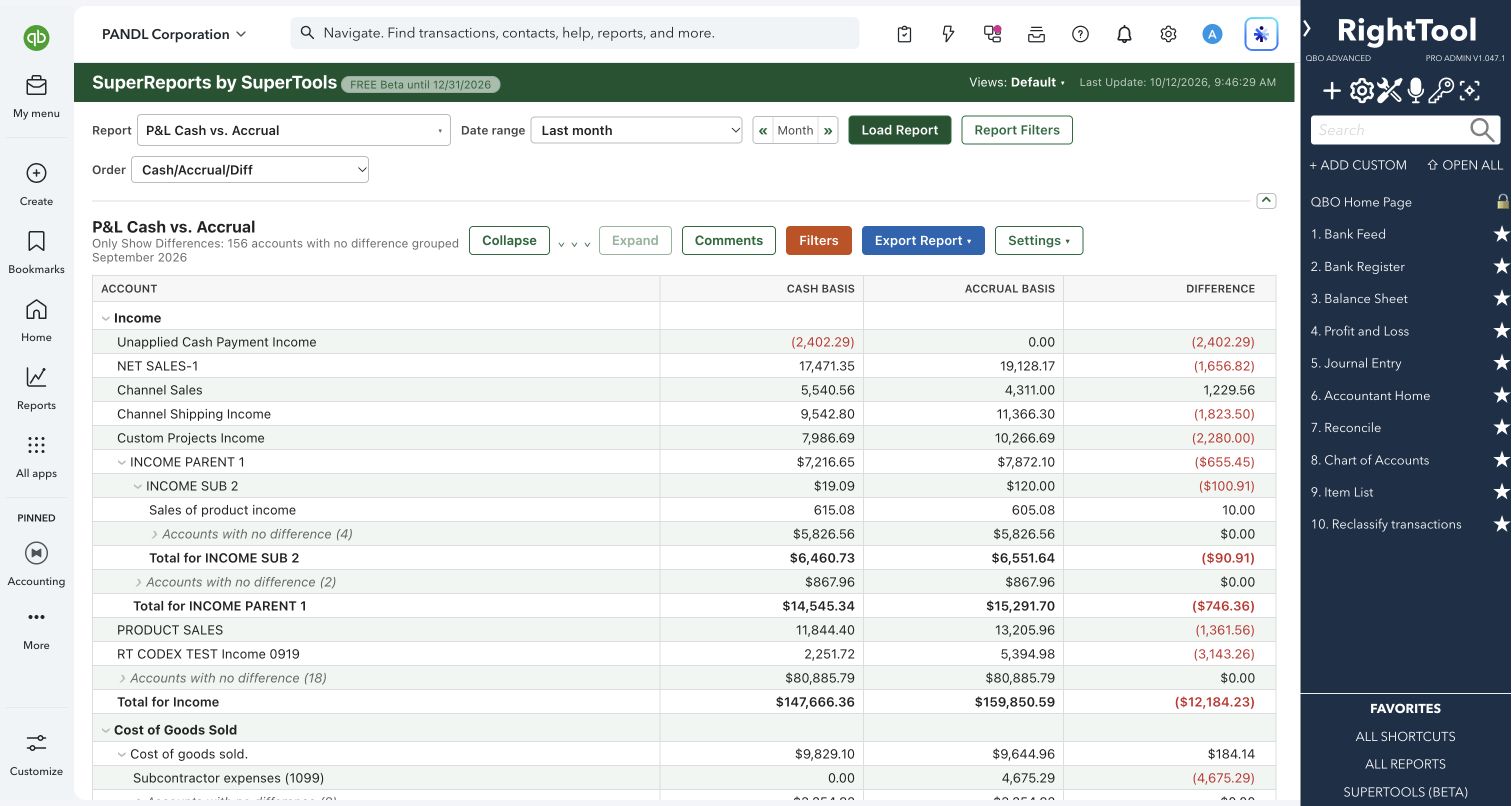
P&L Cash vs. Accrual
See both accounting bases and their difference in one report. Choose Cash/Accrual/Diff, Accrual/Cash/Diff, a signed cash-to-accrual bridge, or Debit/Credit adjustments. Trace a supported difference to the transactions behind it.
 View report screenshot ↗Watch the narrated workflow ↓
Balance Sheet Cash vs. Accrual
Compare cash and accrual balances as of the same date, with the same four comparison layouts. Supported difference drills explain the change by account, including specialized receivable and payable routes.
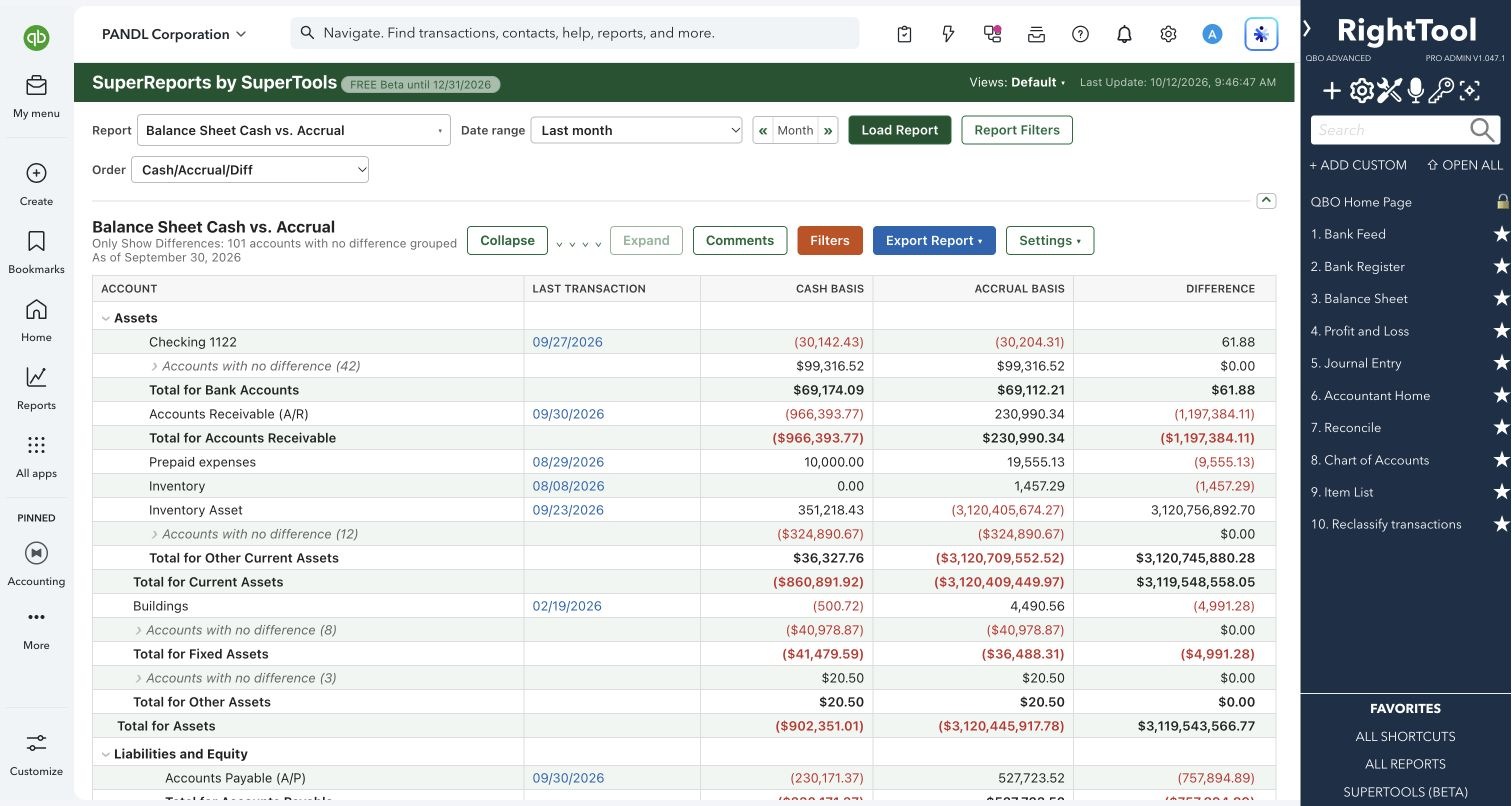 View report screenshot ↗
WATCH THE WORKFLOW · 31 seconds
Split: P&L/BS Cash vs. Accrual
Keep both cash-versus-accrual reports side by side. Review income and balance differences together, reverse their order, or use a Drilldown pane for the supporting detail.
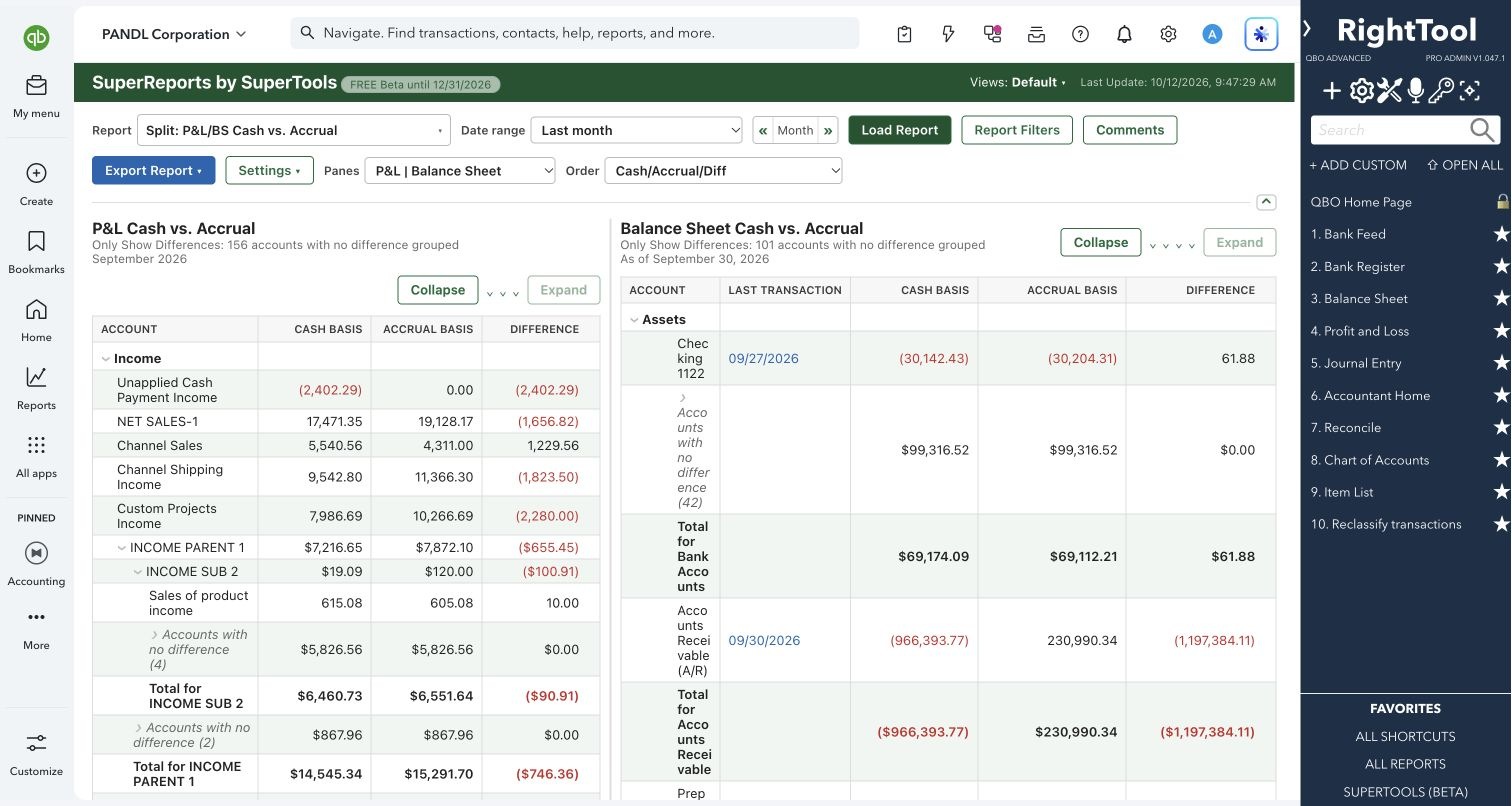 View report screenshot ↗
WATCH THE WORKFLOW · 32 seconds
Trial Balance Cash vs. Accrual
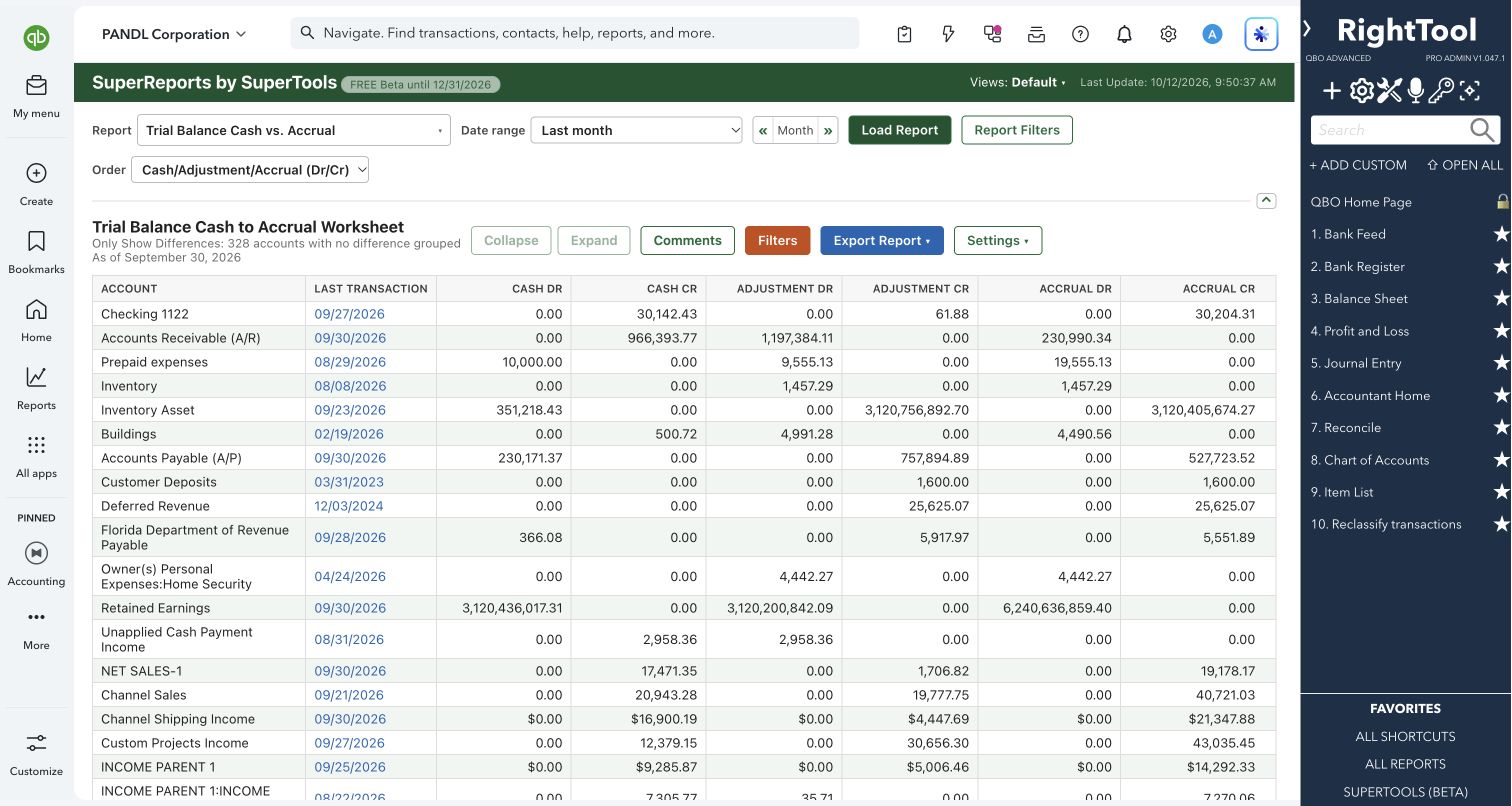
Compare both bases across the Trial Balance. In addition to the four comparison layouts, choose Cash/Adjustment/Accrual (Dr/Cr): six columns for a complete conversion worksheet, or three signed net columns with Single Column Debit-Credit. Supported adjustment drills check the supporting total.
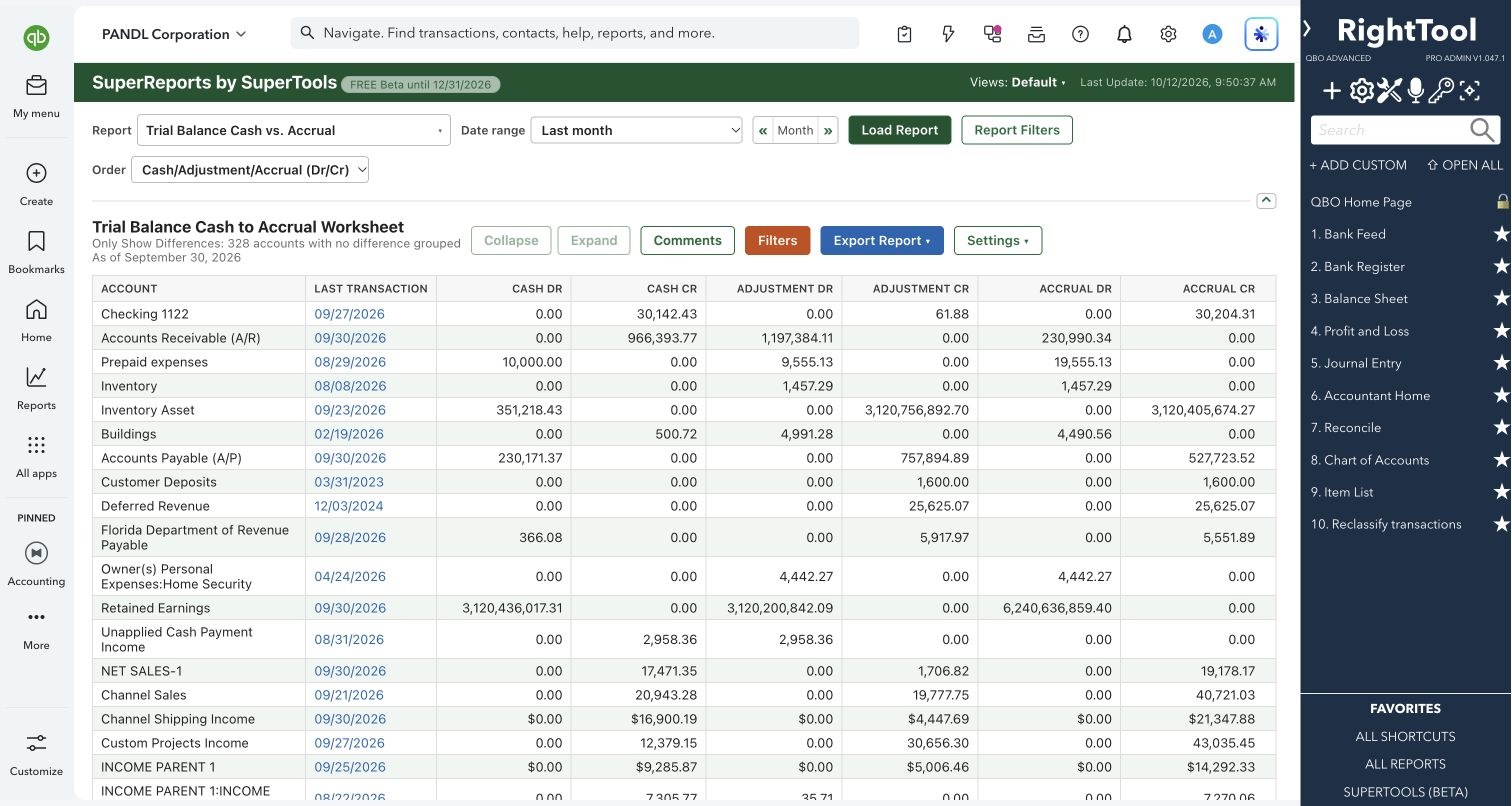 View report screenshot ↗
WATCH THE WORKFLOW · 35 seconds
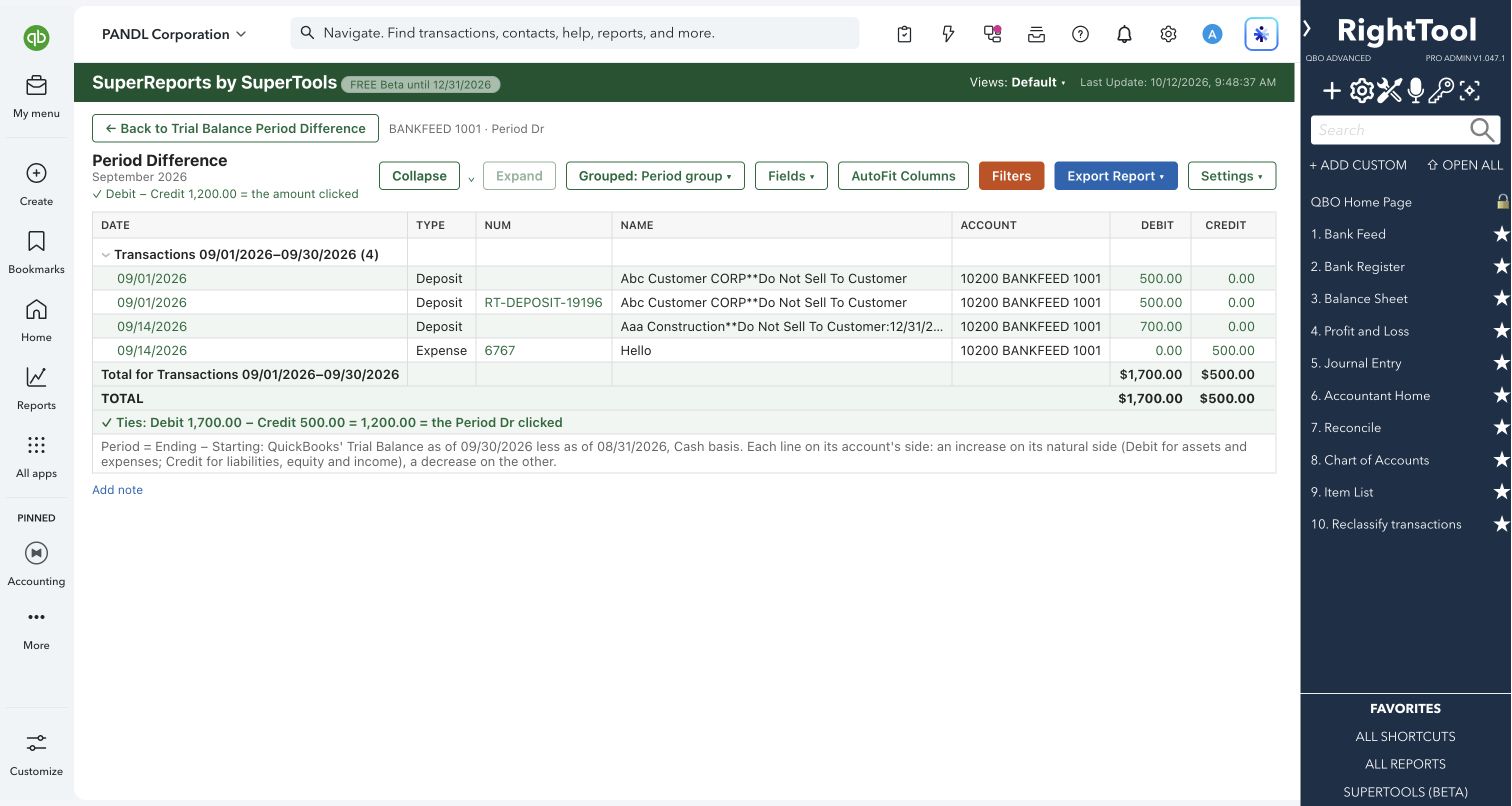
Trial Balance Period Difference
Show Starting, Period and Ending balances for a bounded date range on cash or accrual basis. Period is Ending minus Starting. View six Debit/Credit columns or three signed net columns, then drill into a supported Period amount to trace the movement.
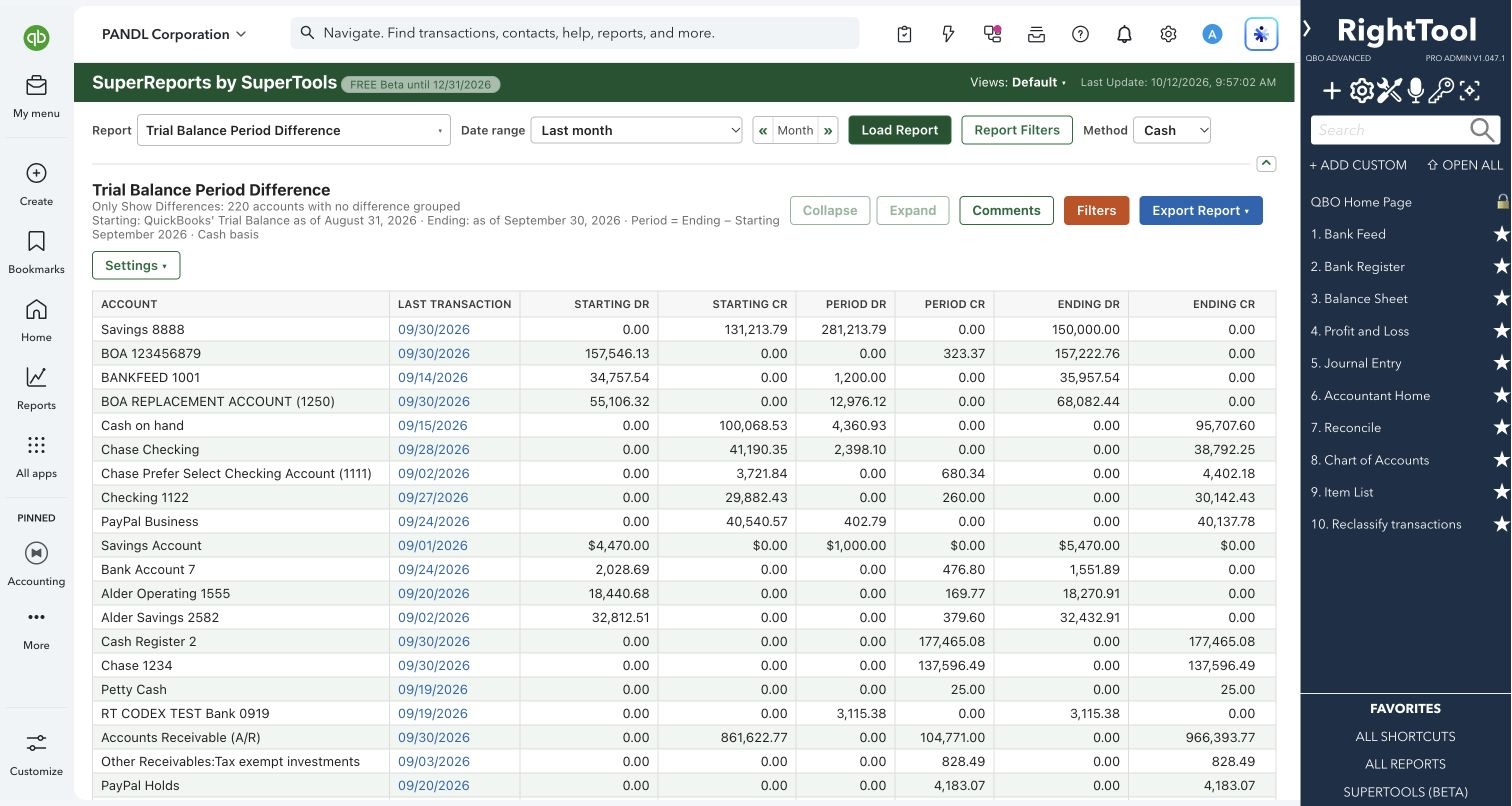 View report screenshot ↗
WATCH THE WORKFLOW · 34 seconds
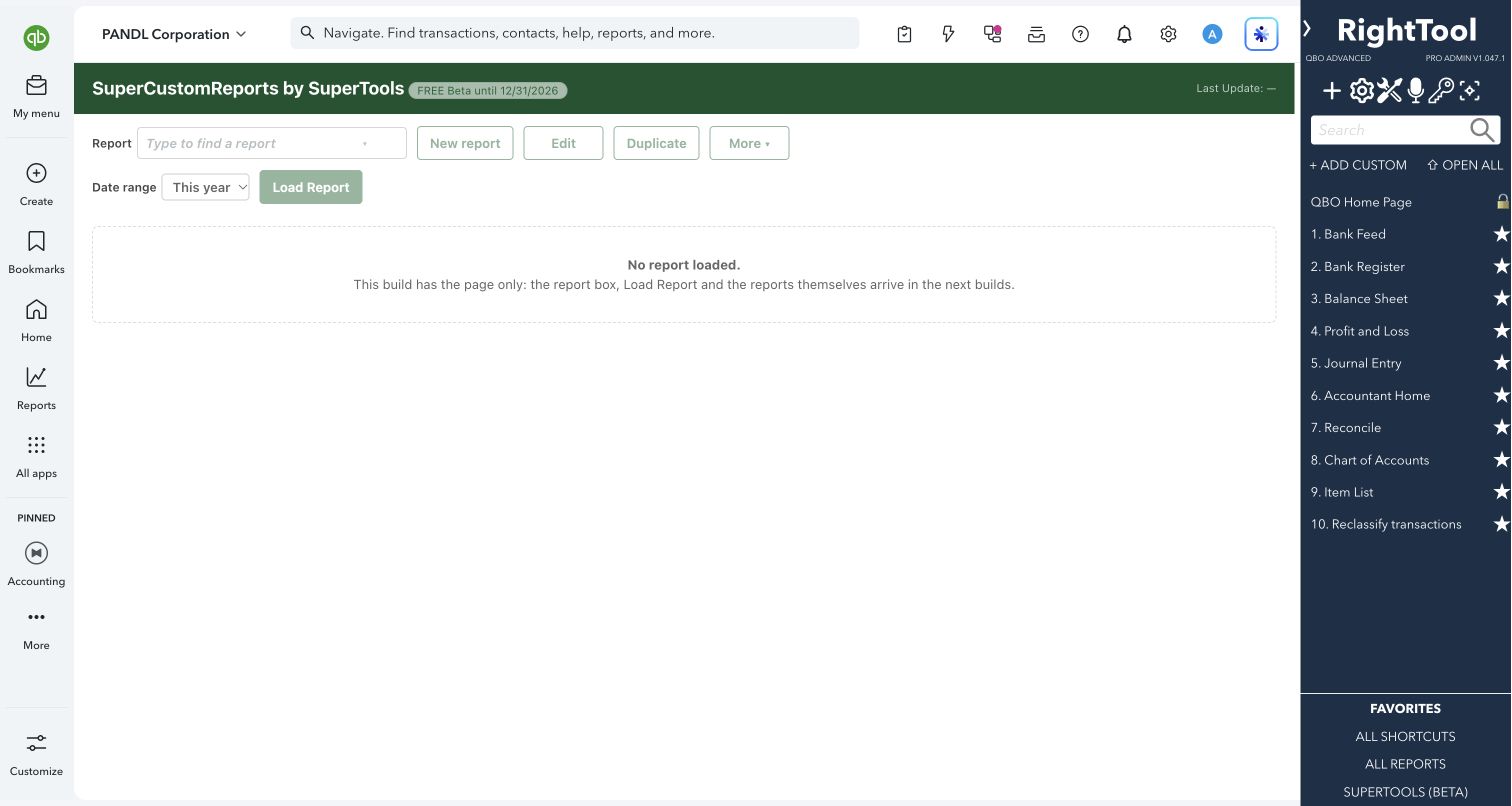
Choose its rows and columns to build a pivot-style summary: for example, class by month or customer by location. Row choices include names, products/services, distribution account type and time periods. Column and comparison choices adapt to the layout. This is separate from SuperCustomReports, which is coming soon.
WATCH THE WORKFLOW · 33 seconds
Track customer deposits by project.
Filter a specific liability account, choose Customer:Project rows and Columns: None for a single Total column. Follow money received, refunds and deposits applied to invoices through to each project’s remaining amount. This example starts with zero opening balances, so the 2026 activity equals the remaining deposit balance; for an account with earlier activity, include that history when reviewing the balance.
WATCH THE WORKFLOW · 84 seconds
THE COMPLETE REPORT MENU
93 report choices. One workspace.
87 QuickBooks report choices plus the six Super Summary templates above. Expand a category to see every report. Availability depends on your company's QuickBooks plan and enabled features; filters, columns, comparisons and review tools vary by report.
Standard Summary Reports 22 reports
Financial statements, budgets, balances, aging, sales, expenses, inventory and project profitability.
- Profit & Loss
- Balance Sheet
- Balance Sheet Summary
- Budget Overview
- Budget vs. Actuals
- Trial Balance
- Customer Balance
- Vendor Balance
- A/R Aging
- A/P Aging
- Expenses by Vendor
- Income by Customer
- Sales by Customer
- Sales by Product/Service
- Sales by Class
- Sales by Location
- 1099 Contractor Balance
- Inventory Valuation
- Statement of Cash Flows
- Adjusted Trial Balance
- Custom Summary
- Project Profitability
Super Summary Reports 6 reports
Six additional layouts for paired reports, basis conversion and period movement.
- Split: P&L/BS
- P&L Cash vs. Accrual
- Balance Sheet Cash vs. Accrual
- Split: P&L/BS Cash vs. Accrual
- Trial Balance Cash vs. Accrual
- Trial Balance Period Difference
Transaction lists 13 reports
Find and review transactions, including project estimates and progress invoicing, tag-group lists and split lines.
- Estimates & Progress Invoicing (by Project)
- Transaction List by Date
- Transaction List by Customer
- Transaction List by Vendor
- Transaction List by Tag Group
- Transaction List with Splits
- Invoice List
- Bill Payment List
- Purchase List
- Sales Order List
- Open Purchase Order List
- Statement List
- General Ledger List
Detail reports 6 reports
Account, ledger, journal and financial-statement detail.
- Transaction Detail by Account
- Profit and Loss Detail
- General Ledger
- Journal
- Balance Sheet Detail
- Adjusting Journal Entries
Detail reports: receivables 5 reports
Outstanding balances, collections, invoices and received payments.
- A/R Aging Detail
- Customer Balance Detail
- Open Invoices
- Collections Report
- Invoices and Received Payments
Detail reports: payables 6 reports
Vendor balances, unpaid bills, applied payments and 1099 detail.
- A/P Aging Detail
- Vendor Balance Detail
- Unpaid Bills
- Bills and Applied Payments
- 1099 Transaction Detail
- 1099 Contractor Balance Detail
Detail reports: sales 8 reports
Customer, product/service, class, location and customer-type analysis, plus deposits, estimates and taxable sales.
- Sales by Customer Detail
- Sales by Product/Service Detail
- Sales by Class Detail
- Sales by Location Detail
- Sales by Customer Type Detail
- Deposit Detail
- Estimates by Customer
- Taxable Sales Detail
Detail reports: purchases 6 reports
Purchases by vendor, product/service, class or location, checks and open purchase orders.
- Purchases by Vendor Detail
- Purchases by Product/Service Detail
- Purchases by Class Detail
- Purchases by Location Detail
- Check Detail
- Open Purchase Order Detail
Detail reports: time and other 8 reports
Inventory, time activities, unbilled work and recent transactions.
- Inventory Valuation Detail
- Time Activities by Employee Detail
- Time Activities by Customer Detail
- Unbilled Time
- Unbilled Charges
- Recent Transactions
- Recent Automatic Transactions
- Recent/Edited Time Activities
Lists 13 reports
Accounts, contacts, products/services, classes, locations, terms, payment methods, fixed assets and recurring templates.
- Account List
- Customer Contact List
- Customer Phone List
- Vendor Contact List
- Vendor Phone List
- Employee Contact List
- Product/Service List
- Class List
- Location List
- Terms List
- Payment Method List
- Fixed Asset List
- Recurring Template List
Payroll and reconciliation reports are not part of this menu. Saved Views preserve your setup in this browser for the current company.
SEE IT IN QUICKBOOKS
See the workflow, step by step.
Explore the screens below. Select an image for a closer look.
What you can do
Find a report fast: Type a few letters in the Report box to open any of 93 report choices (87 QuickBooks reports plus six Super Summary templates). These include Profit and Loss, Balance Sheet, Statement of Cash Flows, Trial Balance and Adjusted Trial Balance, plus aging, budget, sales, expense, 1099, inventory and project reports, the General Ledger and other detail reports, transaction lists and lists.
Tune aging buckets: On A/R and A/P Aging, choose report-date or current aging, 1–365 days per period, and 2–12 periods. Compare supported aging periods in the same workspace.
Review budgets and project progress: Select a company budget for Budget Overview or Budget vs. Actuals. Estimates & Progress Invoicing by Project brings together original estimated income, accepted change orders, estimated income, total invoiced, progress percentage and total paid, with links to estimates. Income by Customer can include lines with no customer.
Pick and step through periods: Choose a date range from QuickBooks' own presets, fiscal-year ones included, or set custom dates. Click « or », or press Ctrl/Cmd + ← / →, to move to the previous or next month, quarter or year, or to a custom range of the same length. The report re-runs right away.
Spread it out: Split the P&L, the Balance Sheet and other summaries into columns by days, weeks, months, quarters or years. You can also split them by class, location, Customer:Project, vendor, employee or product/service, and the P&L by tag group too.
Compare periods: Add the previous year, the previous period, year-to-date or a custom period, up to three at once, each with its own $ change and % change. This also works on the Trial Balance, A/R and A/P aging, customer and vendor balances, and budget reports.
Filter the report itself: Filter the P&L, the Balance Sheet and other summaries by the fields each one supports, such as customer, vendor, product/service, class, location, employee, account or account type. Transaction Detail by Account, the General Ledger, P&L Detail and Balance Sheet Detail offer QuickBooks' full list of filter fields: up to 5 filters, each with up to 5 conditions joined by "and" or "or".
Group and total: Group Transaction Detail by Account, Transaction List by Date, Sales by Customer Detail and drill-downs two levels deep, for example by class and then by customer. Some reports can also be grouped by your transaction custom fields. You can add Average and Percentage rows under each group total.
Drill into the numbers: Click an amount on a summary report to see the transactions behind it. The detail opens in place with a Back button, in a new tab, in a Drilldown pane beside the P&L or Balance Sheet, or on QuickBooks' own report page. You can change the drill-down's dates or basis, regroup it, and open a transaction from its line. P&L and Balance Sheet drill-downs also show Class, Location, Customer and Project columns.
Work side by side: Show the Profit and Loss and Balance Sheet together in Split view, in either order. Or pair either one with a Drilldown pane that fills in as you click amounts.
See Cash vs. Accrual: Run the P&L, Balance Sheet, Trial Balance or paired P&L/Balance Sheet on cash and accrual basis at once, with the difference. There are four layouts: Cash/Accrual, Accrual/Cash, Cash-to-Accrual, and Cash-to-Accrual as Debit and Credit. Click a cash or accrual amount to drill on that basis.
Explain the difference: Click a supported Difference or adjustment amount on P&L, Balance Sheet or Trial Balance Cash vs. Accrual to see its supporting transactions. The drill groups contributions and shows whether they tie to the amount clicked; it identifies a gap when they do not. Routes vary by account type, including open-item explanations for receivables and payables.
Build a cash-to-accrual worksheet: Trial Balance Cash vs. Accrual adds a fifth layout: Cash/Adjustment/Accrual, each with Debit and Credit columns. Turn on Single Column Debit-Credit to show each pair as one signed net column.
Trace period movement: Trial Balance Period Difference lines up Starting, Period and Ending balances. Period is Ending minus Starting, with Debit/Credit pairs or three signed net columns. Click a supported Period amount to trace the movement to transactions and check the total.
Pivot a Custom Summary: Choose rows by Customer:Project, vendor, employee, product/service, class, location, distribution account type or time period, then choose a different supported column dimension. Apply the supported report filters and cash or accrual basis. Available comparisons depend on the layout.
Focus on changed accounts: Only Show Differences groups unchanged accounts into expandable rows while preserving their amounts and totals. Use it on cash-versus-accrual and period-difference reports.
See account activity dates: Show Last Transaction Date on supported Balance Sheet and Trial Balance reports, beside the account name or in its own column. Its link opens the account register or QuickReport as appropriate.
Check reconciliations: On the Balance Sheet and Trial Balance, show each reconciled account's last statement date after its name. The date is green when it reaches the report date and red when it is behind. You can also show how many of the account's transactions up to that date are still unreconciled, and click that count to open them in Super Register.
Right-click for more: Right-click an account on the P&L, Balance Sheet or Trial Balance to open it in QuickBooks' register, Super Register, Reconcile, Reclassify or Bank Feed, where those apply. From the same menu you can see Account Info, summarize the account by name or transaction type, edit the account, or post a Quick Adjustment. Right-click any cell to copy it as shown, as a plain number or as a whole row. Right-click a transaction line to preview it.
Highlight what matters: This works on Transaction Detail by Account, the General Ledger, P&L Detail, Balance Sheet Detail, and P&L and Balance Sheet drill-downs. Color whole lines that meet all your conditions (yellow by default). Color single cells that meet any one condition, such as "Amount is greater than 1,000", each condition in its own color.
Explain the numbers: Turn on Comments and click an account or amount on the P&L, Balance Sheet, Trial Balance or Cash vs. Accrual reports to add a numbered footnote. You can reorder the footnotes or sort them in report order. You can also add a free-text note under any report.
Save your setup: Save the report as a named Saved View: its dates, columns, comparisons, filters, settings, collapsed rows, column order, sort, highlights, notes and comments. Reopen it in one click, or bookmark the page link, which rebuilds the report.
Export cleanly: Export to Excel, CSV, or Print or save as PDF. Excel files hold real numbers under a header with the company, title and period. They keep bold totals, your highlight colors and notes, and your comments as Excel cell notes. A Split view exports each pane to its own sheet, file or page.
Fix as you review: Turn on Batch Edit on the General Ledger, Transaction Detail by Account, the Journal, P&L or Balance Sheet Detail, a sales or purchase detail report, or a drill-down. Tick the lines to change and edit them in the Transaction Browser's batch edit window. The report re-runs afterward to show the change.
Make it read your way: On detail reports and lists, you can:
- choose, drag and resize columns;
- add more columns from QuickBooks' own column list on the main detail reports;
- sort by any column or fit columns automatically.
On reports that support them, hide account numbers or $0 lines, show every account, or turn on Debit/Credit, % of row, % of column or % of income. Use Filters to hide account types, single accounts or columns without re-running the report.
Style it: Set the number of decimals, how negative numbers look (red included), divide by 1,000, show the currency symbol on totals, and show empty cells as a dash. Pick QuickBooks' report borders, row density and banded-row colors. Collapse or expand the report one level at a time, with an indicator showing which levels are open.
Why it makes a difference
- Drill-downs that check themselves: A drill-down shows a check mark when its transactions add up to the amount you clicked. When they don't, it shows the gap and, where it can tell, the reason.
- Cash vs. Accrual explained: Both bases and the difference appear on one screen, with supported P&L, Balance Sheet and Trial Balance differences traced to their supporting transactions. In QuickBooks itself you would run the report twice and compare the two by hand.
- Worksheets without rebuilding them in Excel: Cash/Adjustment/Accrual and Starting/Period/Ending Trial Balance layouts make basis conversion and period movement visible together.
- Custom Summary is available now: Build a row-and-column summary in SuperReports; the separate SuperCustomReports tool is coming soon.
- More ways to compare: Compare up to three periods at once. This includes reports where QuickBooks can't compare periods itself, such as the Trial Balance, aging and budget reports; SuperReports runs each period and lines the results up.
- Keep your place: Split view and the Drilldown pane keep a report and its detail on one screen, and Back returns you to the report you came from.
- Review tools on the report: Reconciled dates, unreconciled counts, highlights, footnote comments and notes appear right on the report. Highlights, comments and notes carry over into Excel and print or PDF.
- Set it up once: Saved Views and bookmarkable links rebuild the whole layout. A view saved on a relative period like "Last month" opens on the new last month.
Put it to work
- Month-end close: Open Split: P&L/BS with reconciled dates and unreconciled counts turned on. Click a count to open those transactions in Super Register, then press » to move on to the next month.
- Cash-basis tax prep: Run P&L Cash vs. Accrual and click the Net Income difference. You get the transactions that explain it, such as invoices and bills not yet paid, grouped and totaled.
- Client review package: Compare to the previous year with $ and % change, and add footnote comments on the accounts that moved. Save it as a view and export it to Excel or PDF.
- Basis conversion workpaper: Open Trial Balance Cash vs. Accrual and choose Cash/Adjustment/Accrual (Dr/Cr). Review the adjustment columns, trace a supported adjustment and export the worksheet.
- Balance movement review: Open Trial Balance Period Difference for the month. Compare the starting and ending balances and click Period to investigate the change.
- Class or location analysis: Use Custom Summary with class rows and month columns, or customer rows and location columns, then save the setup as a view.
- Cleanup: Filter the General Ledger to one class and highlight lines over a set amount. Then use Batch Edit to fix the miscoded lines without leaving the report.
WATCH THE WORKFLOW · 44 seconds
Review accounts, save your view, prepare a correction.
Keep the P&L beside its drilldown, open accounts one by one, customize the detail columns and save a reusable view. Then open a drill in its own tab and select lines for batch editing.
WATCH THE WORKFLOW · 50 seconds
Explain the difference between cash and accrual.
Click a P&L difference to see transactions included only on cash basis, only on accrual basis, or on both with different amounts. Check the supporting total against the amount you clicked.
Safe by design
- Most of SuperReports only reads your books. Running, drilling into, comparing, filtering, highlighting and exporting reports change nothing in QuickBooks, and neither do reconciled dates and counts. The Register, Reconcile, Reclassify and Bank Feed items only open those pages.
- Batch Edit changes only the lines you tick, through the Transaction Browser's edit window. It shows a preview first, does not write a transaction that changed in QuickBooks since that preview, and asks you to confirm before it changes reconciled transactions.
- Edit Account and Quick Adjustment change nothing until you click their button. Edit Account saves only when you click Save. Quick Adjustment shows the entry it will post before you click Create. It warns you when a filter or the cash basis means the figure on screen isn't the account's full balance. When you enter a target balance, it checks the figure again before posting. Afterward it re-runs the report to confirm the new figure.
- Comments, highlights, notes and Saved Views only change what you see. They stay on the page or in your browser and are never written to QuickBooks.
Good to know
- SuperReports is part of SuperTools, which is in Beta.
- Saved Views and report notes are stored in this browser, separately for each company. Comments and highlights last until you refresh the page, unless you save them in a view.
- It works with other SuperTools. Batch Edit needs the Transaction Browser turned on, and unreconciled counts and "Open in Super Register" open Super Register.
- Limits:
- Difference and Period drill routes depend on the account and amount clicked. The drill reports whether the supporting lines tie; a mismatch is shown rather than treated as a successful explanation.
- Trial Balance Period Difference needs a bounded period with a start and end; All Dates and open-ended Since ranges cannot establish its starting balance.
- Difference and Period drill results cannot be saved as Saved Views; open them in a new tab for a link, or save the parent report setup instead.
- Report availability and data depend on the company's QuickBooks subscription and enabled features. Custom Summary column and comparison options vary with the selected row/column layout.
- Cash vs. Accrual reports have no Compare to and no column breakdowns.
- Quick Adjustment is built for companies that use US dollars and is not offered on Cash vs. Accrual.
- Payroll and reconciliation reports are not included.
How to open it
SuperTools sidebar → SuperReports
Install the SuperTools extension, then open the SuperTools S menu in QuickBooks Online, choose Home, and enable the tool there.
View beta setup steps