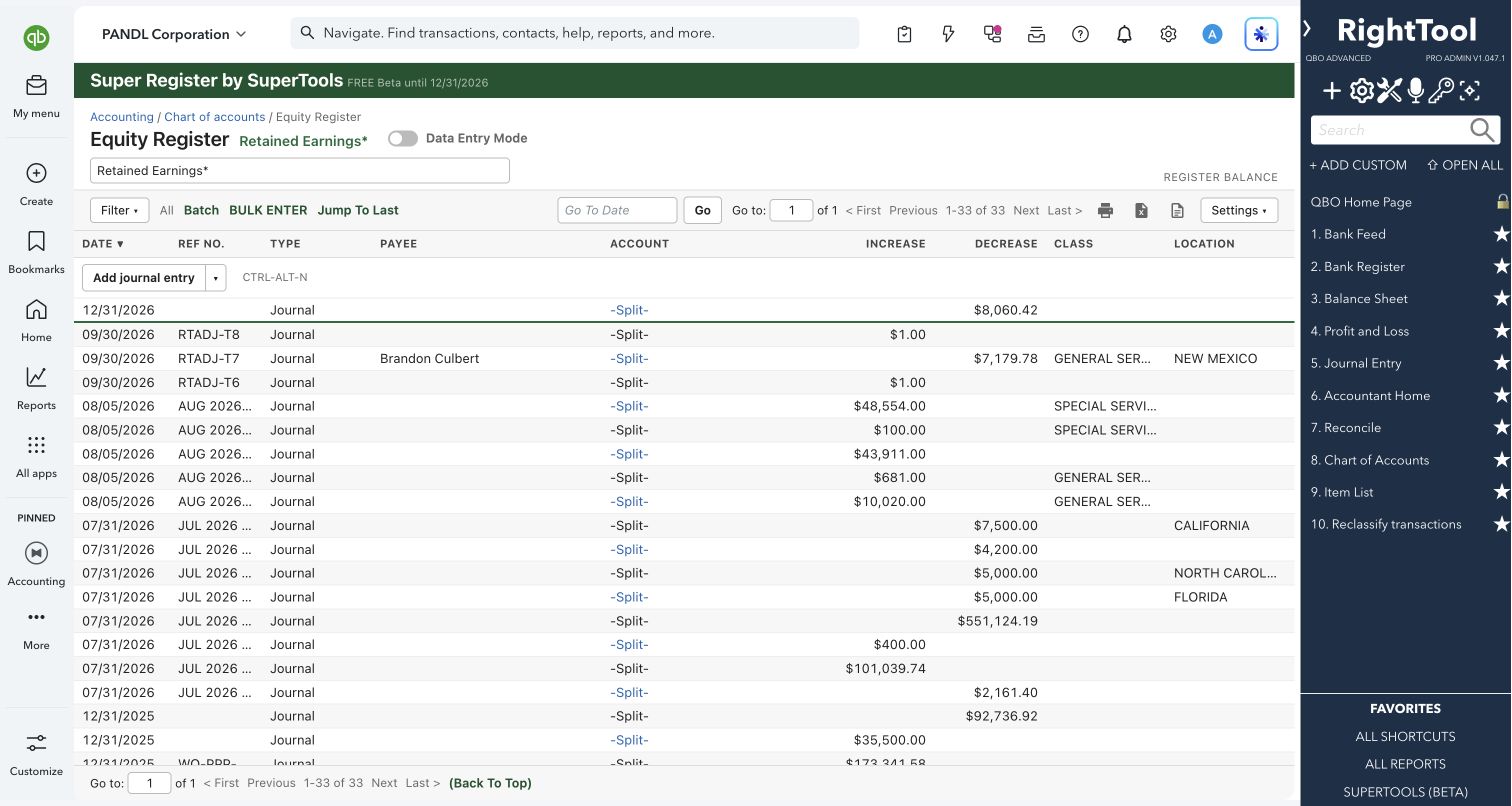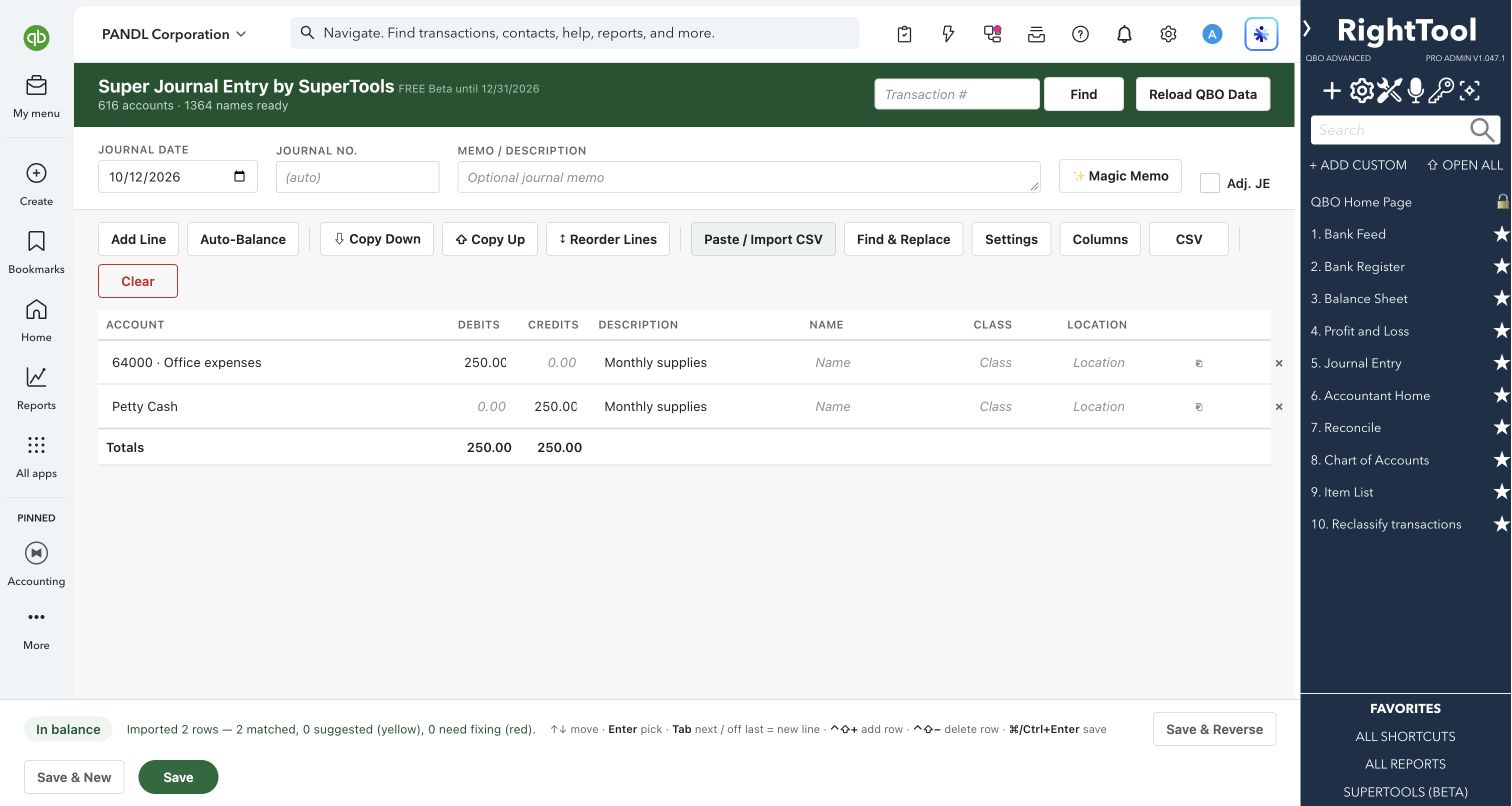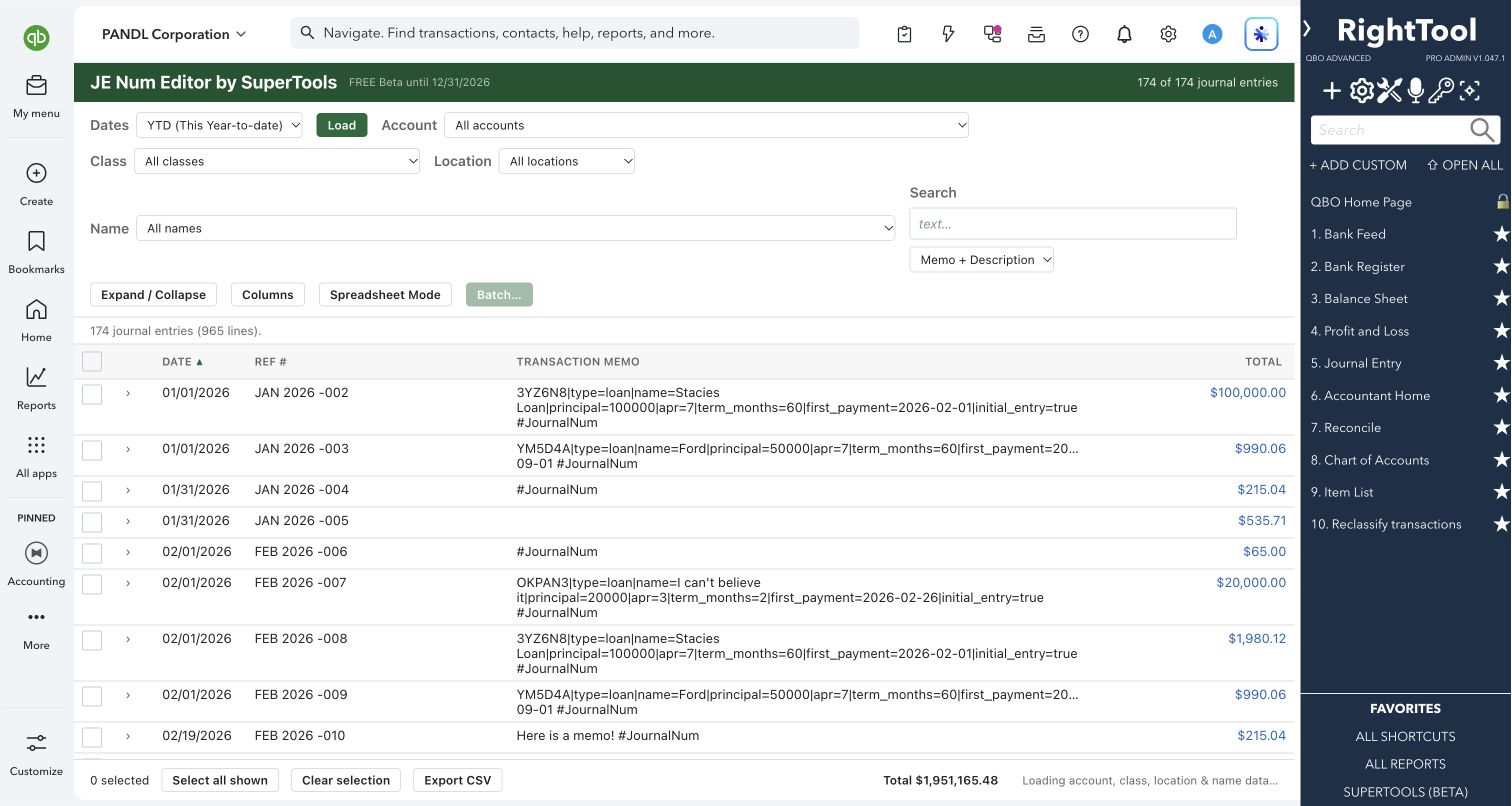
Journal entries & registers
The big picture.
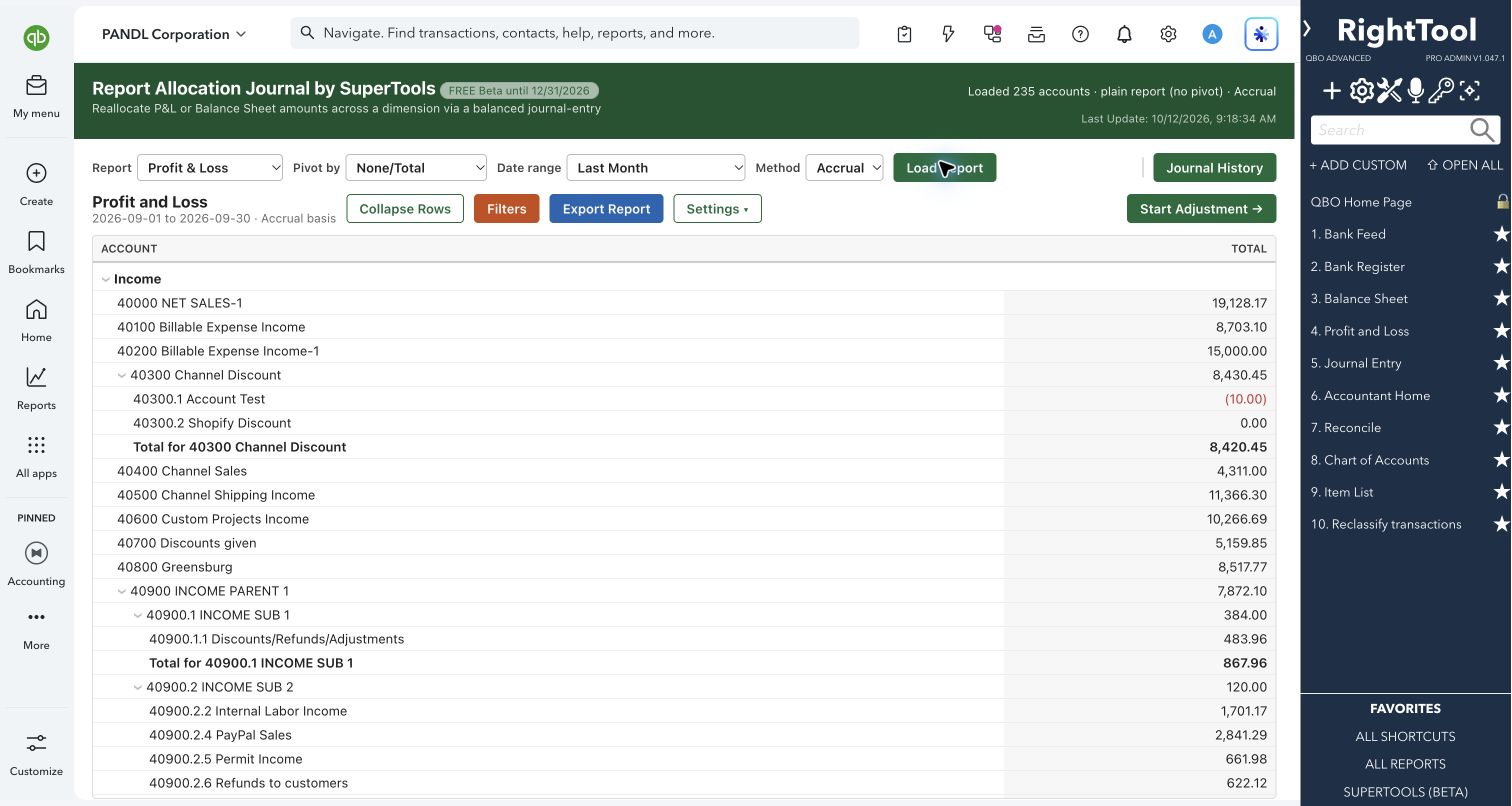
Load a Profit & Loss, Balance Sheet, Trial Balance, or Customer or Vendor Balance report from QuickBooks Online. The Profit & Loss and Balance Sheet can be broken out by class, location, customer, vendor or employee. Then either spread an amount, such as "Not specified", across other columns by percentage, or type the balances you want straight into the report, and the tool builds one balanced journal entry to get you there.
Accountants doing month-end reclasses, allocations and true-ups, especially for companies that track class, location or customer profitability.
SEE IT IN QUICKBOOKS
See the workflow, step by step.
Explore the screens below. Select an image for a closer look.
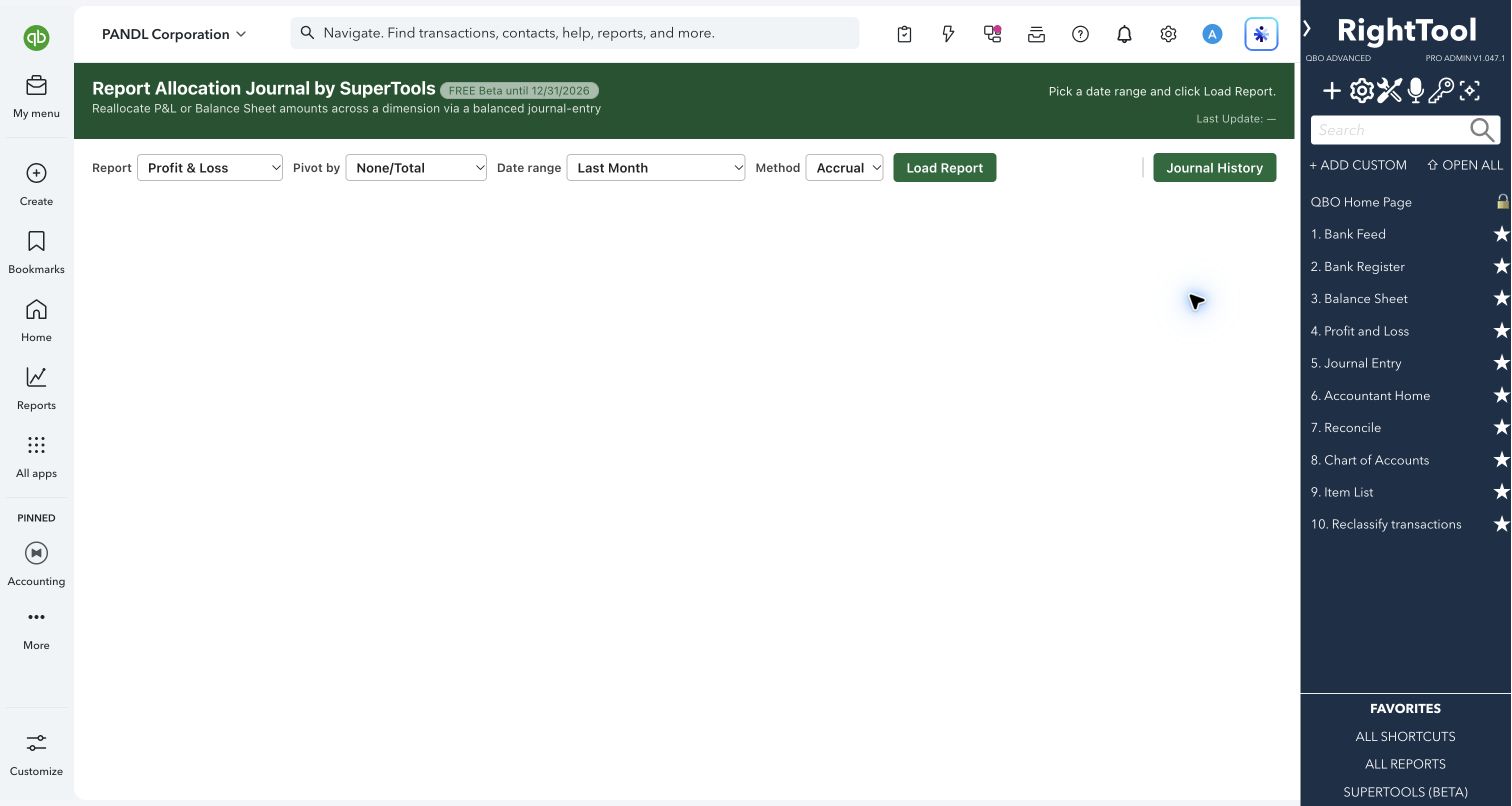
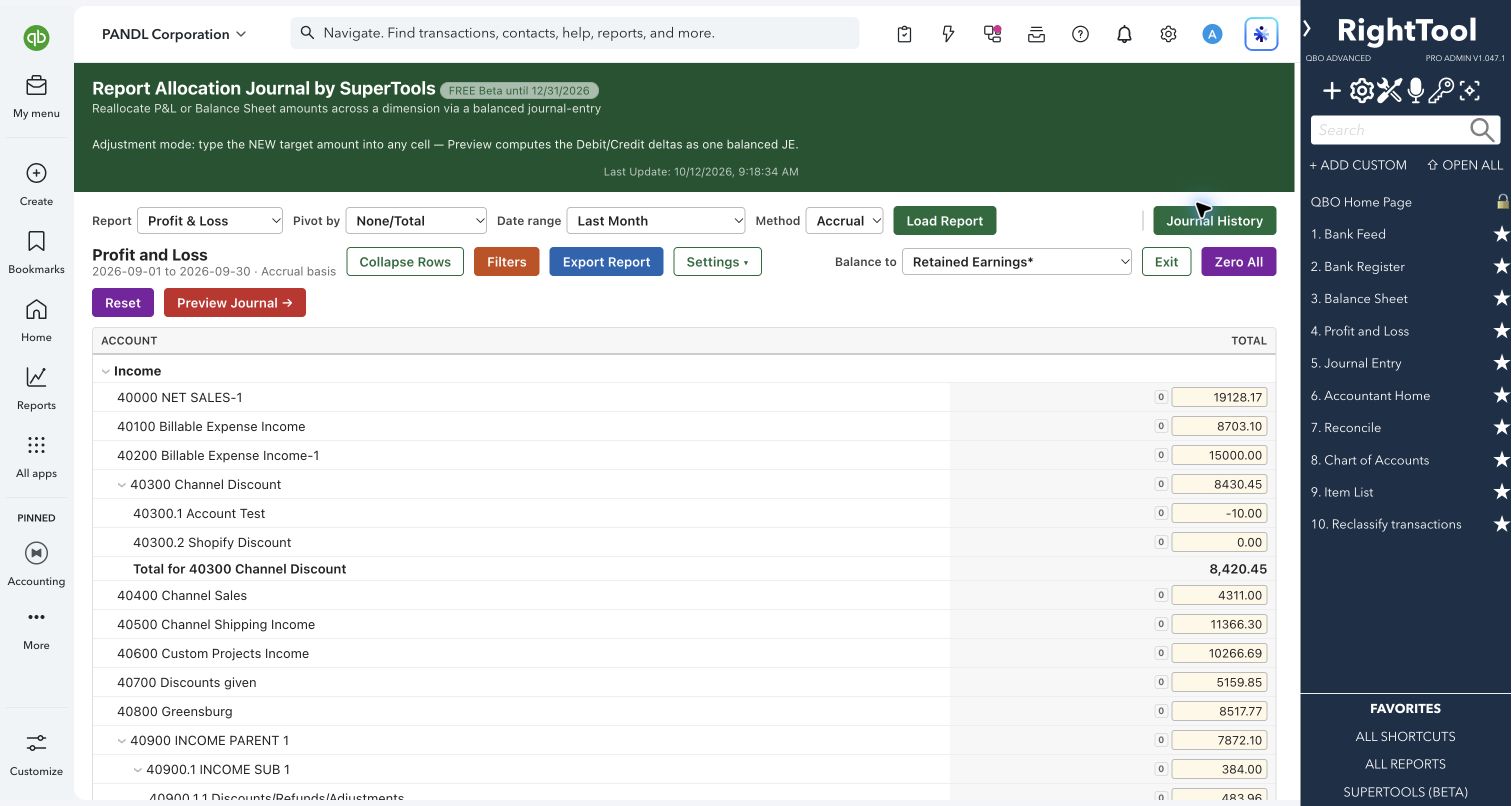
What you can do
- Load a Profit & Loss, Balance Sheet, Trial Balance, Customer Balance or Vendor Balance report for a preset or custom date range. Companies on a fiscal year also get fiscal-year presets. Choose accrual or cash for the Profit & Loss, Balance Sheet and Trial Balance.
- Break the Profit & Loss or Balance Sheet out by Class, Location, Customer:Project, Vendor or Employee (Employee on the Profit & Loss only), or view totals only.
- Start an allocation: pick a source column such as "Not specified", tick the accounts to move, and change their amounts if needed. Then give each target a percentage, including targets with no activity this period.
- Split evenly, or in proportion to a reference line such as Total Income. Save the percentages as a CSV template and import it again next month.
- Start an adjustment: type new target balances directly into the report. A live "Net Income Change" line shows the effect on a Profit & Loss. You can zero any amount, zero every amount, or reset to the original figures.
- Choose any account in your chart of accounts as the "Balance to" account for an adjustment's offset. By default the tool posts one balancing line per class, location or customer column, so each slice balances on its own.
- On the Customer and Vendor Balance reports, adjust individual balances. You can add active customers or vendors that have no activity as $0.00 rows to adjust onto them, and give each one its own balancing line.
- Preview every line of an adjustment before posting: account, debit, credit, class, location or name, and a description such as "Adjusted … from $X to $Y". Debit and credit totals and a balanced check are shown.
- Export the entry to a CSV laid out for journal-entry import, copy it to the clipboard, or create it directly in QuickBooks with your chosen entry date and an optional note.
- Open Journal History to see every entry this tool has created. Filter by account, name, class or location, sort by date or number, expand their lines, and click through to QuickBooks.
- Set up the report view: collapse rows or columns, filter accounts and columns, hide zero lines, show debit/credit format or full account names, and export the report itself to CSV.
Why it makes a difference
- Go from a report to a posted, balanced journal entry on one screen, with no spreadsheet math or retyping.
- Rounding is handled for you. When your percentages add up to 100%, the last target line takes any leftover cents, so the entry balances to the cent.
- QuickBooks requires a customer or vendor on every A/R and A/P line. The tool asks you to pick one, or create one on the spot, instead of letting QuickBooks reject the entry.
- QuickBooks won't post to inactive accounts or classes. The tool can switch them on just for this entry and switch them off again afterwards.
- Every entry is tagged in its memo, so Journal History can always find what the tool posted.
Put it to work
- Overhead allocation: Spread rent and utilities from "Not specified" across your locations, in proportion to each location's income.
- Class cleanup: Move unclassified expenses into two classes, 60/40, with one entry.
- Balance Sheet true-up: Type the reconciled balances into the Balance Sheet by class and post the differences, with one balancing line per class.
- A/R cleanup: On the Customer Balance report, zero out small leftover customer balances against a bad-debt account, with each customer's line balanced on its own.
WATCH THE WORKFLOW
Turn a target report balance into a journal
Safe by design
- Loading and exploring reports only reads your data. Nothing is posted until you press Create JE in QuickBooks and confirm a prompt that says it writes to the books immediately. The one exception is a new customer or vendor you choose to create in the A/R–A/P prompt, which is saved as soon as you create it.
- The confirmation shows the line count and that debits equal credits, and an internal check refuses to write if they don't match.
- For inactive accounts and classes, you choose "Temporarily Undelete" or "Permanently Activate". Temporary ones are made inactive again even if posting fails, and any that couldn't be are listed for you.
- You can export the entry to CSV or copy it to the clipboard to review it before anything is posted.
Good to know
- Allocation needs a report that's broken out by class, location, customer, vendor or employee. The Trial Balance and the Customer and Vendor Balance reports support adjustments only.
- An allocation's lines aren't previewed on screen. Export or copy the entry to see them before you post.
- Every entry the tool creates has "#AllocationTool" in its memo. Leave it there so Journal History can find the entry.
- Part of SuperTools (Beta).
How to open it
SuperTools sidebar → Report Allocation Journal
Install the SuperTools extension, then open the SuperTools S menu in QuickBooks Online, choose Home, and enable the tool there.
View beta setup steps