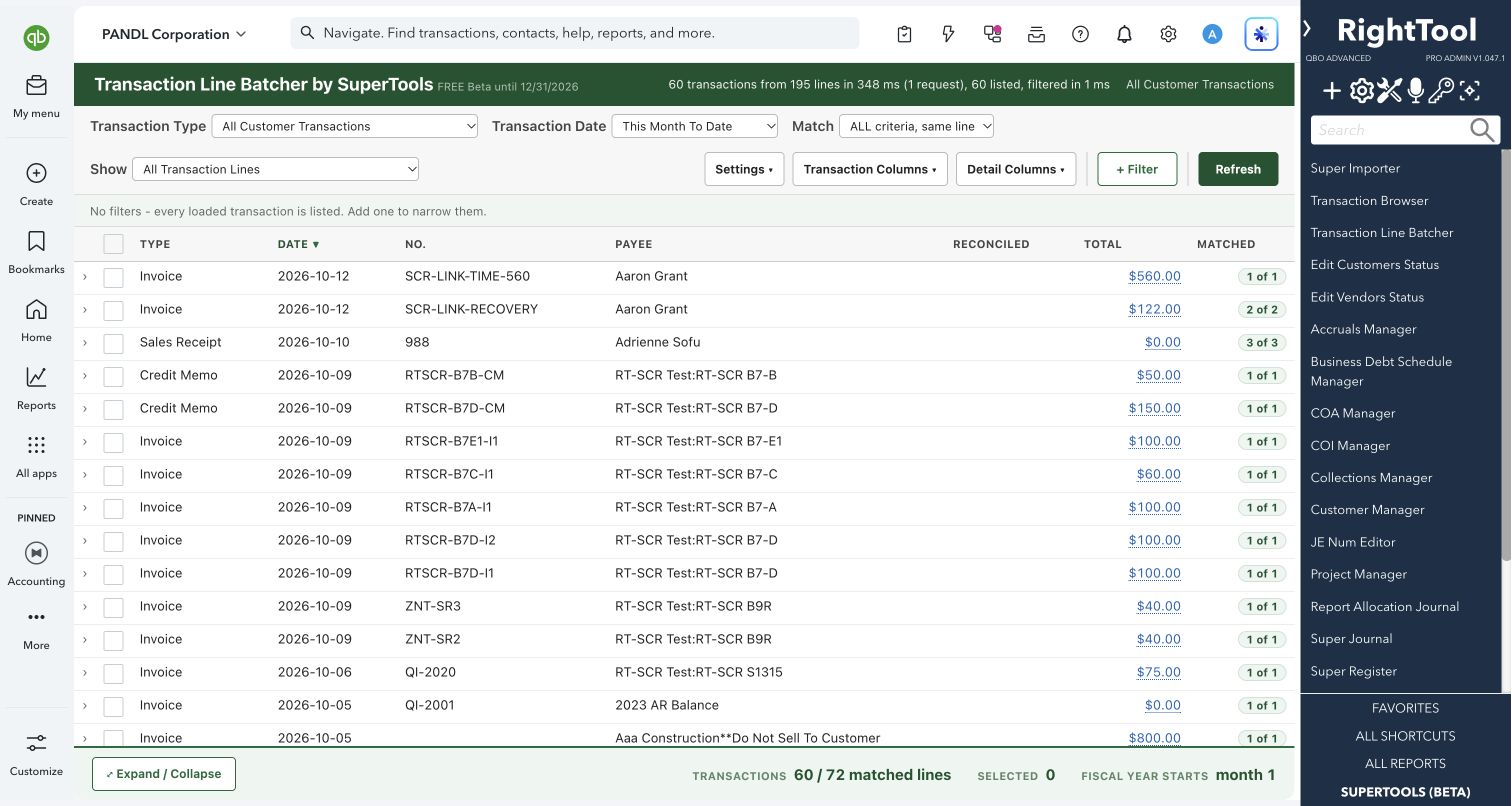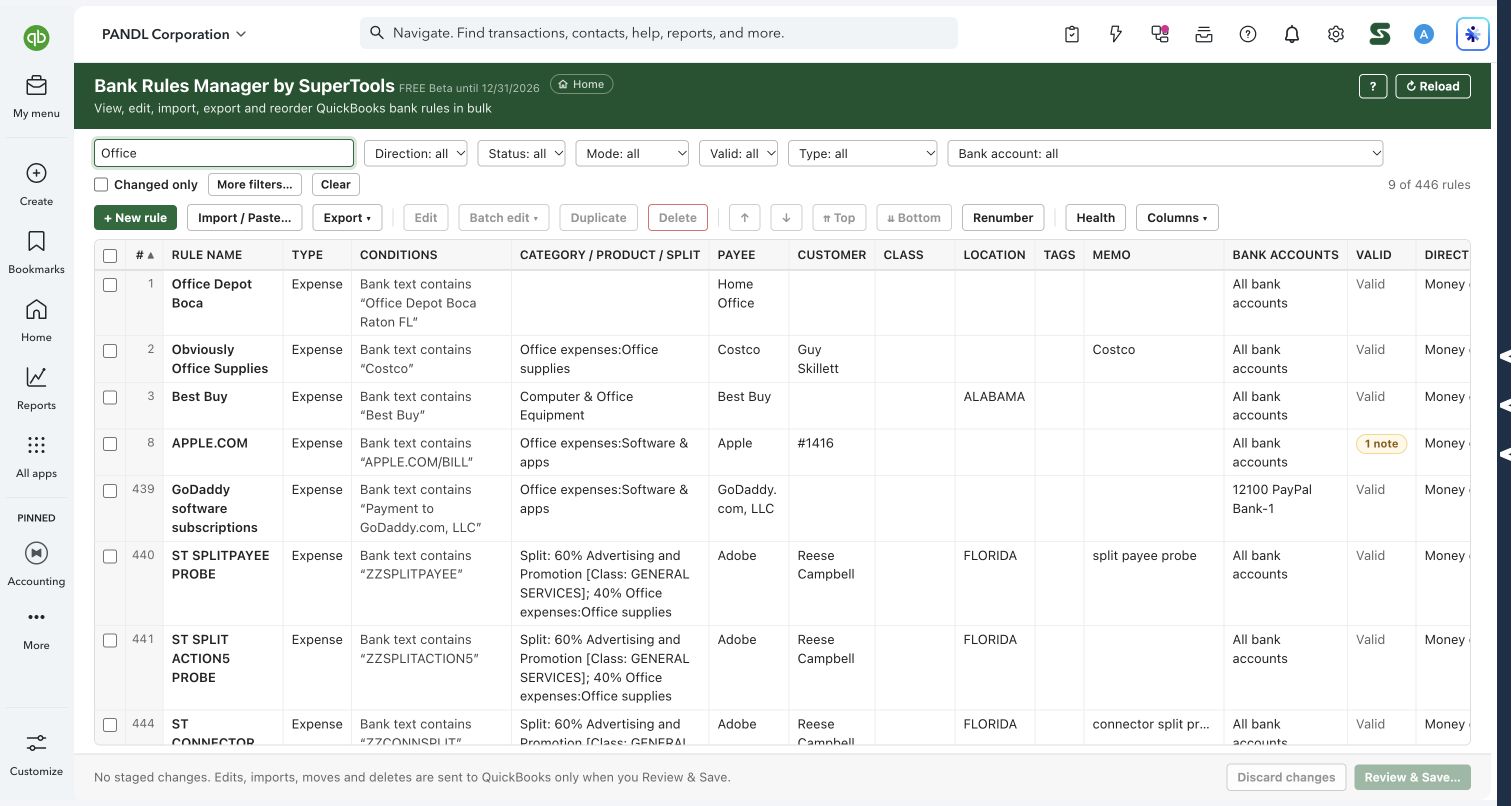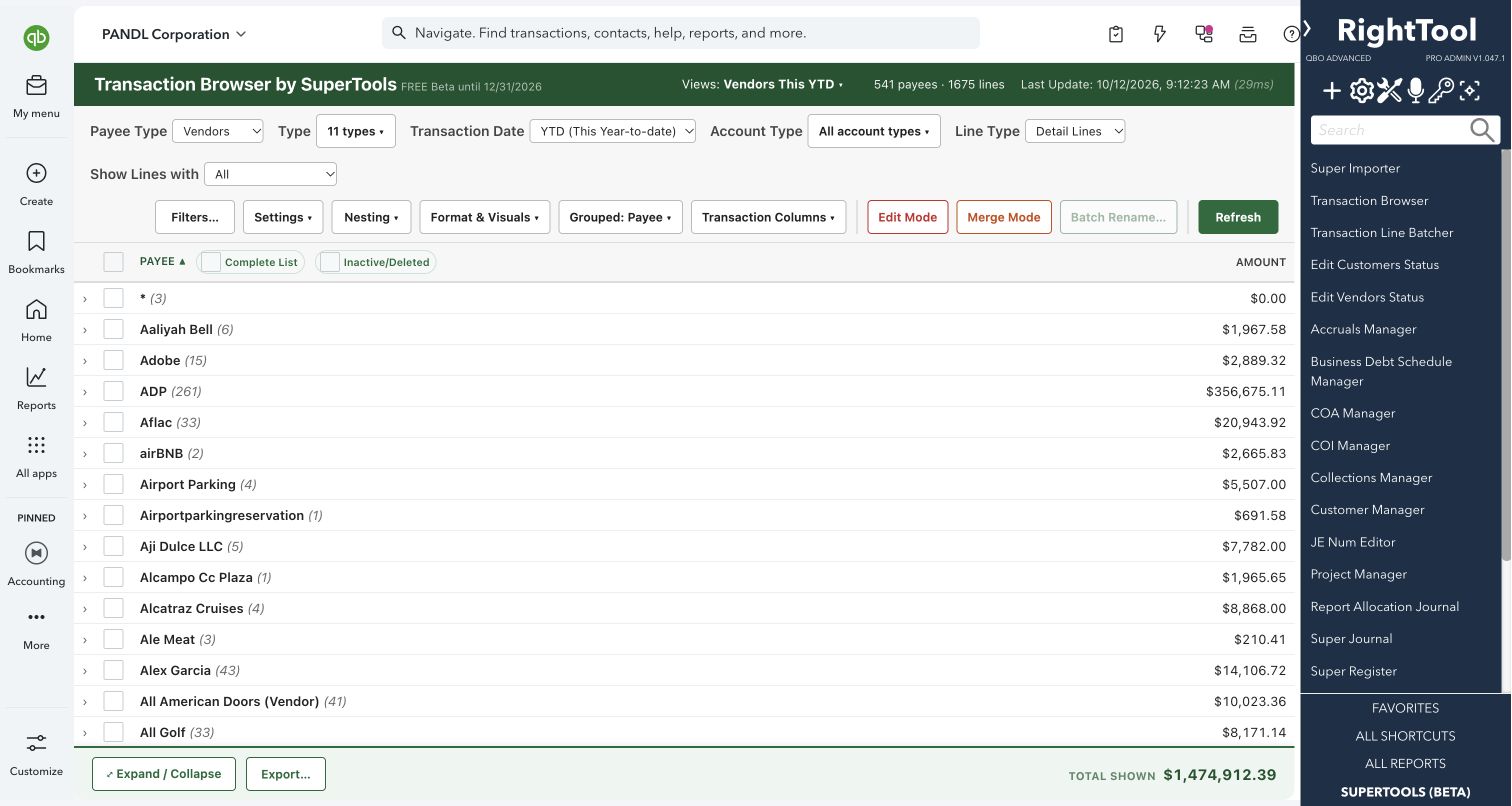
Finding & fixing transactions
The big picture.
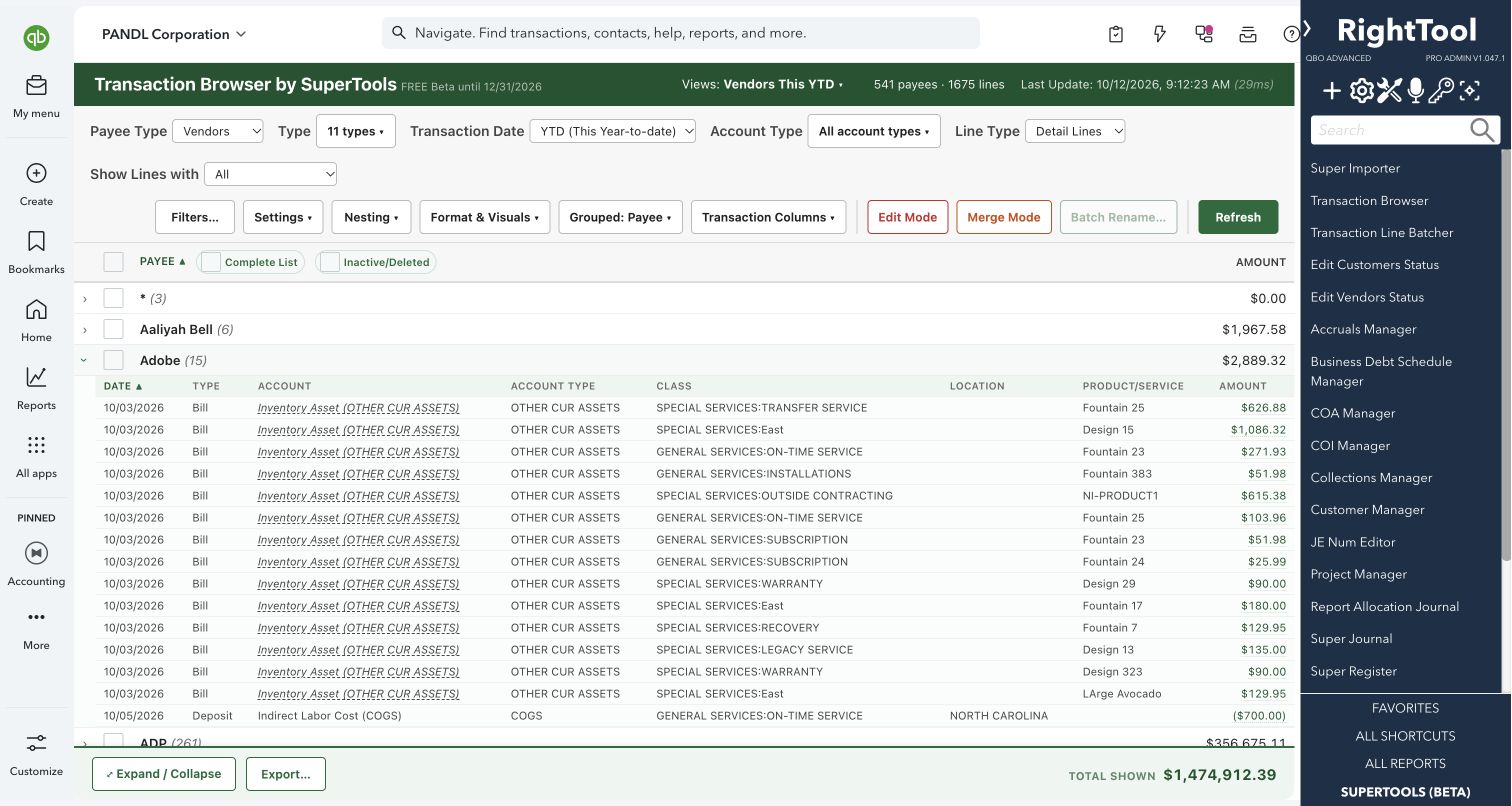
Transaction Browser loads every transaction line for a date range into one screen. You can group, filter and sort those lines any way you like. When something is wrong, you can batch-edit the lines, merge duplicate names and list entries, or rename them, all without leaving the page. Every edit is previewed before anything is written.
Accountants and bookkeepers who review, clean up or reclassify QuickBooks Online books.
SEE IT IN QUICKBOOKS
See the workflow, step by step.
Explore the screens below. Select an image for a closer look.
What you can do
Load every transaction line for a date range. Choose a preset such as This Month, Last Month, YTD, This Year, Last Year or All Dates, or pick your own dates. Fiscal-year presets are added when your fiscal year doesn't start in January.
Group and subgroup by any combination of these, and drag the groupings into any order:
- Payee, Payee Type, Transaction Type and Month
- Account, Account Type, P&L vs. Balance Sheet and Balancing Account
- Class, Location, Customer:Project and Product/Service
- Ref #, Reconciled status and your custom fields
You can nest sub-customers and projects, sub-accounts, sub-classes, sub-locations and sub-items under their parents, or clear every grouping to get a flat list.
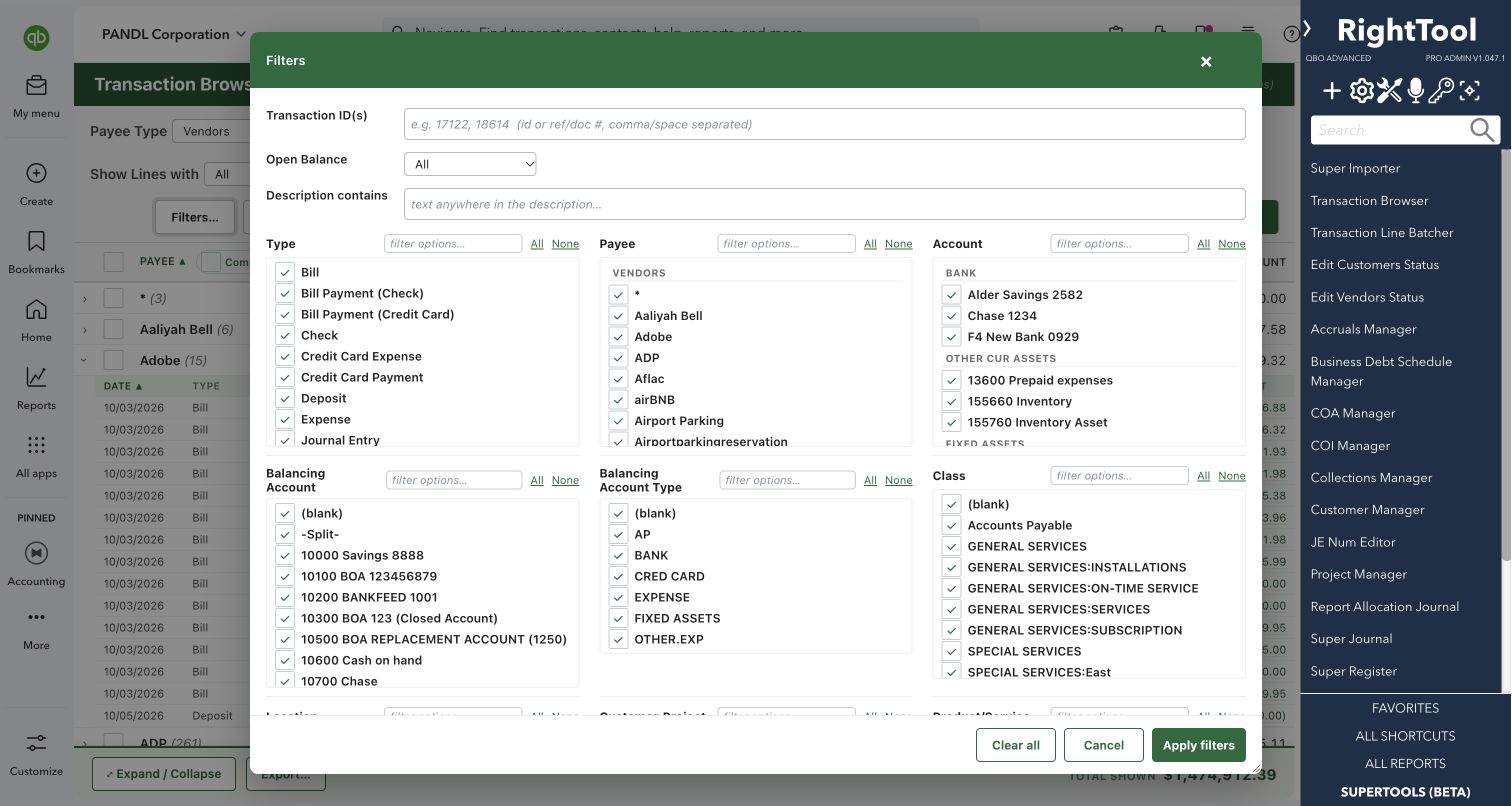
Narrow the list with filters:
- payee type: vendors, customers, employees or no payee
- transaction type, by individual type or by group (Money In, Money Out, posting or non-posting)
- account type, header or detail lines, and category or product lines
- open balance: fully paid, partially paid or unpaid
- text in the description, and transaction IDs or ref numbers
- pick-lists for payee, account, class, location, customer and product
Choose from more than 20 columns. Besides the usual ones, these include:
- Balancing Account, which shows the other side of each entry
- Open Balance
- Last Modified By and Last Modified Date
- Reconciled and Line Reconciled
You can show amounts as separate Debit and Credit columns, flip their signs, and show negatives in red or in parentheses.
Find problems faster:
- Hide $0 lines and groups that net to zero.
- Hide A/R and A/P transactions that already have payments applied.
- Highlight transactions that refer to a deleted payee, account, class, location or customer.
Click any amount to open that transaction in QuickBooks in a new tab. Ctrl/⌘-click a payee to open their vendor or customer page.
Select lines in Edit Mode and change them as a batch. You can change:
- payee, account, Product/Service, class, location and Customer:Project
- a header custom field, which you can set or clear
- the date: roll it back or push it forward a month, move it to 12/31 of the previous year or 01/01 of the next year, or set the year or an exact date
- the description: find and replace, append, prepend or overwrite
Merge duplicate vendors, customers, accounts, classes or locations into one record you choose to keep. Show All lists the unused and deleted ones too. Deleted records are reactivated automatically before the merge.
Rename classes, locations, accounts (name and number), vendors or customers in a single table, and activate or inactivate them in the same step.
Fix edits that QuickBooks normally blocks:
- Change the customer or vendor on an applied payment, bill payment, invoice or credit memo. Fix payee un-applies it, moves it along with the linked invoices, bills or payments you tick, and re-applies it. This works even when the payment is already in a bank deposit.
- When a deleted Product/Service blocks an edit, Fix & retry restores the item for a moment, applies your change, then inactivates the item again.
Export to CSV. You can choose:
- all rows or only selected rows
- every line expanded, or exactly as shown on screen
- one column per grouping level, with parent values filled down
- visible columns only, or all columns
- raw or formatted amounts
- tab-separated output that pastes cleanly into Excel
- an optional header line with the date range and filters
Save named views for each company. You can also add active or deleted custom fields as columns, groupings and filters.
Why it makes a difference
- It works like a pivot table over all your transaction detail, and you can edit from it. You find a problem and fix it on the same screen, across many transactions and transaction types at once.
- You can merge and rename names and list entries in batches instead of one at a time, including unused and deleted ones.
- It handles cases QuickBooks blocks: applied payments, transactions that use a deleted product, and Projects. QuickBooks can't merge Projects, so the tool gives you a downloadable roadmap. It lists every transaction that would have to move and marks which ones the tool can re-point and which must be changed in QuickBooks.
- Each line can show its balancing account, open balance and reconcile status, so you have the context before you change anything.
- Once the data is loaded, grouping, filtering and sorting work on screen with no reload.
Put it to work
- Year-end cleanup: group by Account and then by Payee to find miscoded expenses. Select the checks and expenses, then move them to the correct account and class in one pass.
- Vendor list cleanup: list every vendor, including unused and deleted ones. Merge duplicates like "Amazon" and "Amazon.com" into one, and rename the rest in a single table.
- Cutoff fixes: find transactions dated in the wrong year and move them all to 12/31 of the previous year in one batch.
- Wrong customer: move an invoice and its applied payments to the correct customer so the payments stay applied.
WATCH THE WORKFLOW
Explore the same transactions by payee and account
Safe by design
- Browsing, grouping, filtering and exporting only read your books. Nothing changes until you use Edit Mode, Merge or Batch Rename and confirm.
- In Edit Mode, Apply stays off until you run a Preview, which writes nothing. Apply then asks you to confirm. At Apply, each transaction is checked against the Preview, and anything that changed in QuickBooks in the meantime is not written.
- Reconciled transactions, and any whose status couldn't be checked, are listed for you and skipped unless you tick an acknowledgement. Edits to a transaction that is already in a bank deposit are refused, with an explanation.
- A merge shows an "irreversible" warning, lets you choose the record to keep, and asks you to confirm a second time. Batch Rename asks for confirmation and only sends the rows you changed.
Good to know
Merges can't be undone, because QuickBooks retires the merged records. Batch edits can't be undone from the tool either.
Not every field applies to every transaction type:
- Bills take payee, date, memo and custom fields. To change the accounts on bill lines, use Transaction Line Batcher.
- Payments take payee, date, memo and deposit account.
- Estimates and purchase orders take custom fields only.
- Transfers, credit card payments and inventory adjustments can't be edited.
The Preview lists anything that will be skipped and why.
A very large date range can match more lines than QuickBooks returns in one report. When that happens, the tool tells you and asks you to narrow the range.
Batch Edit in SuperReports opens this same edit window. Transaction Browser is part of SuperTools (Beta).
How to open it
SuperTools sidebar → Transaction Browser
Install the SuperTools extension, then open the SuperTools S menu in QuickBooks Online, choose Home, and enable the tool there.
View beta setup steps