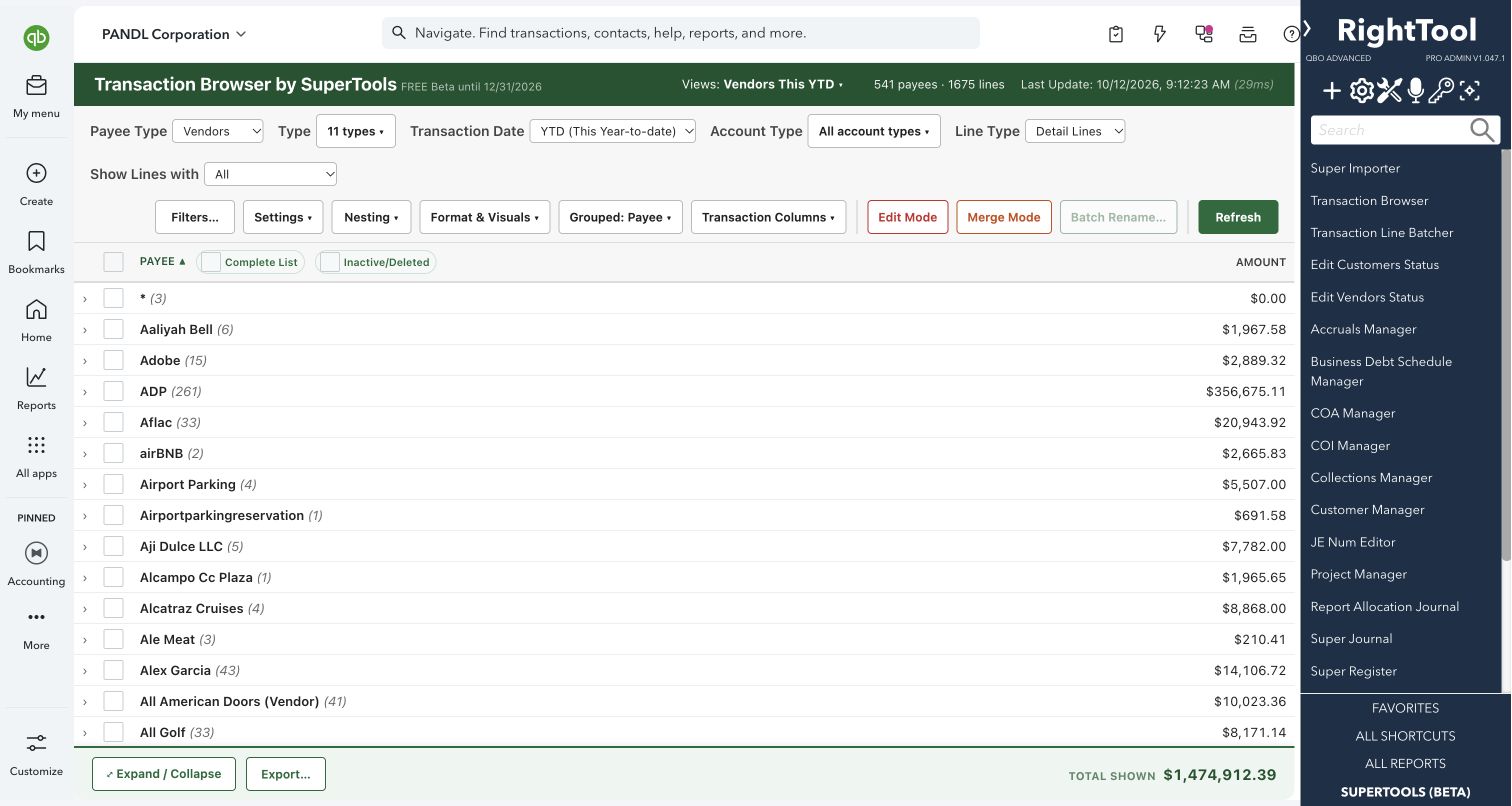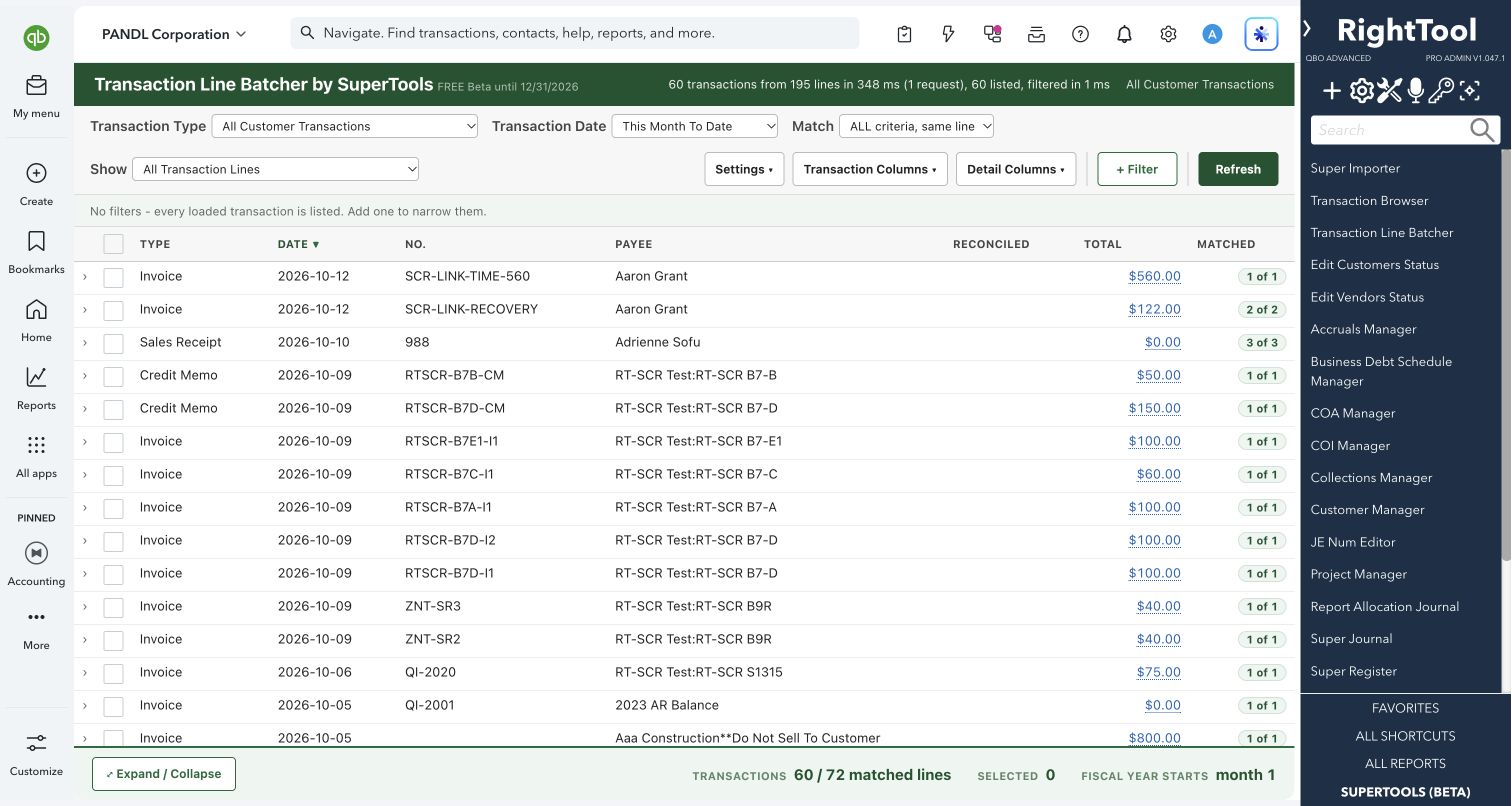
Finding & fixing transactions
The big picture.
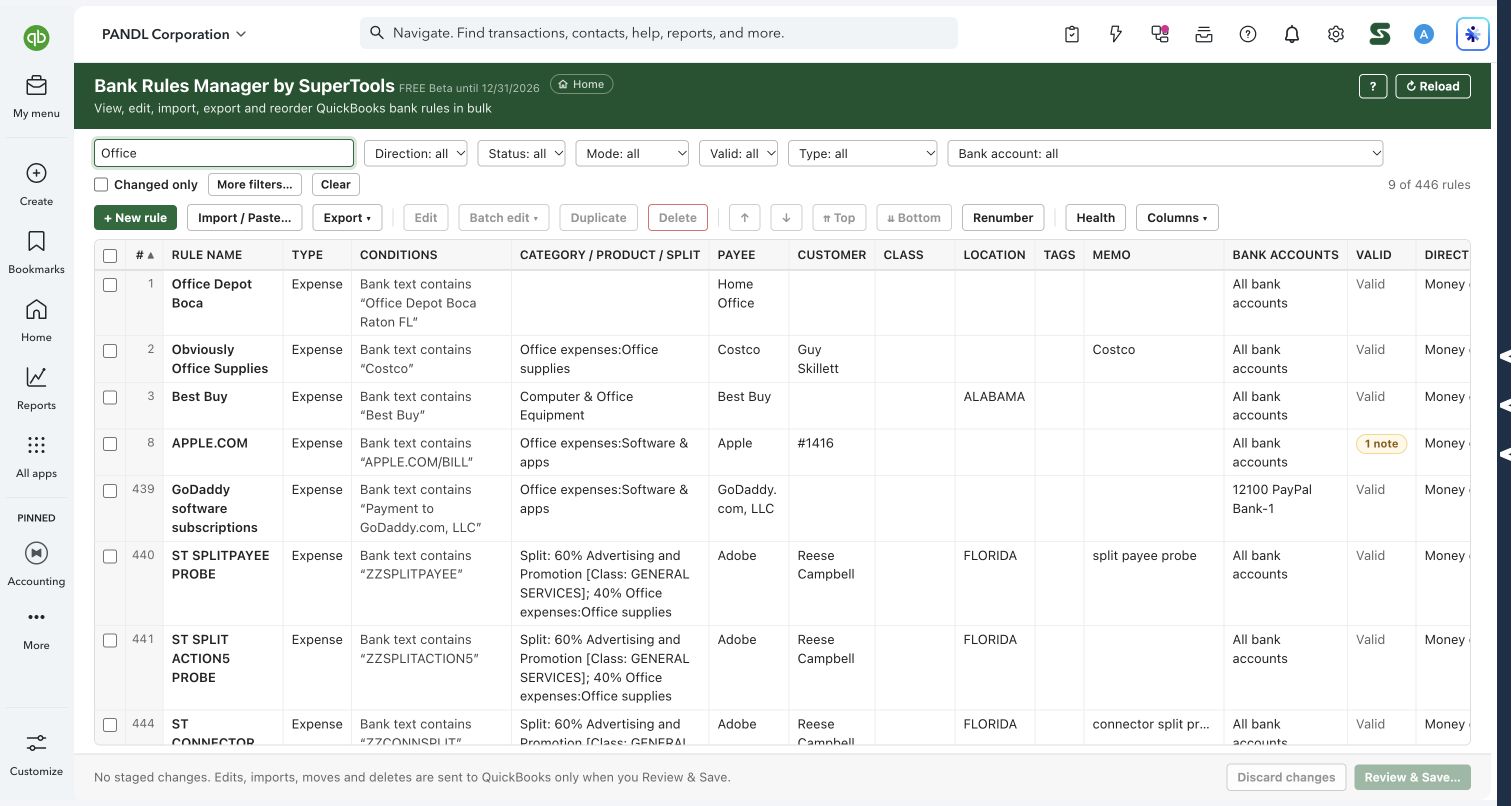
Bring bank-rule conditions, categories, payees and priorities into one workspace. Find rules that need attention, inspect their matching logic, prepare bulk changes or spreadsheet imports, then review the staged work before saving to QuickBooks.
Bookkeepers and accountants maintaining large or inconsistent bank-rule lists.
SEE IT IN QUICKBOOKS
See the workflow, step by step.
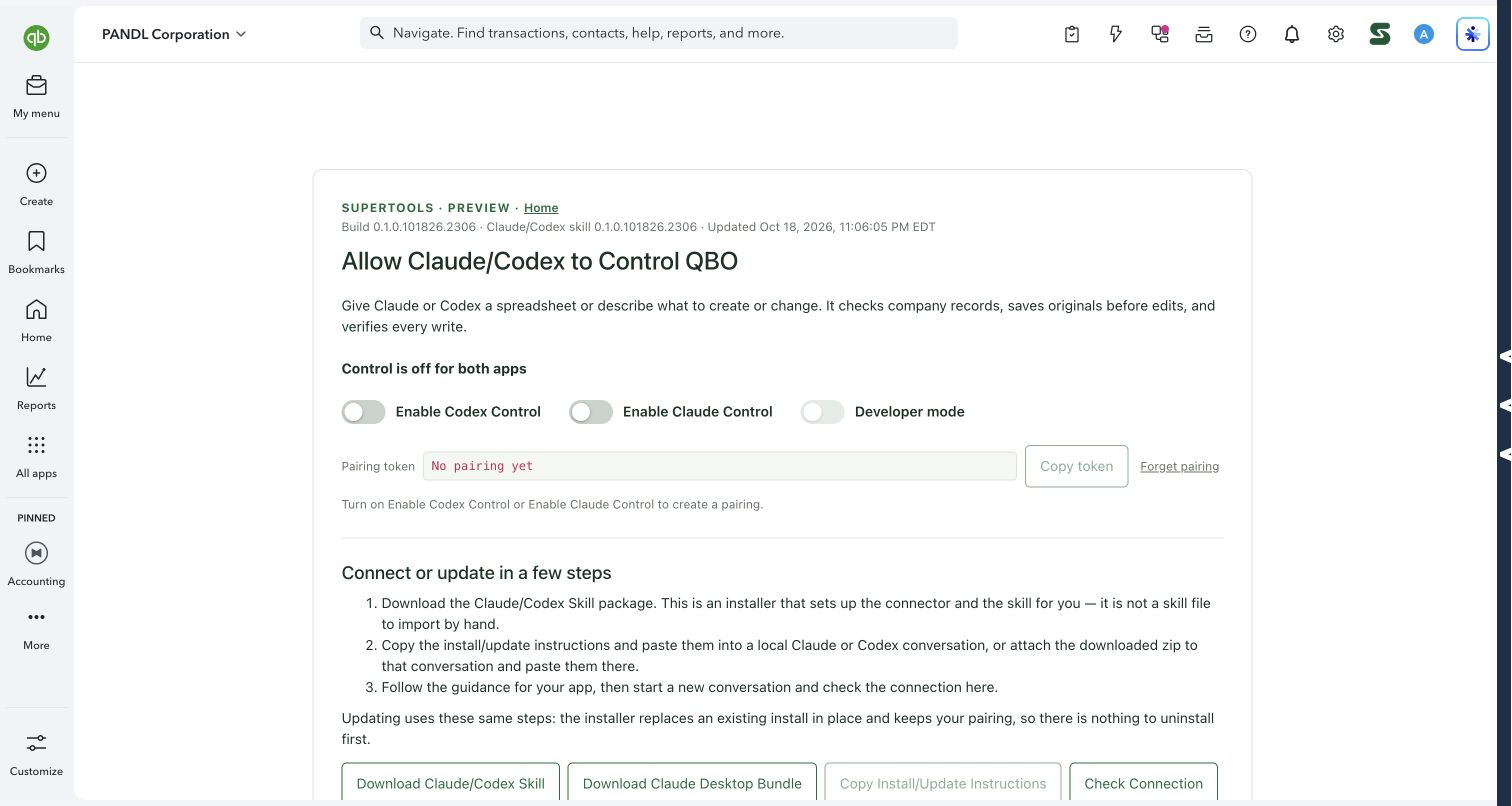
Explore the screens below. Select an image for a closer look.
What you can do
- Filter the grid: Search text and narrow by direction, status, mode, validity, transaction type or bank account. More filters cover additional rule fields.
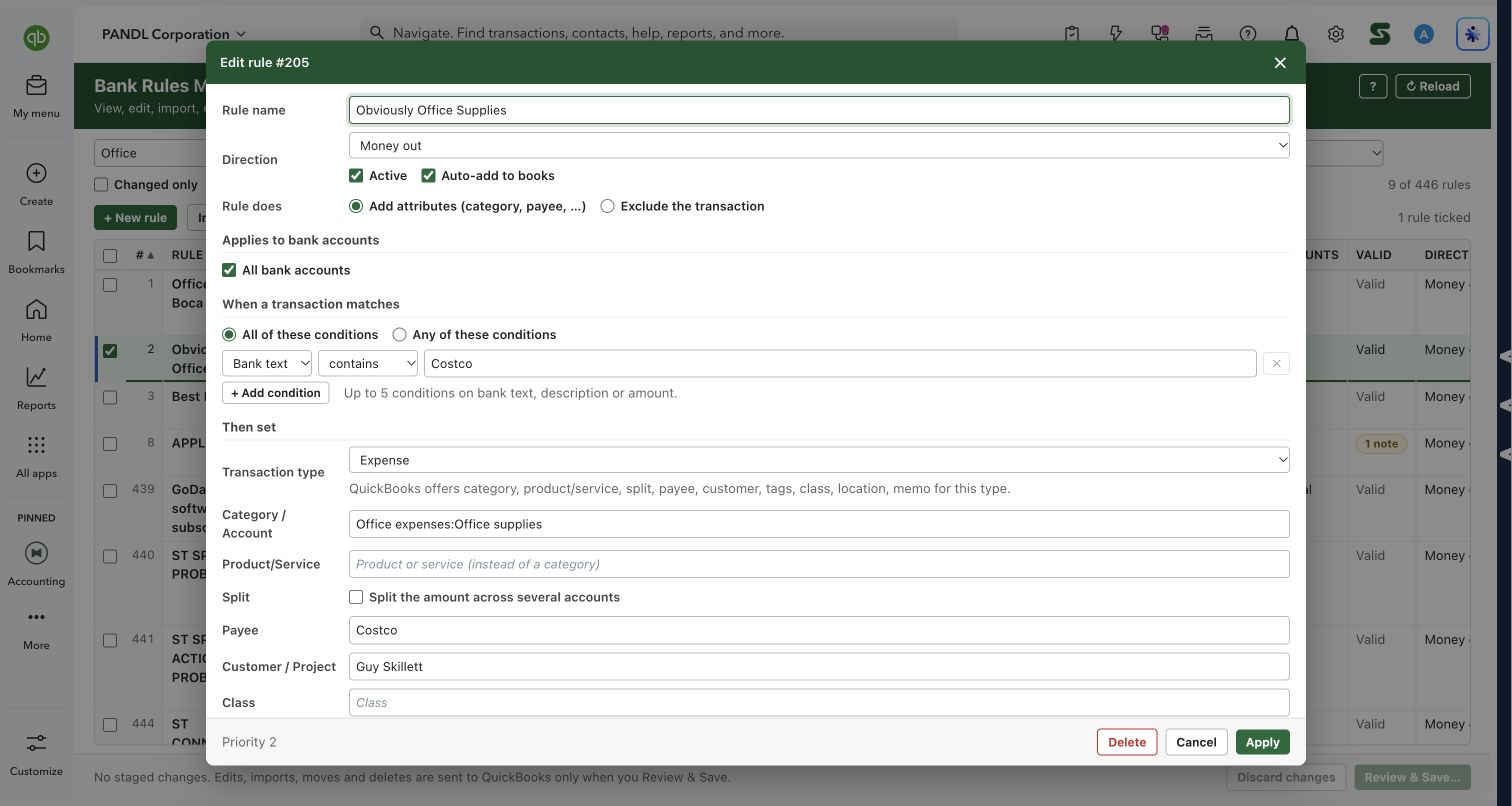
- Inspect matching logic: Edit up to five conditions on bank text, description or amount, joined with all or any.
- Set rule actions: Review category/account, supported product or split options, payee, customer, class, location, tags and memo.
- Manage in bulk: Batch-edit, duplicate, stage deletions and move rules up, down, to the top or bottom. Renumber priorities when needed.
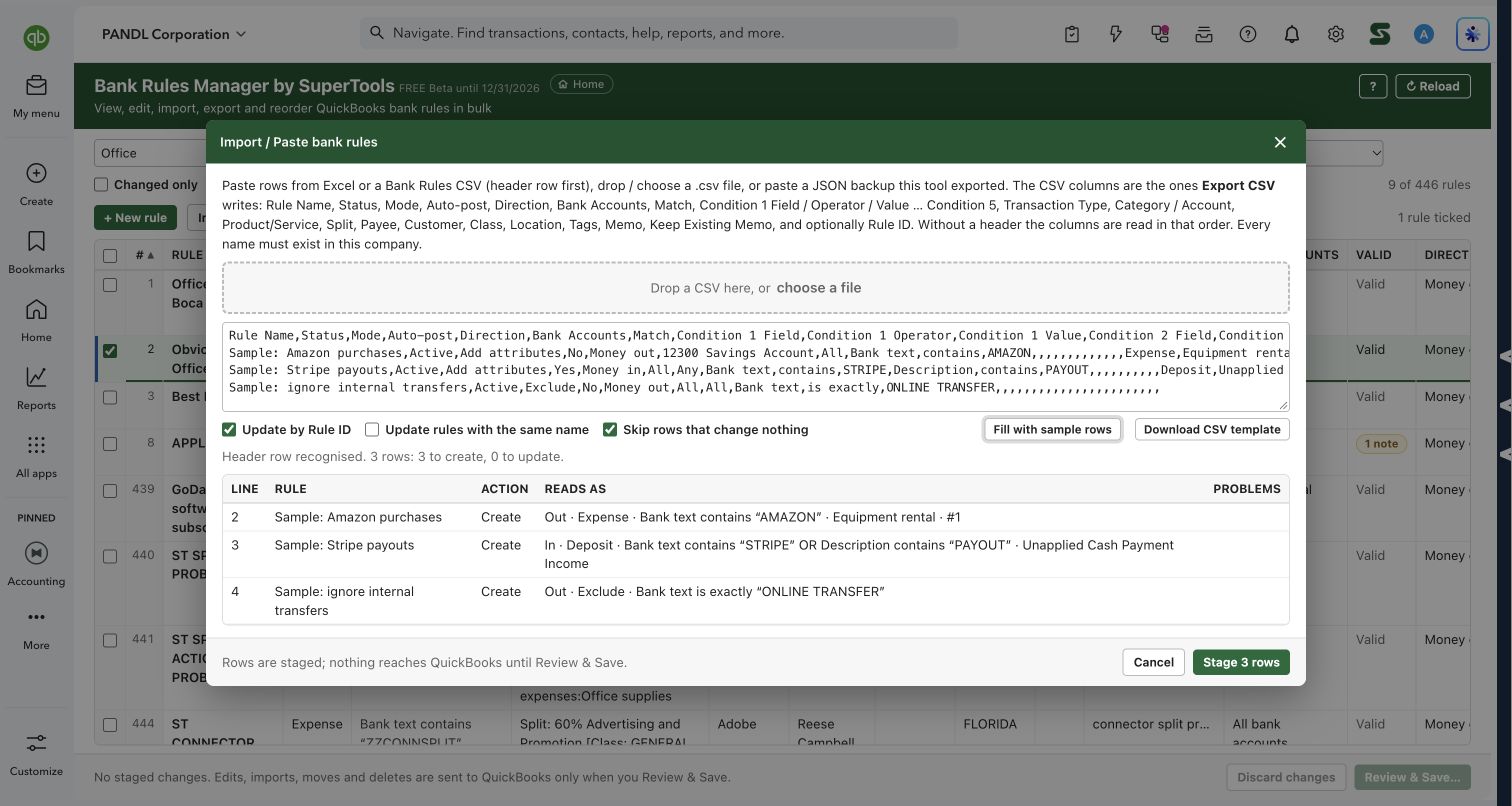
- Import and export: Paste spreadsheet rows, choose CSV, or use a JSON backup exported by the tool. Preview create/update decisions and problems.
- Check health: Find rules QuickBooks marks invalid and review other reported issues.
- Review before saving: Use Changed only, discard staged work, or open Review & Save.
Why it makes a difference
- Conditions and accounting choices are visible together.
- Rule order matters: QuickBooks uses the first matching rule.
- Spreadsheet previews make bulk maintenance easier to inspect.
Put it to work
- Search for office-related rules and compare their categories.
- Open a rule to review conditions, payee and automatic posting settings.
- Paste a spreadsheet, inspect each interpreted row, then stage and review the changes.
WATCH THE WORKFLOW
Review rules and preview a spreadsheet import
Safe by design
Edits, imports, moves and deletions are staged until Review & Save. Import matching by Rule ID also checks the name because IDs can repeat across companies. Review Auto-add carefully: enabled rules can post matching bank transactions automatically.
Good to know
Names referenced by an import must exist in the destination company. QuickBooks capabilities determine which fields apply to each transaction type. A rule marked valid is not a guarantee that its accounting choices are appropriate.
How to open it
SuperTools Home → Bank Rules Manager. Direct QuickBooks route: /app/bankRulesManager.
Install the SuperTools extension, then open the SuperTools S menu in QuickBooks Online, choose Home, and enable the tool there.
View beta setup steps