Finding & fixing transactions
The big picture.
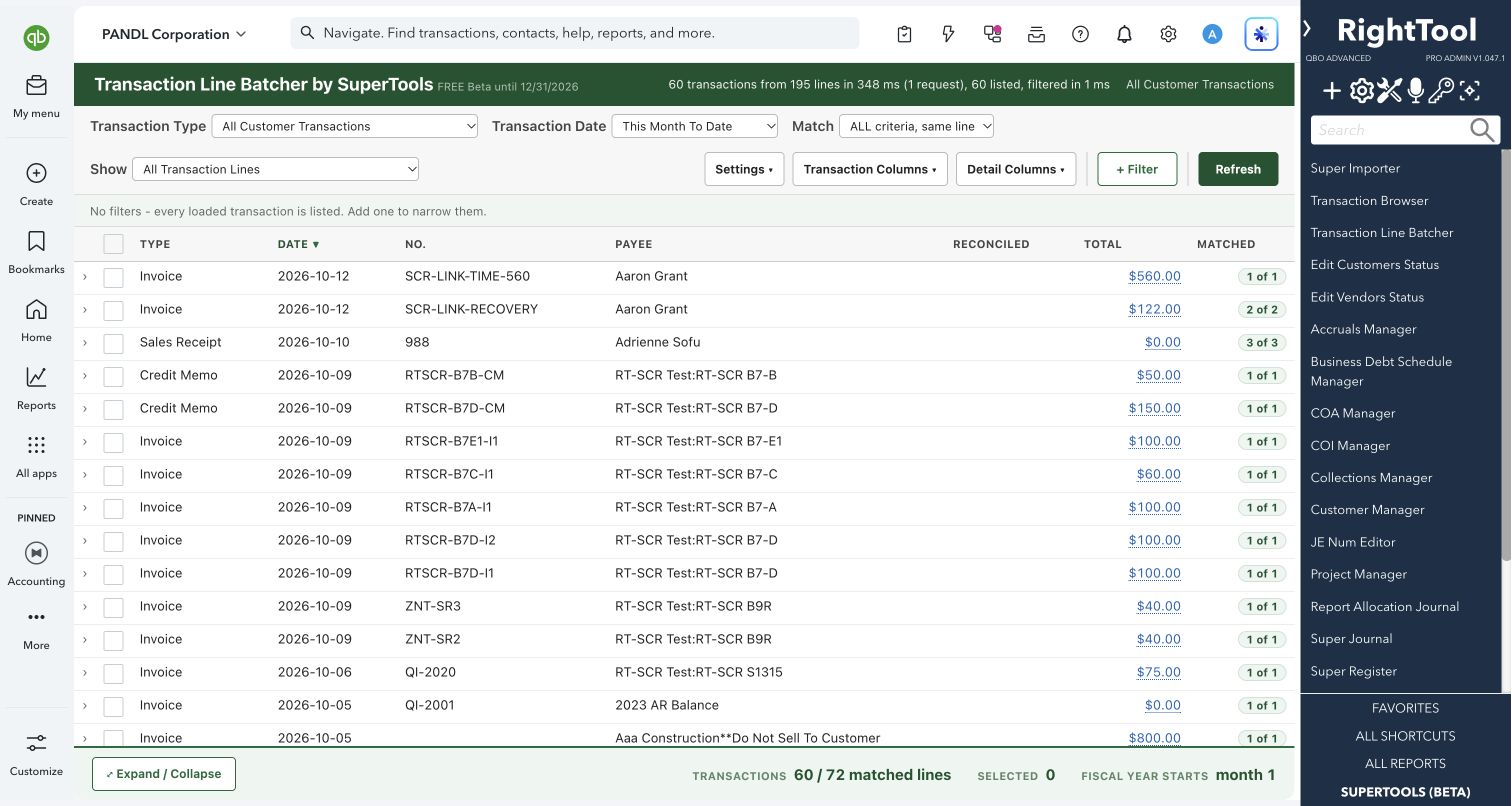
In QuickBooks Online, changing a line item means opening each invoice, bill or expense one at a time. Transaction Line Batcher finds exactly the lines you target across many transactions. In one run it can edit, zero out, remove or add lines, and it shows you a before/after preview first.
Built for
Bookkeepers, accountants and business owners who need to change line items across many invoices, bills, expenses, deposits or journal entries.
SEE IT IN QUICKBOOKS
See the workflow, step by step.
Explore the screens below. Select an image for a closer look.
What you can do
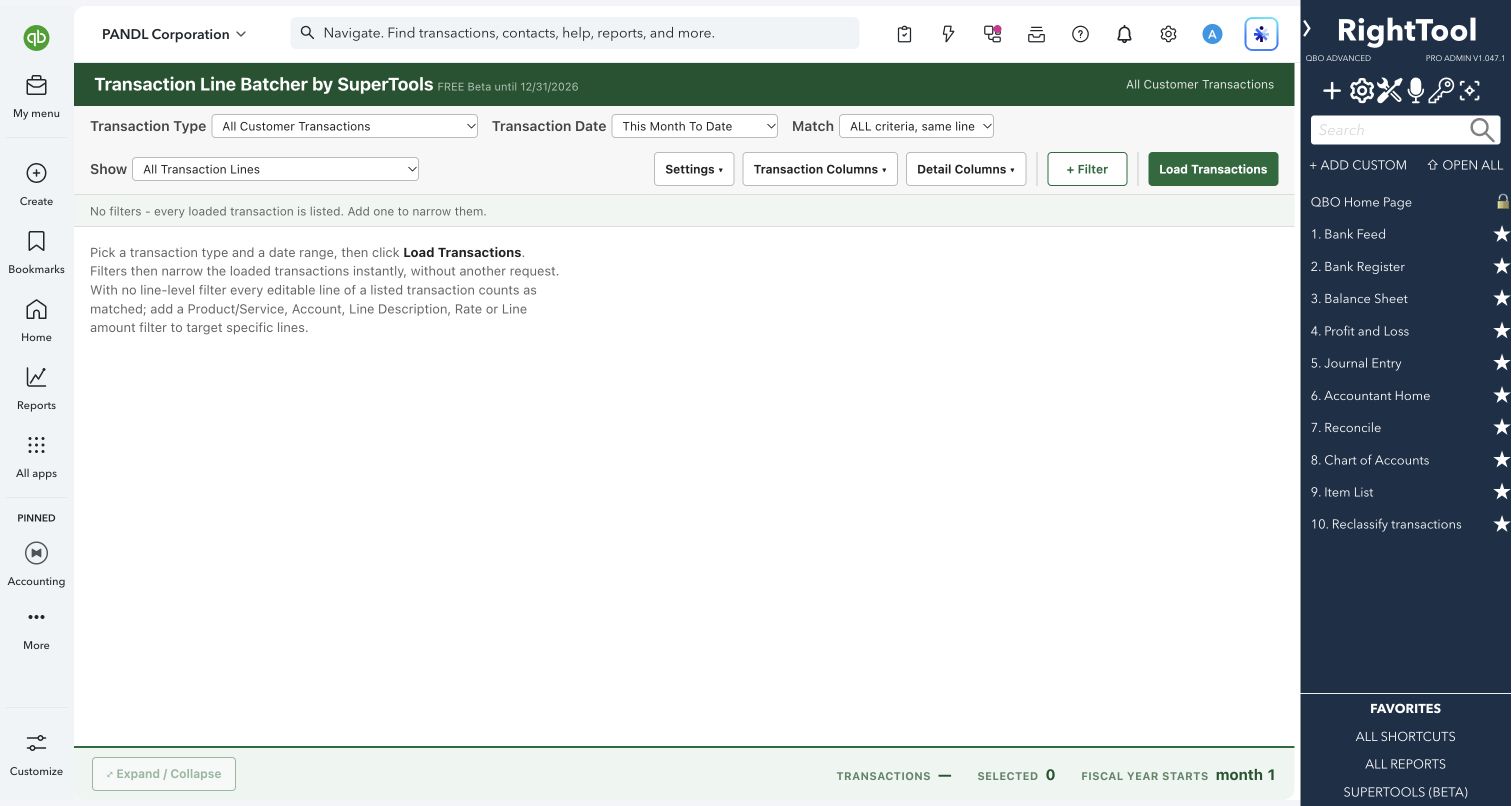
- Load one transaction type, or one whole side of the books, for a date range. Fiscal-year presets are added when your fiscal year doesn't start in January. The types are:
- All Customer Transactions or All Vendor Transactions
- Invoice, Sales Receipt, Credit Memo or Estimate
- Expense, Check, Bill, Credit Card Expense, Vendor Credit, Credit Card Credit or Purchase Order
- Deposit, or Journal Entry (fields without amounts only)
- Target exact lines with filters:
- Fields: Payee, Location, Transaction Memo, Custom field, Class, Product/Service, Account, Customer:Project, Line Description, Rate, Line amount, Reconciled, Line Reconciled and Is Taxable.
- Text conditions: contains, doesn't contain, is exactly, is not, starts with, is blank.
- Number conditions: =, >, <, between, is zero.
- Match lines that meet ALL your criteria, or ANY of them.
- On invoices, sales receipts, credit memos and estimates, replace the Product/Service on every matched line. The line keeps its rate and description unless you switch on the new item's default rate or default description.
- Replace the account on matched lines of vendor forms, deposits and journal entries.
- Set or clear Customer:Project on matched lines of bills, checks, expenses and other vendor forms, for job costing.
- Rewrite line descriptions: append, prepend, replace the whole text, or find and replace.
- Set a new quantity, a new rate, or both on matched item lines.
- Zero out a line or remove it:
- Zeroing sets quantity and rate to 0 on an item line, or the amount to $0 on a category line, and adds your note to the description.
- Removing deletes the line entirely.
- Append a new line, such as a late fee, discount or adjustment. Its amount can be fixed, a percentage of the transaction subtotal, or a percentage of the matched lines.
- Control what's shown:
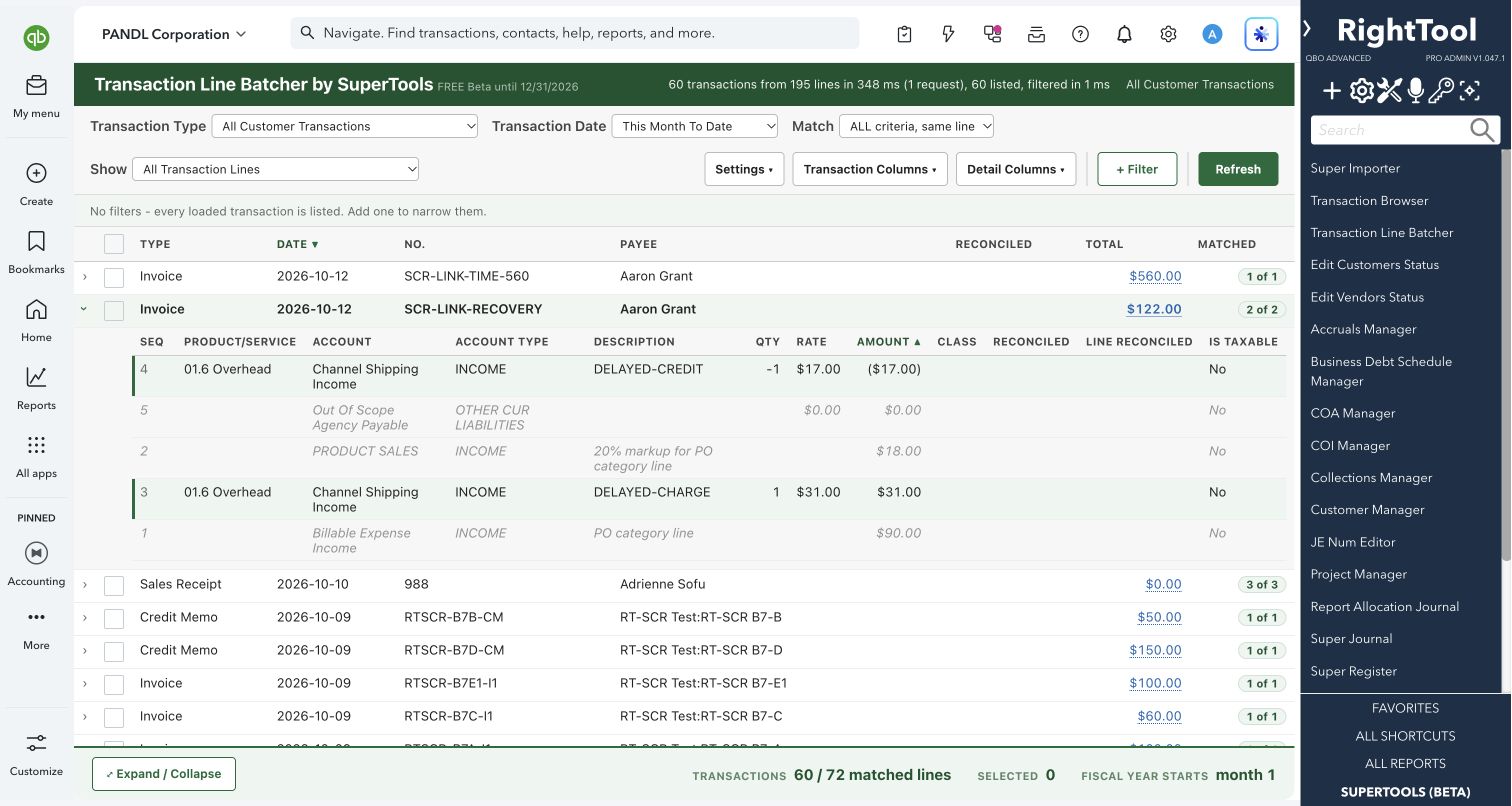
- Show only item lines or only category lines, or only the transactions that have them.
- Hide sales tax, discount, shipping and deposit rows.
- Choose and reorder columns. Your choices are remembered for each company.
- Before you apply, export the Preview to CSV as a backup of every line before and after the change.
- Retry only the transactions that failed.
Why it makes a difference
- It changes individual lines inside many transactions in one run. In QuickBooks you edit lines one form at a time.
- You can combine several changes in one run. They're applied in a fixed order (edit the matched lines, then zero out or remove, then add new lines), with one save per transaction.
- Filters apply right away to the data you've already loaded, with no reload. Matched lines are highlighted.
- Percentage-based new lines, such as late fees, surcharges and discounts, are calculated separately for each transaction.
- After saving, each transaction is read back from QuickBooks to confirm the change.
Put it to work
- Price list change: replace a retired service with its replacement on the invoices you select, and pick up the new item's default rate.
- Late fees: add a "Late fee" line at 1.5% of the subtotal to the invoices you select.
- Reclassification: on every check and expense from one vendor coded to Office Supplies, change the account to Software and tag the job.
- Description cleanup: find and replace a misspelled word in line descriptions across a year of invoices.
WATCH THE WORKFLOW
Target and preview changes to transaction lines
Safe by design
- Loading and filtering only read your books. Nothing is written until you run a Preview and confirm Apply. The confirmation says how many transactions will change and warns you when lines will be removed.
- The Preview shows every line before and after, and warns you when totals will change. If you change an operation, filter or setting, you must preview again, so what you apply is exactly what you reviewed.
- Just before saving, each transaction is re-read. If it changed since the Preview, it is not written. After saving, it is read back and marked "applied ✓ confirmed", or "saved, not confirmed" so you know to check it.
- More safeguards:
- Journal entries only get changes that don't touch amounts, so they stay balanced.
- Reconciled transactions need an explicit acknowledgement.
- Transactions already in a bank deposit are refused. The bank deposit itself can still be edited.
- Sales tax lines are never edited.
Good to know
- QuickBooks has no undo for these changes, so export the Preview CSV to keep a record before you apply.
- Removing, zeroing, repricing or adding lines changes totals. QuickBooks recalculates them, and payments or deposits already applied to those transactions may no longer match. A change that would leave an invoice total below its own deposit is refused.
- Which changes are offered depends on the form:
- Replace Product/Service is offered on customer forms.
- Replace Account is offered on vendor forms, deposits and journal entries. On customer forms the Product/Service sets the account.
- Set Customer:Project is offered on vendor forms.
- Sales tax, discount, shipping and deposit rows can't be edited.
- On foreign-currency transactions, changes that involve amounts aren't applied, but description, Product/Service and account changes still work. If a date range matches more lines than QuickBooks returns at once, Preview and Apply stay off until you narrow the range. Transaction Line Batcher is part of SuperTools (Beta).
How to open it
SuperTools sidebar → Transaction Line Batcher
Install the SuperTools extension, then open the SuperTools S menu in QuickBooks Online, choose Home, and enable the tool there.
View beta setup steps