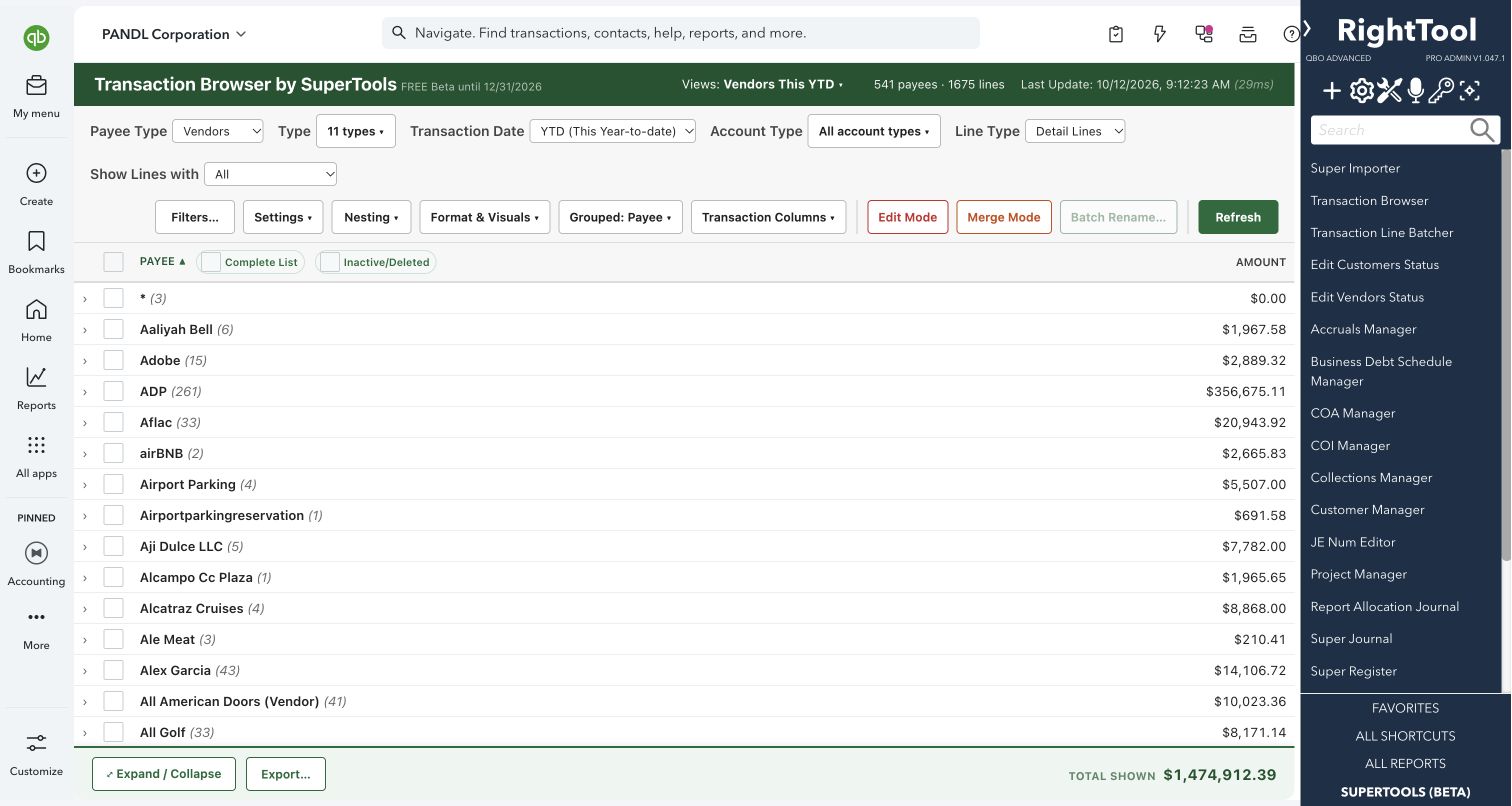
Finding & fixing transactions
The big picture.
This feature connects a local Claude or Codex assistant to the QuickBooks company open in your browser. Ask a question about your books, attach a spreadsheet to import, or describe records you want updated. SuperTools supplies the connection and supported tools; your assistant interprets the request, resolves company references and returns the results.
Accountants, bookkeepers and power users who want help with reporting, spreadsheet imports and repetitive record maintenance.
SEE IT IN QUICKBOOKS
See the workflow, step by step.
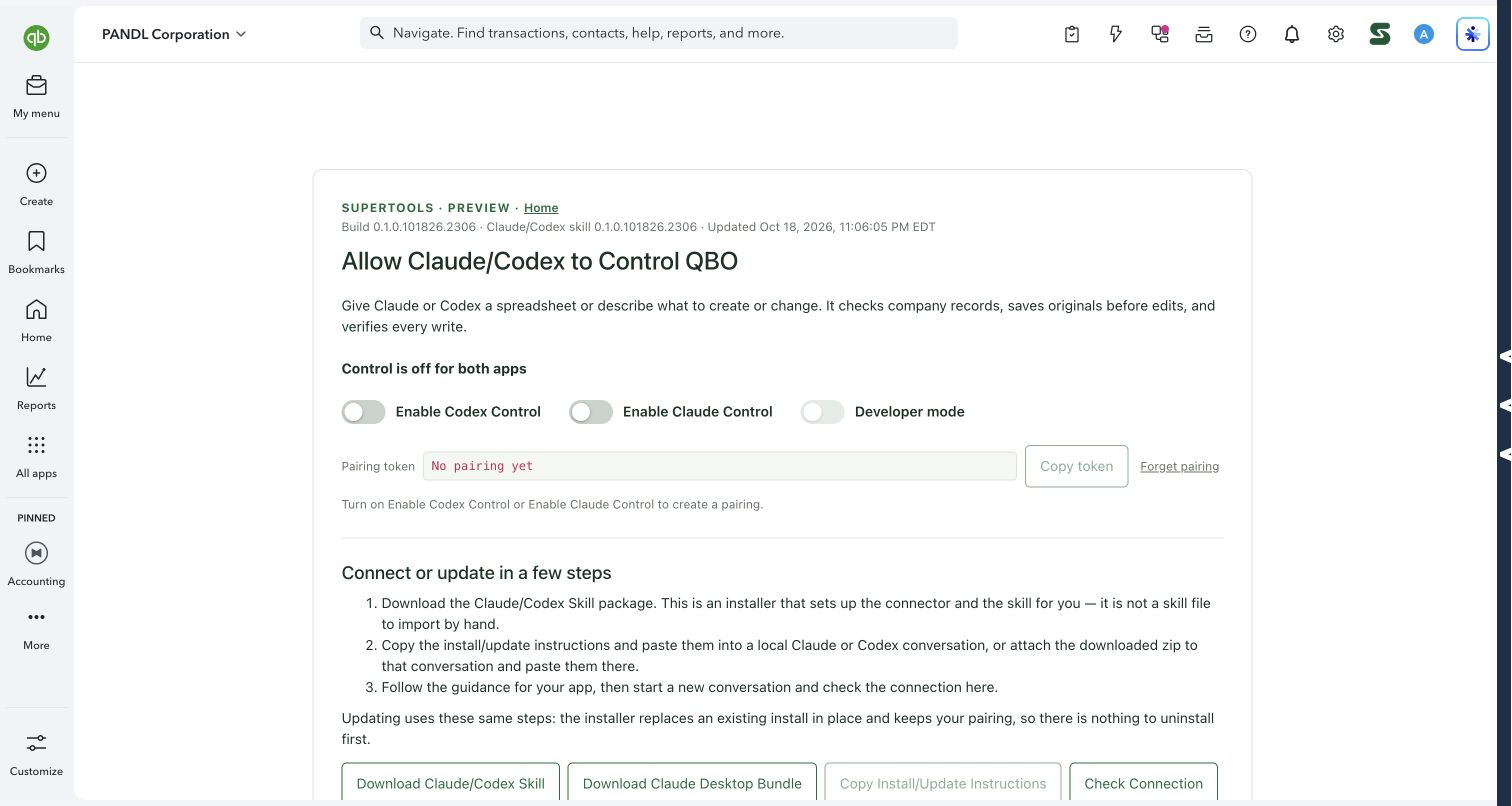
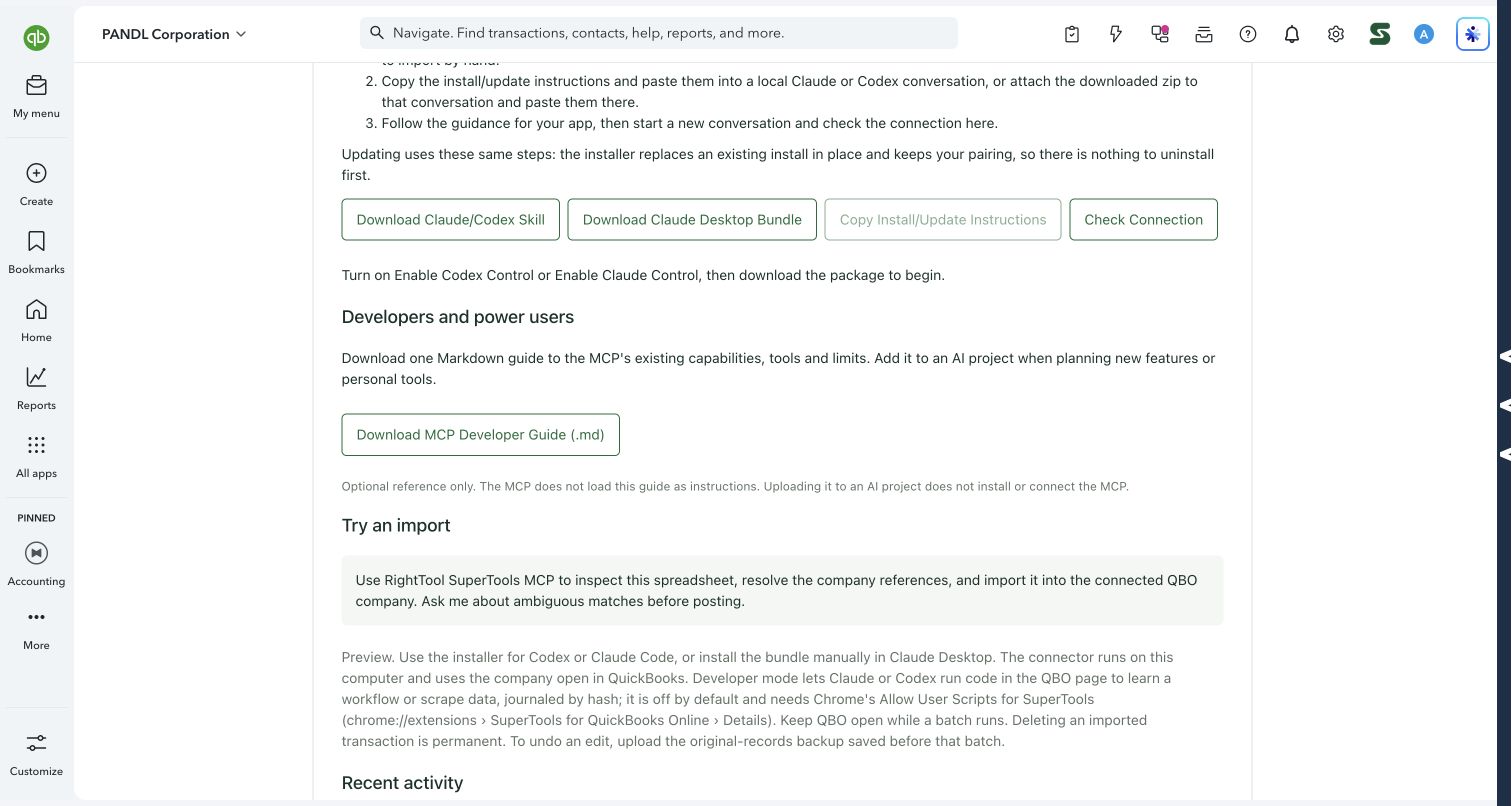
Setup tour with control off. Installation and pairing are required before an assistant can act.
What you can do
- Read and explain reports: Request a Profit & Loss, Balance Sheet, trial balance, aging or project-cost report. Ask for a summary, filter the detail, or export the results to CSV, Excel or JSON.
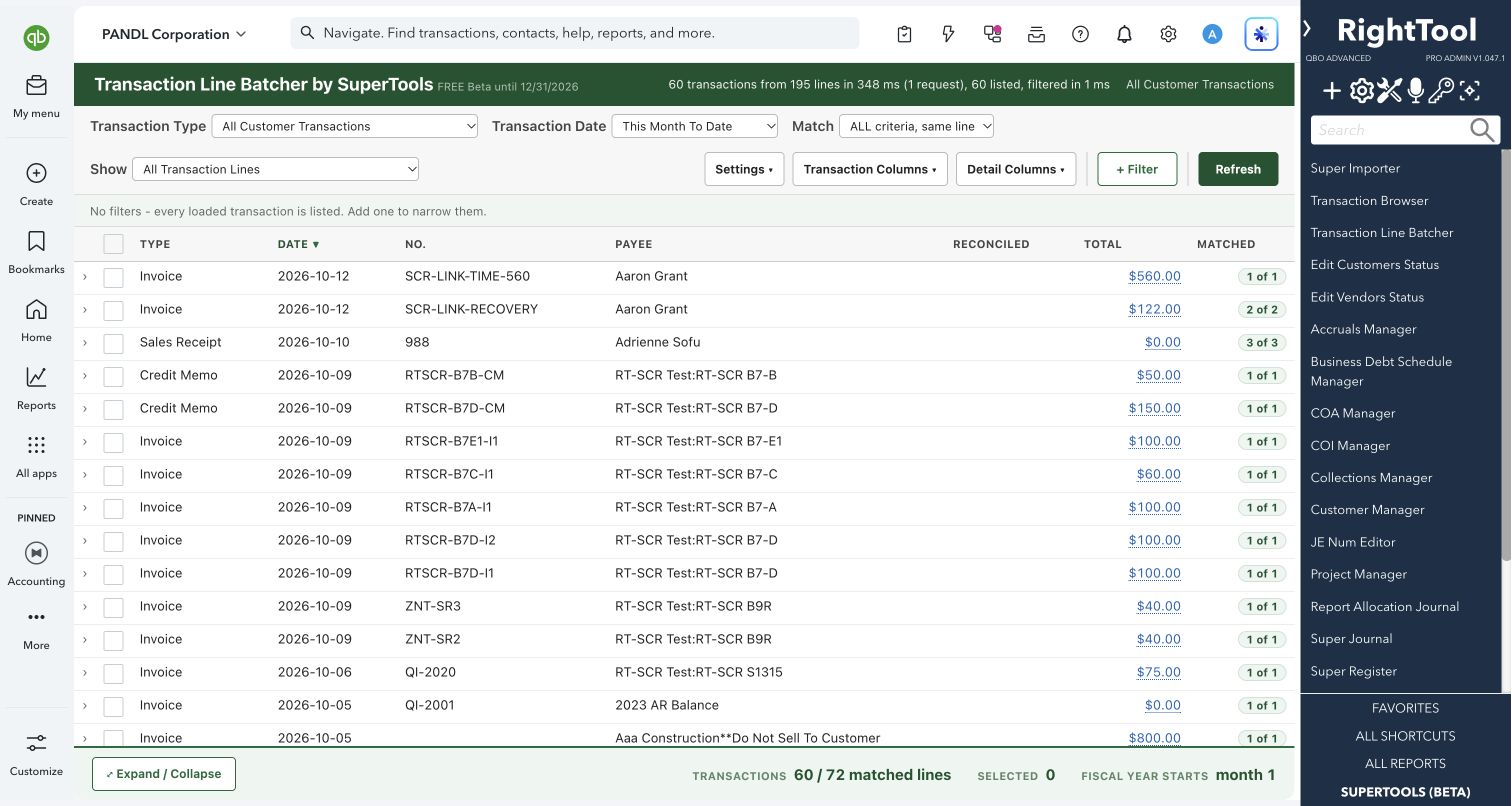
- Find what needs attention: Look up unpaid invoices, unpaid bills, transactions, customers, vendors, accounts, products and services, or classes. Inspect an individual record when you need its details.
- Import from a spreadsheet: Have the assistant inspect columns, match names to company records and prepare supported transactions or list records. Resolve unclear matches before posting.
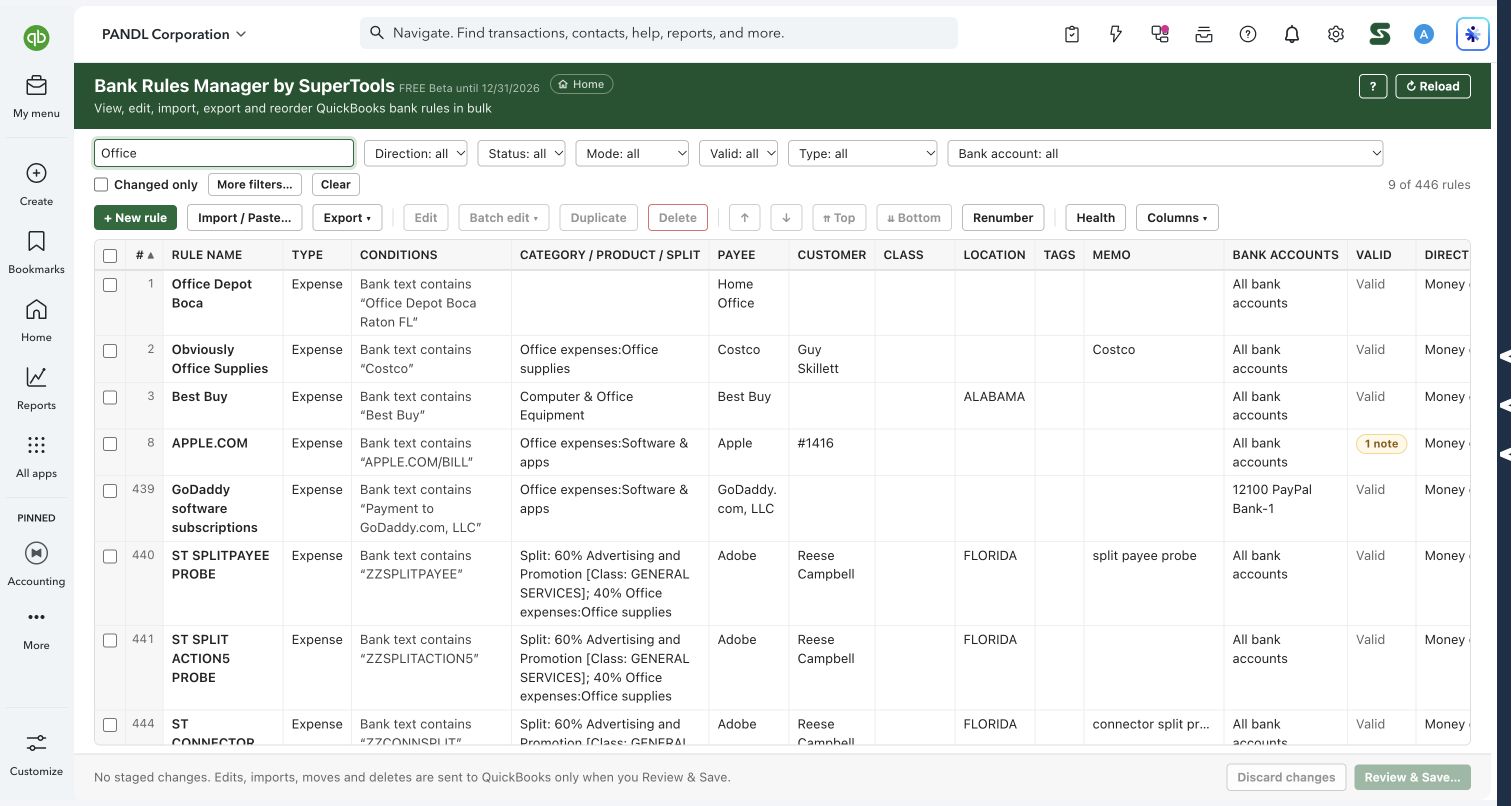
- Update records in batches: Apply supported edits to multiple records, with original-record backups and write verification. Supported workflows also include inactivation, deletion and restoring edits from a backup.
- Review what ran: The connection page shows timestamped requests, which assistant made them, their outcomes and batch progress. Review the activity alongside the resulting QuickBooks records.
- Choose your assistant: Separate switches enable Claude and Codex. Use the installer package for Codex or Claude Code, or follow the Claude Desktop bundle instructions.
- Explore developer capabilities: Download the optional MCP Developer Guide to understand supported tools and limits. A separate Developer mode allows page-code execution for advanced workflows; ordinary reporting and supported record operations do not require it.
Why it makes a difference
- Use everyday questions and spreadsheet inputs to describe the work.
- Read reports, investigate records and perform supported maintenance through one connection.
- Keep company context, original-record backups and an activity history close to the work.
Put it to work
- “Show my Profit & Loss for January through September 2026 on an accrual basis. Summarize revenue, expenses and net income.”
- “List unpaid invoices and show which customers have the largest outstanding balances.”
- “Find expense-category postings of $500 or more this month and export the results to Excel.”
- “Inspect this spreadsheet and prepare its transactions for import. Match customers, vendors and accounts, and ask me about ambiguous names before posting.”
- “Review these records and prepare the supported memo updates. Show me the proposed changes before applying them.”
WATCH THE WORKFLOW
Tour the Claude and Codex connection setup
Safe by design
Confirm the company and intended changes before a write. Supported batch-edit workflows save originals before editing and verify writes by reading records back. Restoring edits requires the original backup; deleting transactions is permanent. Separate app switches let you choose which assistant can connect. Developer mode is off by default and grants broader page-code access.
Good to know
This feature is in preview. Install and pair the connector on the same computer as Chrome, enable the relevant control switch and keep the signed-in QuickBooks tab open while it works. The connector uses that browser session and requires the applicable PRO access. It supports specific workflows rather than every QuickBooks action; payroll and bank connections are outside its scope. The existing video introduces setup; the examples above are requests you can try after connecting. Downloading the Developer Guide alone does not install or connect the assistant. SuperTools provides the connector; RightTool is a separate optional extension.
How to open it
SuperTools Home → Allow Claude/Codex to Control QBO. Direct QuickBooks route: /app/codexControl.
Install the SuperTools extension, then open the SuperTools S menu in QuickBooks Online, choose Home, and enable the tool there.
View beta setup steps