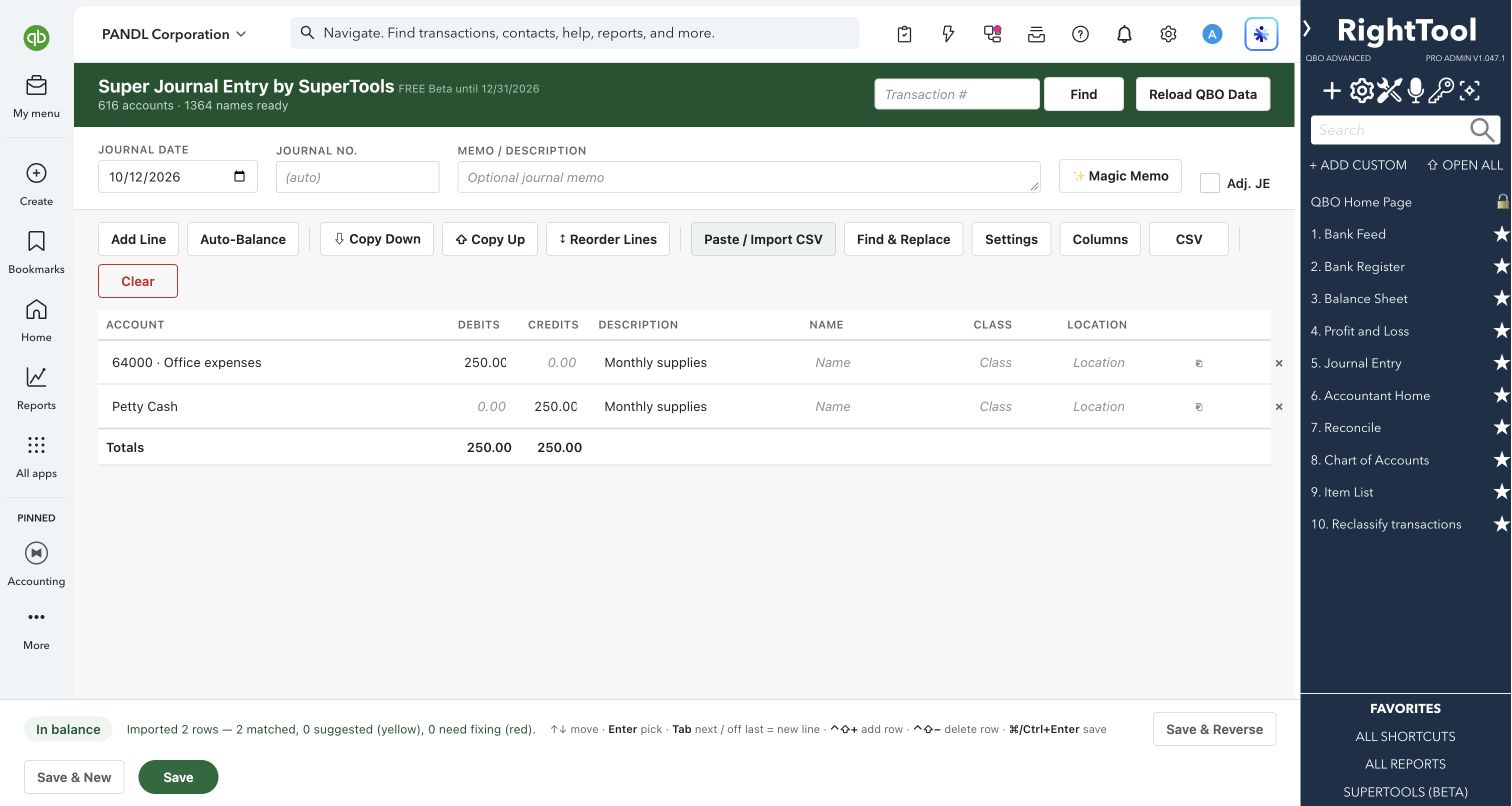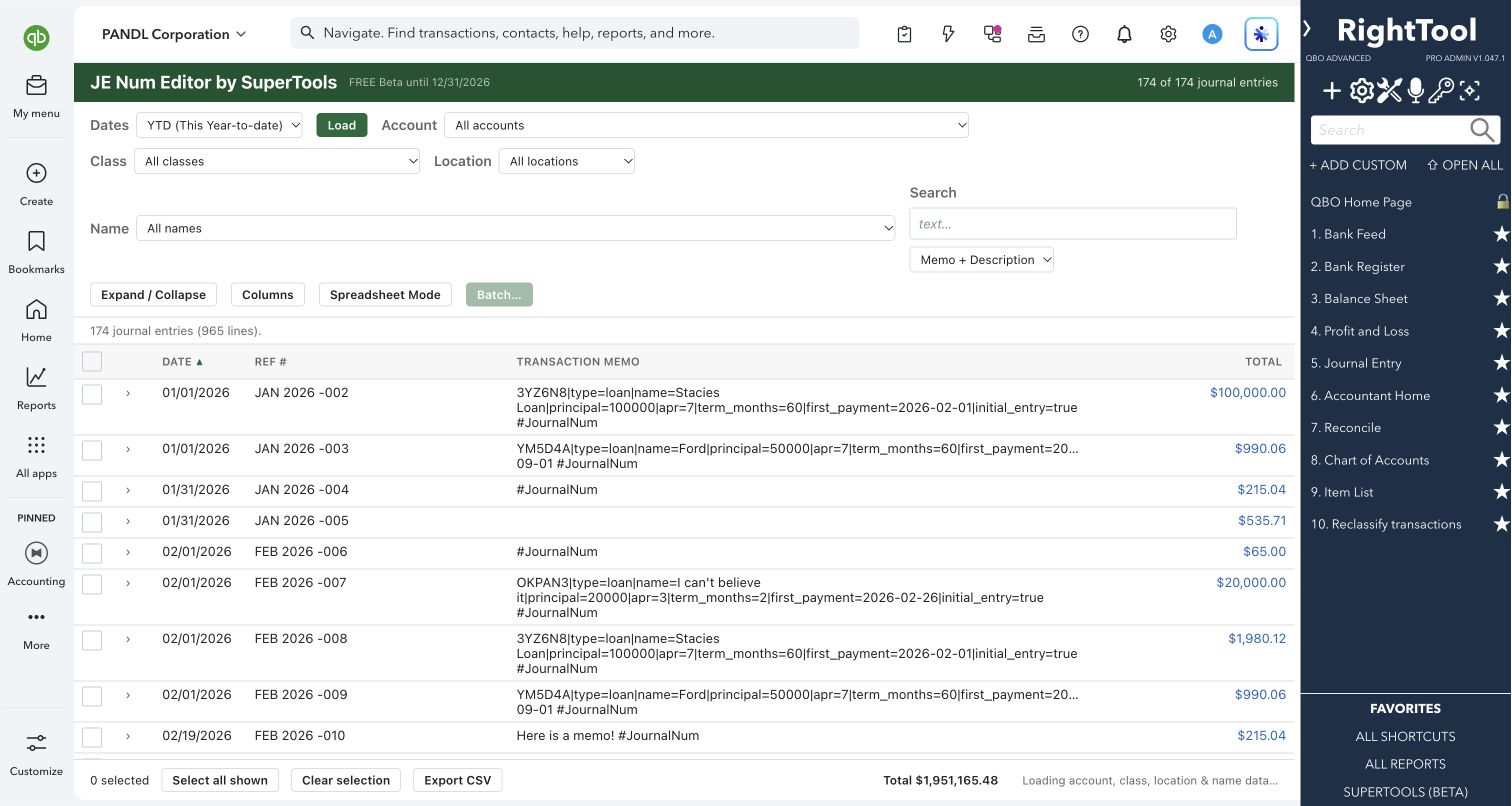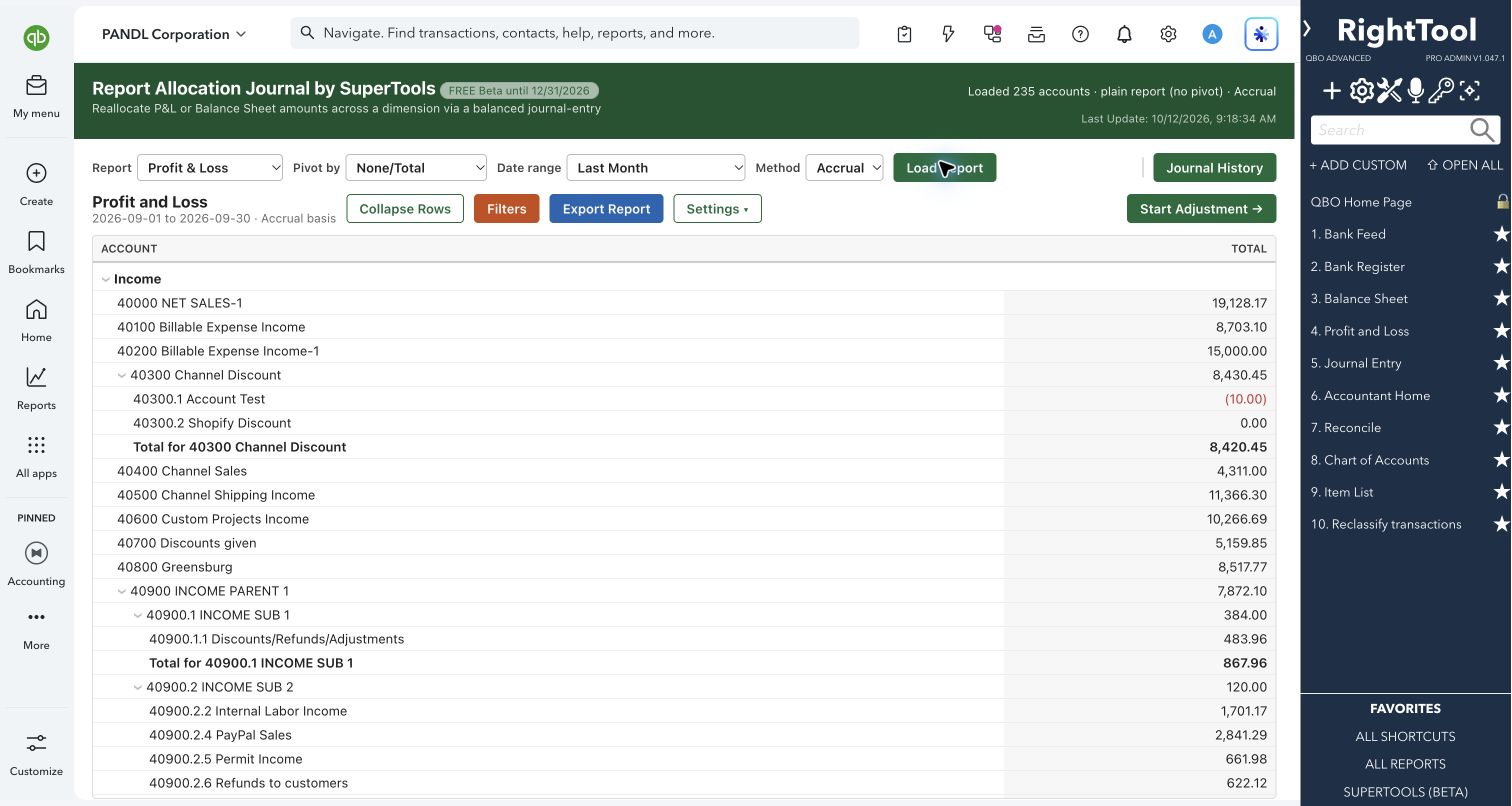
Journal entries & registers
The big picture.
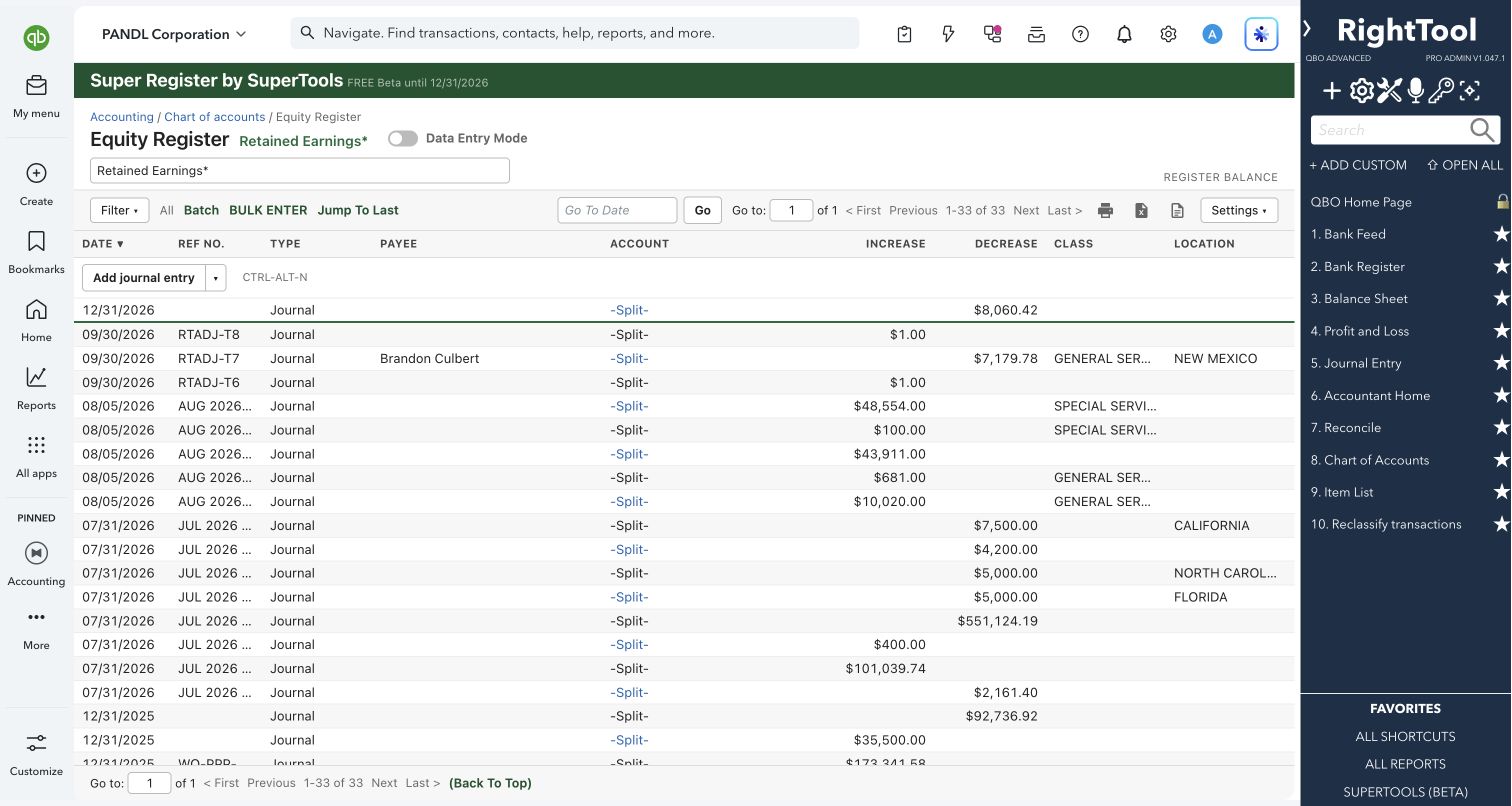
Super Register replaces the QuickBooks Online account register. It has the same columns, inline editing, Add menu and Reconcile button. On top of that it adds batch editing, bulk entry from a spreadsheet and extra filters, for people who spend their day in bank and credit card registers and are tired of fixing transactions one at a time.
Built for
Bookkeepers and accountants who work in bank, credit card and other balance-sheet registers every day.
SEE IT IN QUICKBOOKS
See the workflow, step by step.
Explore the screens below. Select an image for a closer look.
What you can do
- Open any balance-sheet register from an account picker grouped by type: bank, credit card, A/R, A/P, other assets (Undeposited Funds included), liabilities and equity. Click a row to edit it inline and add transactions from the Add menu. Switch between two-line view, one-line view, compact rows and Paper Ledger Mode, which puts the oldest at the top and the new-entry row at the bottom, like a checkbook.
- Enter on the combined Deposit/Expense row (CC Credit/CC Expense on credit cards). An amount in the deposit column makes a deposit. An amount in the payment column makes an expense, or a check when the Ref No. is a number.
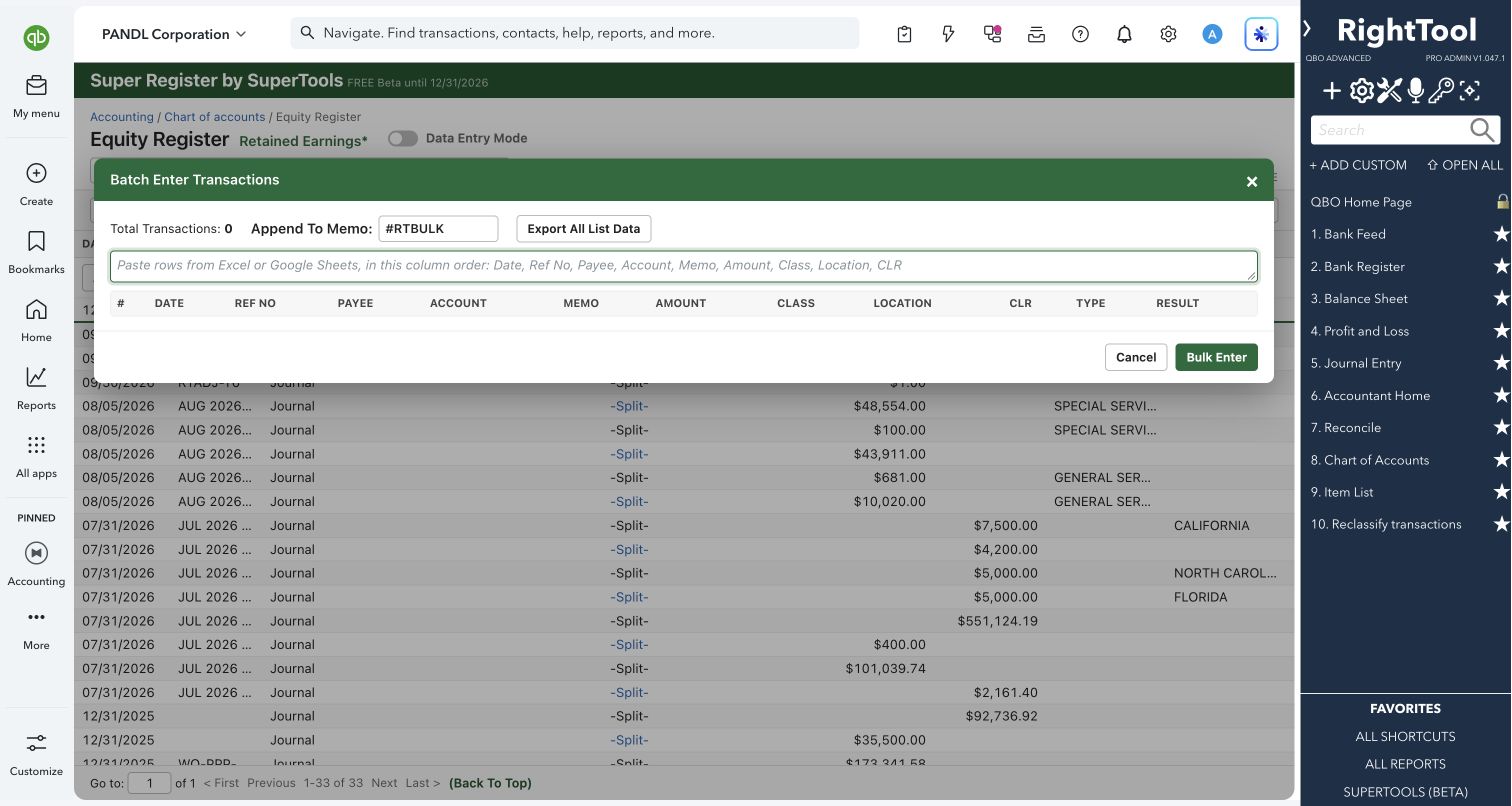
- Paste rows from Excel or Google Sheets into Bulk Enter and create many transactions at once. Every cell is checked before posting. Payees that don't exist yet can be created first, and each row shows its result.
- Select transactions with Shift-click, Select All, or "Select all matching" across every page. Then batch-edit the date (or only the year), Ref No. (numbered in sequence), payee, account, memo (replace, add to the start or add to the end), class, location or reconcile status.
- Move selected transactions to another bank, credit card or other current asset register in one step, or batch-delete them. You can also save a CSV list of what was deleted.
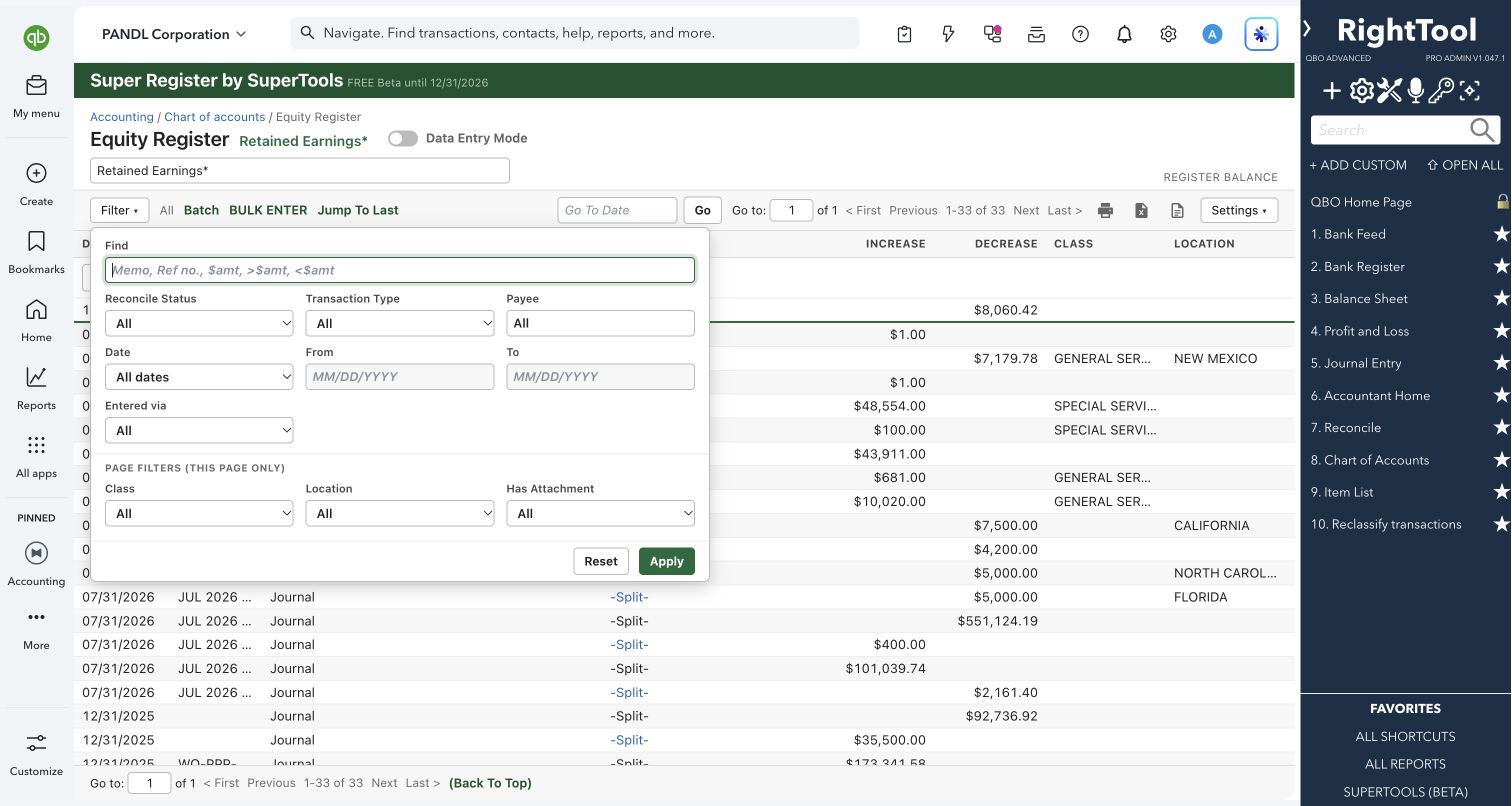
- Filter by memo, Ref No. or amount (exact, greater than or less than), reconcile status, transaction type, payee or date range. A "No Payee" choice finds transactions that have no payee.
- Filter by how a transaction got into the books: entered by hand, categorized from the bank feed, or added by a bank rule. You can also narrow the page you're viewing by class, location or "has attachment" without reloading.
- Show only unreconciled transactions with one click, go to a date, jump back to the last row you worked on, and show up to 999 rows per page.
- Export every row your filters keep, across all pages, to CSV. You can also export to Excel or print the list.
- Type a new payee, account, class or location in a row and press Tab to create it right there. The quick-create window suggests vendor or customer and the account type based on the transaction. If the name matches an inactive account, you can make that account active again instead.
- Turn on Data Entry Mode to see only the transactions you've entered since the page loaded, with their own running "Entered Balance". You can limit the payee and account lists to vendors, customers or chosen account types, and pick the transaction type new rows start as.
- Work from the keyboard:
- Ctrl/Cmd+Enter saves a row.
- Ctrl/Cmd+Shift shortcuts delete or un-reconcile the open row and move to the next one.
- Date fields take T (today), M/H (month start/end), Y/R (year start/end), W/K (week start/end) and +/- (next/previous day).
- A default-year setting makes dates typed as month/day land in the year you're catching up on.
Why it makes a difference
- Batch Edit, Move, Batch Delete and Bulk Enter are built into the register, so there's no exporting and no editing one transaction at a time.
- It has filters QuickBooks' register doesn't: No Payee, how the transaction was entered (by hand, bank feed or bank rule), and class, location and attachment filters for the page you're viewing.
- Up to 999 rows per page (QuickBooks stops at 300), and a CSV export of every filtered row, not just one page.
- You can create missing payees, accounts, classes and locations without leaving the row.
- Edit, View, Copy, Payee History, Reconcile and Bank transactions all open in a new tab, so you keep your place and your filters.
- Bulk Enter posts several rows at a time and adds an editable tag (#RTBULK by default) to each memo, so you can find the batch later.
Put it to work
- Bank-rule cleanup: Filter to transactions added by bank rules, select all matching, and change their class in one pass.
- Catch-up work: Set the default year, paste a client's spreadsheet of transactions into Bulk Enter, create the missing payees, and post everything at once.
- Wrong account: Select the expenses that were posted to the old checking account and move them all to the new one.
- Cleanup before reconciling: Click Show Unreconciled Only, then work down the list from the keyboard, deleting duplicates and clearing stray "C" marks.
WATCH THE WORKFLOW
Paste multiple expenses into a bank register
Safe by design
- In the row editor, QuickBooks' own prompts still appear: the delete confirmation, "Is this paying off a bill?", the warning about marking items reconciled by hand, the duplicate-number warning and the closed-books password. The only exceptions are the two speed keys for delete and un-reconcile, which act without asking.
- Batch Edit shows how many transactions and what total you're about to change before you confirm. QuickBooks' warnings about reconciled, linked or bank-feed transactions are asked once for the whole batch, not answered for you. Batch Delete asks twice and warns that deleted transactions can't be restored.
- After a batch edit or move, Super Register reads each transaction back from QuickBooks and reports anything that didn't take. Bulk Enter remembers which rows it has already entered, so a second click or a retry won't post them twice.
- Moves skip transactions linked to the bank feed. On A/R and A/P registers, Batch Edit refuses changes QuickBooks would get wrong, such as a new customer on an applied payment. Reconciled transactions wait until you say yes.
Good to know
- A/R and A/P registers don't take new entries, the same as in QuickBooks. Clicking one of their rows opens the full form in a new tab, and Batch Edit can change their date and customer or vendor.
- Journal entries, invoices and bills can't be moved to another register. Transactions in a closed period aren't moved either.
- Data Entry Mode and its Advanced choices last until you refresh the page. Excel export isn't available while the No Payee, "how it was entered" or page filters are on, so use CSV export instead. With page filters on, CSV exports only the rows on screen.
- SuperReports can open any account straight into Super Register, including just its unreconciled transactions. Super Register is part of SuperTools (Beta), and QuickBooks' own register stays available.
How to open it
SuperTools sidebar → Super Register
Install the SuperTools extension, then open the SuperTools S menu in QuickBooks Online, choose Home, and enable the tool there.
View beta setup steps