Importing & data setup
The big picture.
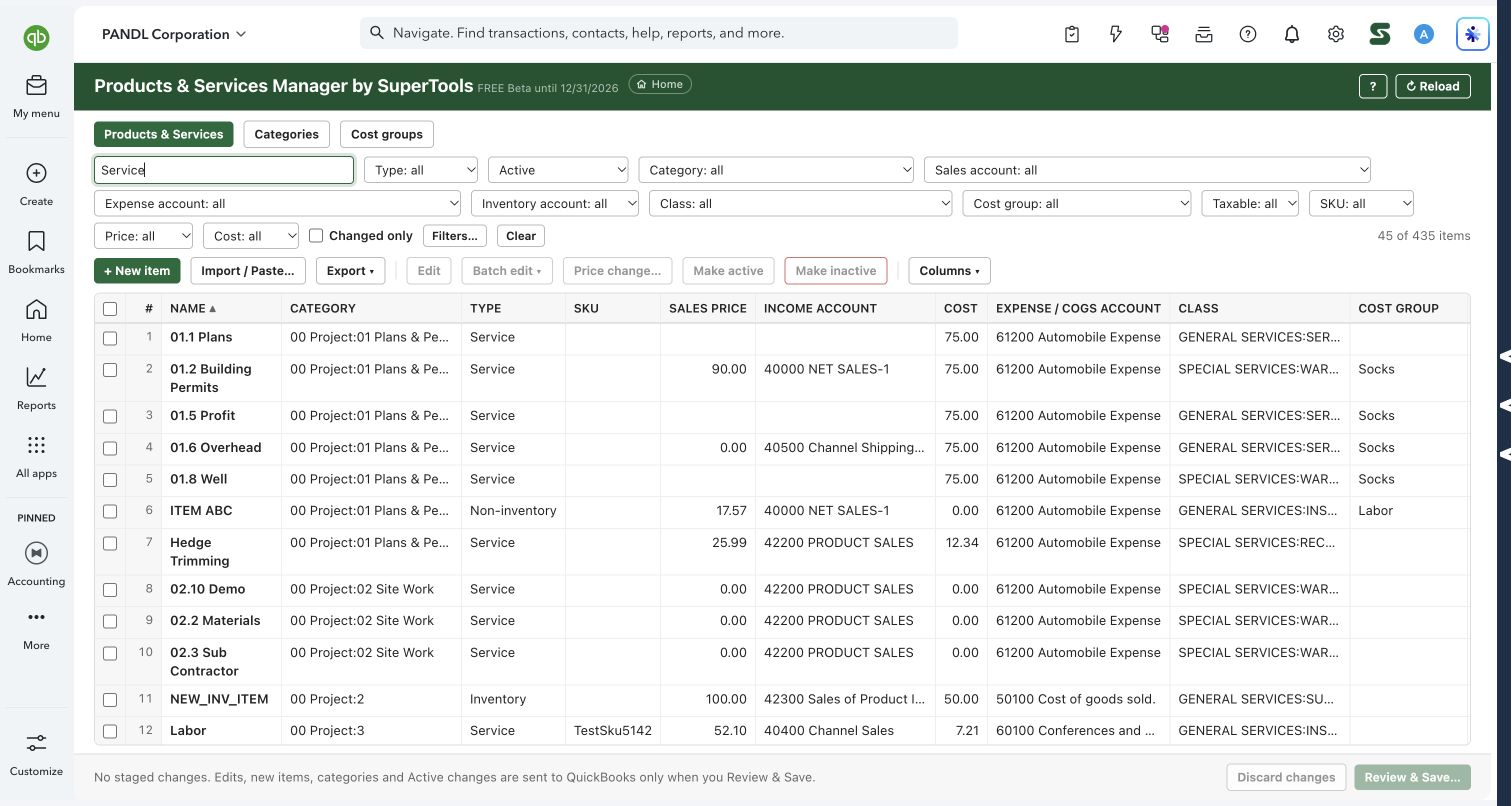
Work across the product and service list without opening every item individually. Filter the list, stage edits, calculate price and cost changes, and organize categories and cost groups before reviewing what will be saved.
Bookkeepers, controllers and businesses maintaining service catalogs or product lists.
SEE IT IN QUICKBOOKS
See the workflow, step by step.
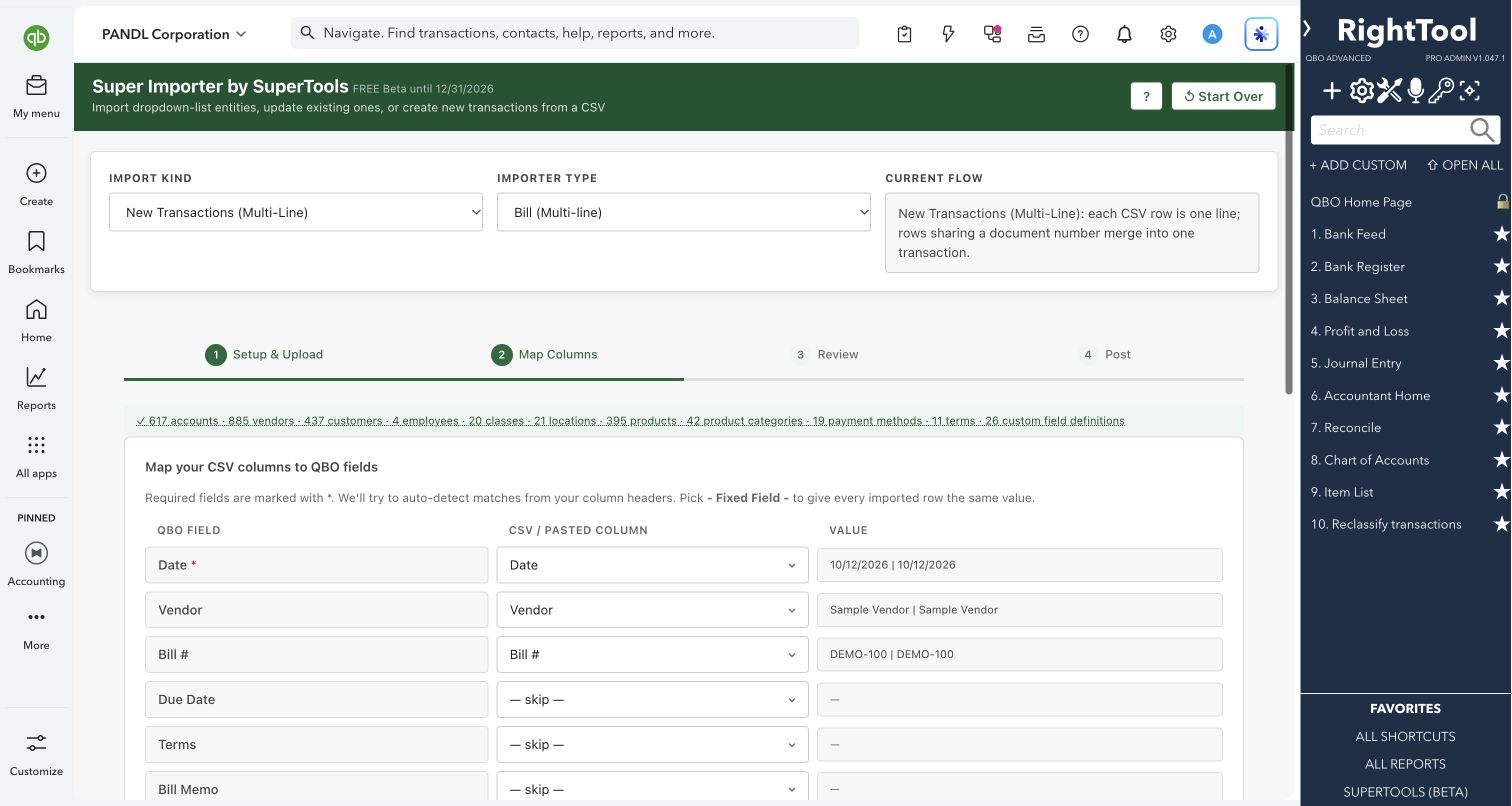
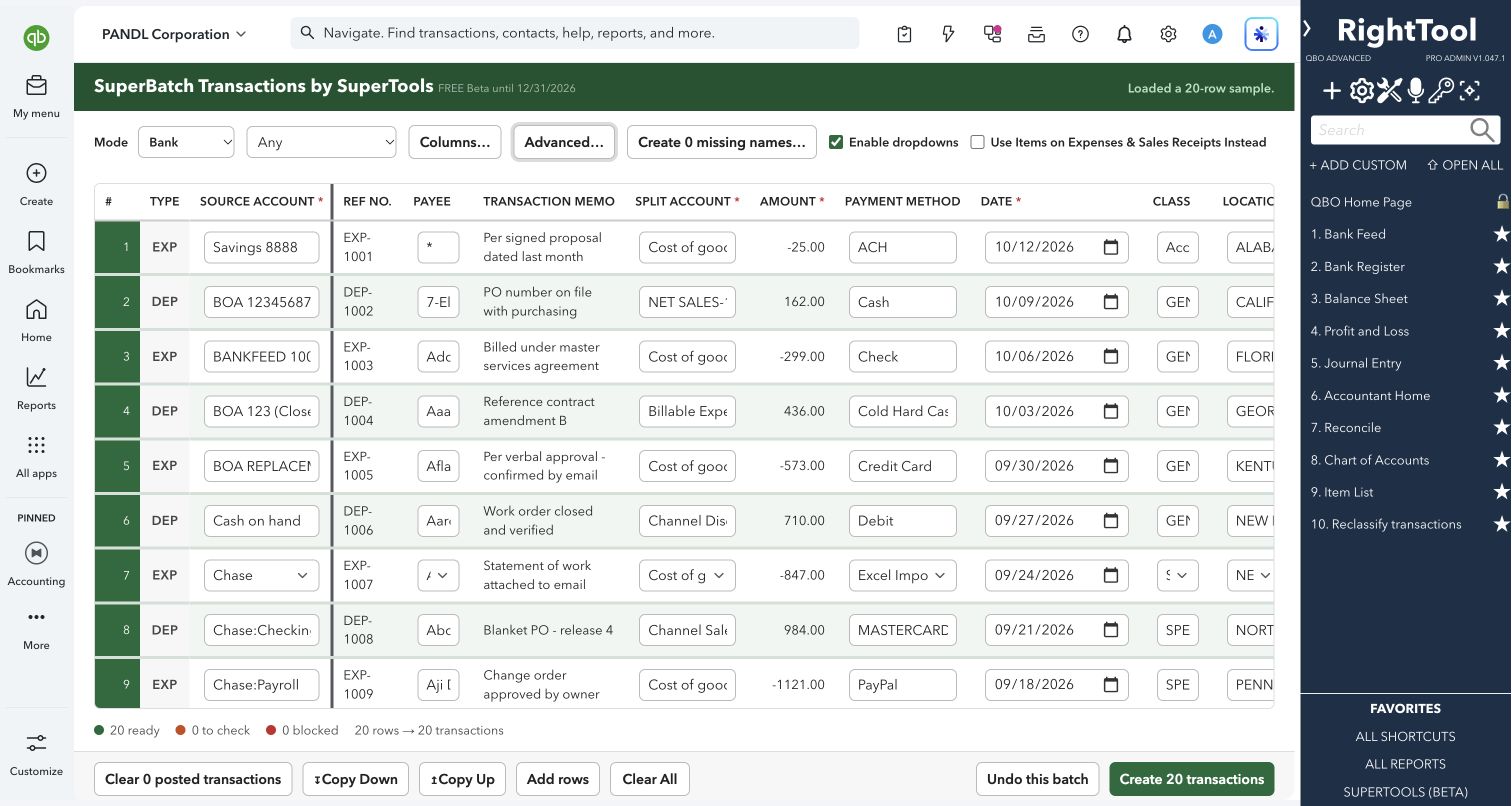
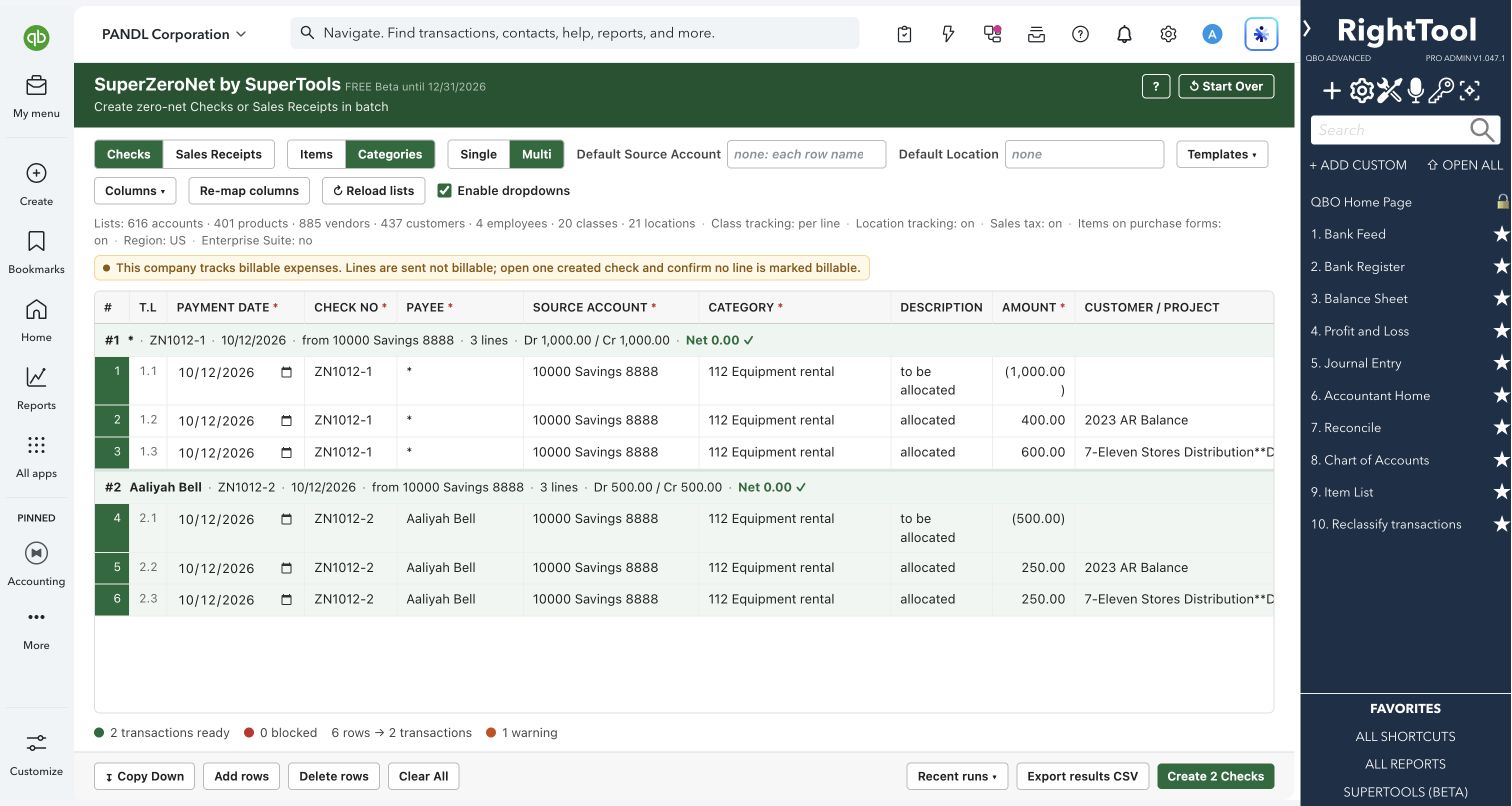
Explore the screens below. Select an image for a closer look.
What you can do
- Find the right items: Filter by type, active status, category, sales/expense/inventory account, class, cost group, taxable status, SKU, price or cost.
- Edit and batch-edit: Update supported names, categories, accounts, classes, descriptions and other item fields.
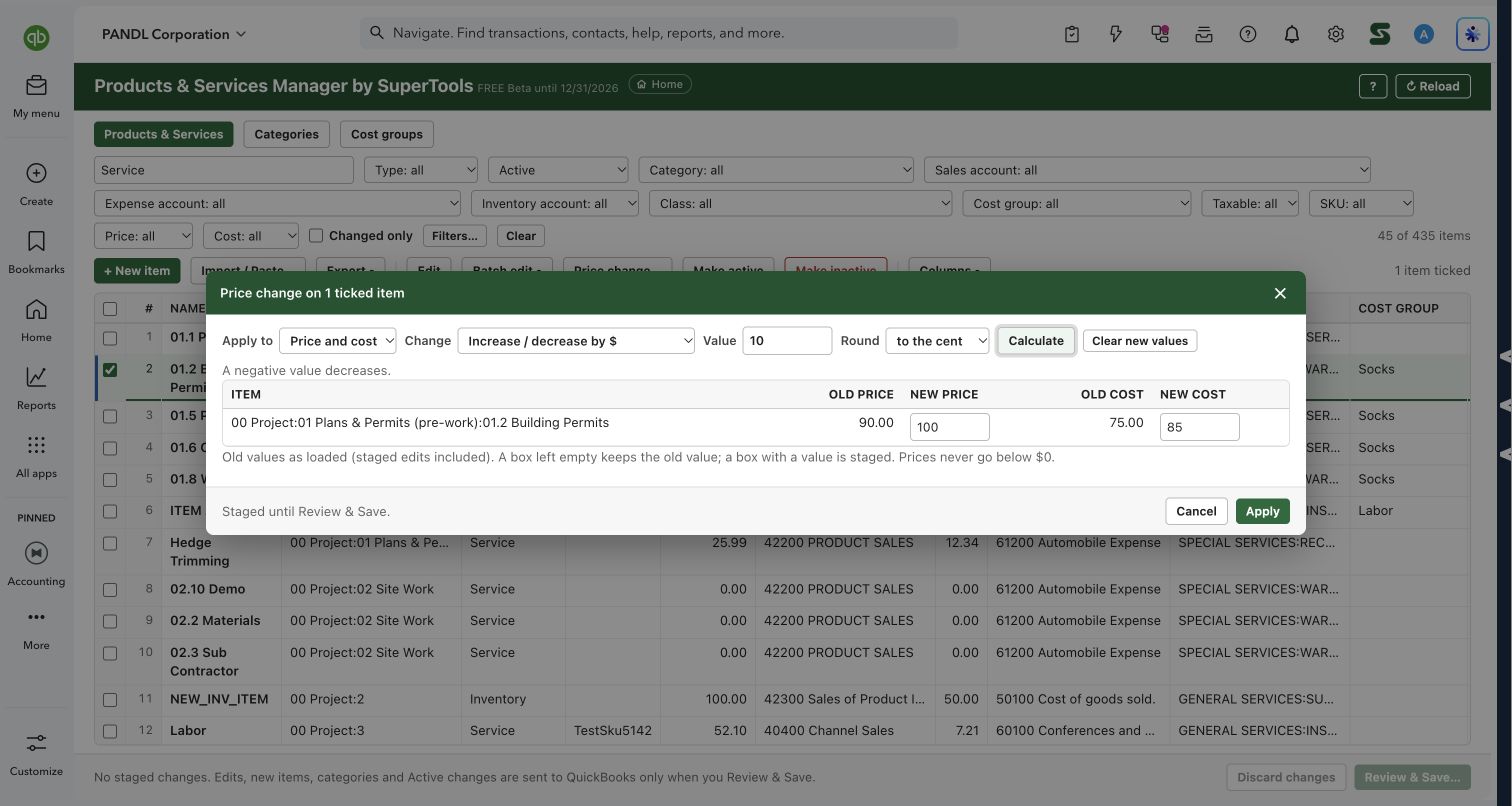
- Preview price changes: Adjust price and/or cost by a dollar amount or percentage, calculate markup on cost or cost from a margin, and choose rounding.
- Manage item status: Stage active/inactive changes across selected items.
- Import and export: Prepare new items from pasted spreadsheets or CSV, and export the list for review.
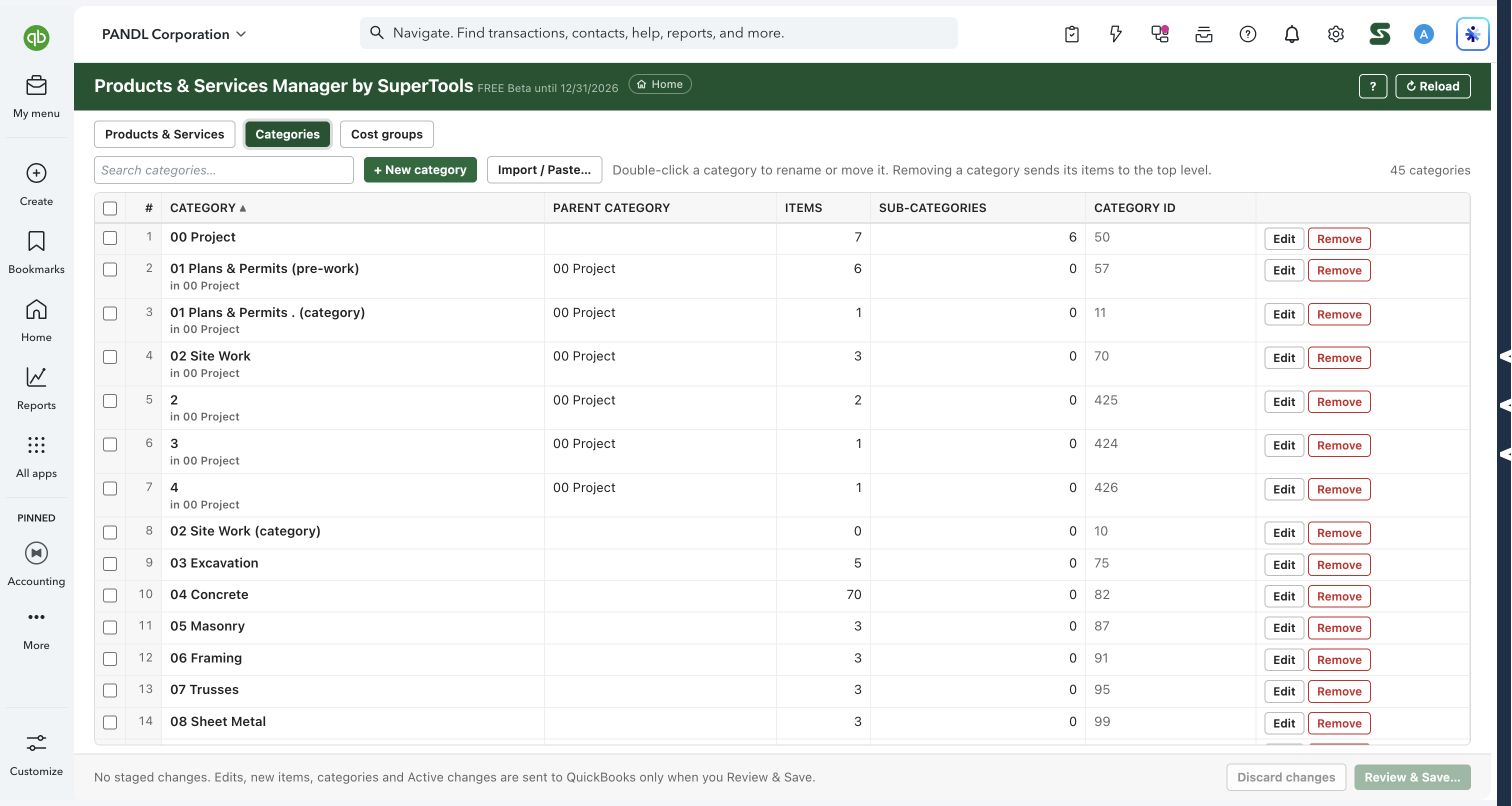
- Organize categories: See parent categories, item counts and subcategories; rename, move or import categories.
- Manage cost groups: Maintain the supporting cost-group list in its own tab.
- Review staged work: Inspect changes before Review & Save, or discard them.
Why it makes a difference
- See accounting mappings beside the item’s price and cost.
- Price previews show old and new values before applying.
- Category hierarchy and item maintenance share one workspace.
Put it to work
- Filter service items and select the rows needing a price update.
- Calculate a dollar or percentage adjustment and inspect the preview.
- Organize categories, then review the staged changes before saving.
WATCH THE WORKFLOW
Preview price changes and organize categories
Safe by design
Changes remain staged until Review & Save. Price calculations do not go below zero. Review any offered option to update existing transactions when changing account mappings; historical effects deserve a separate decision.
Good to know
Field availability varies by item type and company. Removing a category sends its items to the top level. For large inventory lists, some asset-account details are read when an item opens, so filters may have incomplete information until then.
How to open it
SuperTools Home → Products & Services Manager. Direct QuickBooks route: /app/productsManager.
Install the SuperTools extension, then open the SuperTools S menu in QuickBooks Online, choose Home, and enable the tool there.
View beta setup steps