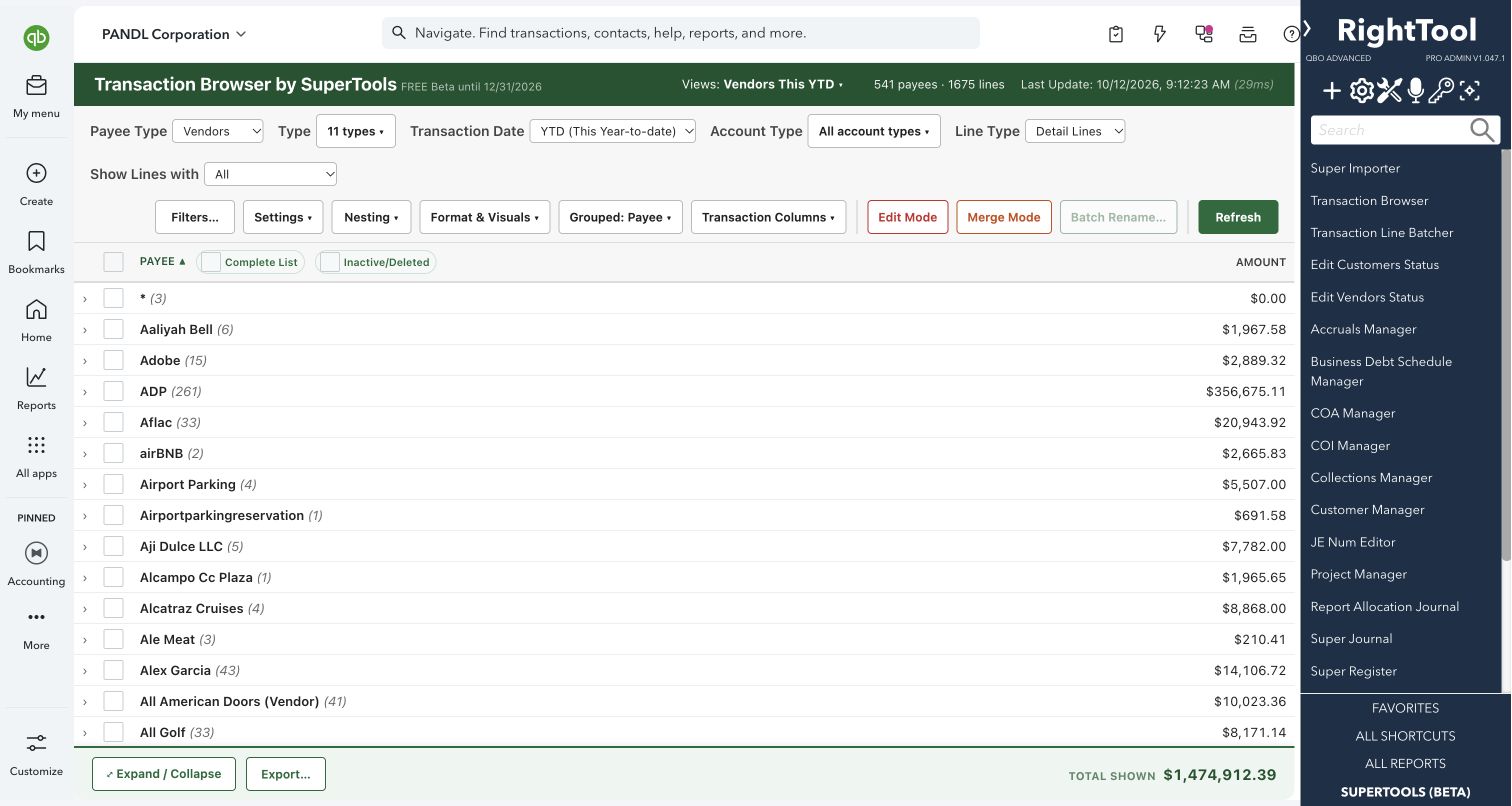
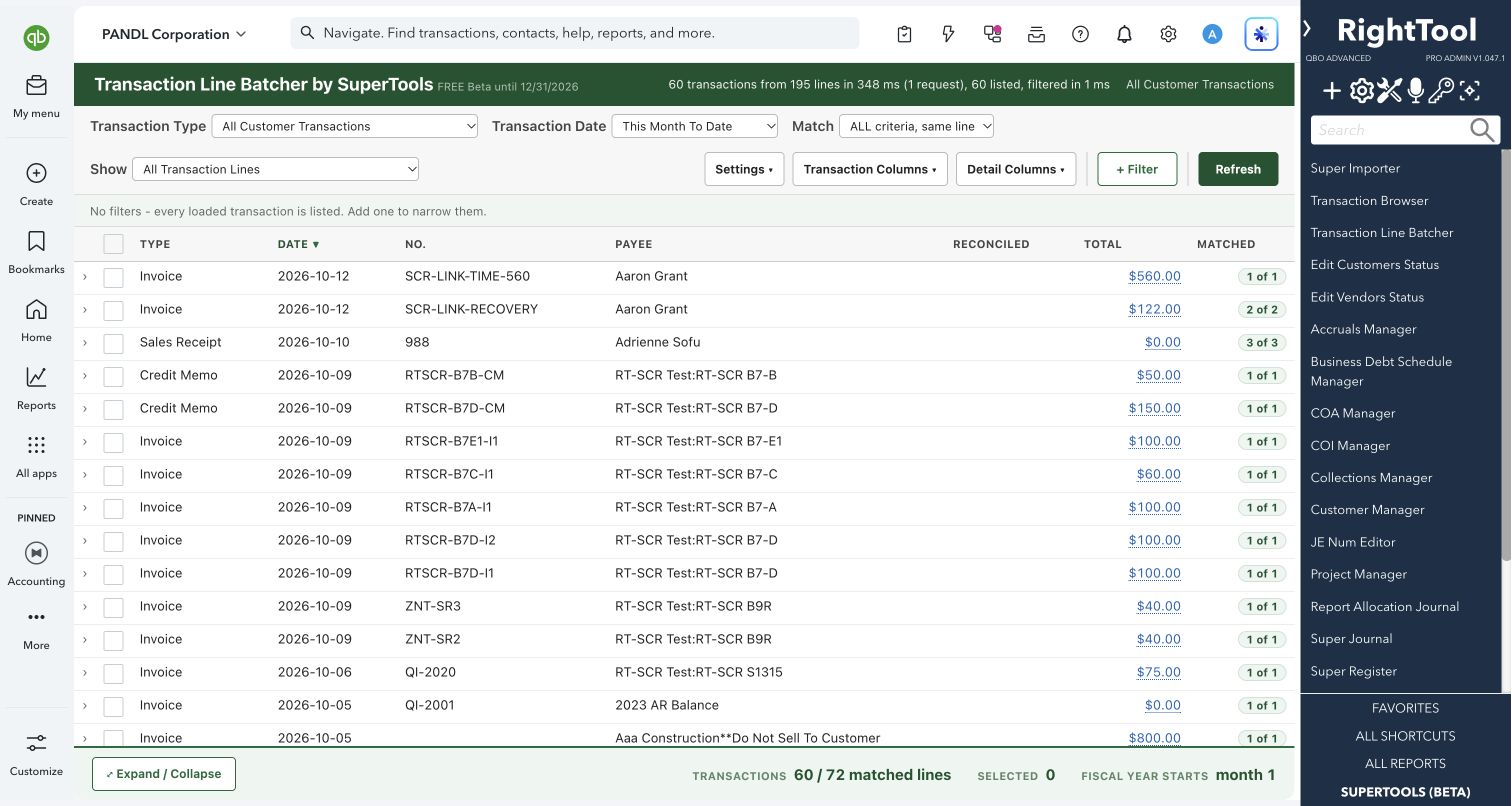
Finding & fixing transactions
The big picture.
Super Search is a free, read-only search workspace inside QuickBooks Online. Combine filters and see why each result matched before opening the transaction.
Bookkeepers and accountants who need to locate transactions quickly.
Super Search is not publicly available yet. This guide previews the planned features.
What you can do
- Search transactions by date, amount, transaction type and memo.
- Narrow results by account, class or location.
- Search across result pages and inspect the reasons a transaction matched.
- Open a matching transaction in QuickBooks Online for further review.
Why it makes a difference
- Free access without a paid SuperTools license.
- Multiple filters in one workspace.
- Match explanations make results easier to review.
Put it to work
- Find a payment from an amount and a date range.
- Locate transactions assigned to a particular account or class.
Safe by design
Searching does not create, edit or delete QuickBooks transactions.
Good to know
Results depend on the company you have open and your QuickBooks permissions. View as Report requires SuperTools Suite access. Super Search finds transactions; use the appropriate editing tool to change them.
How to open it
Coming Soon — not publicly available yet.
Install the SuperTools extension, then open the SuperTools S menu in QuickBooks Online, choose Home, and enable the tool there.
View beta setup steps