Journal entries & registers
The big picture.
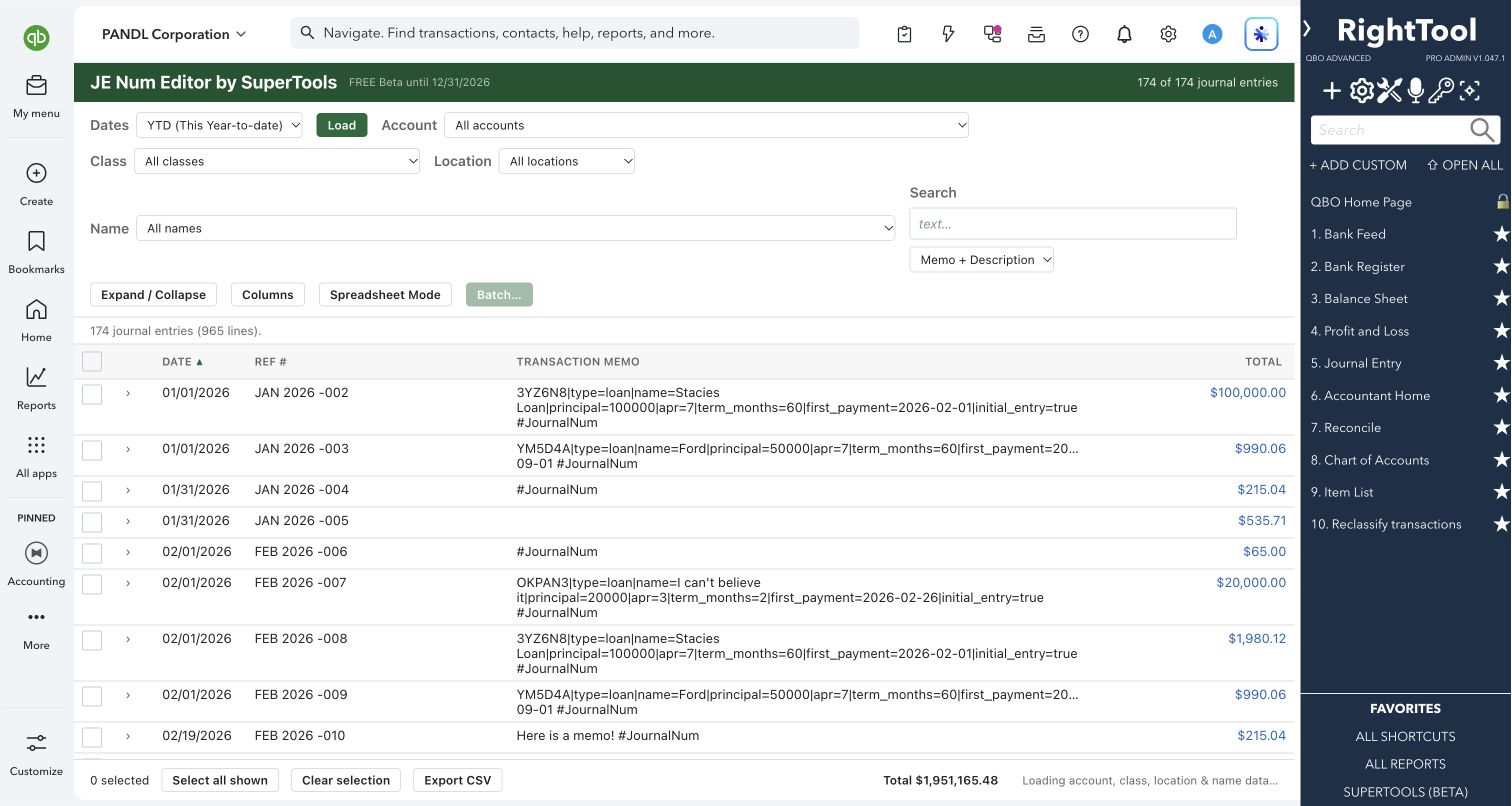
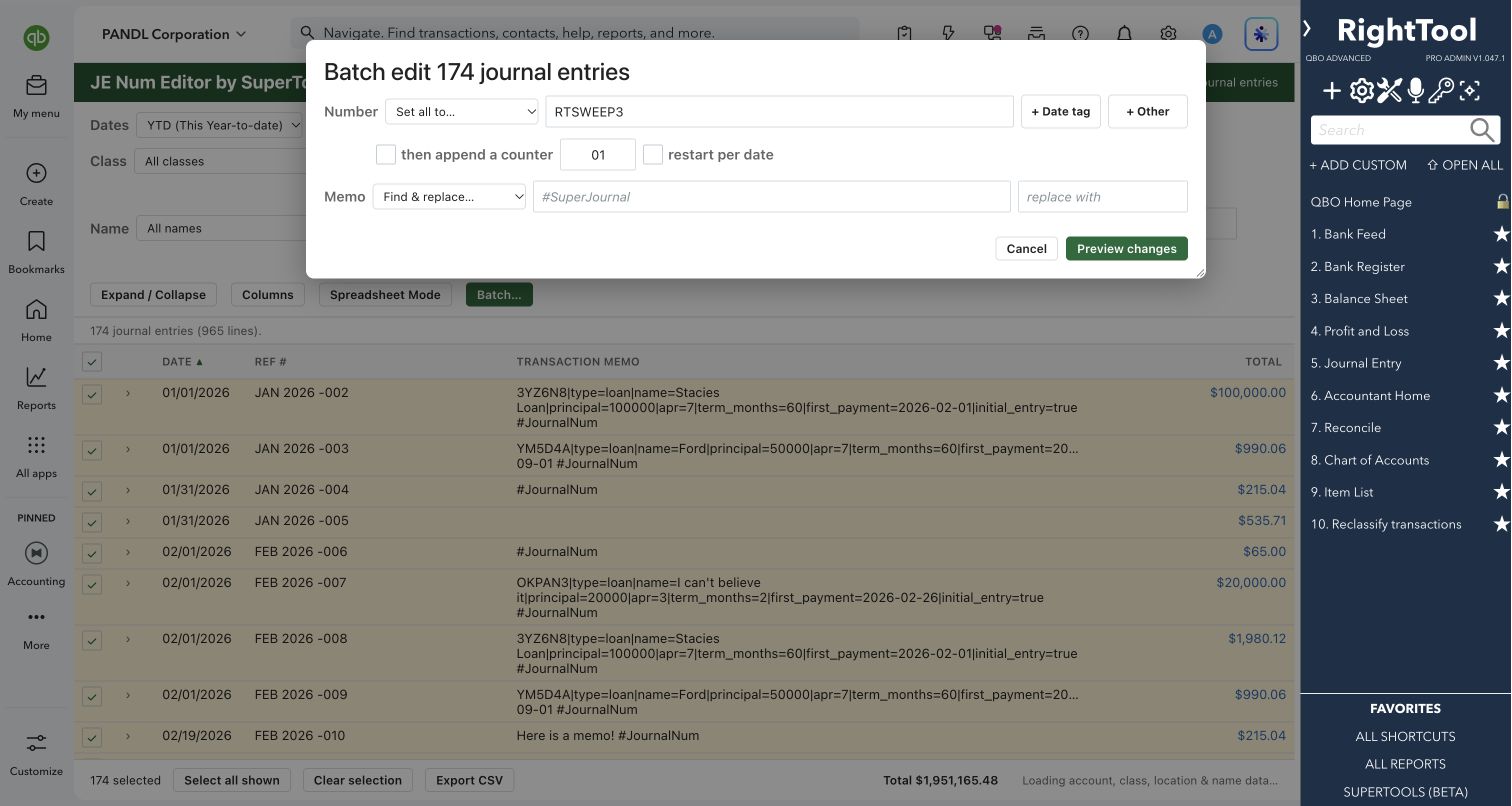
In QuickBooks Online, fixing a journal entry's number or memo means opening each entry one by one. JE Num Editor loads every journal entry for a period as one row each. You can renumber or re-memo them as a batch, or type changes in spreadsheet style, and check every change and duplicate number in a preview before anything is written.
Accountants and bookkeepers who keep journal-entry numbering clean: cleanups, new-client onboarding and month-end naming rules.
SEE IT IN QUICKBOOKS
See the workflow, step by step.
Explore the screens below. Select an image for a closer look.
What you can do
- Load every journal entry for year-to-date, this or last month, this or last year, all dates or a custom range. Each entry shows as one row with its date, number, total and memo, and you can expand a row to see its lines.
- Narrow the list by account, class, location or name. An entry stays visible if any of its lines matches. You can also search the transaction memo, the line descriptions, or both.
- Renumber selected entries in sequence from a starting number, set them all to one value, find and replace, add text to the start or end, or clear the number.
- Build date-based numbers from about 40 date formats, such as JE-{MMYY}-. Add a padded counter (001, 002…) that can start over for each period.
- Put the entry's class or location into its number. It can come from the first line with a value, the first, second or last line, or the most common value.
- Add text to the start or end of memos, set them all to one value, or find and replace text in them (for example, to add a #tag).
- Switch to Spreadsheet Mode to type numbers, dates and memos straight into the grid. Move with Tab, Enter and the arrow keys, fill down into checked rows with Ctrl-D, and paste a whole column from Excel.
- Use date keys in date fields: T for today, M/H for month start/end, Y/R for year start/end, W/K for week start/end, and +/- for the next/previous day.
- Export the list to CSV, edit a column in Excel, and paste it back in the same order.
- Show optional Last Modified By and Last Modified Date columns. Click a header to sort, drag it to reorder, or drag its edge to resize.
- Undo the last batch.
Why it makes a difference
- Every journal entry in a period on one screen, so there's no opening entries one at a time.
- Number formats built from dates, classes and locations, applied across a whole batch at once.
- New numbers are checked against every existing journal number on any date, not just the period you loaded. Sales document numbers, such as invoices and estimates, are checked too when they can be read.
- Each row is color-coded as it moves from queued to writing to done or error, so you can watch the batch land.
Put it to work
- New-client cleanup: Renumber all of last year's journal entries into one clean sequence.
- Naming rule: Number a year of adjusting entries ADJ-0126-01, ADJ-0126-02 … with a date tag and a counter that starts over each month.
- Division coding: Put each entry's class at the front of its number so entries sort by division.
- Audit prep: Add a tag to the memos of the entries your auditor selected.
WATCH THE WORKFLOW
Build date-based journal entry numbers
Safe by design
- Every batch opens a preview first. It lists each entry's current and new number with a status, and you can save it as a before-and-after CSV. Duplicate numbers are allowed (QuickBooks permits them) but need a second, deliberate click. Numbers over 21 characters are flagged, because QuickBooks shortens them.
- Each entry is read back from QuickBooks after it's written, and any number QuickBooks shortened is reported.
- In Spreadsheet Mode you can have a before-and-after CSV backup saved automatically right before the first write. "Undo last batch" (press twice to confirm) puts back the previous numbers, dates and memos.
- It won't write if it can't load your account, class, location and name lists, so an update can't strip those from the entry's lines.
Good to know
- Works on journal entries only.
- "Undo last batch" lasts only while the page is open. Use the CSV backup if you want a permanent record.
- QuickBooks limits journal entry numbers to 21 characters.
- During beta, requires a RightTool PRO license and the separate SuperTools extension. Sign in at righttoolpro.com to activate your license.
How to open it
SuperTools sidebar → JE Num Editor
Install the SuperTools extension, then open the SuperTools S menu in QuickBooks Online, choose Home, and enable the tool there.
View beta setup steps