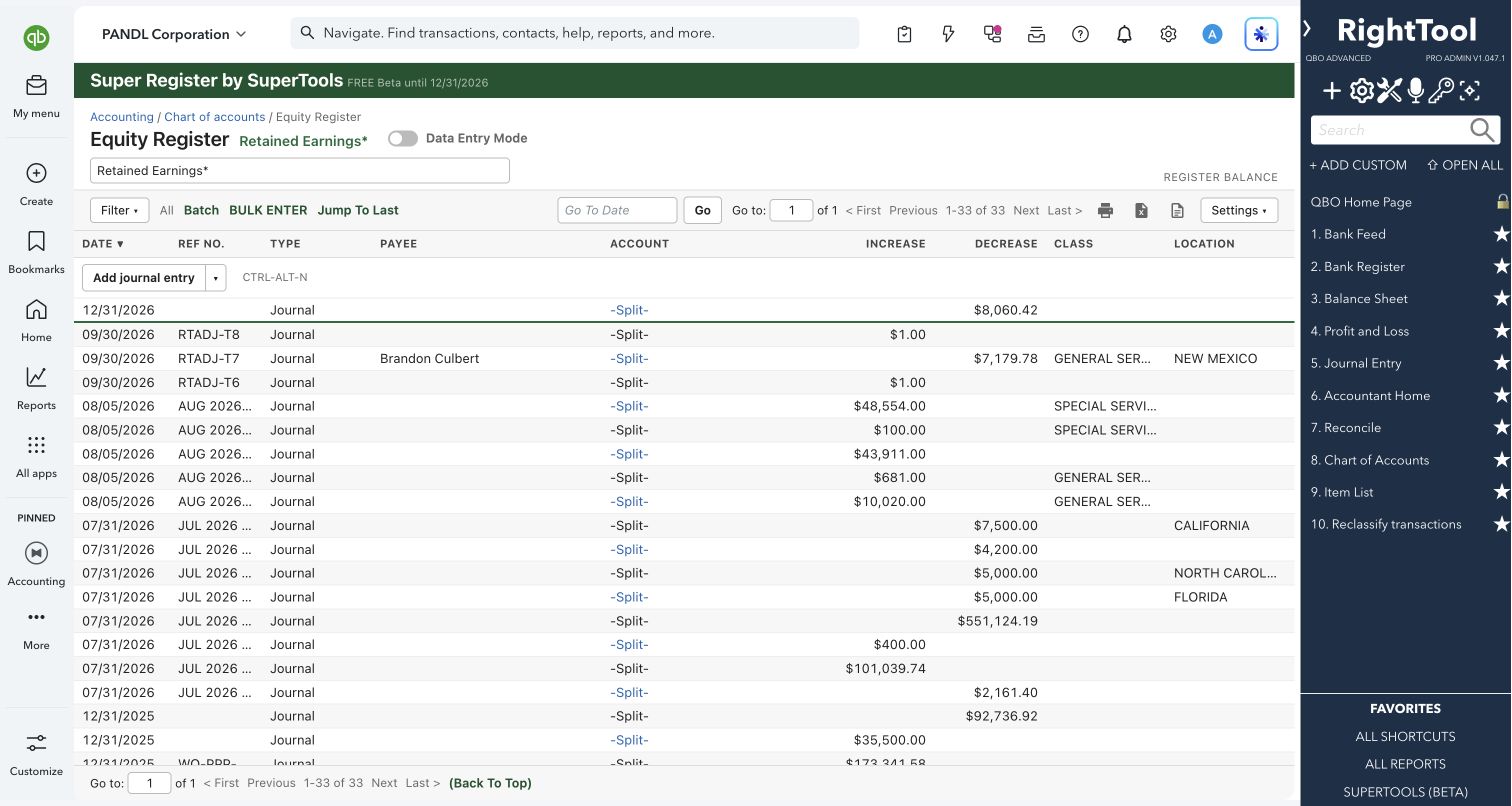
Journal entries & registers
The big picture.
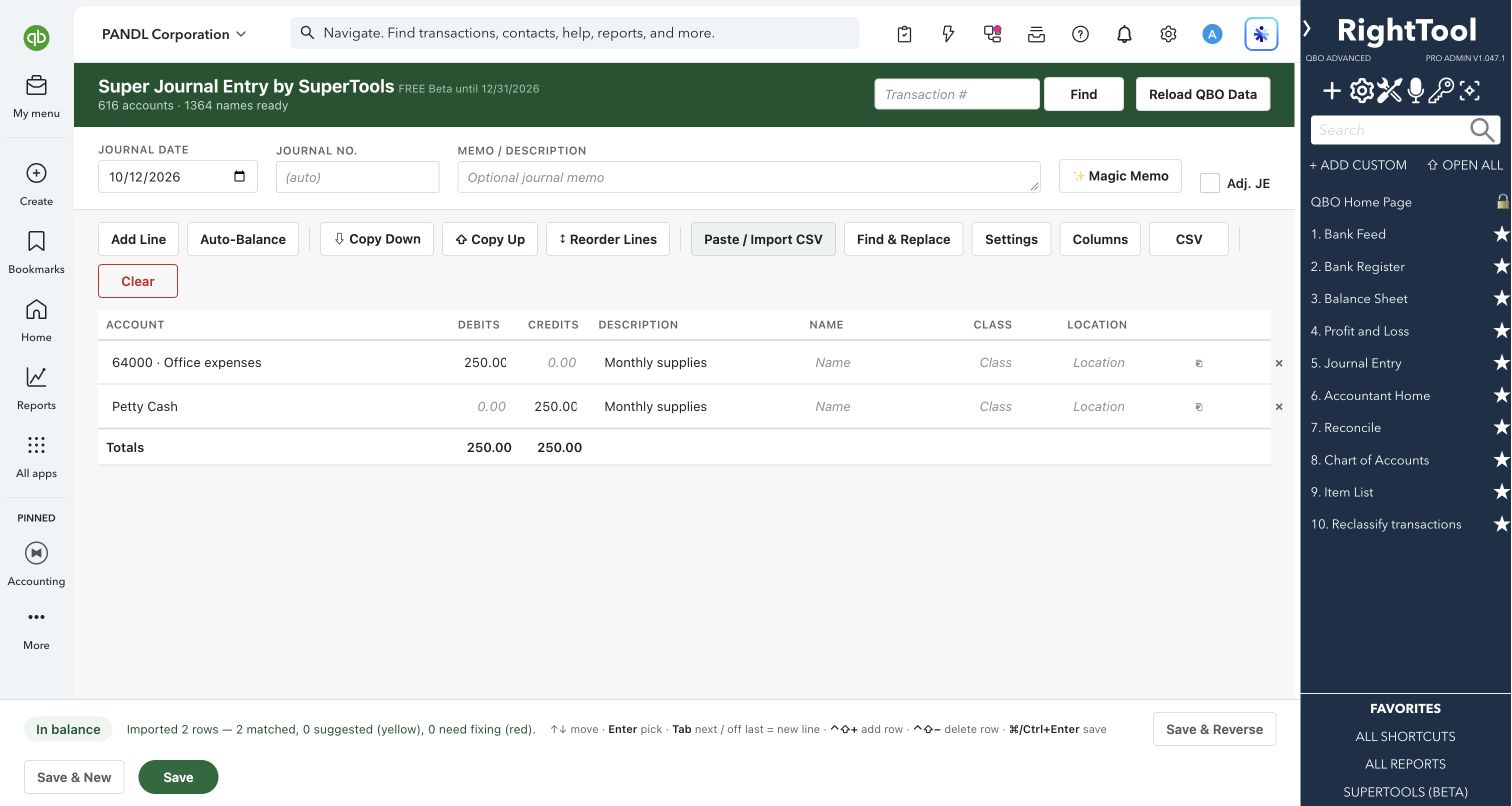
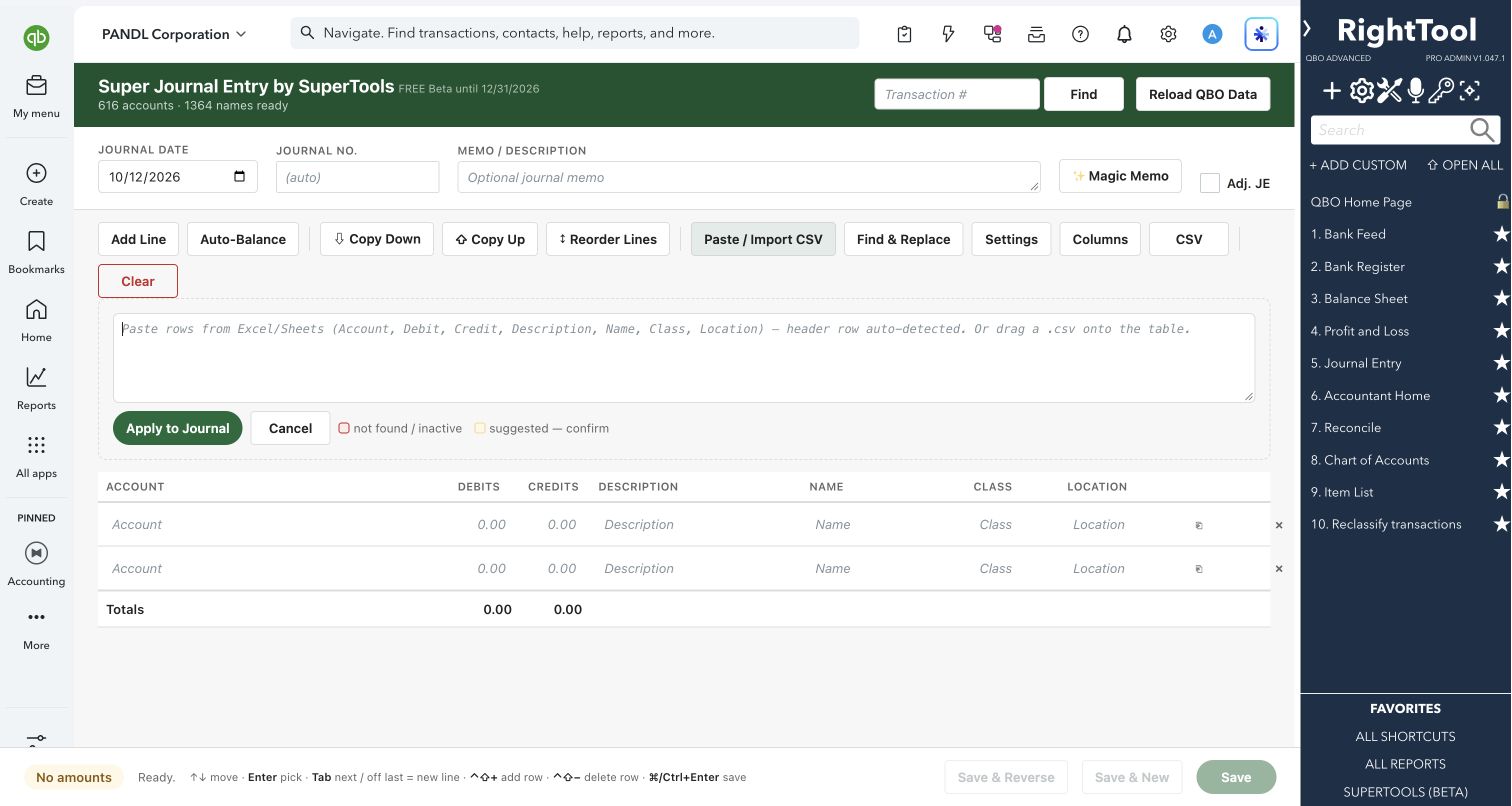
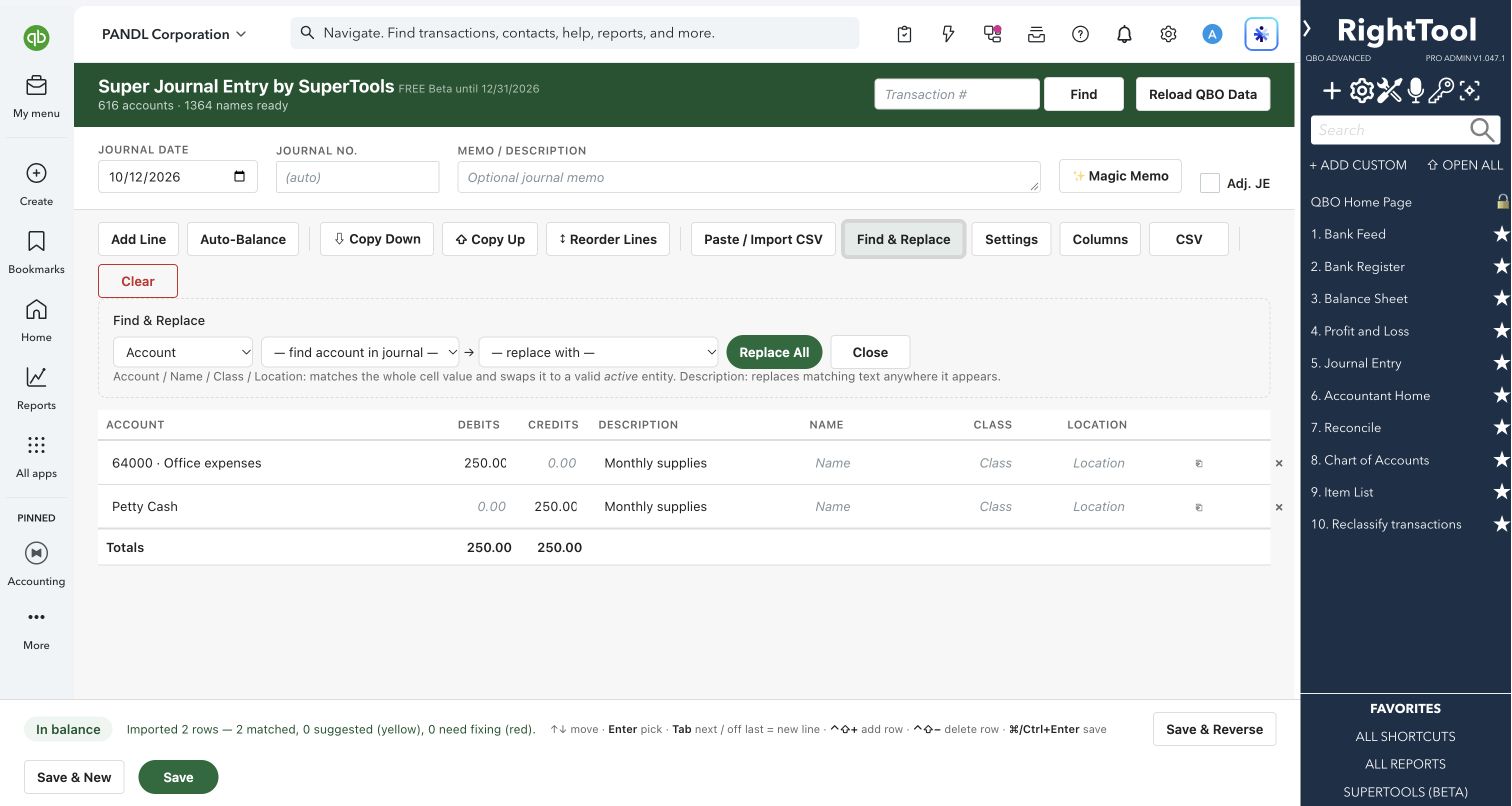
Super Journal replaces QuickBooks Online's journal entry form with a spreadsheet-style grid. Accounts, names, classes and locations fill in as you type, lines paste straight in from Excel, and a live balance shows as you work. Save, Save & New or Save & Reverse in one click, or pull up an existing entry to change it.
Built for
Accountants and bookkeepers who post adjusting, reclass, accrual and reversing journal entries.
SEE IT IN QUICKBOOKS
See the workflow, step by step.
Explore the screens below. Select an image for a closer look.
What you can do
- Enter lines in a grid (Account, Debits, Credits, Description, Name, Class, Location). The account box matches both account names and account numbers as you type.
- Paste rows from Excel or Google Sheets, or drag a CSV file onto the table. A header row is detected automatically, and every account, name, class and location is matched against your QuickBooks lists.
- Watch the live balance bar. Click Auto-Balance to put the difference on an equity account (Opening Balance Equity first, when you have one).
- Save, Save & New, or Save & Reverse. Save & Reverse posts the entry and then its reversal, dated the first of the next month, and leaves the reversal open in case you want to adjust it.
- Write a plain-English memo with one click using Magic Memo, for example "To record a debit of … to …; and a credit of …, totaling …, dated …".
- Find and replace an account, name, class or location on every line at once, or replace text inside descriptions.
- Copy a value down or up a column. Duplicate, insert, reorder or remove lines, or right-click a line for a quick menu.
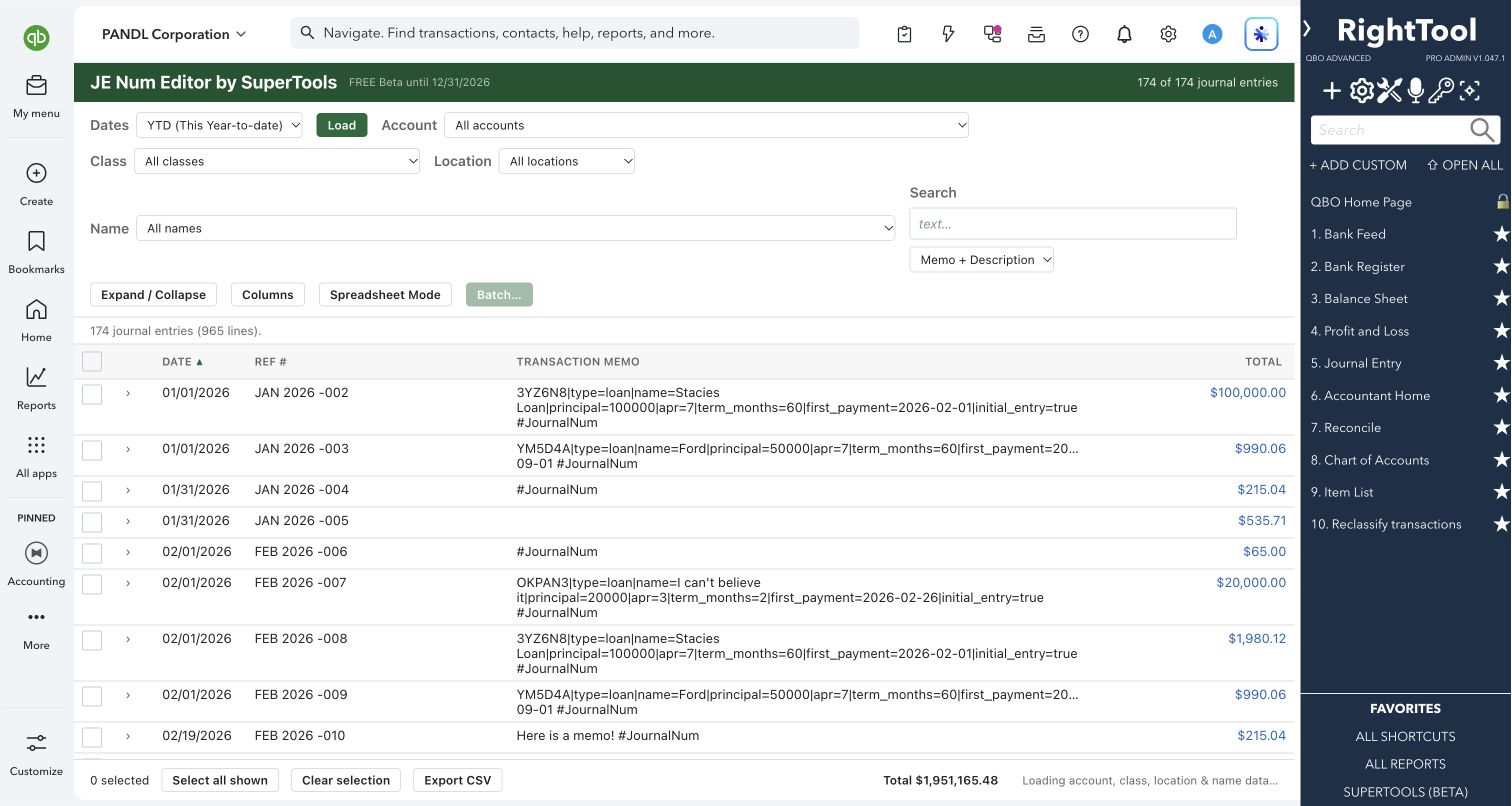
- Open an existing journal entry by its QuickBooks transaction ID. Or leave the box blank to search a journal report, filtered by date range, account, name, class and location, then click an entry to load it, edit it and update it.
- Make an inactive account active again from the account dropdown with "Make active".
- Mark an entry as an adjusting journal entry, and export its lines to CSV.
- Set up the screen your way:
- Reorder, resize and hide columns.
- Limit the dropdowns by account type, by name type (customers, projects, vendors, employees), or to parent or sub classes and locations.
- Hide account numbers, list accounts in chart-of-accounts order, wrap long descriptions, and choose row density.
- Work entirely from the keyboard:
- Arrows to move, Enter to pick.
- Tab past the last field to add a line.
- Ctrl+Shift+Plus or Minus to add or delete a row.
- Ctrl/Cmd+Enter to save.
Why it makes a difference
- Paste a whole entry from a spreadsheet instead of retyping it line by line.
- Pasted values are checked as they come in. Exact matches are accepted, close matches are suggested in yellow for you to confirm, and unknown or inactive names are flagged in red.
- Save & Reverse posts an accrual and its reversal in one click.
- Auto-Balance and Magic Memo handle the balancing line and the memo for you.
- Your column layout, widths and dropdown settings are remembered in your browser.
Put it to work
- Month-end accruals: Paste the accrual schedule, check the balance bar, add a Magic Memo, and Save & Reverse so the reversal posts on the 1st of next month.
- Payroll allocation: Paste the journal from your payroll provider's export, confirm the yellow suggestions, and Save & New for the next one.
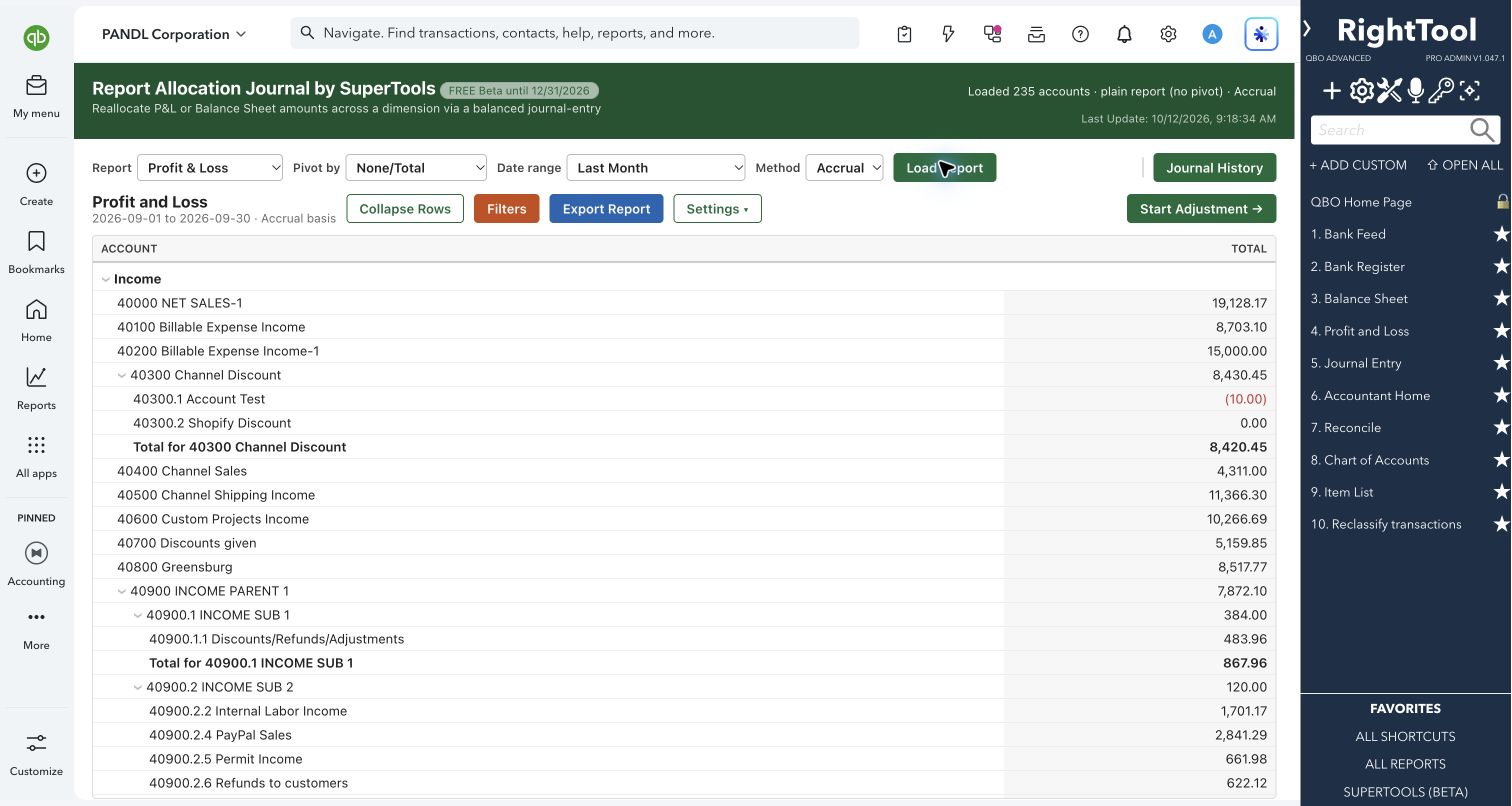
- Reclass: Find last month's entry, swap one class for another on every line with Find & Replace, and update it.
WATCH THE WORKFLOW
Paste, describe and save a balanced journal
Safe by design
- The save buttons stay off until debits equal credits and at least two lines have an account and an amount. Anything flagged red (not found or inactive) has to be fixed first.
- Nothing is written to QuickBooks until you press Save, Save & New or Save & Reverse. The one exception is "Make active", which reactivates that account in QuickBooks as soon as you click it.
- When you open an existing entry, an "Editing" badge names the transaction you're about to update and links to it in QuickBooks. One click detaches it, so your next save creates a new entry instead.
- If QuickBooks doesn't confirm a save, Super Journal tells you to check QuickBooks before saving again, to avoid a duplicate.
Good to know
- Works with journal entries only, and Find won't open other transaction types. Find takes QuickBooks' transaction ID (the number in the entry's web address), not the Journal No.
- "Make active" works for accounts. Inactive names, classes and locations have to be reactivated in QuickBooks.
- During beta, requires a RightTool PRO license and the separate SuperTools extension. Sign in at righttoolpro.com to activate your license.
- The Class and Location columns appear only when your company uses them.
How to open it
SuperTools sidebar → Super Journal
Install the SuperTools extension, then open the SuperTools S menu in QuickBooks Online, choose Home, and enable the tool there.
View beta setup steps